
TCL T607DL
TCL ION V (T607DL) Smartphone User Manual
Model: T607DL
Introduction
This manual provides essential information for setting up, operating, and maintaining your TCL ION V (T607DL) smartphone. Please read it carefully to ensure proper use and to maximize your device's performance and longevity.
The TCL ION V T607DL is a dependable and compact smartphone designed for everyday use. It features a vivid 6.0-inch HD+ display, 32GB of internal storage, and 3GB RAM to support multitasking and app usage. With Android 13 Go Edition, the phone runs smoothly with optimized performance for lighter hardware.
What's in the Box
- TCL ION V (T607DL) Smartphone
- USB-C Cable
- SIM Ejector Tool
Device Overview
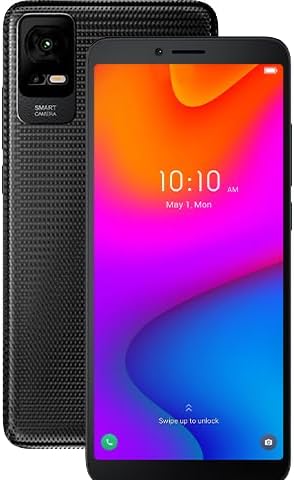
Figure 1: Front and back view of the TCL ION V (T607DL) smartphone. The front displays the time and date, while the back features a textured finish and the camera module with "SMART CAMERA" text.
Setup
1. Inserting the SIM Card and microSD Card
- Locate the SIM card tray on the side of your device.
- Insert the provided SIM ejector tool into the small hole next to the tray to open it.
- Place your Nano-SIM card into the designated slot with the gold contacts facing down. If using a microSD card (sold separately), place it in the appropriate slot.
- Gently push the tray back into the device until it clicks into place.
2. Charging the Device
- Connect the USB-C cable to the charging port at the bottom of your phone.
- Connect the other end of the cable to a compatible USB power adapter (not included) and plug it into a wall outlet, or connect it to a computer's USB port.
- Allow the device to charge fully before first use. The battery icon on the screen will indicate charging status.
3. Initial Power On and Setup
- Press and hold the Power button (usually on the right side) until the TCL logo appears.
- Follow the on-screen prompts to complete the initial setup, including selecting your language, connecting to Wi-Fi, setting up your Google account, and configuring security options.
Operating Your Device
Basic Navigation
- Touch: Tap an icon to open an app or select an item.
- Swipe: Drag your finger across the screen to scroll through lists or switch between home screens.
- Pinch: Use two fingers to zoom in or out on photos and web pages.
- Long Press: Press and hold an item to access contextual menus or move icons.
Making Calls and Sending Messages
To make a call, tap the Phone icon, enter the number, and tap the call button. To send a message, tap the Messages icon, start a new conversation, enter the recipient and your message, then send.
Connecting to Wi-Fi
- Go to Settings > Network & internet > Internet.
- Turn on Wi-Fi. Your device will scan for available networks.
- Select your desired network and enter the password if prompted.
Using the Camera
Tap the Camera icon to open the camera app. Tap the shutter button to take a photo. You can switch between photo and video modes, and access settings for flash, timer, and more.
Maintenance
Cleaning Your Device
- Use a soft, lint-free cloth to clean the screen and body of the phone.
- Avoid using harsh chemicals, abrasive cleaners, or aerosol sprays.
- Keep ports free of dust and debris.
Software Updates
Regularly check for software updates to ensure your device has the latest features and security patches. Go to Settings > System > System update.
Battery Care
- Avoid extreme temperatures.
- Do not let the battery drain completely before recharging frequently.
- Use only approved chargers and cables.
Storage Management
To free up storage space, regularly clear cache, uninstall unused apps, and transfer large files to cloud storage or a computer. Go to Settings > Storage to manage your device's storage.
Troubleshooting
Common Issues and Solutions
- Device not turning on: Ensure the battery is charged. Press and hold the Power button for at least 10 seconds.
- Network issues (no signal/Wi-Fi): Check if Airplane mode is off. Restart the device. Verify SIM card insertion. For Wi-Fi, ensure the router is working and you have the correct password.
- Apps crashing or freezing: Close and reopen the app. Clear the app's cache (Settings > Apps > select app > Storage & cache > Clear cache). Update the app.
- Slow performance: Close background apps. Clear storage space. Restart the device.
Factory Reset
If issues persist, a factory reset may be necessary. Warning: This will erase all data on your phone. Back up important data before proceeding. Go to Settings > System > Reset options > Erase all data (factory reset).
Specifications
| Feature | Detail |
|---|---|
| Model Name | TCL ION V |
| Item Model Number | T607DL |
| Operating System | Android 13.0 |
| Display | 6.0" HD+ |
| RAM Memory Installed Size | 3 GB |
| Memory Storage Capacity | 32 GB |
| CPU Model | MediaTek Helio |
| CPU Speed | 2.2 GHz |
| Battery Power Rating | 3000 mAh |
| Cellular Technology | 4G |
| Color | Black |
| Form Factor | Touchscreen |
Warranty and Support
For warranty information and detailed support, please refer to the warranty card included with your product or visit the official TCL support website. You can also find additional resources and FAQs on the TCL Store on Amazon.
Customer Service: For technical assistance or service inquiries, please contact TCL customer support through their official channels.
Related documentsT607DL


Ask a question about this manual
Ask about setup, troubleshooting, compatibility, parts, safety, or missing instructions. Manuals+ will review the question and use this page’s manual context to help answer it.