Introduction
Welcome to the user manual for your TCL ION V (T607DL) smartphone. This guide provides essential information to help you set up, operate, and maintain your device. The TCL ION V is designed for reliable daily use, featuring a 6.0-inch HD+ display, 3GB RAM, 32GB internal storage, and running on Android 13 (Go Edition) for optimized performance.
1. Setup
1.1 What's in the Box
Upon unboxing your TCL ION V, please ensure all components are present:
- TCL ION V Smartphone
- USB-C Cable
- SIM Ejector Tool
1.2 Inserting the SIM Card
- Locate the SIM card tray on the side of your phone.
- Insert the SIM ejector tool into the small hole next to the tray and press gently until the tray pops out.
- Place your Nano-SIM card into the tray with the gold contacts facing down. Ensure it is correctly seated.
- Carefully push the tray back into the phone until it clicks into place.
1.3 Initial Power On and Setup
- Press and hold the Power button (usually on the right side) until the TCL logo appears.
- Follow the on-screen prompts to select your language, connect to a Wi-Fi network, and set up your Google account.
- You may be prompted to transfer data from an old device or set up a new device.
- Complete the setup wizard to access the home screen.
2. Operating Your Device
2.1 Basic Navigation (Android 13 Go Edition)
- Home Screen: Swipe left or right to navigate between home screens. Tap an app icon to open it.
- Notifications: Swipe down from the top of the screen to view notifications and quick settings.
- App Drawer: Swipe up from the bottom of the home screen to access all installed applications.
- Back Button: Tap the back arrow (usually at the bottom left) to return to the previous screen.
- Recent Apps: Tap the square icon (usually at the bottom right) to view and switch between recently used applications.
2.2 Making Calls and Sending Messages
- Calls: Open the Phone app, enter the number using the dial pad, and tap the call icon.
- Contacts: Access your contacts through the Contacts app to call or message saved numbers.
- Messages: Open the Messages app to send and receive SMS/MMS. Tap the '+' icon to compose a new message.
2.3 Using the Camera
The TCL ION V features a camera for capturing photos and videos.
- Open the Camera app.
- Frame your shot.
- Tap the shutter button to take a photo or start/stop video recording.
- Access your photos and videos in the Gallery or Photos app.
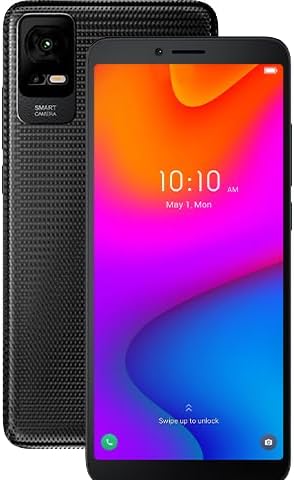
Image 1: Front and rear view of the TCL ION V smartphone. The rear panel features a textured design and a camera system labeled "SMART CAMERA." The front screen displays the time and date, along with an unlock prompt.
2.4 Battery Management
Your TCL ION V is equipped with smart battery management to optimize power usage.
- Charging: Connect the included USB-C cable to the phone's charging port and a compatible power adapter.
- Battery Saver: Enable Battery Saver mode in Settings > Battery to extend battery life when needed.
- Usage: Monitor battery consumption by apps in Settings > Battery > Battery usage.
3. Maintenance
3.1 Cleaning Your Device
- Use a soft, lint-free cloth to gently wipe the screen and body of the phone.
- Avoid using harsh chemicals, abrasive cleaners, or aerosol sprays.
- Ensure no moisture enters ports or openings.
3.2 Software Updates
Regular software updates provide security enhancements and new features.
- Check for updates in Settings > System > System update.
- Ensure your device is connected to Wi-Fi and has sufficient battery charge before performing an update.
3.3 Storage Management
Your device has 32GB of internal storage. Manage it effectively to maintain performance.
- View storage usage in Settings > Storage.
- Uninstall unused apps, clear app cache, and move large files (photos/videos) to cloud storage or a computer to free up space.
4. Troubleshooting
4.1 Common Issues and Solutions
- Device not responding: Press and hold the Power button for about 10-15 seconds to force a restart.
- Apps crashing or freezing: Clear the app's cache (Settings > Apps > [App Name] > Storage & cache > Clear cache) or uninstall and reinstall the app.
- Network connectivity issues: Toggle Airplane Mode on and off, restart the phone, or reset network settings (Settings > System > Reset options > Reset Wi-Fi, mobile & Bluetooth).
- Battery draining quickly: Review battery usage in settings, reduce screen brightness, disable unnecessary background apps, or enable Battery Saver.
4.2 Factory Reset
A factory reset will erase all data from your phone and restore it to its original factory settings. This should be considered a last resort for persistent issues.
- Backup your data: Ensure all important data is backed up to a cloud service or another device.
- Navigate to Settings > System > Reset options > Erase all data (factory reset).
- Follow the on-screen instructions to confirm the reset.
5. Specifications
| Feature | Specification |
|---|---|
| Model Name | TCL ION V (T607DL) |
| Operating System | Android 13.0 (Go Edition) |
| Display Size | 6.0 inches |
| Max Screen Resolution | 1440 × 720 (HD+) |
| Processor Brand | MediaTek |
| RAM Memory | 3 GB |
| Internal Storage | 32 GB |
| Cellular Technology | 4G LTE |
| Product Dimensions | 6.1 x 2.9 x 0.36 inches |
| Included Components | Phone, USB-C Cable, SIM Ejector Tool |
6. Warranty and Support
Your TCL ION V smartphone comes with a limited manufacturer's warranty. Please refer to the warranty card included with your product for specific terms and conditions.
For technical support, service, or further assistance, please visit the official TCL support website or contact their customer service. Keep your proof of purchase and device serial number handy when seeking support.
- Online Support: Visit the official TCL support website for FAQs, troubleshooting guides, and contact information.
- Customer Service: Refer to your product packaging or the TCL website for customer service contact numbers.


