
1. Introduction
Thank you for purchasing the WONNIE 12.5 Inch Portable DVD Player. This device features a 10.5-inch swivel HD screen, a long-lasting rechargeable battery, and supports multiple media formats. It is designed for versatile use, including in-car entertainment. This manual provides essential information for safe and efficient operation of your new portable DVD player.

Image: The portable DVD player being used in different settings, highlighting its portability and versatility.
2. Package Contents
Please check the package for the following items:
- WONNIE 12.5 Inch Portable DVD Player
- Car Charger
- 3.5mm RCA Cable (AV Cable)
- AC Power Adapter
- User Manual
- Remote Control
- Car Headrest Mount Holder

Image: A visual representation of the portable DVD player and all its accessories, including the car charger, RCA cable, AC adapter, user manual, remote control, and car headrest mount holder.
3. Product Overview
Familiarize yourself with the various ports and controls on your portable DVD player.
Image: A detailed view of the portable DVD player's side panel, indicating ports such as DC IN, POWER ON/OFF, AV IN, AV OUT, EARPHONE, SD/MMC CARD slot, and USB port.
Key Features:
- 10.5-inch Swivel HD Screen: 1024x600 resolution, 270-degree rotation, 180-degree flip for optimal viewing angles.
- Dual Power Speakers: Enhanced audio output for clearer sound.
- Multiple Power Modes: Built-in rechargeable battery, car charger, and AC adapter.
- Region-Free Playback: Supports DVDs from all regions.
- Multi-Format Support: Plays various DVD, CD, USB, and SD card media formats.
- Last Memory Function: Resumes playback from where you left off.
- AV In/Out Function: Connect to external displays or other players.
4. Setup
4.1 Initial Charging
Before first use, fully charge the portable DVD player using the provided AC adapter. Connect the AC adapter to the DC IN port on the player and plug it into a wall outlet. The charging indicator light will typically show the charging status.
4.2 Powering On/Off
To power on the device, slide the POWER ON/OFF switch to the "ON" position. To power off, slide the switch to "OFF".
4.3 Inserting a Disc
- Gently open the disc cover.
- Place the DVD or CD disc onto the spindle with the label side facing up.
- Press down gently on the center of the disc until it clicks into place.
- Close the disc cover securely.
5. Operating Instructions
5.1 Basic Playback (DVD/CD)
After inserting a disc and powering on, the player will automatically detect and begin playback. Use the control buttons on the player or the remote control for functions such as Play/Pause, Stop, Fast Forward, Rewind, Next/Previous Track, and Volume adjustment.
5.2 USB/SD Card Playback
Insert a USB flash drive into the USB port or an SD/MMC card into the SD/MMC CARD slot. The player will typically prompt you to select the media source or automatically switch to the inserted media. Navigate through your files using the remote control or player buttons.
5.3 Swivel Screen Operation
The 10.5-inch screen can be rotated 270 degrees and flipped 180 degrees. This allows for various viewing angles, including folding it flat against the player for a tablet-like experience or mounting it in a car headrest.
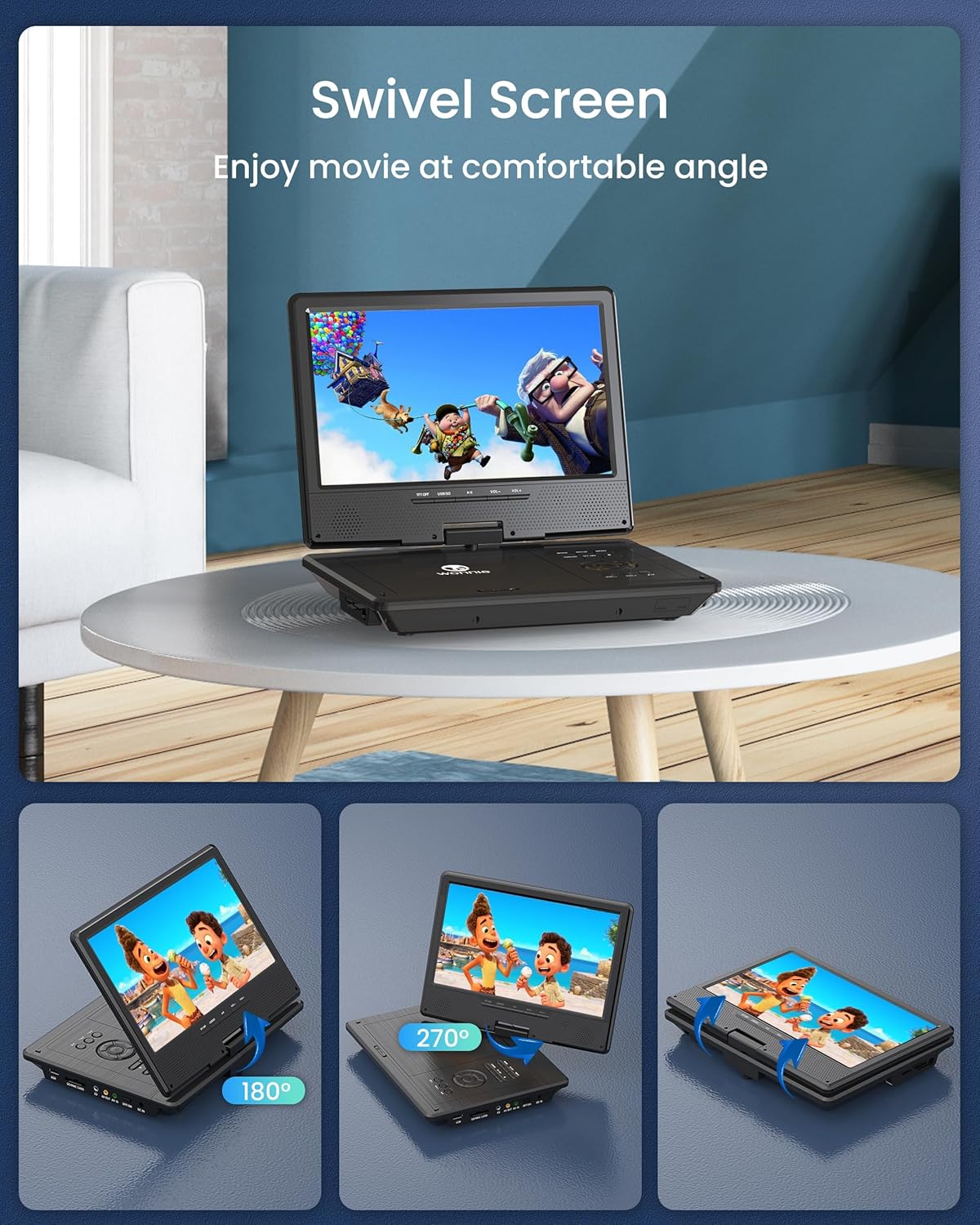
Image: Demonstrates the screen's flexibility, showing it rotated 270 degrees and flipped 180 degrees for comfortable viewing.
5.4 Connecting to a TV (AV Out)
To share your content on a larger screen, use the provided 3.5mm RCA cable. Connect one end to the AV OUT port on the portable DVD player and the other end to the AV IN ports (Yellow for Video, White for Left Audio, Red for Right Audio) on your television. Select the correct AV input on your TV. Note: When connected to an external display, the player's screen may turn off to optimize playback on the TV.
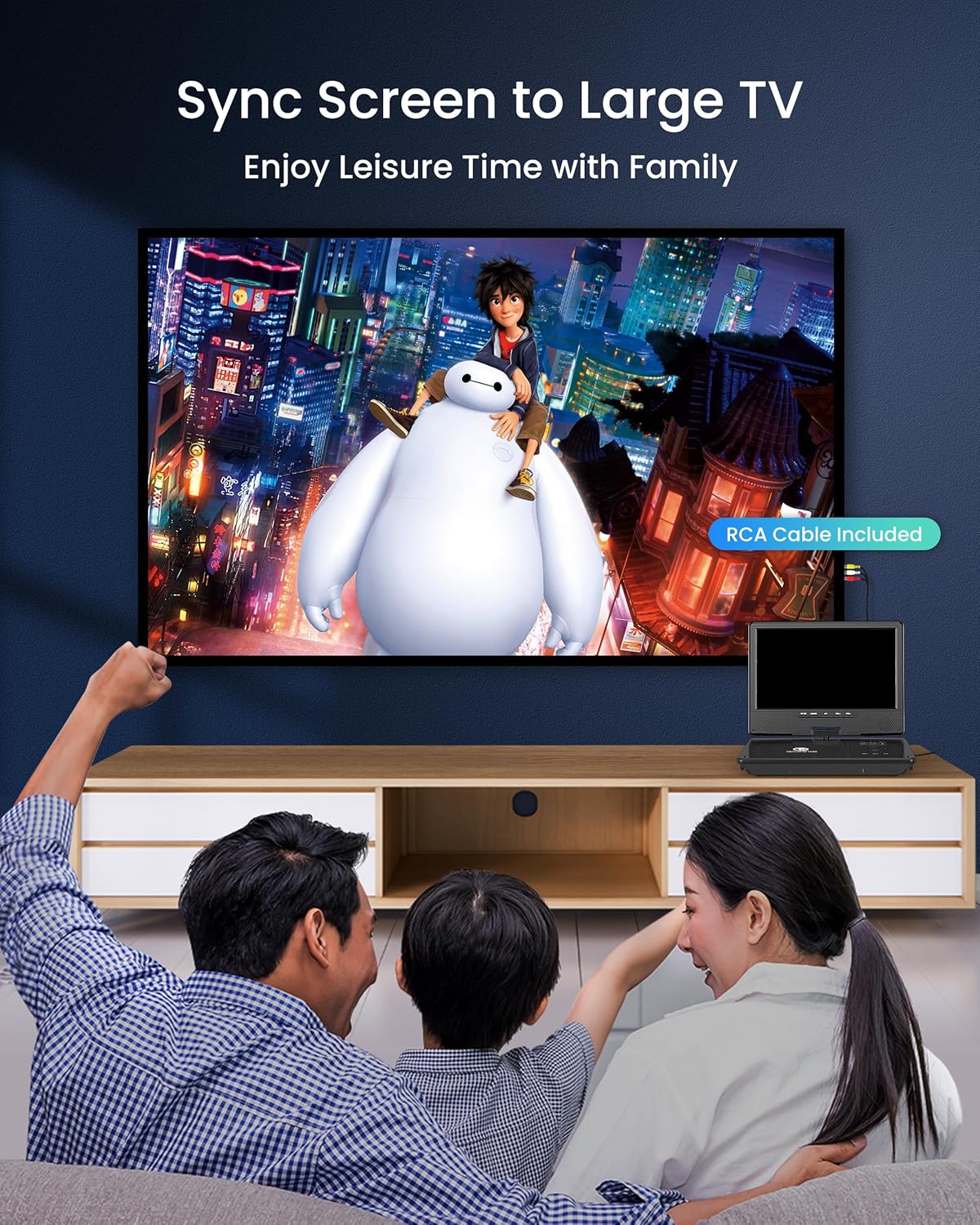
Image: A family enjoying a movie on a large TV, with the portable DVD player connected via an RCA cable, illustrating the AV Out function.
5.5 Car Headrest Installation
The included car headrest mount holder allows for easy installation in a vehicle. Securely attach the holder to the car headrest and then slide the portable DVD player into the holder. This provides entertainment for passengers during road trips.

Image: The portable DVD player installed on a car headrest, providing entertainment for a child in the back seat, demonstrating its use for road trips.
5.6 Last Memory Function
The player features a break-point memory function. If the player is powered off or playback is stopped, it will resume from the last played position when powered on again. This ensures you can continue watching your content without losing your place.

Image: A sequence illustrating the 'Break-Point Memory Function', showing a movie paused, the device powered off, and then resuming from the exact same point when powered back on.
6. Power Management
Your portable DVD player offers three power options:
- Built-in Rechargeable Battery: Provides up to 5 hours of playback on a full charge.
- AC Adapter: For charging the battery and powering the device from a standard wall outlet.
- Car Charger: For charging and powering the device from your vehicle's 12V power outlet.
Ensure the player is charged before extended use, especially for long trips.
7. Supported Formats
The WONNIE Portable DVD Player supports a wide range of media formats:
- DVD Formats: DVD, DVD+R, DVD-R, DVD+RW, DVD-RW, CD, CD+R, CD-R, CD+RW, CD-RW, VCD, SVCD. (Note: Blu-ray discs and pirated discs are not supported.)
- Video Formats (via USB/SD): AVI, MPEG-1, MPEG-2, MPG (up to 720x576 pixels).
- Audio Formats (via USB/SD): MP3, WMA.
- Image Formats (via USB/SD): JPG, JPEG.
USB and SD cards are supported up to 32GB (FAT32 format recommended).
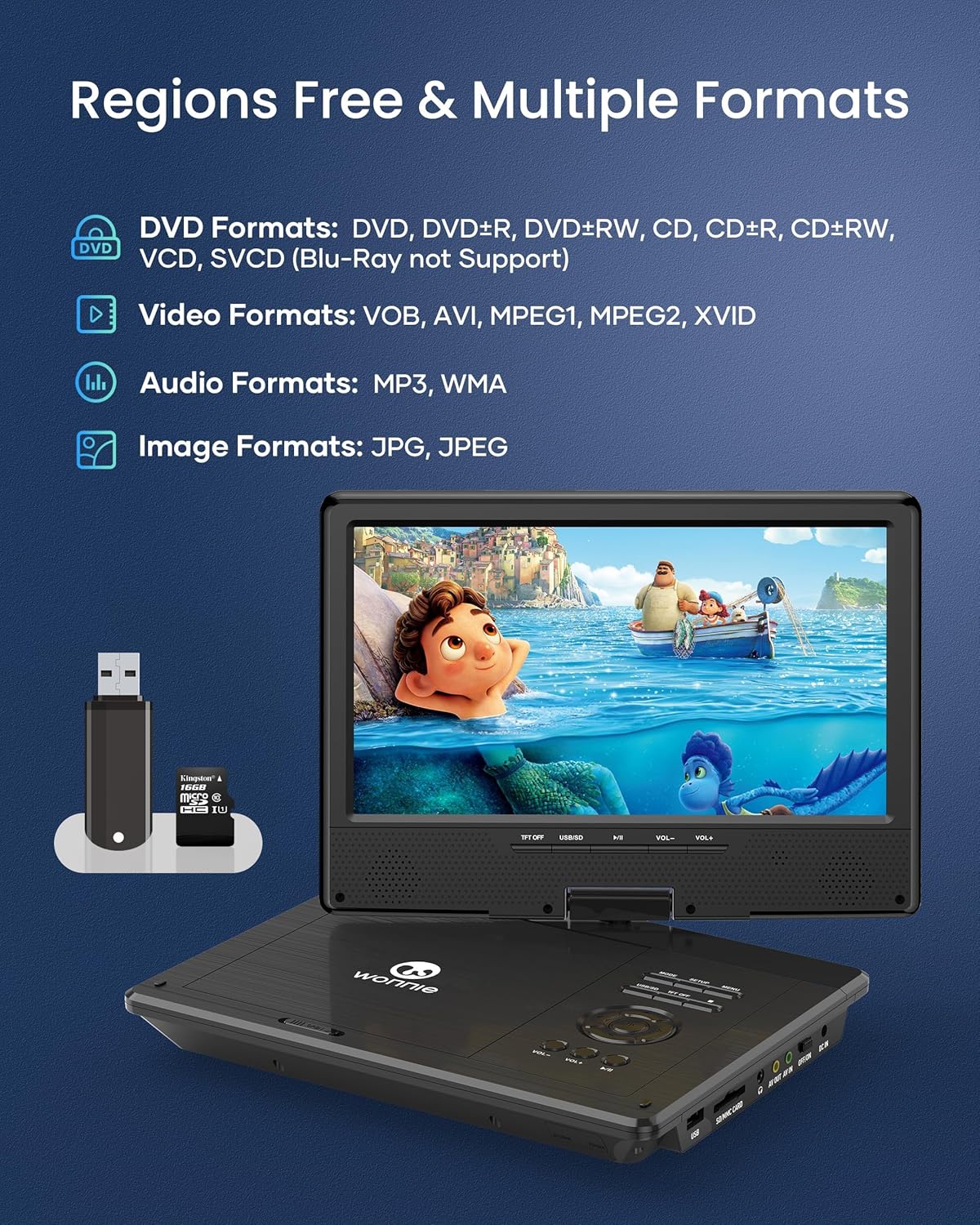
Image: An overview of the supported media formats, including DVD types, video formats (VOB, AVI, MPEG1, MPEG2, XVID), audio formats (MP3, WMA), and image formats (JPG, JPEG), alongside illustrations of a USB drive and SD card.
8. Maintenance
8.1 Cleaning
To clean the screen, use a soft, lint-free cloth. For stubborn marks, slightly dampen the cloth with water or a screen-cleaning solution. Avoid harsh chemicals. To clean the player's body, use a dry, soft cloth.
8.2 Storage
When not in use for extended periods, store the player in a cool, dry place away from direct sunlight and extreme temperatures. Remove any discs or USB/SD cards before storage.
9. Troubleshooting
| Problem | Possible Cause | Solution |
|---|---|---|
| Player does not power on. | Battery is depleted; Power switch is off; AC adapter/car charger not connected properly. | Charge the battery; Ensure power switch is ON; Check power connections. |
| Disc does not play. | Disc is dirty or scratched; Disc format not supported; Disc inserted incorrectly. | Clean the disc; Check supported formats (Blu-ray not supported); Reinsert disc correctly. |
| No sound. | Volume is too low; Mute function is active; Headphones connected. | Increase volume; Deactivate mute; Disconnect headphones if using speakers. |
| No picture on TV when connected. | Incorrect AV input selected on TV; RCA cable not connected properly; Player screen off (normal behavior). | Select correct AV input on TV; Ensure RCA cable is securely connected; This is normal behavior, the player screen turns off to ensure better playback effect on TV. |
| USB/SD card not recognized. | Incorrect file format; Card/drive capacity too large; Incorrect file system (not FAT32). | Check supported file formats; Ensure USB/SD card is max 32GB and formatted to FAT32. |
10. Specifications
- Screen Size: 10.5 inches (diagonal)
- Screen Resolution: 1024x600 HD
- Screen Rotation: 270 degrees
- Screen Flip: 180 degrees
- Battery Life: Up to 5 hours (rechargeable)
- Supported Disc Formats: DVD, DVD+R, DVD-R, DVD+RW, DVD-RW, CD, CD+R, CD-R, CD+RW, CD-RW, VCD, SVCD
- Supported USB/SD Formats: Video (AVI, MPEG-1, MPEG-2, MPG up to 720x576), Audio (MP3, WMA), Image (JPG, JPEG)
- USB/SD Card Capacity: Up to 32GB (FAT32)
- Audio Output: Built-in dual speakers, 3.5mm earphone jack
- Video Output: AV Out (RCA cable included)
- Power Input: AC Adapter (100-240V), Car Charger (12V)
- ASIN: B0FGQHQ79L
- Date First Available: April 11, 2023
11. Warranty and Support
For warranty information and technical support, please refer to the contact details provided with your purchase or visit the official WONNIE website. Keep your purchase receipt as proof of purchase for warranty claims.
Manufacturer: WONNIE
Website: WONNIE Official Store on Amazon


