
KTC H24B9S
KTC H24B9S 23.8-inch FHD 144Hz IPS Monitor User Manual
Model: H24B9S
1. Introduction
This manual provides essential information for the proper setup, operation, and maintenance of your KTC H24B9S 23.8-inch FHD 144Hz IPS Monitor. Please read this manual thoroughly before using the product to ensure optimal performance and safety.
The KTC H24B9S monitor features a 23.8-inch Full HD (1920x1080) IPS panel, offering a 144Hz refresh rate for smooth visuals, Adaptive-Sync technology to reduce screen tearing, and a wide color gamut for accurate image reproduction. It also includes eye care technologies to minimize strain during extended use.
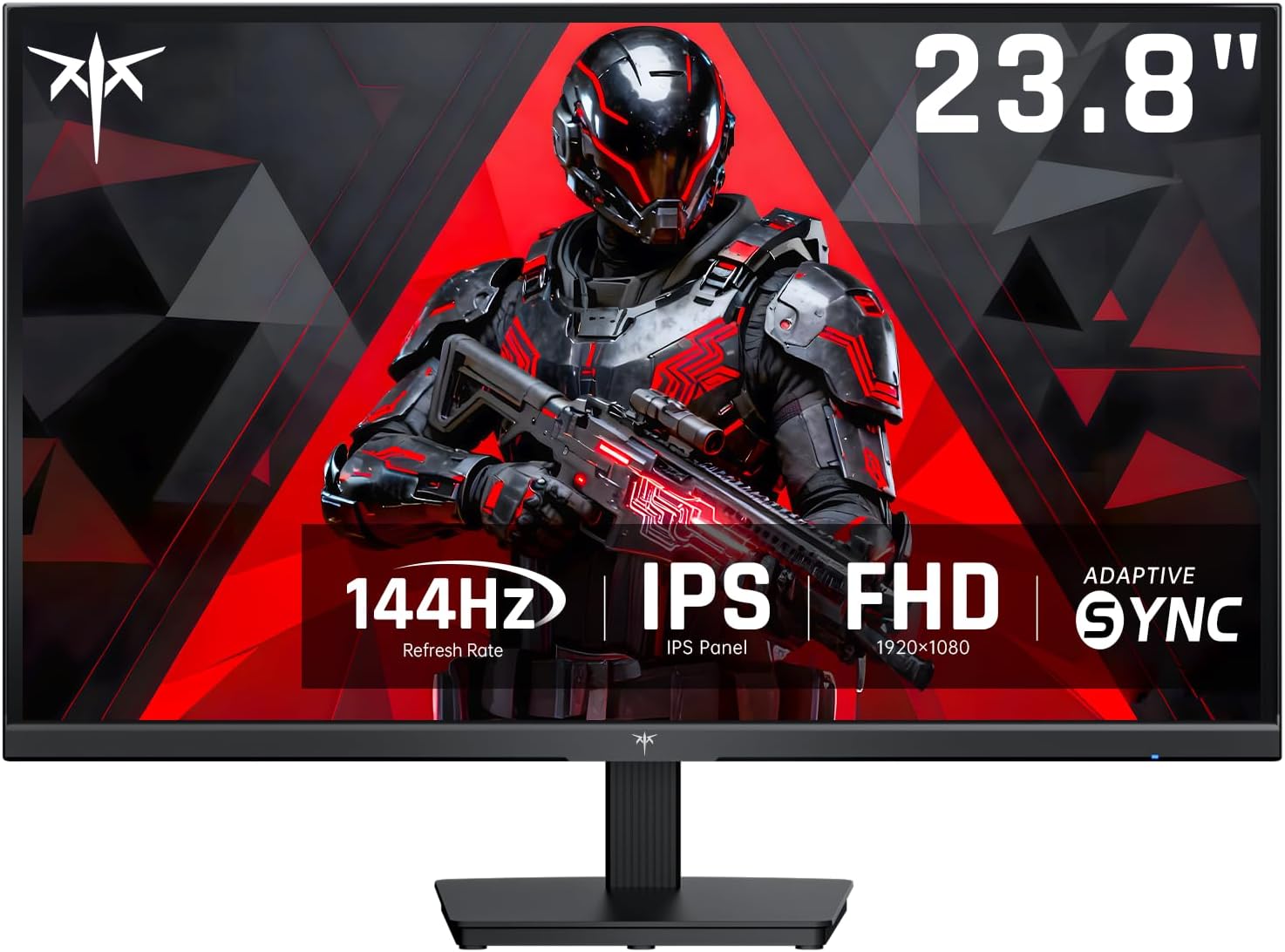
Figure 1.1: Front view of the KTC H24B9S monitor, highlighting its 23.8-inch display, 144Hz refresh rate, IPS panel, FHD resolution, and Adaptive-Sync feature.
2. Package Contents
Verify that all items listed below are present in your product package. If any items are missing or damaged, please contact customer support.
- KTC H24B9S 23.8" FHD 144Hz Monitor (x1)
- Monitor Stand (x1)
- Quick Start Guide (QSG) (x1)
- HDMI Cable (x1)
- Power Adapter (x1)
3. Setup
3.1 Assembling the Stand
- Carefully remove the monitor and stand components from the packaging.
- Attach the stand base to the stand neck, securing it with the provided screw.
- Align the assembled stand with the mounting slot on the back of the monitor and firmly attach it. Ensure it clicks into place or is secured with screws if applicable.
3.2 Connecting the Monitor
Connect the monitor to your computer or other devices using the appropriate cables.
- Power Connection: Connect the power adapter to the monitor's power input port, then plug the adapter into a power outlet.
- Video Connection: Use the included HDMI cable to connect your computer's HDMI output to the monitor's HDMI 1.4 port. Alternatively, use a DisplayPort cable (not included) to connect to the monitor's DP 1.2 port for higher refresh rates and Adaptive-Sync functionality.
- Audio Connection: If desired, connect headphones or external speakers to the earphone port on the monitor.

Figure 3.1: Overview of the monitor's connectivity options, including HDMI 1.4, DisplayPort 1.2, and an earphone jack.
3.3 Initial Power On
- Press the power button on the monitor to turn it on.
- Turn on your computer. The monitor should automatically detect the input signal. If not, you may need to manually select the input source using the OSD menu.
3.4 Adjusting the Monitor Angle
The monitor supports tilt adjustment from -5° to 15° (±3°). Gently hold both sides of the monitor and tilt it to your preferred viewing angle. Do not apply excessive force.

Figure 3.2: Diagram illustrating the monitor's physical dimensions and its tilt adjustment capability.
4. Operating the Monitor
4.1 On-Screen Display (OSD) Menu
The OSD menu allows you to adjust various monitor settings. Typically, a joystick or buttons located on the back or bottom of the monitor are used to navigate the OSD.
- Press the OSD button/joystick to activate the menu.
- Use the navigation controls to browse through options.
- Press the select button to confirm a setting or enter a sub-menu.
- Press the exit button to close the OSD menu.
4.2 Refresh Rate and Adaptive-Sync
The KTC H24B9S monitor supports a 144Hz refresh rate, providing a smoother visual experience, especially in fast-paced content like gaming. Ensure your graphics card and operating system are configured to output at 144Hz.

Figure 4.1: Visual representation of the difference between 144Hz and 60Hz refresh rates, demonstrating reduced image lag and blur at higher refresh rates.
Adaptive-Sync: This technology synchronizes the monitor's refresh rate with your graphics card's frame rate, eliminating screen tearing and stuttering. Activate Adaptive-Sync through the monitor's OSD menu and ensure it is enabled in your graphics card's control panel.

Figure 4.2: Illustration of Adaptive-Sync in action, showing how it prevents screen tearing, along with additional gaming features like Crosshair, Timer, FPS, and RTS modes.
4.3 Color Settings and Image Quality
The IPS panel offers a wide color gamut (103% sRGB and 96% DCI-P3) and a 1500:1 contrast ratio, with a factory-calibrated ΔE<2 color accuracy for professional-grade image quality.
- Brightness/Contrast: Adjust these settings in the OSD menu to suit your environment and preference. The monitor has an image brightness of 300 Candela.
- Color Temperature: Select from preset color temperatures (e.g., Warm, Cool, User) or customize RGB values for precise color calibration.
- Picture Modes: The OSD may offer various picture modes optimized for different content (e.g., Standard, Game, Movie, Text).
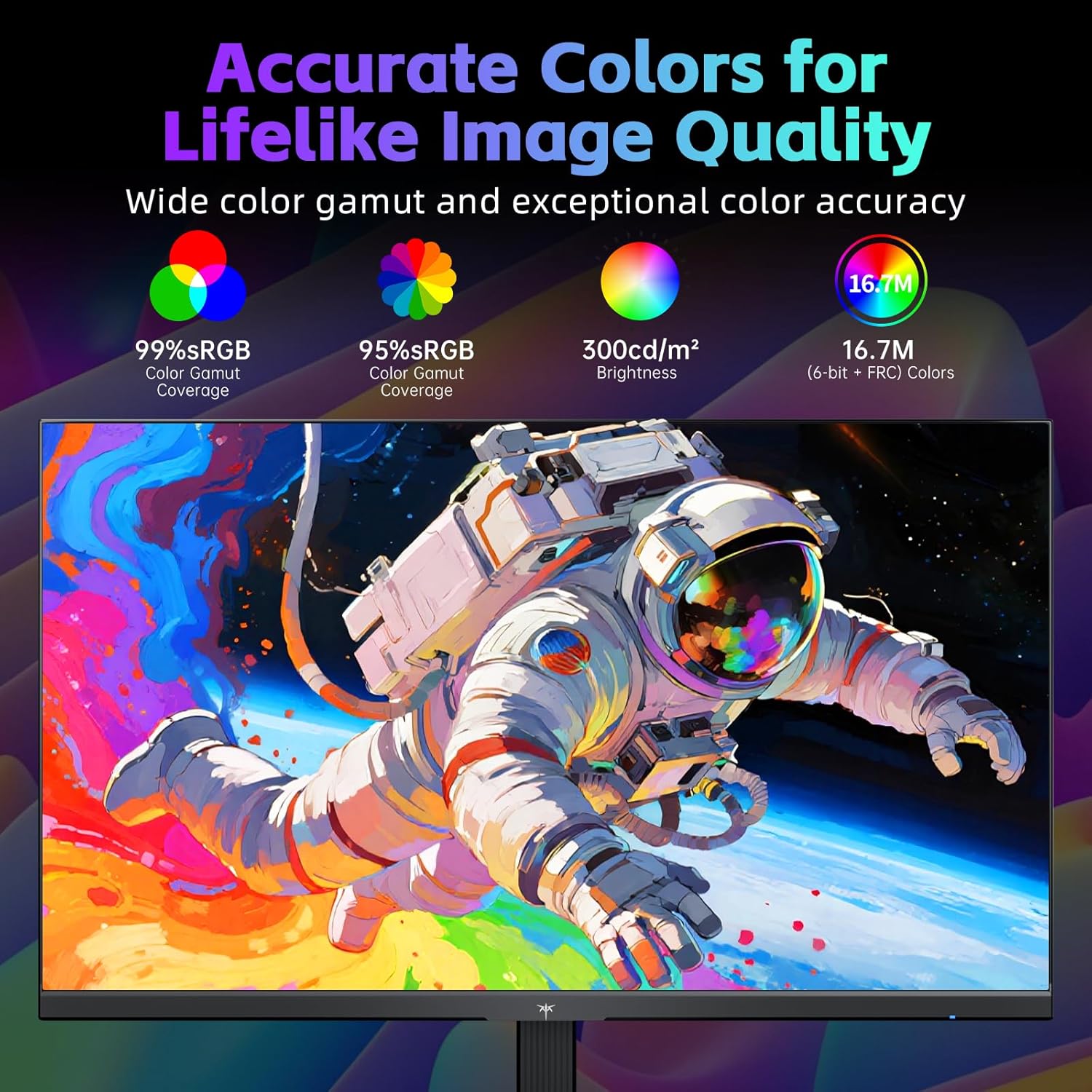
Figure 4.3: Details on the monitor's color performance, including sRGB and DCI-P3 coverage, brightness, and color depth.
4.4 Eye Care Technology
The monitor incorporates low-blue light technology and is flicker-free to reduce eye strain during prolonged use. These features can be enabled or adjusted via the OSD menu.
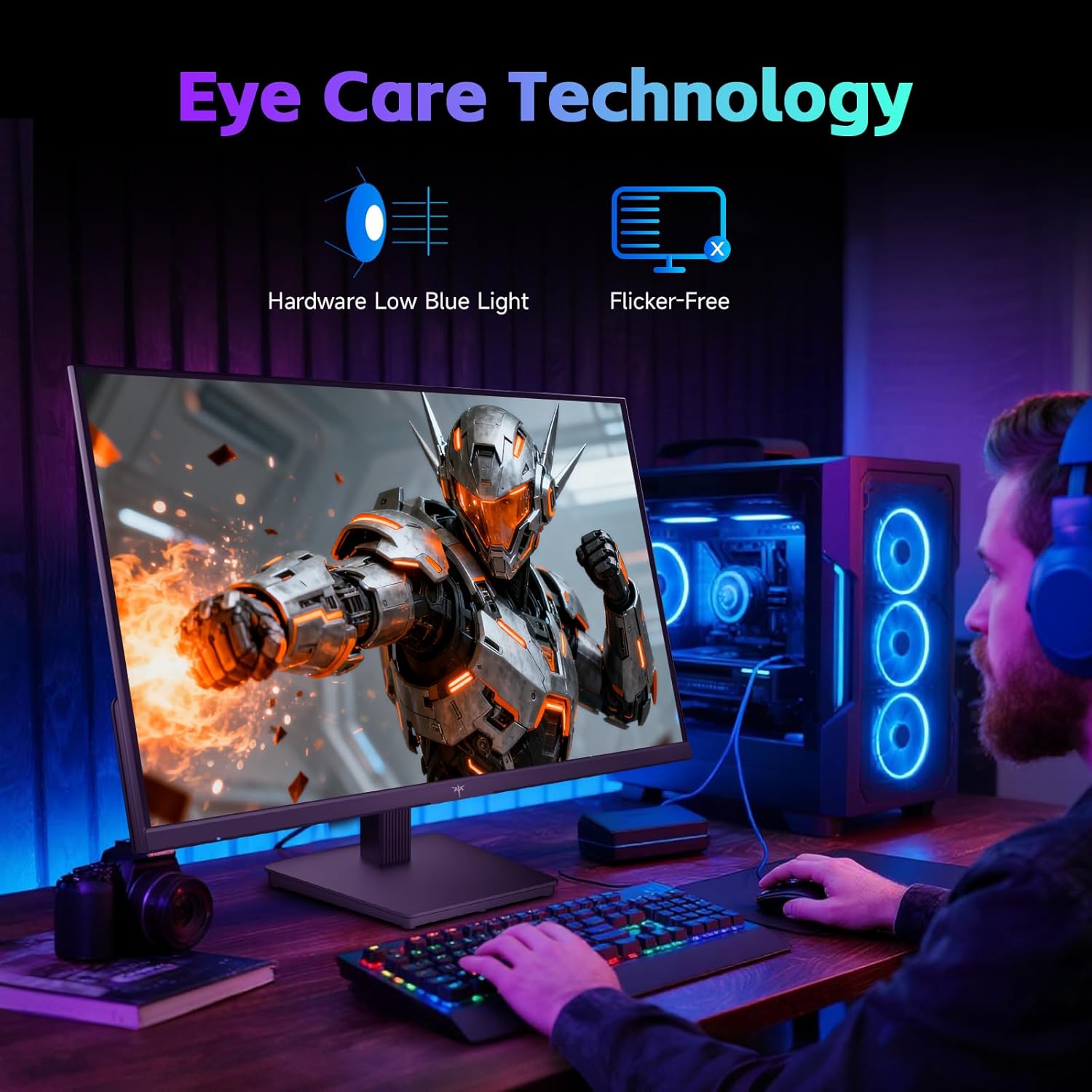
Figure 4.4: Visual representation of the monitor's eye care technologies, including hardware low blue light and flicker-free operation.
5. Maintenance
5.1 Cleaning the Monitor
- Always unplug the monitor from the power outlet before cleaning.
- Use a soft, lint-free cloth lightly dampened with water or a non-abrasive screen cleaner.
- Do not spray cleaner directly onto the screen.
- Avoid using benzene, thinner, ammonia-based cleaners, or abrasive materials, as these can damage the screen surface.
5.2 Storage
If storing the monitor for an extended period, place it in its original packaging or a suitable protective container to prevent dust accumulation and physical damage.
6. Troubleshooting
If you encounter issues with your monitor, refer to the following common problems and solutions:
| Problem | Possible Cause | Solution |
|---|---|---|
| No image on screen | Monitor is off; Power cable loose; Video cable loose or incorrect input selected. | Ensure monitor is powered on. Check power and video cable connections. Select correct input source via OSD. |
| Image flickering or unstable | Video cable loose or damaged; Graphics card driver issue; Refresh rate mismatch. | Check video cable. Update graphics drivers. Ensure refresh rate is set correctly in OS display settings. |
| Colors appear incorrect | Color settings in OSD or OS are misconfigured. | Reset color settings in OSD to default. Adjust color temperature or RGB values. |
| Adaptive-Sync not working | Not enabled in OSD; Not enabled in graphics card settings; Using incompatible cable/port. | Enable Adaptive-Sync in monitor OSD and graphics card control panel. Use DisplayPort connection. |
| No audio from earphone port | Volume too low; Audio output not selected. | Adjust monitor volume. Ensure monitor is selected as audio output device in OS. |
If the problem persists after attempting these solutions, please contact KTC customer support for further assistance.
7. Specifications
Detailed technical specifications for the KTC H24B9S monitor:
| Feature | Specification |
|---|---|
| Model Number | H24B9S |
| Screen Size | 23.8 Inches |
| Panel Type | IPS |
| Resolution | 1920 x 1080 (FHD 1080p) |
| Aspect Ratio | 16:9 |
| Refresh Rate | 144Hz |
| Contrast Ratio | 1500:1 |
| Image Brightness | 300 Candela |
| Color Gamut | 103% sRGB, 96% DCI-P3 |
| Color Accuracy | ΔE<2 |
| Viewing Angle | 178° (Horizontal/Vertical) |
| Connectivity | 1x HDMI 1.4, 1x DisplayPort 1.2, 1x Earphone Jack |
| Special Features | Adaptive-Sync, Bluelight Filter, Flicker-Free, Tilt Adjustable (-5° to 15° ±3°) |
| Product Dimensions (with stand) | 7.52 x 21.29 x 16 inches (191 x 541 x 407 mm) |
| Item Weight | 8.2 pounds |
| Voltage | 12 Volts (DC) |
8. Warranty and Support
8.1 Warranty Information
KTC products are manufactured to high quality standards. For specific warranty terms and conditions, please refer to the warranty card included with your product or visit the official KTC website. Keep your purchase receipt as proof of purchase for warranty claims.
8.2 Customer Support
If you have any questions, require technical assistance, or need to report a problem, please contact KTC customer support. Contact information can typically be found on the official KTC website or in the Quick Start Guide.
When contacting support, please have your monitor's model number (H24B9S) and purchase information readily available.
Related documentsH24B9S


Ask a question about this manual
Ask about setup, troubleshooting, compatibility, parts, safety, or missing instructions. Manuals+ will review the question and use this page’s manual context to help answer it.