Introduction
This instruction manual provides comprehensive guidance for setting up, operating, maintaining, and troubleshooting your Redragon M817 PRO Wireless Gaming Mouse. Please read this manual thoroughly to ensure optimal performance and longevity of your device.
Package Contents
Verify that all items listed below are included in your package:
- Redragon M817 PRO Wireless Gaming Mouse
- USB-C to USB-A Charging Cable
- 2.4GHz Wireless USB Dongle
- USB-C to USB-A Converter
- Instruction Manual (this document)
Setup
1. Initial Charging
Before first use, it is recommended to fully charge your mouse. Connect the provided USB-C to USB-A charging cable to the mouse and a USB power source (e.g., computer USB port, wall adapter). The mouse can be used in wired mode while charging.
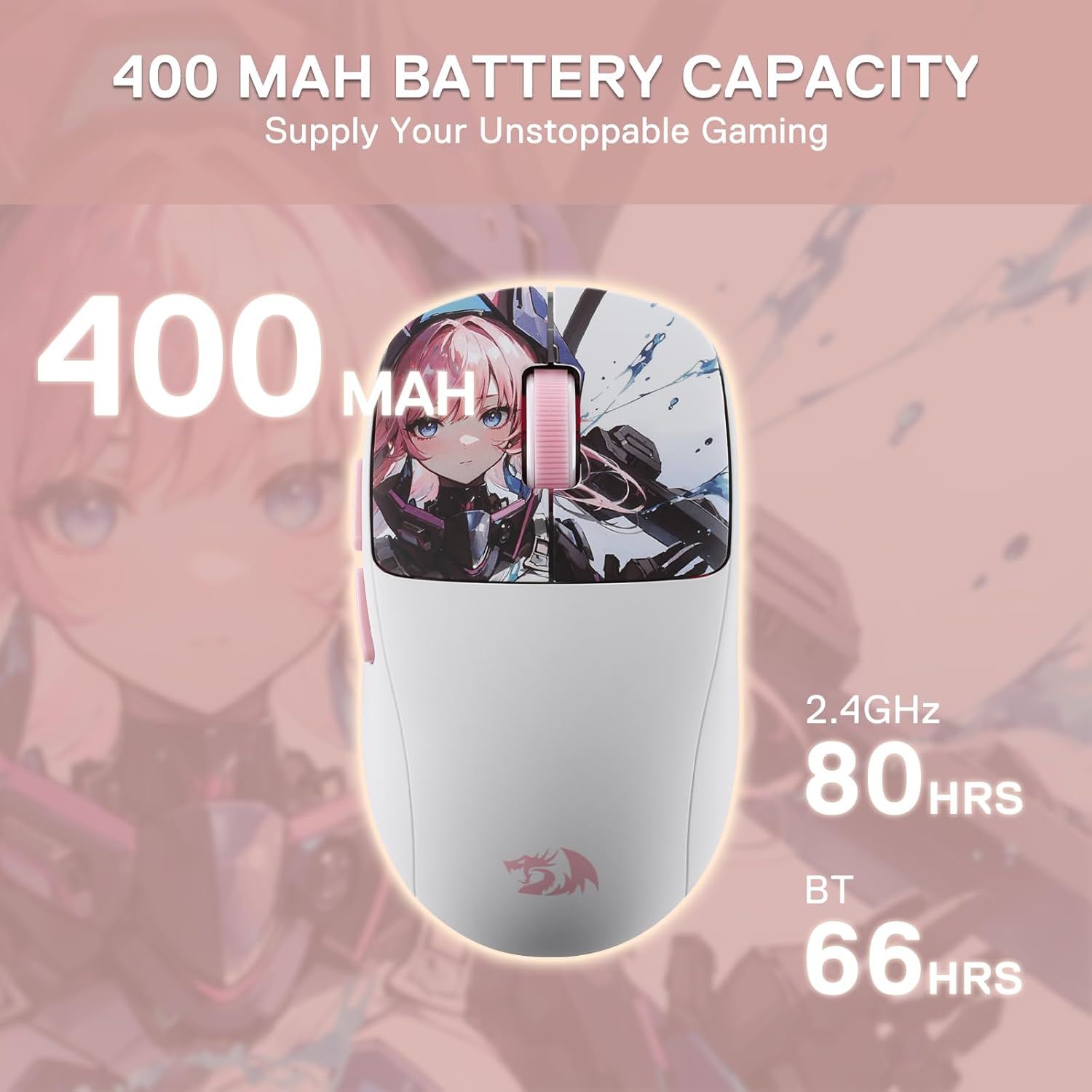
Image: The Redragon M817 PRO mouse highlighting its 400 mAh battery capacity and USB-C charging port.
2. Connectivity Modes
The M817 PRO offers three versatile connection options:
- 2.4GHz Wireless Mode: Locate the 2.4GHz USB dongle. Insert the dongle into an available USB-A port on your computer. Ensure the mode selector switch on the bottom of the mouse is set to '2.4G'. The mouse should automatically connect. For convenience, a USB-C to USB-A converter is included for the dongle.
- Bluetooth Mode: Slide the mode selector switch on the bottom of the mouse to 'BT'. On your computer, enable Bluetooth and search for available devices. Select "Redragon M817 PRO" from the list to pair.
- Wired Mode: Connect the mouse directly to your computer using the provided USB-C to USB-A charging cable. This mode also charges the mouse.

Image: Visual representation of the mouse's triple connectivity options: 2.4GHz, Bluetooth 5.1, and Wired USB-C.

Image: The Redragon M817 PRO mouse demonstrating its compatibility across multiple devices and platforms.
Operating Instructions
DPI Adjustment
The M817 PRO features 6 redefinable DPI (Dots Per Inch) levels, allowing you to adjust cursor sensitivity on the fly. The default settings are 1000, 2000, 4000, 8000, 12000, and 24000 DPI. Press the dedicated DPI button (located on the bottom of the mouse) to cycle through these levels. Each level is indicated by a unique LED color for easy identification.

Image: The mouse displaying its 6 adjustable DPI levels, each associated with a distinct LED color for visual feedback.
Programmable Buttons
The mouse is equipped with 6 programmable buttons, including two convenient side macro buttons. These buttons can be customized to perform specific actions, macros, or keybinds through the Redragon software, enhancing your efficiency in games and applications.
Polling Rate
The M817 PRO features a 1000 Hz polling rate, ensuring rapid and lag-free communication between the mouse and your computer for precise and responsive control.
Customization
Unlock the full potential of your M817 PRO mouse by utilizing the official Redragon software.
- Software Download: Visit the official Redragon website to download the dedicated software for the M817 PRO.
- DPI Settings: Fine-tune your DPI from 50 to 24000 in increments, beyond the default levels, to match your exact preferences.
- Macro & Keybinding: Assign custom functions, complex macros, or specific keybinds to any of the 6 programmable buttons, including the left, right, middle, forward, back, and DPI loop buttons.
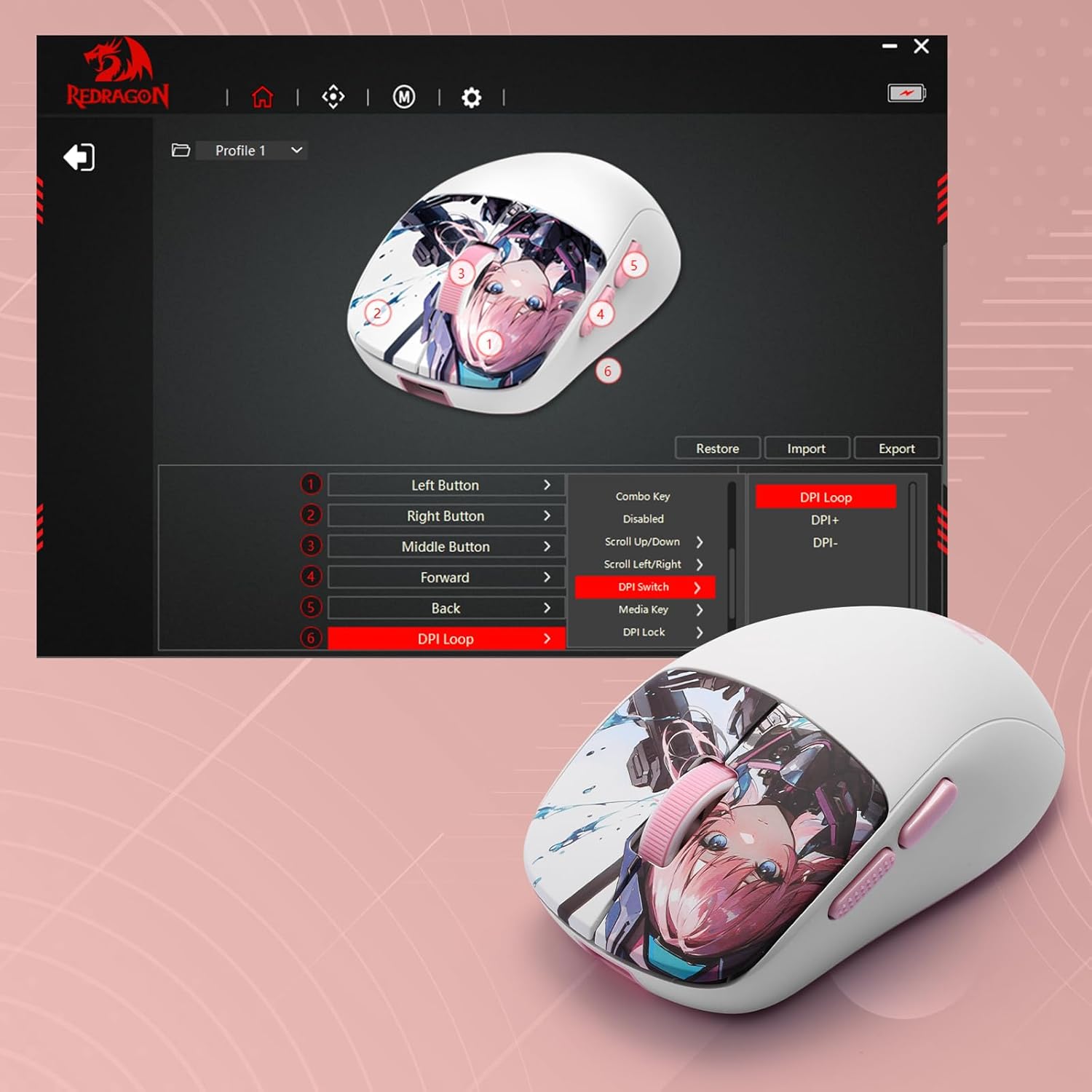
Image: The Redragon software interface, demonstrating options for customizing button assignments and DPI settings for the M817 PRO mouse.
Maintenance
Proper maintenance ensures the longevity and optimal performance of your mouse:
- Cleaning: Use a soft, dry, lint-free cloth to wipe the mouse surface. Avoid using harsh chemicals, solvents, or abrasive cleaners.
- Sensor Care: Regularly inspect and clean the optical sensor on the underside of the mouse to prevent dust or debris from affecting tracking accuracy.
- Storage: When not in use, especially for extended periods, store the mouse in a cool, dry environment. If using wireless modes, consider switching the mouse off to conserve battery life.
Troubleshooting
If you encounter issues with your Redragon M817 PRO mouse, refer to the following common solutions:
- Mouse Not Responding:
- Ensure the mouse is adequately charged.
- Verify the mode selector switch on the bottom of the mouse is set to the correct connection type (2.4G, BT, or Wired).
- For 2.4GHz mode, ensure the USB dongle is securely inserted into a functional USB port.
- For Bluetooth mode, confirm Bluetooth is enabled on your computer and the mouse is successfully paired.
- Try connecting the mouse in wired mode to determine if the issue is related to wireless connectivity.
- Inconsistent Tracking or DPI Issues:
- Clean the optical sensor on the underside of the mouse.
- Ensure you are using the mouse on a clean, uniform surface, preferably a high-quality mouse pad.
- Adjust the DPI settings using the dedicated DPI button or through the Redragon software.
- Update the mouse drivers and software to the latest version.
- Buttons Not Functioning:
- Check the button assignments within the Redragon software to ensure they are configured as desired.
- Restart your computer and the mouse.
Specifications
| Brand | Redragon |
| Model | M817AK-PRO-STD |
| Connectivity Technology | BT, 2.4G, USB-C (3 Modes) |
| Movement Detection Technology | Optical (PAW3311 Sensor) |
| DPI Levels | 6 redefinable levels (default: 1000/2000/4000/8000/12000/24000), software adjustable from 50-24000 |
| Programmable Buttons | 6 |
| Polling Rate | 1000 Hz |
| Weight | 50 grams |
| Battery Capacity | 400 mAh Lithium Polymer |
| Battery Life | Up to 80 hours (2.4GHz), 66 hours (BT) |
| Color | WT-SE |

Image: The Redragon M817 PRO mouse emphasizing its ultra-lightweight design (50g) and compact size (105mm x 60mm).
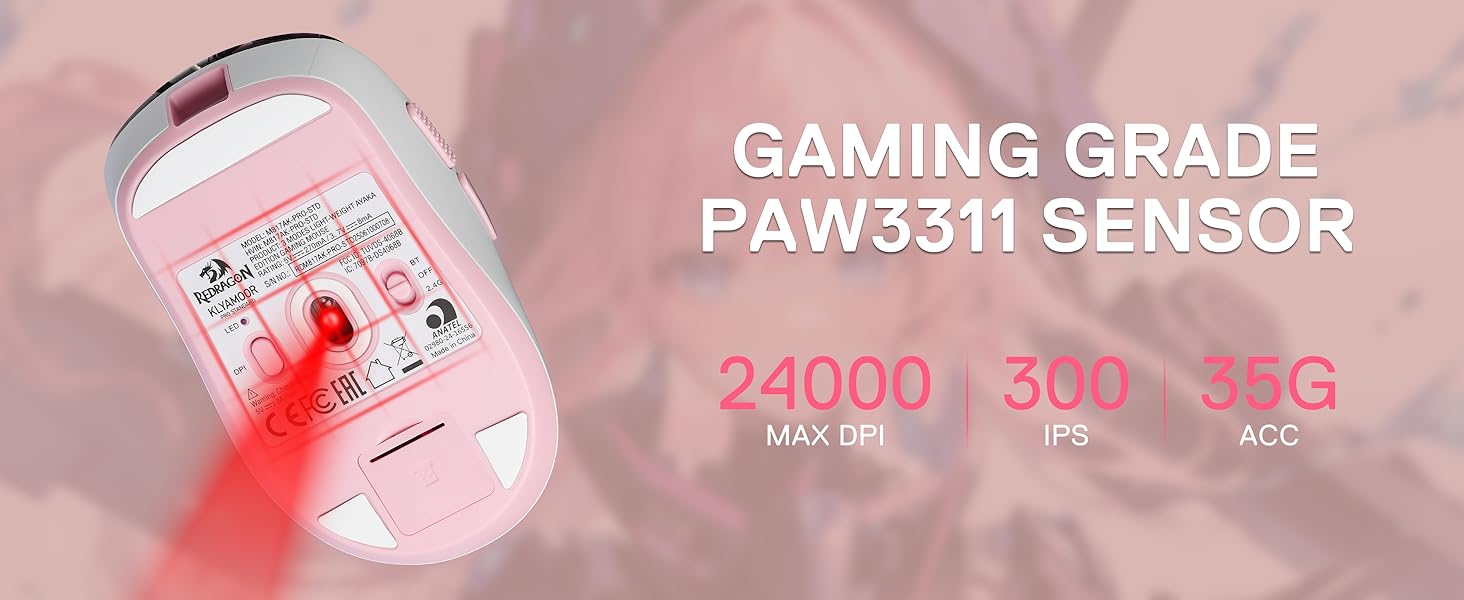
Image: An overview of the Redragon M817 PRO's key features, including its 3-mode connectivity, PAW3311 sensor, 24000 max DPI, ultra-lightweight build, programmable buttons, high polling rate, and software support.
Product Overview Video
Video: A brief overview of the Redragon M817 PRO Wireless Gaming Mouse, highlighting its lightweight design and key features. This video provides a quick visual summary of the product.
Warranty & Support
For detailed warranty information, please refer to the official Redragon website or the warranty card included with your product. For technical support, driver downloads, or further assistance, visit the Redragon support page or contact their customer service directly.