
Fitoncloud Smart bracelet
Fitoncloud Smart Bracelet User Manual
Model: Smart bracelet
1. Introduction
The Fitoncloud Smart Bracelet is a slim and lightweight fitness tracker designed for both men and women. It offers comprehensive health monitoring, activity tracking, and smart notifications to support a healthy and connected lifestyle. This manual provides detailed instructions for setup, operation, maintenance, and troubleshooting.
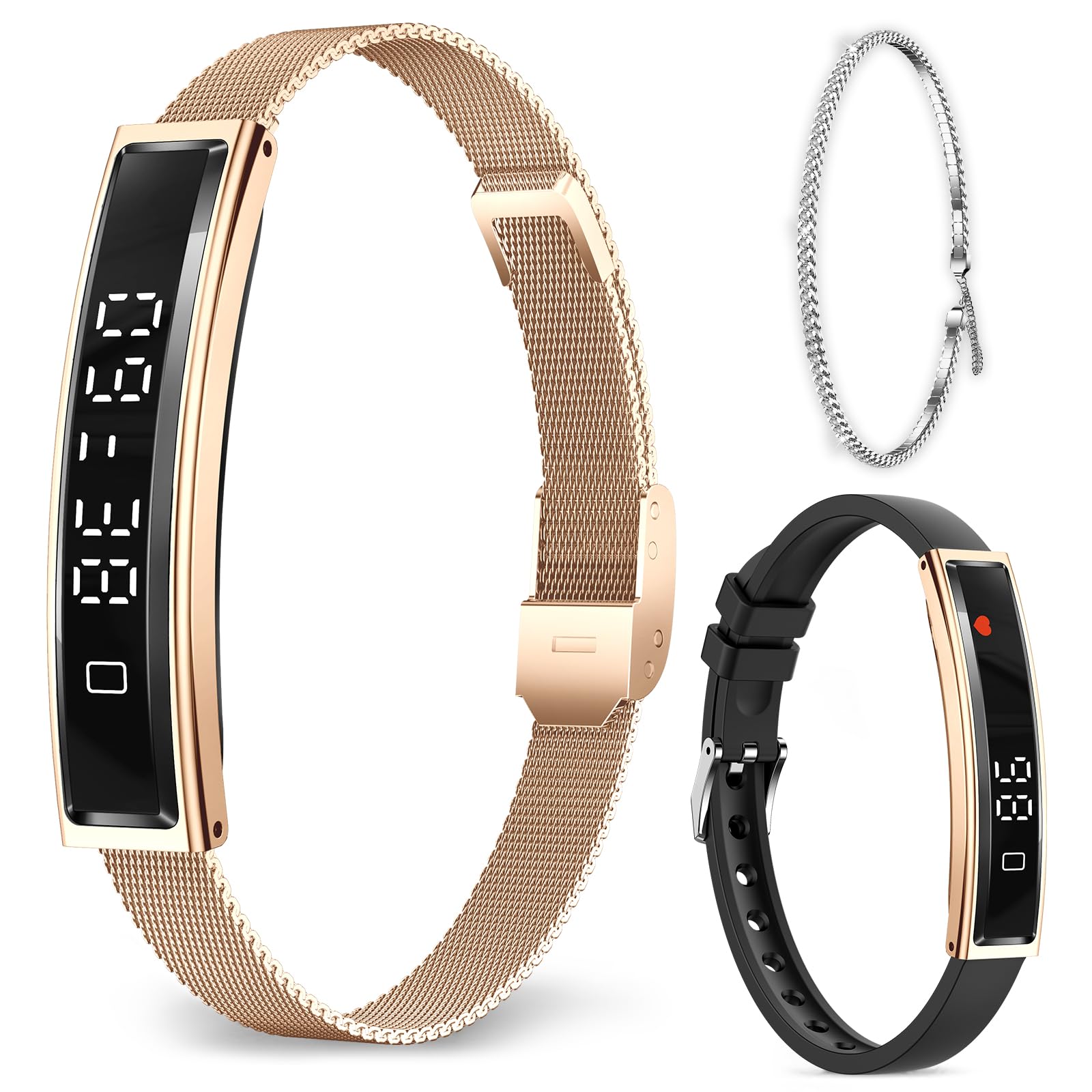
Figure 1.1: Fitoncloud Smart Bracelet in Gold.
Video 1.1: Overview of the Fitoncloud Smart Bracelet features and design. This video demonstrates the sleek design and various functionalities of the smart bracelet.
2. What's in the Box
Please check the package contents upon unboxing:
- Fitoncloud Smart Bracelet (main unit)
- Mesh Band (pre-installed or separate, depending on model)
- Silicone Sport Band
- Zircon Bracelet (decorative accessory)
- USB Magnetic Charging Cable
- User Manual
- Band Replacement Tool (for mesh band adjustment)

Figure 2.1: Illustration of all items included in the product package, including the smart bracelet, various bands, charging cable, and tools.
3. Setup Guide
3.1. Charging the Device
Before first use, fully charge your Smart Bracelet. Connect the magnetic charging cable to the charging points on the back of the device and plug the USB end into a power source (e.g., computer USB port, USB wall adapter). The screen will indicate charging status.
3.2. App Installation and Pairing
To unlock the full potential of your Smart Bracelet, download the 'NX Wear' app on your smartphone.
- Scan the QR code provided in the manual or on the product packaging to download the 'NX Wear' app from the App Store (iOS) or Google Play Store (Android).
- Ensure your phone's Bluetooth is enabled.
- Open the 'NX Wear' app and follow the on-screen instructions to add your device. The app will search for nearby devices.
- Select your Smart Bracelet from the list (e.g., 'B3' or similar device ID) to pair.
- Once connected, the app will synchronize data with your bracelet.

Figure 3.1: Visual guide for downloading the NX Wear app and pairing the smart bracelet with a smartphone via Bluetooth.
3.3. Band Replacement
The Smart Bracelet comes with interchangeable bands to suit different occasions. Use the provided tool to replace bands.
- Locate the spring bars on the underside of the bracelet where the band connects to the main unit.
- Use the band replacement tool to push the spring bar inwards, releasing the band.
- Carefully remove the old band.
- Align the new band with the main unit and insert one end of the spring bar into the lug hole.
- Use the tool to push the other end of the spring bar inwards, guiding it into the opposite lug hole until it clicks into place. Ensure both ends are securely fastened.
Video 3.1: Detailed instructions on how to replace the watch band on your Fitoncloud Smart Bracelet using the provided tool.
4. Operating Instructions
4.1. Basic Navigation
The Smart Bracelet features a touchscreen display. Tap or swipe on the screen to navigate through different functions and view data such as time, steps, heart rate, and more.
Video 4.1: A demonstration of how to use the fitness watch, including navigating through its various screens and functions.
4.2. Health Monitoring
The bracelet continuously monitors various health metrics:
- Heart Rate Monitor: Tracks your heart rate throughout the day. View real-time data on the bracelet or detailed graphs in the app.
- Blood Oxygen (SpO2) Monitor: Measures your blood oxygen levels.
- Sleep Monitor: Automatically tracks your sleep patterns, including deep sleep, light sleep, and awake time. Provides insights into your sleep quality via the app.

Figure 4.2: Visual representation of the smart bracelet's comprehensive health monitoring capabilities, including heart rate, blood oxygen, and sleep tracking.
4.3. Activity Tracking
The Smart Bracelet supports 12 sports modes to track your workouts:
- 12 Sports Modes: Includes running, cycling, swimming, hiking, fitness, and more. Select your activity in the app to record specific data.
- Pedometer: Counts your daily steps, distance, and calories burned.

Figure 4.3: The smart bracelet interface showing various sports modes available for tracking physical activities.
4.4. Smart Features
Enhance your daily routine with these smart functionalities:
- Call Alerts: Receive flashing prompts on your wrist for incoming calls (no sound or vibration).
- Music Control: Control music playback on your phone directly from the bracelet.
- Camera Control: Use the bracelet as a remote shutter for your phone's camera.
- Weather Forecast: Get real-time weather updates on your wrist.
- Menstrual Record: Track your menstrual cycle through the app.
- Alarm Clock & Reminders: Set alarms and sedentary/medication reminders.

Figure 4.4: The smart bracelet showing a visual alert for an incoming call, providing discreet notification.
5. Maintenance
5.1. Cleaning and Care
Regularly clean your Smart Bracelet to ensure optimal performance and hygiene. Use a soft, damp cloth to wipe the device and bands. Avoid harsh chemicals or abrasive materials.
5.2. Water Resistance
The Fitoncloud Smart Bracelet is designed for daily waterproof performance, making it sweat-resistant and dust-resistant. It can withstand splashes, rain, and handwashing. It is rated for water resistance up to 1 meter depth. However, it is not recommended for prolonged submersion or high-pressure water activities like diving.

Figure 5.1: The smart bracelet shown in contact with water, illustrating its water-resistant design suitable for daily activities.
6. Troubleshooting
- Device not turning on: Ensure the device is fully charged. Connect it to the charging cable and a power source for at least 30 minutes.
- Unable to pair with phone: Make sure Bluetooth is enabled on your phone and the bracelet is within range. Restart both the phone and the bracelet. Check if the 'NX Wear' app is updated to the latest version.
- Inaccurate data: Ensure the bracelet is worn snugly on your wrist, not too tight or too loose. Clean the sensors on the back of the device.
- Notifications not appearing: Check app settings to ensure notifications are enabled for the desired apps. Verify that the bracelet is connected to your phone via Bluetooth.
- Short battery life: Reduce screen brightness, disable unnecessary notifications, and limit continuous heart rate monitoring if not required.
7. Specifications
| Feature | Detail |
|---|---|
| Model Name | Active Fitness Tracker |
| Operating System | NX Wear |
| Memory Storage Capacity | 128 MB |
| Battery Capacity | 18 Milliamp Hours |
| Battery Cell Composition | Lithium Polymer |
| Connectivity Technology | Bluetooth |
| Wireless Communication Standard | Bluetooth |
| Screen Size | 1.27 Inches |
| Water Resistance Level | Water Resistant (1 Meter Depth) |
| Compatible Phone Models | Android 6.0+ or iOS 11.0+ |
| Metrics Measured | Heart Rate, Blood Oxygen, Sleep Duration |
| Weight | 16.5g |
| Thickness | 5.6mm |

Figure 7.1: Overview of battery life under different usage scenarios and charging time.
8. Warranty and Support
8.1. Warranty Information
The Fitoncloud Smart Bracelet comes with a 1-year standard warranty from the date of purchase. This warranty covers manufacturing defects and malfunctions under normal use. Please retain your proof of purchase for warranty claims.
8.2. Customer Support
For any questions, technical assistance, or warranty inquiries, please contact Fitoncloud customer support through the following channels:
- Visit the official Fitoncloud website for FAQs and support resources.
- Contact customer service via the 'NX Wear' app.
- Refer to your purchase platform for seller contact information.
Ask a question about this manual
Ask about setup, troubleshooting, compatibility, parts, safety, or missing instructions. Manuals+ will review the question and use this page’s manual context to help answer it.