
1. Introduction
Thank you for choosing the LYNCAST N300 Smart Android TV Projector. This manual provides essential information for the safe and efficient operation of your device. Please read it thoroughly before use and retain it for future reference.

The LYNCAST N300 projector, a compact and versatile device designed for home entertainment and various projection needs.

The LYNCAST N300 projector is suitable for both indoor and outdoor use, offering flexible entertainment options.
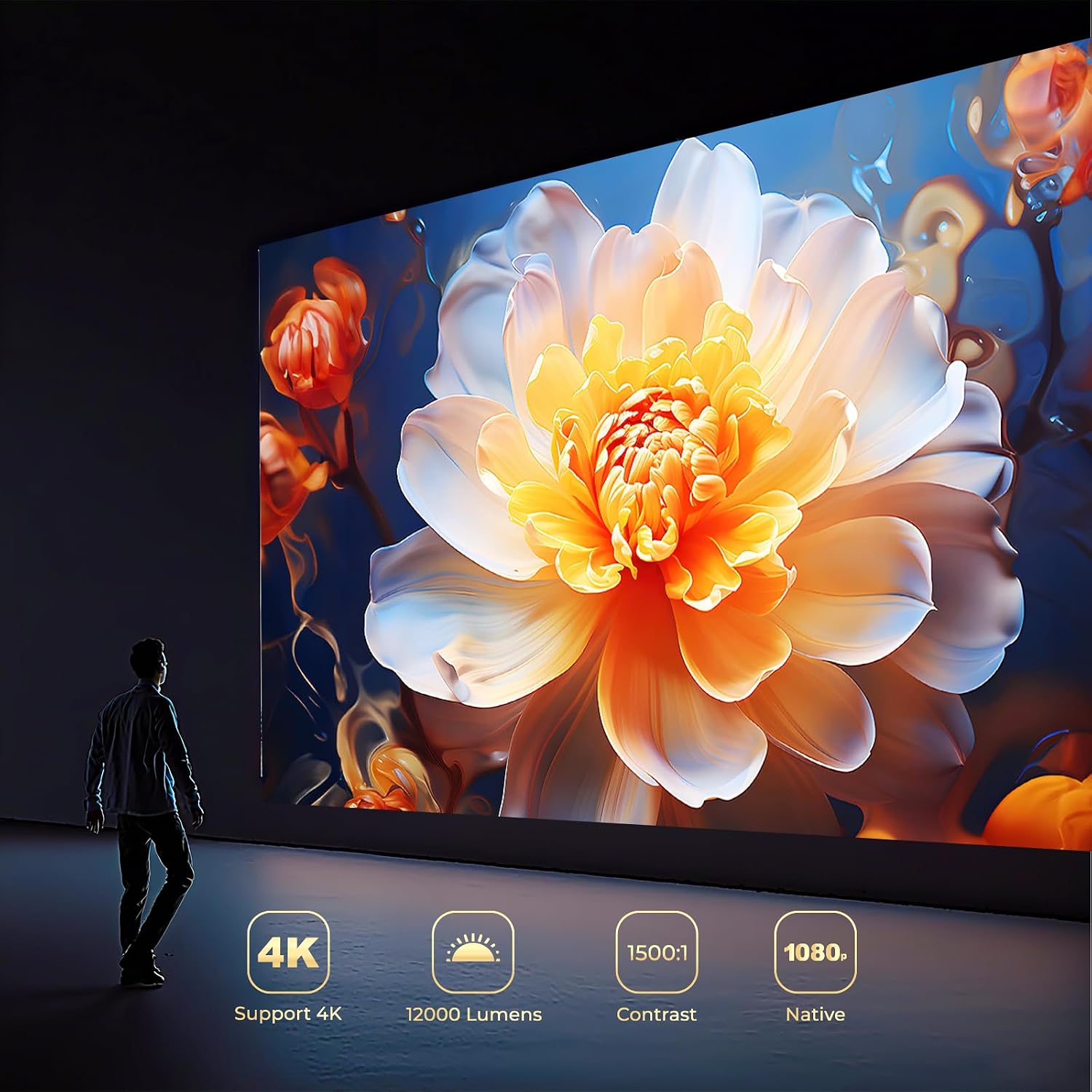
Key features of the LYNCAST N300 projector, including 4K support, 1080p native resolution, and a 1500:1 contrast ratio.
2. Package Contents
Please check the package for the following items:
- LYNCAST N300 Smart Android TV Projector
- Remote Control
- Power Adapter
- HDMI Cable
- User Manual (this document)
3. Product Overview
Familiarize yourself with the projector's physical components and connection ports.
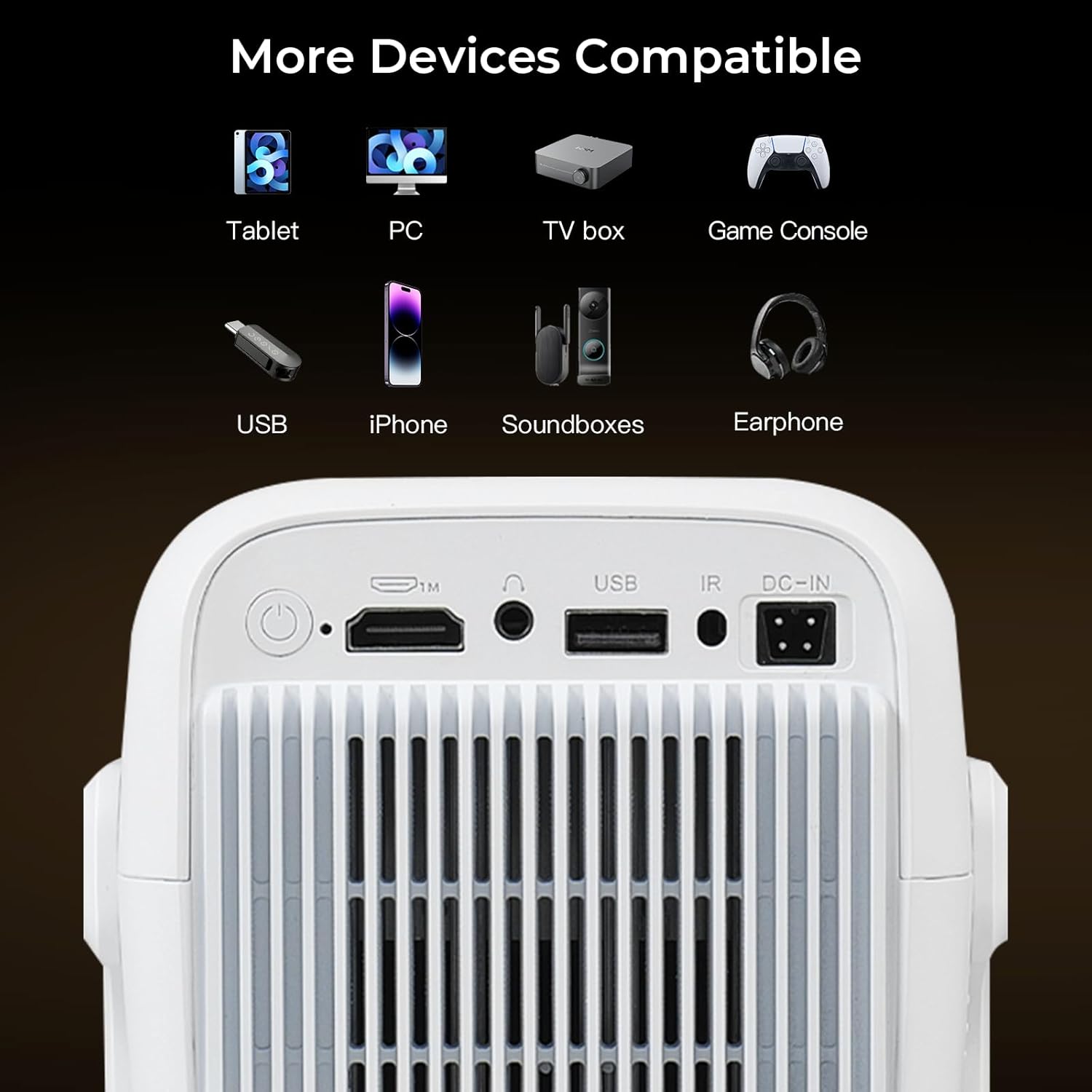
The rear panel of the LYNCAST N300 projector, displaying various input and output ports including HDMI, USB, IR receiver, and DC-IN.
Ports and Interfaces:
- Power Button: To turn the projector on/off.
- HDMI Port: Connect to devices like laptops, game consoles, TV sticks.
- USB Port: Connect USB drives for media playback or external devices.
- IR Receiver: For remote control signals.
- DC-IN: Power input port.
4. Setup
4.1 Power Connection
- Connect the power adapter to the DC-IN port on the projector.
- Plug the power adapter into a power outlet.
- Press the power button on the projector or remote control to turn it on.
4.2 Placement and Projection
Position the projector on a stable, flat surface. Ensure there are no obstructions blocking the lens or ventilation vents.

A guide illustrating recommended projection distances for various screen sizes (60 to 130 inches) with the LYNCAST N300 projector.
- For optimal image quality, project onto a white wall or a dedicated projector screen.
- Adjust the distance to achieve your desired screen size. The projector supports screen sizes from 60 to 130 inches.
4.3 Network Connection (Wi-Fi)
The LYNCAST N300 supports WiFi 6 for faster and more stable connectivity.

The LYNCAST N300 projector features advanced WiFi 6 technology for enhanced wireless performance and compatibility with various operating systems.
- Navigate to the 'Settings' menu on the projector.
- Select 'Network & Internet'.
- Turn on Wi-Fi and select your desired network from the list.
- Enter the Wi-Fi password if prompted and connect.
4.4 Bluetooth Connection
Connect external Bluetooth devices such as speakers or headphones.
- Go to 'Settings' and select 'Connected Devices' or 'Bluetooth'.
- Turn on Bluetooth.
- Put your Bluetooth device into pairing mode.
- Select your device from the list of available devices to pair.
5. Operating Instructions
5.1 Basic Navigation
Use the provided remote control to navigate the Android TV interface. The directional buttons, OK button, Back button, and Home button are essential for operation.
5.2 Focus and Keystone Adjustment
The LYNCAST N300 features automatic focus and keystone correction for a clear and properly shaped image.
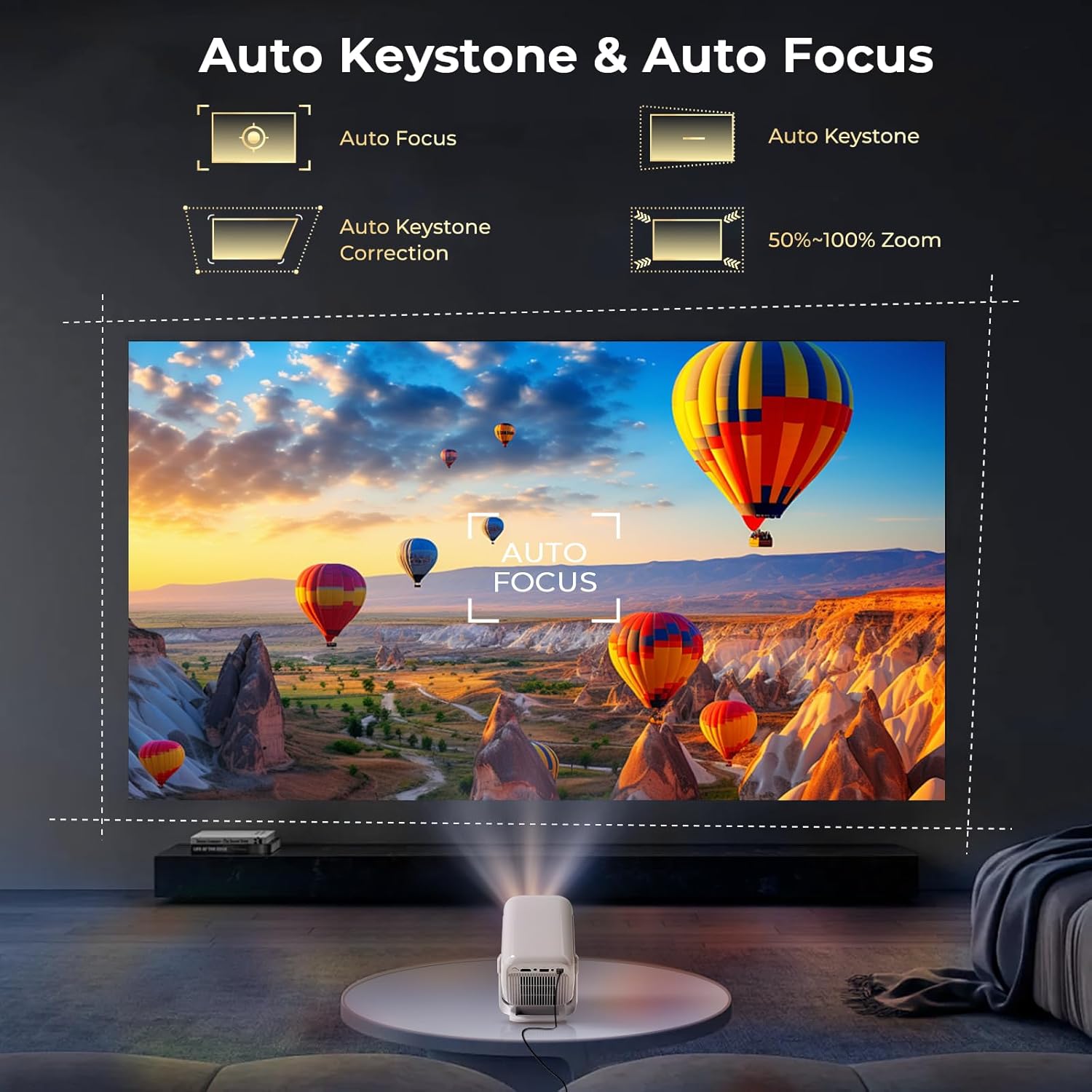
Diagram illustrating the automatic keystone correction and autofocus capabilities of the LYNCAST N300 projector, ensuring a clear and rectangular image from various angles.
- Auto Focus: The projector will automatically adjust the focus when powered on or moved.
- Auto Keystone: The projector will automatically correct the image shape to be rectangular, even if projected at an angle.
- Manual Adjustment: If needed, manual focus and keystone adjustments can typically be found in the 'Settings' menu under 'Projection Settings'.
5.3 Connecting External Devices
The projector supports various external devices via HDMI and USB.
- HDMI: Connect your laptop, game console, TV box, or streaming stick using an HDMI cable. Select the HDMI input source from the projector's input menu.
- USB: Insert a USB flash drive to play media files (photos, videos, music). Access the files through the media player application on the projector.
- Screen Mirroring: The projector supports wireless screen mirroring from compatible smartphones and tablets (iOS, Android, Windows) via built-in Chromecast or similar functionality. Refer to the projector's specific screen mirroring app for instructions.
5.4 Using Android TV Features
The LYNCAST N300 runs on Android TV, providing access to a wide range of applications.
- Ensure the projector is connected to Wi-Fi.
- Log in with your Google account to access the Google Play Store.
- Download and install streaming apps like Netflix, YouTube, etc.
6. Maintenance
6.1 Cleaning the Lens
Use a soft, lint-free cloth specifically designed for optical lenses. Do not use abrasive cleaners or cloths, as they can scratch the lens.
6.2 Cleaning the Vents
Regularly clean the ventilation vents to prevent dust buildup, which can affect performance and lead to overheating. Use a soft brush or compressed air to gently remove dust.
6.3 Storage
When not in use for extended periods, store the projector in a cool, dry place, away from direct sunlight and extreme temperatures. Cover the lens to protect it from dust.
7. Troubleshooting
If you encounter issues, refer to the following common problems and solutions:
| Problem | Possible Cause | Solution |
|---|---|---|
| No power | Power cable loose; Power outlet faulty | Check power connections; Try a different outlet |
| No image | Incorrect input source; Device not connected | Select correct input source; Ensure HDMI/USB is connected properly |
| Blurred image | Out of focus; Projector too close/far | Allow auto-focus to adjust; Manually adjust focus if needed; Adjust projection distance |
| No sound | Volume too low; External audio device not connected | Increase volume; Check Bluetooth connection or external speaker cables |
| Remote control not working | Batteries low/dead; Obstruction between remote and projector | Replace batteries; Ensure clear line of sight to IR receiver |
| Wi-Fi connection issues | Incorrect password; Router too far; Network interference | Verify password; Move projector closer to router; Restart router |
8. Specifications
| Feature | Specification |
|---|---|
| Brand | LYNCAST |
| Model | N300 (Netflix LumenCube N300) |
| Display Technology | LCD LED |
| Native Resolution | 1920 x 1080 (Full HD) |
| Supported Resolution | Up to 3840 x 2160 (4K) |
| Contrast Ratio | 15000:1 |
| Connectivity | Wi-Fi 6, Bluetooth 5.4, HDMI, USB |
| Refresh Rate | 60 Hz |
| Form Factor | Portable, Tabletop |
| Dimensions (L x W x H) | 10 x 10 x 17 cm |
| Compatible Devices | Smartphones, Tablets, Laptops, Game Consoles, TV Sticks, Speakers |
| Included Components | Projector, Remote Control, Power Adapter, HDMI Cable |
9. Warranty and Support
LYNCAST products are designed for reliability and performance. For warranty information and technical support, please refer to the official LYNCAST website or contact your retailer.
Please retain your proof of purchase for warranty claims.