
1. Introduction
This manual provides comprehensive instructions for the Nokia G310 5G TA-1573 smartphone. It covers essential information for setup, operation, maintenance, and troubleshooting to ensure optimal use of your device. The Nokia G310 5G TA-1573 features a 6.6-inch HD+ 90 Hz IPS LCD display, a Snapdragon 480+ octa-core processor, 4 GB of RAM, and 5G connectivity, running on Android 13.
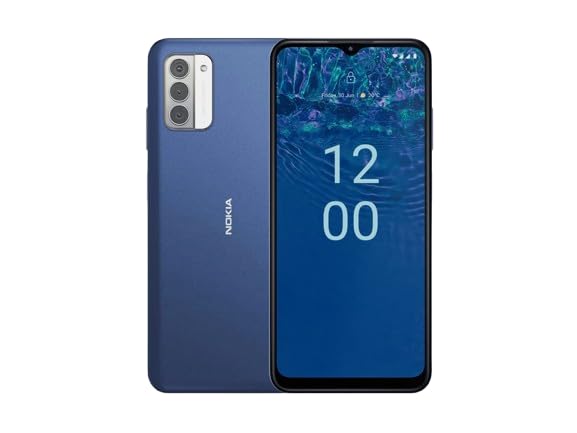
Figure 1.1: Nokia G310 5G TA-1573 Smartphone. This image displays the front view of the Nokia G310 5G smartphone, highlighting its display and general form factor.
2. What's in the Box
Upon unboxing your Nokia G310 5G TA-1573, please verify that all the following items are included:
- Nokia G310 5G TA-1573 Smartphone
- USB-C Cable
- SIM Ejector Tool
3. Setup
3.1. Charging the Device
Before initial use, fully charge your Nokia G310 5G. Connect the provided USB-C cable to the phone's USB-C port and the other end to a compatible power adapter (sold separately) or a computer's USB port. The battery indicator on the screen will show charging progress.
3.2. Inserting the SIM Card
- Locate the SIM card tray on the side of your phone.
- Insert the SIM ejector tool into the small hole on the tray to open it.
- Place your Nano-SIM card into the tray with the gold contacts facing down, ensuring it fits securely.
- Carefully push the tray back into the phone until it clicks into place.
3.3. Powering On and Initial Setup
- Press and hold the Power button (usually on the right side) until the Nokia logo appears.
- Follow the on-screen prompts to select your language, connect to a Wi-Fi network, and set up your Google account.
- Complete the setup wizard to personalize your device settings.
4. Operating Your Device
4.1. Basic Navigation
- Touchscreen Gestures: Tap to select, swipe to scroll, pinch to zoom.
- Home Screen: Access apps, widgets, and notifications.
- Navigation Bar: Use the Back, Home, and Recent Apps buttons at the bottom of the screen.
4.2. Making Calls and Sending Messages
- Open the Phone app to dial numbers or select contacts.
- Open the Messages app to compose and send text messages.
4.3. Connecting to Networks
- Wi-Fi: Go to Settings > Network & internet > Internet to connect to available Wi-Fi networks.
- Bluetooth: Go to Settings > Connected devices > Connection preferences > Bluetooth to pair with Bluetooth devices.
- Mobile Data: Ensure mobile data is enabled in Settings > Network & internet > SIMs for internet access via your cellular network.
4.4. Using the Camera
Open the Camera app to capture photos and videos. Tap the shutter button to take a picture or hold it to record a video. Explore different modes and settings within the app.
5. Maintenance
5.1. Cleaning Your Device
Use a soft, lint-free cloth to clean the screen and body of your phone. Avoid using harsh chemicals or abrasive materials, which can damage the device's finish or screen coating.
5.2. Battery Care
- Avoid exposing the phone to extreme temperatures.
- Do not let the battery drain completely regularly.
- Use only approved chargers and cables.
5.3. Software Updates
Regularly check for and install software updates to ensure your device has the latest features, security patches, and performance improvements. Go to Settings > System > System update.
5.4. Storage Management
To optimize performance, regularly clear unnecessary files, uninstall unused apps, and move large media files to cloud storage or an external device. Check storage usage in Settings > Storage.
6. Troubleshooting
6.1. Device Not Turning On
Ensure the battery is charged. Connect the phone to a charger and wait a few minutes before attempting to power it on again. If it still doesn't turn on, try holding the Power button for 10-15 seconds.
6.2. Network Connectivity Issues
- No Signal: Check if your SIM card is properly inserted. Try restarting the phone.
- Wi-Fi Not Connecting: Ensure the Wi-Fi password is correct. Restart your router and phone.
- Bluetooth Pairing Issues: Ensure both devices are in pairing mode and within range.
6.3. Apps Crashing or Freezing
Try force-closing the app (Settings > Apps > See all apps > [App Name] > Force stop). Clear the app's cache and data (Settings > Apps > See all apps > [App Name] > Storage & cache > Clear cache / Clear storage). If the issue persists, uninstall and reinstall the app.
6.4. Factory Reset
As a last resort, if software issues persist, you may perform a factory reset. Warning: This will erase all data on your phone. Back up important data before proceeding. Go to Settings > System > Reset options > Erase all data (factory reset).
7. Specifications
| Feature | Detail |
|---|---|
| Model Name | Nokia G310 5G TA-1573 |
| Operating System | Android 13.0 |
| Display Size | 6.6 Inches |
| Resolution | 720 x 1560 pixels |
| Refresh Rate | 90 Hz |
| CPU Model | Qualcomm Snapdragon MSM8260A (Snapdragon 480+ equivalent) |
| CPU Speed | 2 GHz |
| RAM Memory Installed Size | 4 GB |
| Memory Storage Capacity | 128 GB (Internal) |
| Connectivity Technologies | 5G |
| Battery Power Rating | 3600 Milliamp Hours (Lithium Ion) |
| Audio Jack | USB-C |
| Item Weight | 6.9 ounces |
| Color | Blue |
8. Warranty and Support
8.1. Warranty Information
For specific warranty details regarding your Nokia G310 5G TA-1573, please refer to the documentation provided by the seller at the time of purchase. As this is a renewed product, warranty terms may differ from new devices. It is recommended to contact the seller directly for precise warranty coverage and duration.
8.2. Technical Support
If you encounter issues that cannot be resolved using the troubleshooting steps in this manual, please contact:
- The seller from whom you purchased the device.
- Nokia's official support channels for general product inquiries.
Please have your device model number (TA-1573) and proof of purchase ready when contacting support.


