
TCL 32R84
TCL 32R84 Series 4K UHD QD-Mini LED Gaming Monitor User Manual
Model: 32R84
1. Introduction
This manual provides essential information for the setup, operation, and maintenance of your TCL 32R84 Series 4K UHD QD-Mini LED Gaming Monitor. Please read this manual thoroughly before using the product to ensure correct usage and optimal performance. Keep this manual for future reference.

Image 1.1: Front view of the TCL 32R84 Series Gaming Monitor.
2. Safety Information
Observe the following safety precautions to prevent damage to the monitor and ensure user safety:
- Do not expose the monitor to rain or moisture.
- Do not open the monitor casing; refer all servicing to qualified personnel.
- Ensure proper ventilation around the monitor.
- Use only the power adapter supplied with the monitor.
- Avoid placing heavy objects on the power cord.
- Clean the screen with a soft, lint-free cloth. Avoid harsh chemicals.
3. Package Contents
Verify that all items are present in the package:
- TCL 32R84 Series Gaming Monitor
- Monitor Stand (Base and Neck)
- Power Adapter and Cable
- HDMI Cable
- DisplayPort Cable
- USB-C Cable
- User Manual (this document)
4. Setup
4.1 Assembling the Stand
- Carefully remove the monitor and stand components from the packaging.
- Attach the stand neck to the monitor panel.
- Secure the stand base to the stand neck.
- Place the assembled monitor on a stable, flat surface.

Image 4.1: Illustration of the adjustable stand and its range of motion.
4.2 Connecting to a Device
The monitor supports multiple input options. Choose the appropriate cable for your device.

Image 4.2: Rear panel showing available input and output ports.
- HDMI: Connect an HDMI cable from your computer or console to one of the monitor's HDMI ports (HDMI1 or HDMI2).
- DisplayPort: Connect a DisplayPort cable from your computer to the monitor's DP port.
- USB-C: Connect a USB-C cable from a compatible device (e.g., laptop) to the monitor's USB-C port for video, data, and power delivery.
- Headphone: Connect headphones to the 3.5mm audio jack.
- USB Upstream: Connect a USB-A to USB-B cable from your computer to the monitor's USB Upstream port to enable the monitor's USB-A ports.
4.3 Power Connection
- Connect the power adapter to the monitor's power input.
- Plug the power cable into a wall outlet.
4.4 Initial Power On
Press the power button (usually located on the back or bottom of the monitor) to turn on the display. The monitor should automatically detect the active input source.
5. Operating Instructions
5.1 On-Screen Display (OSD) Navigation
The monitor's settings are controlled via a joystick button, typically located on the rear or bottom of the monitor. Push the joystick in to confirm selections, and move it up/down/left/right to navigate menus.
5.2 Key Features and Settings
5.2.1 QD-Mini LED Technology
The QD-Mini LED backlight system provides precise local dimming, enhancing contrast and brightness for a superior visual experience. This technology contributes to deeper blacks and brighter highlights.
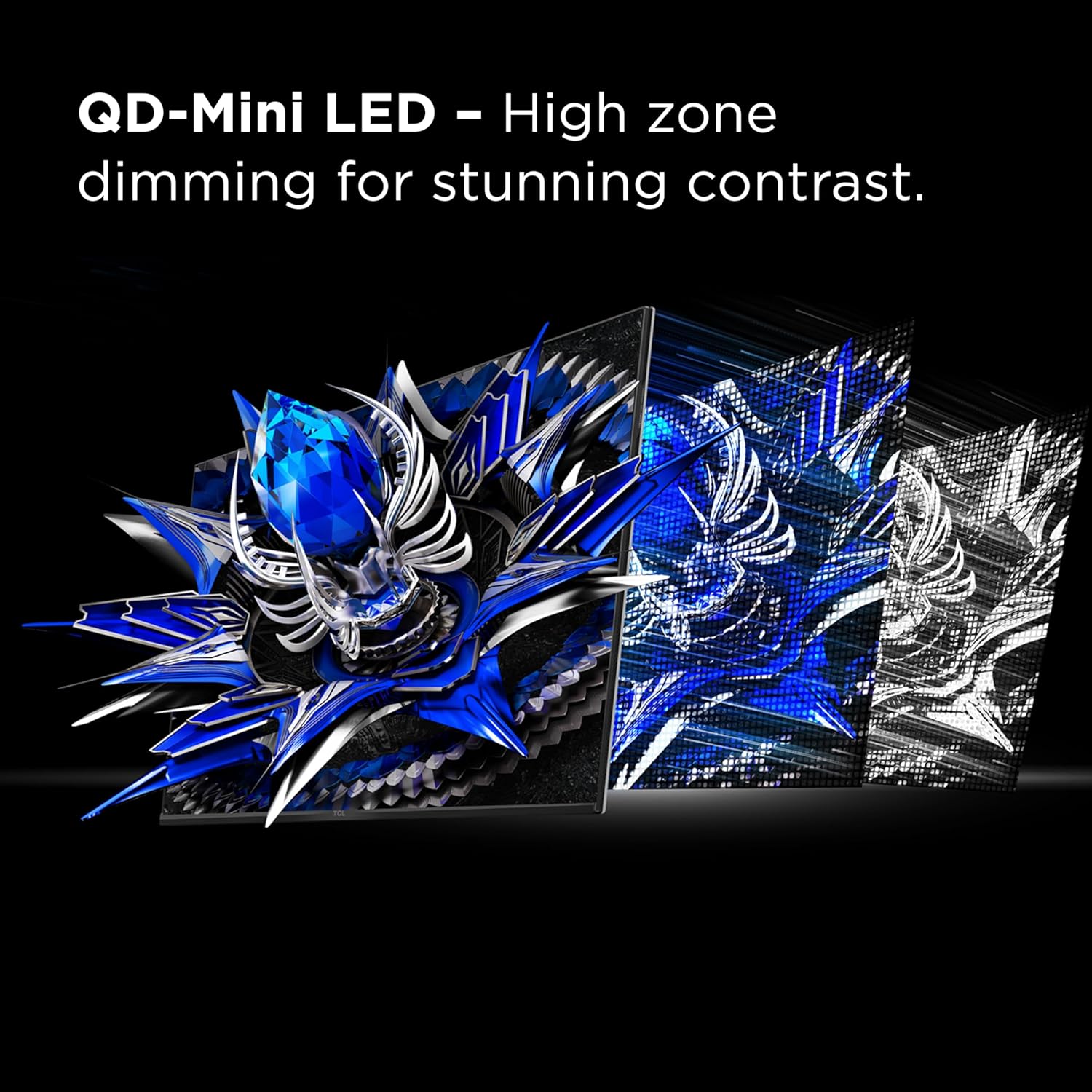
Image 5.1: Visual representation of QD-Mini LED's high zone dimming for contrast.
5.2.2 TCL Halo Control System
This advanced technology suite, including a powerful light-emitting microchip, super condensed micro lens, and HVA panel, works to minimize halo effects around bright objects on dark backgrounds, improving picture accuracy.

Image 5.2: Comparison showing reduced halo effect with Halo Control System.
5.2.3 Resolution and Refresh Rate
The monitor features a 4K UHD (3840x2160) resolution and a 165Hz native refresh rate. Adjust these settings in your operating system's display settings for optimal clarity and fluid motion.

Image 5.3: Visual difference between 4K UHD and lower resolutions.
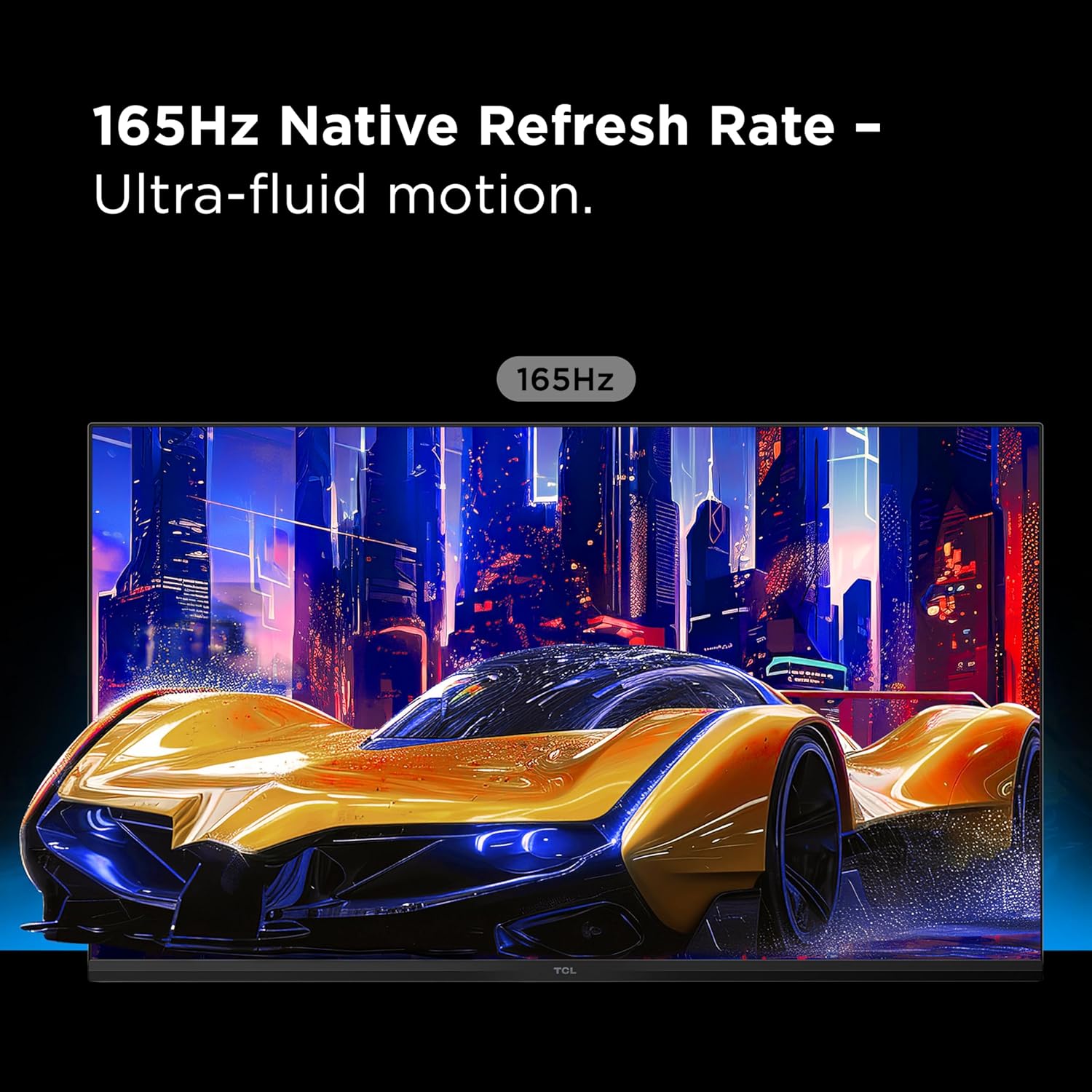
Image 5.4: Depiction of ultra-fluid motion at 165Hz.
5.2.4 HDR1400 Brightness and LD1400 Precise Dimming
The monitor supports HDR1400 for ultra-bright highlights and deep contrast. The LD1400 Precise Dimming Series provides scene-by-scene backlight control for balanced contrast.
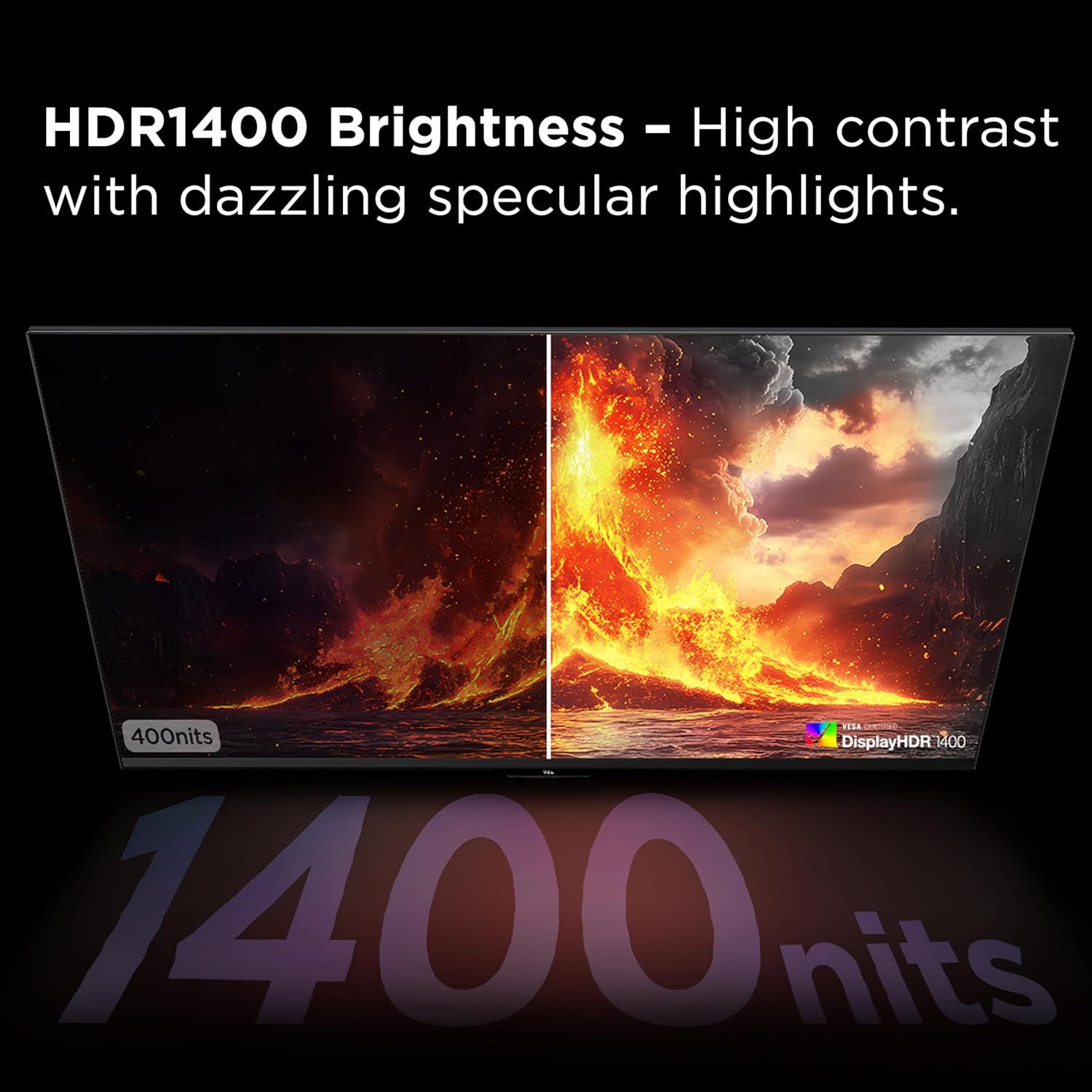
Image 5.5: Visual comparison of HDR1400 brightness.
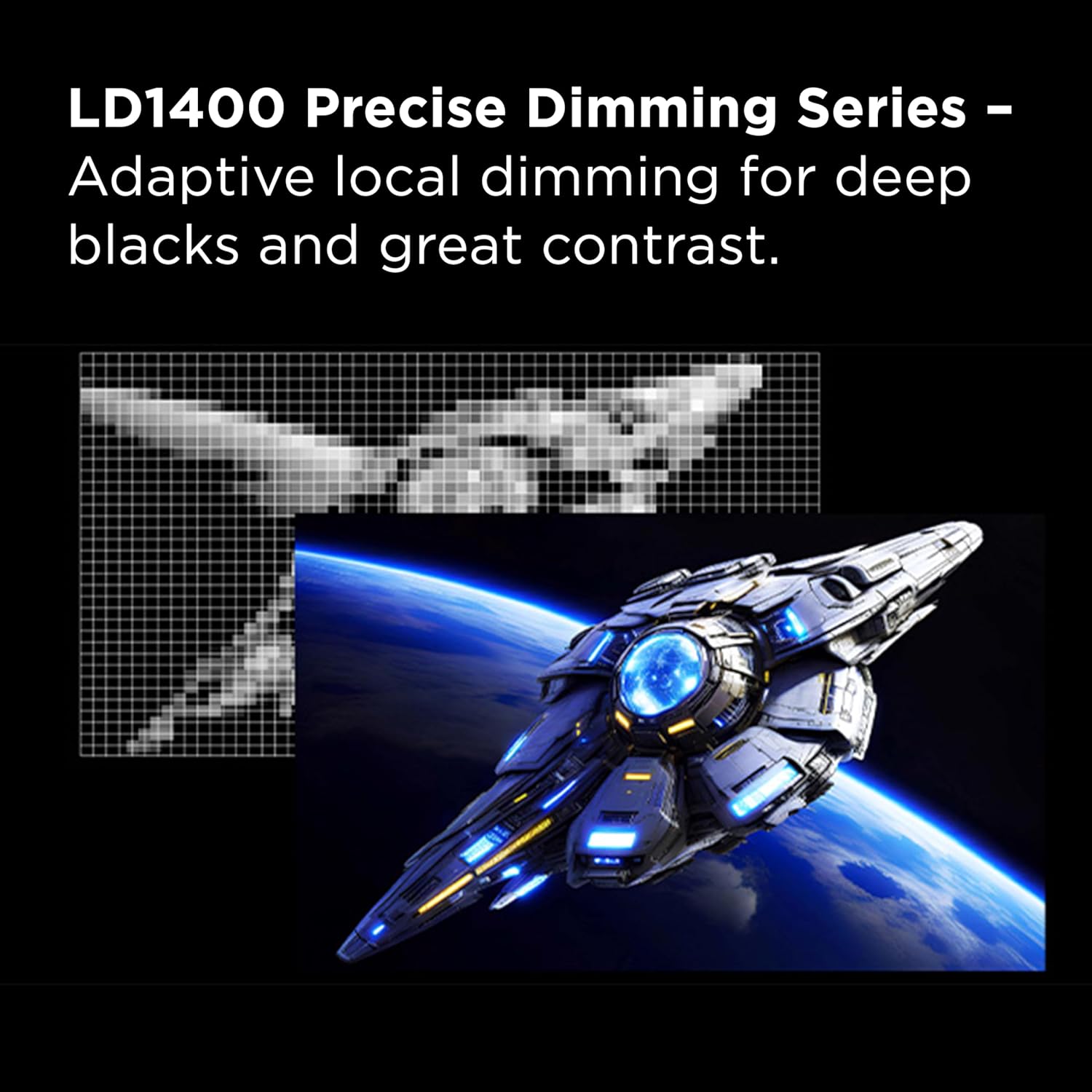
Image 5.6: Representation of LD1400 Precise Dimming for adaptive local dimming.
5.2.5 1ms (GTG) Response Time
Experience lightning-fast responsiveness with a 1ms Gray-to-Gray (GTG) response time, crucial for competitive gaming to minimize motion blur.

Image 5.7: Visualizing the impact of 1ms GTG response time on fast-moving images.
5.2.6 AMD FreeSync Premium and NVIDIA G-SYNC Compatibility
The monitor supports AMD FreeSync Premium and is compatible with NVIDIA G-SYNC, eliminating screen tearing and stuttering for a smoother gaming experience. Ensure these features are enabled in your graphics card settings.

Image 5.8: Demonstrating smoother motion with AMD FreeSync Premium enabled.
5.2.7 QLED Technology
QLED technology delivers rich, vibrant colors across a wide spectrum, enhancing the realism and immersion of your content.

Image 5.9: Visual representation of QLED's vibrant color reproduction.
5.2.8 RGB Lighting Effects
The monitor features dynamic RGB lighting on the rear, providing an immersive ambient glow. These effects can typically be customized through the OSD menu.

Image 5.10: Rear view highlighting the RGB lighting effects.
5.2.9 Crosshair Aim Guide
For gaming, the monitor includes an on-screen crosshair aim guide. This feature can be enabled via the OSD to assist with aiming accuracy.

Image 5.11: Example of the Crosshair Aim Guide in use during gameplay.
5.2.10 USB-C Power Delivery
The USB-C port supports power delivery, allowing you to charge compatible laptops or devices while simultaneously receiving video and data signals through a single cable.

Image 5.12: USB-C Power Delivery for simplified connectivity.
5.2.11 Built-in Stereo Speakers
The monitor includes built-in stereo speakers for audio output. Volume can be adjusted via the OSD or your connected device.

Image 5.13: Visual representation of built-in stereo speakers.
5.2.12 Adjustable Stand
The monitor stand allows for tilt, swivel, and height adjustments to achieve an ergonomic viewing position.
- Tilt: Adjust the screen angle forward or backward.
- Swivel: Rotate the screen horizontally.
- Height Adjustment: Raise or lower the screen to eye level.
6. Maintenance
6.1 Cleaning the Monitor
- Screen: Gently wipe the screen with a soft, lint-free cloth. For stubborn marks, lightly dampen the cloth with water or a screen-specific cleaning solution. Do not spray liquid directly onto the screen.
- Casing: Use a soft, dry cloth to clean the monitor casing. Avoid abrasive cleaners or solvents.
6.2 Storage
When storing the monitor for extended periods, ensure it is powered off, unplugged, and stored in a cool, dry place away from direct sunlight and extreme temperatures.
7. Troubleshooting
| Problem | Possible Cause | Solution |
|---|---|---|
| No image on screen | Power cable disconnected; input cable disconnected; incorrect input source selected. | Check power and input cable connections. Select the correct input source via the OSD. |
| Image flickering or unstable | Incorrect refresh rate; faulty cable; graphics card issue; FreeSync/G-SYNC settings. | Adjust refresh rate in OS. Try a different cable. Update graphics drivers. Verify FreeSync/G-SYNC settings. |
| No sound from speakers | Volume too low; incorrect audio output selected in OS; faulty cable. | Increase monitor volume via OSD. Select monitor as audio output in OS. Check audio cable if using 3.5mm jack. |
| Colors appear incorrect | Color settings misconfigured; HDR mode issues. | Reset color settings in OSD. Calibrate colors. Ensure HDR settings are correct in OS and monitor. |
8. Specifications
| Feature | Detail |
|---|---|
| Model Number | 32R84 |
| Screen Size | 32 Inches |
| Display Resolution | 3840x2160 (4K UHD) |
| Max Refresh Rate | 165Hz |
| Response Time | 1ms (GTG) |
| Panel Type | QD-Mini LED, HVA Panel |
| HDR Support | HDR1400 (VESA DisplayHDR 1400 Certified) |
| Adaptive Sync | AMD FreeSync Premium, NVIDIA G-SYNC Compatible |
| Connectivity | 2x HDMI, 1x DisplayPort, 1x USB-C (with Power Delivery), USB Upstream, Headphone Out |
| Dimensions (L x W x H) | 7.8 x 71.3 x 41.9 cm (Product) |
| Weight | 13.6 kg |
| Color | Black/White |
9. Warranty and Support
For warranty information and technical support, please refer to the warranty card included with your product or visit the official TCL support website. Keep your purchase receipt as proof of purchase.
TCL Support Website: www.tcl.com/ca/en/support
Related documents32R84


Ask a question about this manual
Ask about setup, troubleshooting, compatibility, parts, safety, or missing instructions. Manuals+ will review the question and use this page’s manual context to help answer it.