
1. Introduction
This manual provides detailed instructions for the setup, operation, and maintenance of your KiiBoom Phantom 81 V3 Pink Mechanical Gaming Keyboard. Please read this manual thoroughly before using the product to ensure optimal performance and longevity.
Package Contents
- KiiBoom Phantom 81 V3 Pink Mechanical Gaming Keyboard
- USB Type-C Cable (1.5m)
- Keycap Puller
- Switch Puller
- Screwdriver
- Spare Switches
- Extra Nails

2. Setup
Initial Connection
The KiiBoom Phantom 81 V3 supports three connectivity modes: Type-C Wired, Bluetooth 5.0, and 2.4GHz wireless. Locate the connectivity switches on the back of the keyboard.

Wired Mode (Type-C)
- Connect the provided USB Type-C cable to the keyboard's Type-C port.
- Connect the other end of the cable to an available USB port on your computer.
- Ensure the connectivity switch on the keyboard is set to the 'USB' position.
Bluetooth Mode
- Set the connectivity switch on the keyboard to the 'BT' position.
- On your device (computer, tablet, smartphone), enable Bluetooth and search for new devices.
- Select 'KiiBoom Phantom 81' from the list of available devices to pair.
- The keyboard supports up to three Bluetooth devices. Switch between them using Fn + 1/2/3.
2.4GHz Wireless Mode
- Locate the 2.4GHz USB receiver (usually stored in a compartment on the keyboard).
- Plug the USB receiver into an available USB port on your computer.
- Set the connectivity switch on the keyboard to the '2.4G' position.
- The keyboard should automatically connect to the receiver.
Operating System Compatibility
The KiiBoom Phantom 81 V3 is compatible with both Windows and Mac operating systems. Use the dedicated 'Win/Mac' switch on the back of the keyboard to select your operating system for proper key mapping.

3. Operating Instructions
Basic Functions
- Volume Control: Use the rotary knob on the top right of the keyboard to adjust volume. Press the knob to mute/unmute.
- NKRO (N-Key Rollover): The keyboard supports N-Key Rollover, allowing all keys to register simultaneously for fast and accurate typing.

RGB Backlighting Control
The KiiBoom Phantom 81 V3 features 16.8 million RGB backlights with south-facing LEDs for reduced glare and enhanced illumination. Use the following key combinations to control the lighting effects:
- Fn + V: Toggle backlight effects.
- Fn + J: Toggle backlight colors.
- Fn + P: Toggle bottom light mode.
- Fn + B: Toggle bottom light colors.

Software Customization
The keyboard supports software for advanced customization, including key remapping, light effects, macro programming, and sharing settings. Refer to the official KiiBoom website for software downloads and detailed instructions.

4. Hot-Swappable Switches
The KiiBoom Phantom 81 V3 features a full-key hot-swappable PCB, allowing you to easily change mechanical switches without soldering. This keyboard is compatible with both 3-pin and 5-pin mechanical switches.
Changing Switches
- Carefully remove the keycap using the provided keycap puller.
- Use the switch puller to gently grip the top and bottom clips of the switch.
- Pull the switch straight up to remove it from the PCB.
- Align the pins of the new switch with the holes on the PCB. Ensure the pins are straight to avoid bending.
- Gently press the new switch into place until it clicks securely.
- Replace the keycap.


Switch Specifications
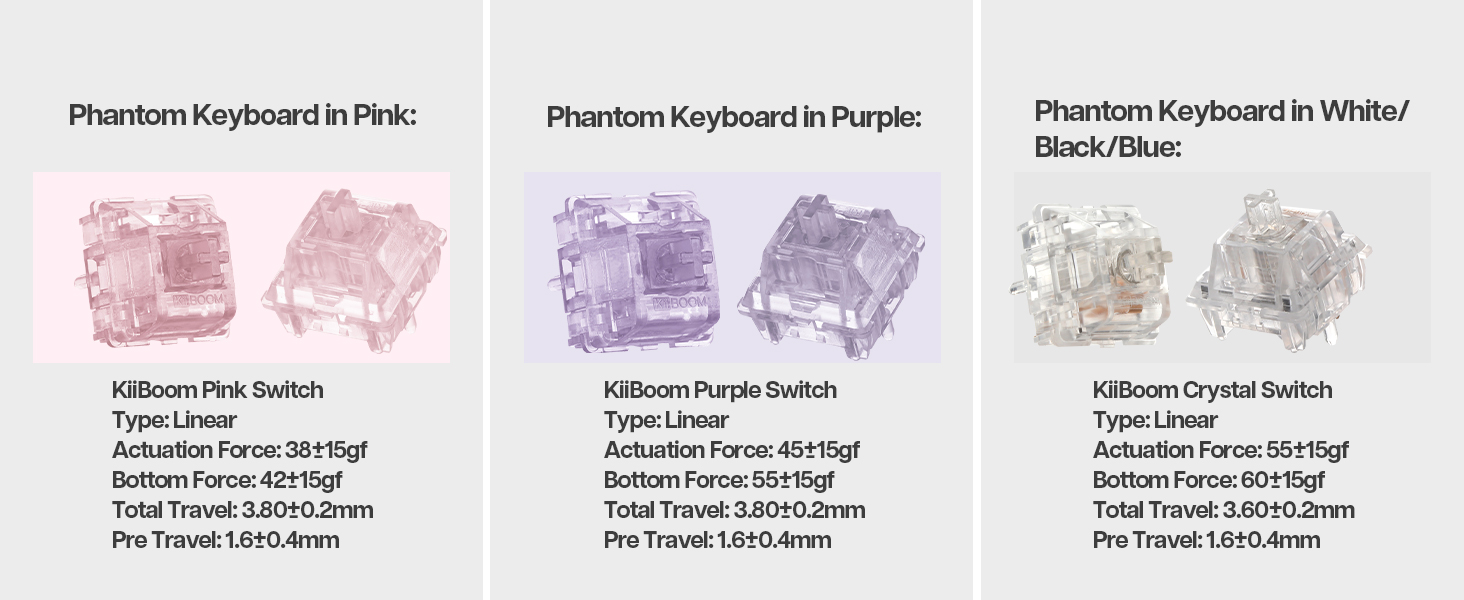
The Phantom 81 V3 Pink model typically comes with KiiBoom Pink Switches. Other KiiBoom switches are also compatible.
| Switch Type | Type | Actuation Force | Bottom Force | Total Travel | Pre Travel |
|---|---|---|---|---|---|
| KiiBoom Pink Switch | Linear | 38±15gf | 42±15gf | 3.80±0.2mm | 1.6±0.4mm |
| KiiBoom Purple Switch | Linear | 45±15gf | 55±15gf | 3.80±0.2mm | 1.6±0.4mm |
| KiiBoom Crystal Switch | Linear | 55±15gf | 60±15gf | 3.60±0.2mm | 1.6±0.4mm |


5. Battery Management
The KiiBoom Phantom 81 V3 is equipped with an 8000mAh rechargeable battery, providing extended wireless usage.
Charging the Keyboard
Connect the keyboard to a power source using the provided USB Type-C cable. The keyboard will indicate charging status through its RGB lighting.
Checking Battery Power
To check the current battery level, press Fn + Backspace. The RGB lights will display the approximate battery percentage.

6. Construction and Design
The KiiBoom Phantom 81 V3 features a unique transparent design and robust internal construction.
Acrylic Frame and Keycaps
The keyboard boasts a crystal-clear acrylic frame and transparent polycarbonate keycaps with UV printing, offering both durability and a distinctive aesthetic.


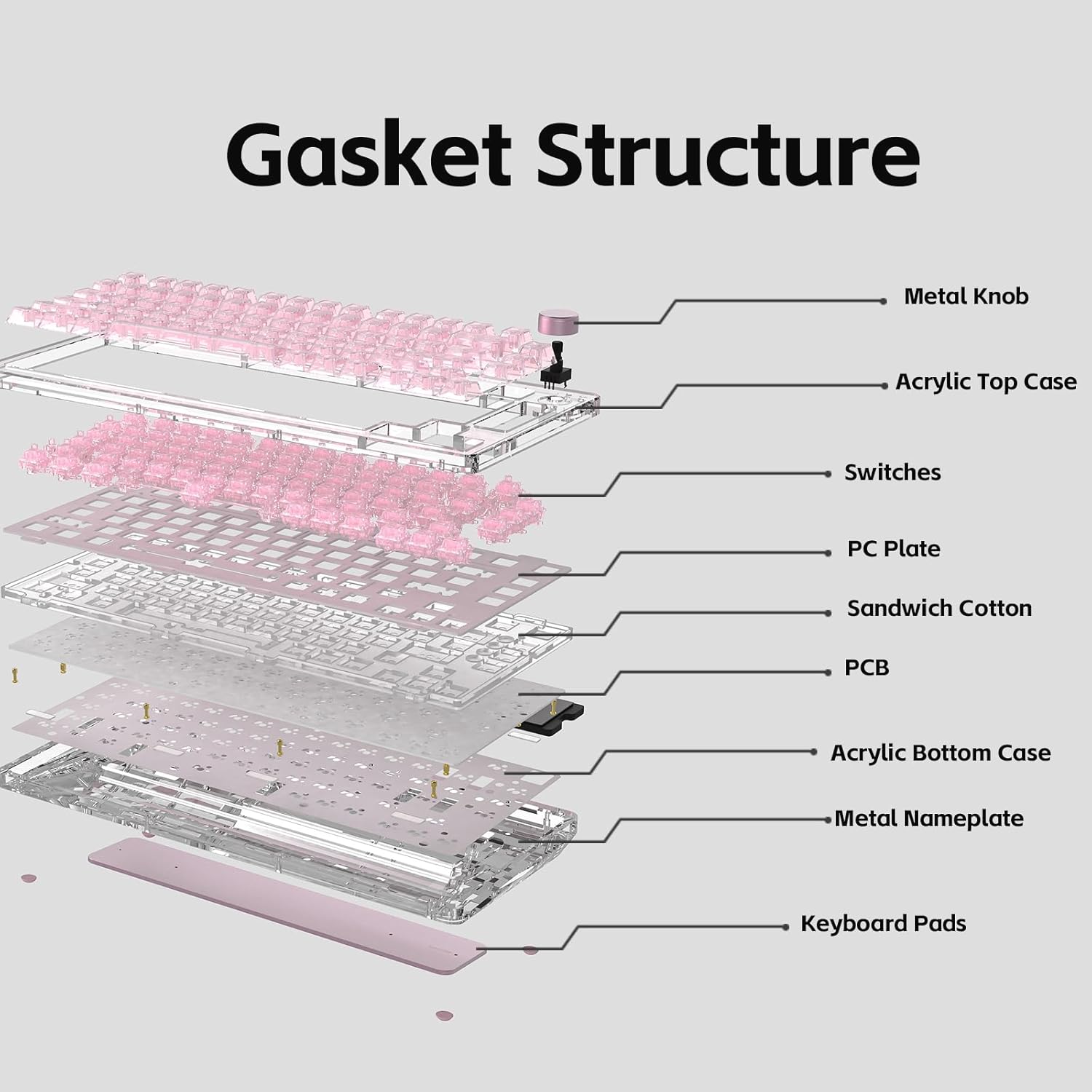
Gasket Mount Structure
The keyboard utilizes an enhanced gasket mount system with a PC (Polycarbonate) plate. This design provides a flexible, cushioned typing feel and contributes to a pleasant acoustic profile.

7. Specifications
| Feature | Detail |
|---|---|
| Model | Phantom 81 V3 Pink |
| Layout | 75% (82 keys + 1 knob) |
| Connectivity | Type-C Wired, Bluetooth 5.0, 2.4GHz Wireless |
| Switches | Hot-swappable (3-pin/5-pin compatible) |
| Backlighting | RGB, South-facing LEDs |
| Keycaps | Transparent Polycarbonate with UV printing, ASA-Like Profile |
| Case Material | Acrylic |
| Plate Material | PC (Polycarbonate) |
| Mounting Style | Gasket Mount |
| Battery Capacity | 8000mAh |
| Operating System | Windows, Mac |
| Dimensions | 332mm x 149mm x 47mm (approx.) |
| Weight | 1.45kg (approx.) |

8. Maintenance
Cleaning the Keyboard
- Disconnect the keyboard from all power sources before cleaning.
- Use a soft, lint-free cloth dampened with a small amount of water or a mild cleaning solution to wipe down the keycaps and case.
- For deeper cleaning, remove keycaps using the provided keycap puller and use compressed air to clear debris from between switches.
- Avoid using harsh chemicals or abrasive materials, as these can damage the acrylic and keycap surfaces.
General Care
- Avoid exposing the keyboard to extreme temperatures or direct sunlight.
- Do not spill liquids on the keyboard. In case of a spill, immediately disconnect power and allow it to dry completely before reconnecting.
- Handle switches and keycaps gently during removal and installation to prevent damage.
9. Troubleshooting
Keyboard Not Responding
- Ensure the keyboard is properly connected via USB, Bluetooth, or 2.4GHz.
- Check the connectivity switch on the back of the keyboard to ensure it's set to the correct mode.
- Verify the battery level. If low, connect the keyboard to a power source.
- Try restarting your computer or device.
RGB Lights Not Working
- Ensure the keyboard is powered on.
- Check the RGB control key combinations (Fn + V/J/P/B) to ensure lights are not turned off or set to a very dim setting.
- If using customization software, ensure settings are correctly applied.
Keys Not Registering
- If a specific key is not working, try removing and re-inserting its switch to ensure it's properly seated.
- Test with a spare switch if available to rule out a faulty switch.
- Ensure no debris is obstructing the switch mechanism.
Bluetooth Connectivity Issues
- Ensure the keyboard is in Bluetooth pairing mode.
- Remove the keyboard from your device's Bluetooth list and attempt to re-pair.
- Ensure your device's Bluetooth is enabled and functioning correctly.
- Avoid excessive distance between the keyboard and the connected device.
10. Warranty and Support
KiiBoom products are manufactured to high-quality standards. For warranty information, technical support, or service inquiries, please refer to the official KiiBoom website or contact their customer support directly. Keep your purchase receipt as proof of purchase for warranty claims.


