
HP M02-0881
HP Omnidesk M02 Business Tower Desktop User Manual
Model: M02-0881
1. Introduction
This manual provides essential information for setting up, operating, and maintaining your HP Omnidesk M02 Business Tower Desktop. This system is designed for business productivity and personal use, featuring an Intel Core i7-14700 processor, 16GB DDR5 RAM, a 1TB PCIe NVMe M.2 SSD, and Windows 11 Home. It also includes a Lexar SL660 512GB Portable SSD for expanded storage and data transfer needs. Please read this manual thoroughly to ensure proper use and to maximize the performance and longevity of your device.
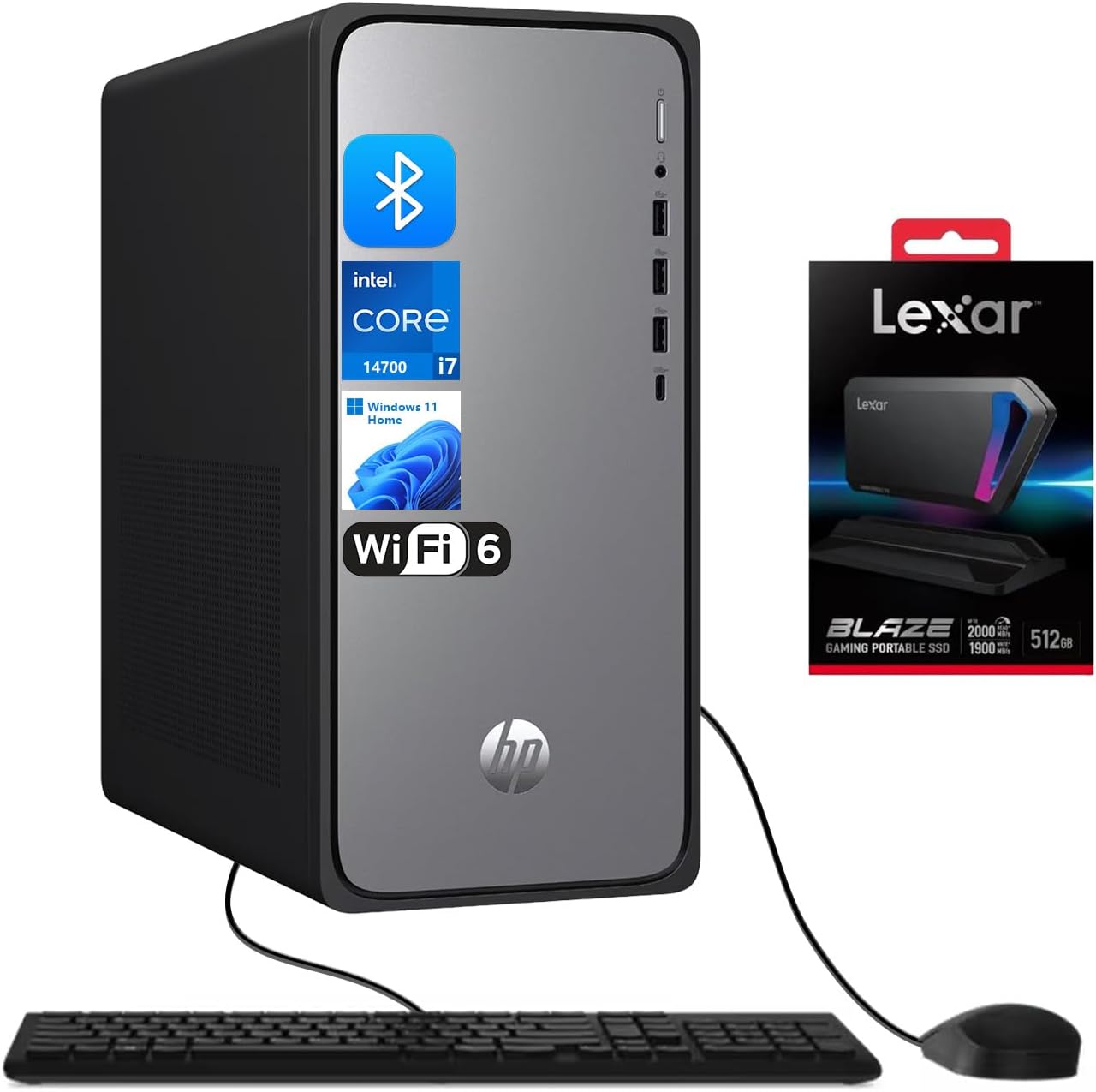
Image 1.1: The HP Omnidesk M02 Business Tower Desktop, bundled with a Lexar SL660 Portable SSD, wired keyboard, and mouse.
2. What's in the Box
Verify that all items are present in the packaging before proceeding with setup.
- HP Omnidesk M02-0881 Tower Desktop
- Wired Keyboard
- Wired Mouse
- Lexar SL660 512GB Portable SSD
- Power Cable
- Documentation (Quick Start Guide, Warranty Information)
3. Setup Guide
Follow these steps to set up your HP Omnidesk M02 Desktop.
- Unpack the Desktop: Carefully remove the desktop tower and all accessories from the packaging.
- Connect the Monitor: Connect your monitor to the desktop using an HDMI or DisplayPort cable. Ensure the cable is securely plugged into both the desktop's rear port and the monitor's input.
- Connect Keyboard and Mouse: Plug the wired keyboard and mouse into any available USB Type-A ports on the rear of the desktop.
- Connect Power: Connect the power cable to the desktop's power input and then plug it into a grounded electrical outlet.
- Power On: Press the power button located on the front of the desktop tower. The system will boot up, and you will be guided through the initial Windows 11 Home setup process.
- Connect to Network: During the Windows setup, you will have the option to connect to a Wi-Fi network (Wi-Fi 6 supported) or an Ethernet network via the RJ-45 port.
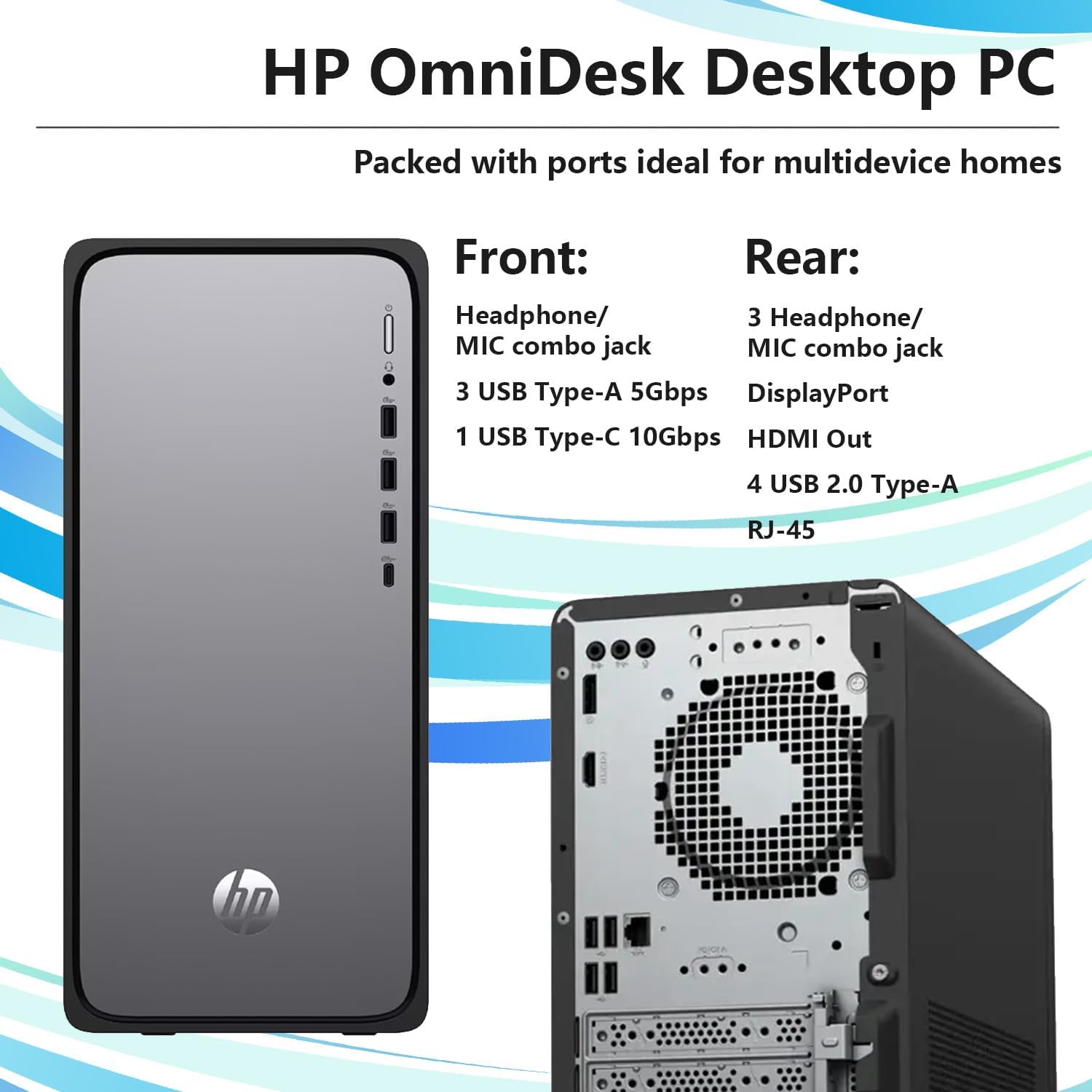
Image 3.1: Front and rear ports of the HP Omnidesk M02 Desktop for connecting peripherals.
4. Hardware Overview
The HP Omnidesk M02 is equipped with powerful components for efficient performance.
4.1 Key Components
- Processor: Intel Core i7-14700 (20 Cores, 28 Threads, up to 5.4 GHz)
- Memory: 16GB DDR5-5600MHz RAM
- Storage: 1TB PCIe NVMe M.2 Solid State Drive
- Graphics: Integrated Intel UHD Graphics
- Wireless: Wi-Fi 6 and Bluetooth

Image 4.1: Key specifications and features of the HP Omnidesk M02 Desktop.
4.2 Ports and Connectors
The desktop provides a variety of ports for connecting peripherals and external devices.
| Location | Port Type | Quantity | Description |
|---|---|---|---|
| Front | USB Type-C (10Gbps) | 1 | High-speed data transfer |
| Front | USB Type-A (5Gbps) | 3 | Standard USB connections |
| Front | Headphone/Microphone Combo Jack | 1 | Audio input/output |
| Rear | USB Type-A 2.0 | 4 | Standard USB connections |
| Rear | HDMI | 1 | Video output |
| Rear | DisplayPort | 1 | Video output |
| Rear | RJ-45 | 1 | Ethernet network connection |
| Rear | Audio Out | 1 | Audio output |
5. Operating System: Windows 11 Home
Your HP Omnidesk M02 comes pre-installed with Windows 11 Home, offering a modern and efficient computing experience.
5.1 Windows Copilot
Windows 11 Home includes AI-powered features like Windows Copilot, designed to enhance productivity and provide intelligent assistance. You can access Copilot to quickly manage tasks, get information, and personalize your PC experience.
5.2 Initial Setup and Updates
Upon first boot, follow the on-screen instructions to complete the Windows 11 setup, including creating a user account and connecting to the internet. It is recommended to perform system updates regularly to ensure optimal performance and security. Navigate to Settings > Windows Update to check for and install updates.
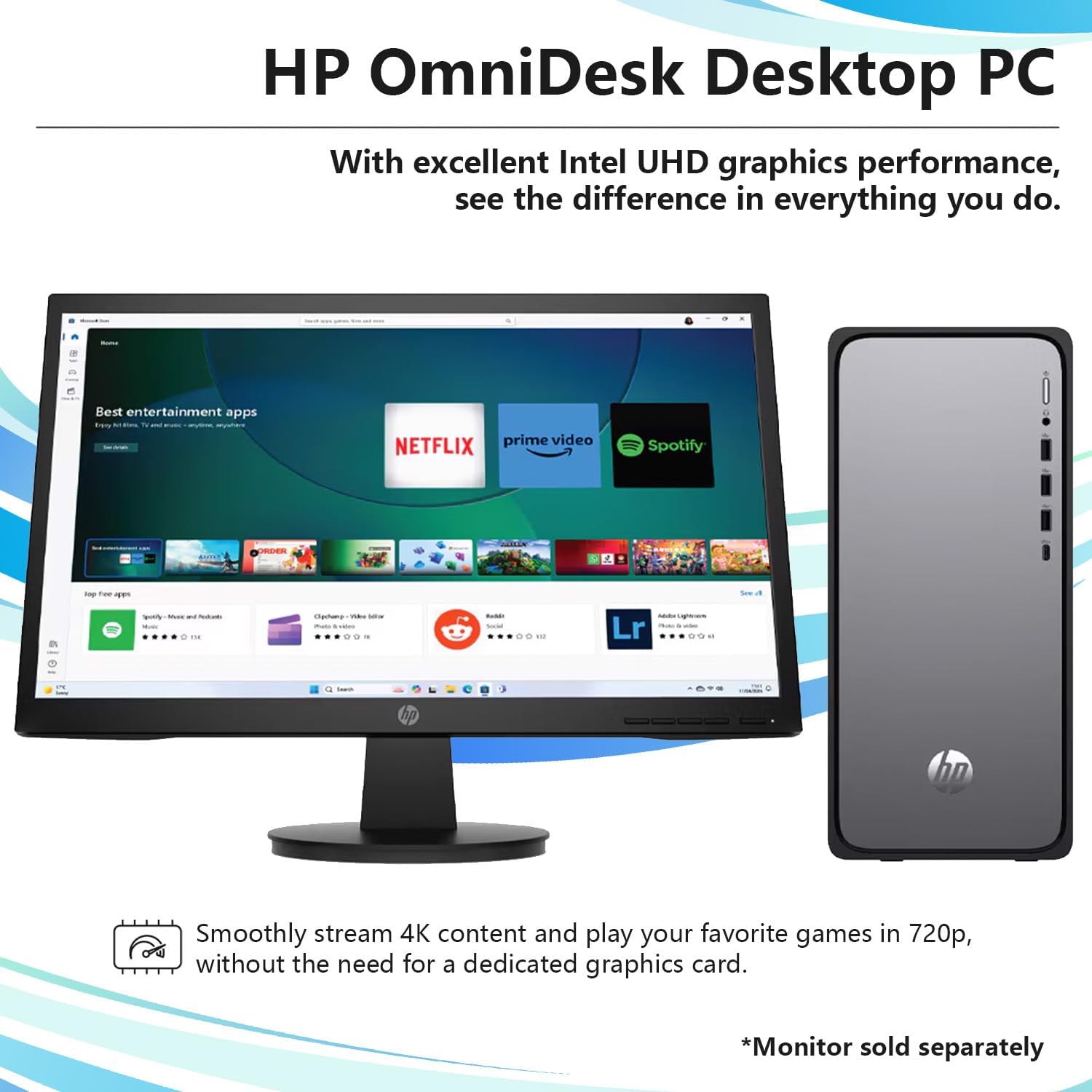
Image 5.1: The HP Omnidesk M02 Desktop running Windows 11 Home, suitable for various applications.
6. Lexar SL660 512GB Portable SSD
Your desktop includes a Lexar SL660 512GB Portable SSD for additional high-speed storage.
6.1 Connecting the Portable SSD
The Lexar SL660 Portable SSD connects to your desktop via a USB Type-C port. Use the provided USB Type-C to Type-C cable or USB Type-C to Type-A cable to connect it to an available port on your desktop. For optimal performance, use a USB 10Gbps (USB 3.2 Gen 2) port.
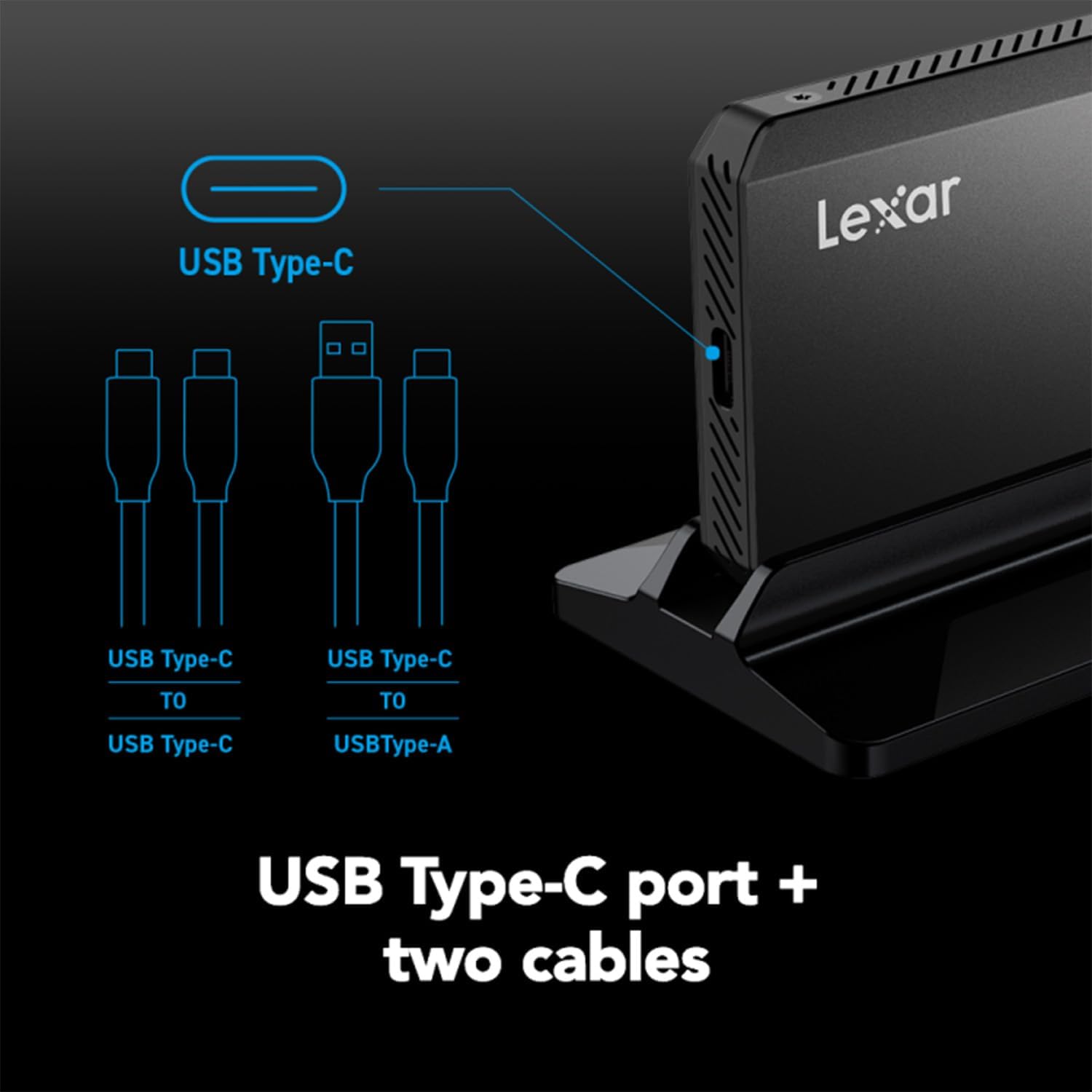
Image 6.1: The Lexar SL660 Portable SSD and its compatible USB Type-C and Type-A cables.
6.2 Using the Portable SSD
Once connected, the Lexar SL660 SSD will appear as an external drive in File Explorer. You can use it for storing large files, backups, or transferring data between devices. Always safely eject the drive before disconnecting it to prevent data corruption.
7. Maintenance
Regular maintenance helps ensure the longevity and optimal performance of your desktop.
- Cleaning: Use a soft, dry cloth to clean the exterior of the desktop. For dust accumulation in vents, use compressed air. Do not use liquid cleaners directly on the components.
- Software Updates: Keep your Windows operating system and drivers updated. This improves security, stability, and performance.
- Ventilation: Ensure the desktop's vents are not obstructed to allow for proper airflow and prevent overheating.
- Data Backup: Regularly back up important data to the Lexar portable SSD or another external storage device.
8. Troubleshooting
This section addresses common issues you might encounter.
- No Power:
- Check if the power cable is securely connected to both the desktop and the electrical outlet.
- Verify the power outlet is functional by plugging in another device.
- No Display:
- Ensure the monitor is powered on and the video cable (HDMI/DisplayPort) is securely connected to both the desktop and the monitor.
- Try a different video cable or monitor if available.
- Peripheral Not Detected (Keyboard/Mouse/SSD):
- Ensure the peripheral is correctly plugged into a functional USB port.
- Try plugging the peripheral into a different USB port.
- Restart the desktop.
- Slow Performance:
- Close unnecessary applications running in the background.
- Check for and install any pending Windows updates.
- Ensure adequate ventilation to prevent thermal throttling.
9. Specifications
Detailed technical specifications for the HP Omnidesk M02 Business Tower Desktop.
| Feature | Detail |
|---|---|
| Model Name | M02-0881 |
| Processor | Intel Core i7-14700 (20 Cores, 28 Threads, 2.1 GHz base, up to 5.4 GHz max turbo) |
| RAM | 16GB DDR5-5600MHz |
| Storage | 1TB PCIe NVMe M.2 SSD |
| Graphics | Integrated Intel UHD Graphics |
| Operating System | Windows 11 Home |
| Wireless Connectivity | Wi-Fi 6, Bluetooth |
| Front Ports | 1x USB Type-C (10Gbps), 3x USB Type-A (5Gbps), 1x Headphone/Mic Combo |
| Rear Ports | 4x USB Type-A 2.0, 1x HDMI, 1x DisplayPort, 1x RJ-45, 1x Audio Out |
| Dimensions (LxWxH) | 13.27 x 6.1 x 12.4 inches |
| Weight | 12.72 lbs |
| Color | Black |
| Bundled Accessory | Lexar SL660 512GB Portable SSD |

Image 9.1: The HP Omnidesk M02 Desktop is designed with environmental considerations, including recycled materials and energy efficiency.
10. Warranty and Support
Your HP Omnidesk M02 Desktop comes with specific warranty coverage.
- Manufacturer's Warranty: The remaining components of the desktop retain the original 1-year manufacturer's warranty.
- Upgraded Components Warranty: A 1-year warranty on the upgraded RAM and SSD is provided by PCOnline US.
- Technical Support: For technical assistance, please refer to the official HP support website or contact PCOnline US for issues related to upgraded components.
For further information, visit the HP Store on Amazon.
Related Documents - M02-0881
 |
HP Computer User Guide - N31630-004 Comprehensive user guide for HP computers, covering setup, features, troubleshooting, diagnostics, specifications, and accessibility. Includes information on HP PC Hardware Diagnostics, recovery options, and system care. |
 |
DFI RPS183 Mini-ITX Industrial Motherboard User's Manual Comprehensive user's manual for the DFI RPS183 Mini-ITX Industrial Motherboard, detailing specifications, hardware installation, and BIOS settings for Intel LGA 1700 processors. |
 |
HP EliteBook 830 G7 Maintenance and Service Guide Comprehensive guide for the HP EliteBook 830 G7 Notebook PC, covering product description, components, illustrated parts catalog, removal and replacement procedures for both customer self-repair and authorized service provider parts, computer setup (BIOS, TPM, HP Sure Start), backing up, restoring, recovering, HP PC Hardware Diagnostics, and specifications. |
 |
HP EliteDesk 800 G2 & EliteOne 800 G2 Business Desktops: Specifications Discover the comprehensive technical specifications and features of HP EliteDesk 800 G2 and HP EliteOne 800 G2 business desktop computers. Explore various form factors, Intel processors, connectivity options, and business-centric capabilities. |
 |
Lenovo ThinkStation P3 Ultra Power Configurator Guide Detailed guide to the Lenovo ThinkStation P3 Ultra power configurations, including CPU and GPU power ratings, architectural design, and external power adapter options. |
 |
HP EliteBook 840 G10 Maintenance and Service Guide Comprehensive maintenance and service guide for the HP EliteBook 840 G10 Notebook PC, detailing component identification, removal/replacement procedures, system recovery, BIOS settings, specifications, and troubleshooting for optimal device care. |
Ask a question about this manual
Ask about setup, troubleshooting, compatibility, parts, safety, or missing instructions. Manuals+ will review the question and use this page’s manual context to help answer it.