1. Introduction
The Yealink CTP25 is a touch console designed for meeting control, specifically compatible with the Meetingbar A40. It features a 10.1-inch touchscreen for intuitive interaction, simplifying the process of joining and managing video conferences. This manual provides essential information for the proper setup, operation, and maintenance of your CTP25 device.
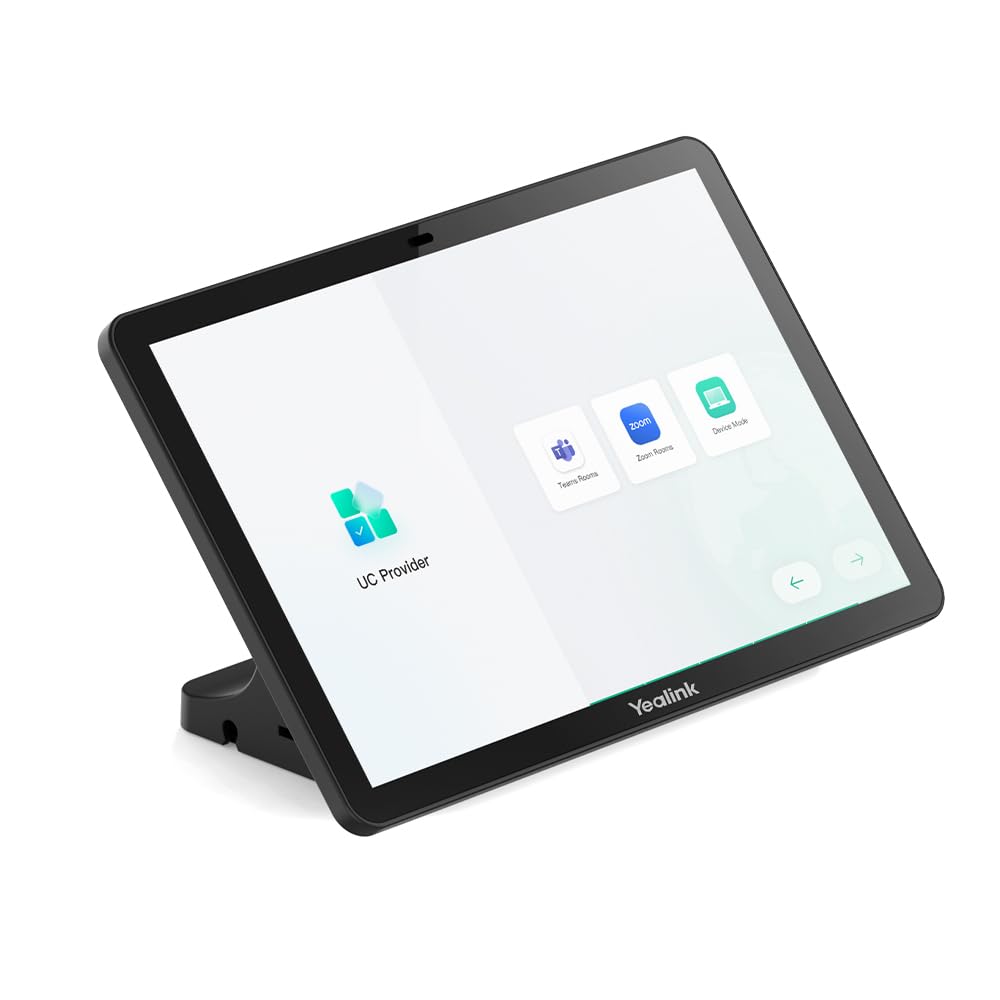
Figure 1: Yealink CTP25 Touch Console. This image displays the front view of the CTP25, highlighting its 10.1-inch display and sleek design.
2. Setup
Follow these steps to set up your Yealink CTP25 touch console:
- Unpack the Device: Carefully remove the CTP25 from its packaging. Verify all components are present.
- Power Connection: Connect the power adapter to the CTP25 and plug it into a power outlet.
- Network Connection: Connect the CTP25 to your network using an Ethernet cable or configure Wi-Fi 6 (802.11a/b/g/n/ac/ax) as per your network setup.
- Connect to Meetingbar A40: Use the appropriate cable (e.g., USB-C for content sharing/BYOD/power) to connect the CTP25 to your Yealink Meetingbar A40. Refer to the Meetingbar A40 manual for specific connection instructions.
- Initial Boot-up: The device will power on automatically or require a press of the power button. Follow the on-screen prompts for initial configuration, including language selection and network settings.
- Software Updates: Ensure the device's software is up to date. The CTP25 supports Android 13 and continues to receive updates. Check for and install any available updates through the device settings.
3. Operating Instructions
The CTP25 provides an intuitive interface for managing your meetings. Here are basic operating guidelines:
- Touchscreen Navigation: Use the 10.1-inch touchscreen to navigate menus, select options, and input information. The interface is designed for ease of use.
- Joining Meetings: From the home screen, you can typically see scheduled meetings. Tap on a meeting to join it directly.
- Meeting Controls: During a meeting, the CTP25 provides controls for managing participants, muting microphones, adjusting camera views, and sharing content.
- Content Sharing: The CTP25 supports USB-C wired content sharing. Connect your laptop or other device via USB-C to share your screen during a meeting.
- BYOD (Bring Your Own Device): Utilize the BYOD functionality via USB-C to integrate your personal device with the meeting system.
- Audio Features: The built-in ultrasound unit enhances audio capabilities. Adjust volume and audio settings as needed through the on-screen controls.
- Device Settings: Access system settings to configure network, display, audio, and other device-specific options.
4. Maintenance
Proper maintenance ensures the longevity and optimal performance of your CTP25:
- Cleaning: Use a soft, dry, anti-static cloth to clean the screen and exterior surfaces. Do not use liquid cleaners or aerosols directly on the device.
- Software Updates: Regularly check for and install software updates to ensure the device has the latest features and security patches. This can typically be done through the device's settings menu.
- Environmental Conditions: Operate the device within recommended temperature and humidity ranges. Avoid exposure to direct sunlight, excessive heat, or moisture.
- Cable Management: Ensure all cables are securely connected and not strained or tangled to prevent damage.
- Restarting: If the device becomes unresponsive, perform a soft restart through the system settings. If necessary, disconnect and reconnect the power.
5. Troubleshooting
This section addresses common issues you might encounter with your CTP25.
| Problem | Possible Cause | Solution |
|---|---|---|
| Device does not power on. | Power cable not connected or faulty. | Check power cable connection. Ensure the power outlet is functional. |
| No network connection. | Ethernet cable disconnected or Wi-Fi not configured. | Verify Ethernet cable connection. Check Wi-Fi settings and credentials. Restart router/modem if necessary. |
| Touchscreen unresponsive. | Temporary software glitch. | Restart the device. Ensure the screen is clean and free of obstructions. |
| Content sharing not working. | Incorrect cable or software issue. | Ensure USB-C cable is correctly connected and functional. Check content sharing settings on both CTP25 and the source device. |
| Poor audio quality. | Microphone/speaker issues or environmental interference. | Check audio settings. Ensure no obstructions near the built-in ultrasound unit. Test in a quieter environment. |
6. Specifications
Key technical specifications for the Yealink CTP25:
- Screen Size: 10.1 inches
- Display Type: IPS
- Resolution: 1280 x 800 (HD)
- Operating System: Android 13 (updatable)
- Connectivity: Wi-Fi 6 (802.11a/b/g/n/ac/ax), Bluetooth 5.0, USB-C (for content sharing/BYOD/power)
- Audio: Built-in Ultrasound Unit
- Product Dimensions: 1.08 x 10.83 x 9.57 inches
- Item Weight: 3.9 pounds
- Model Number: 1303132
- Manufacturer: Yealink
7. Warranty Information
Yealink products typically come with a limited manufacturer's warranty. For detailed warranty terms, conditions, and registration, please refer to the official Yealink website or the warranty card included with your product. Keep your proof of purchase for warranty claims.
8. Customer Support
For technical assistance, troubleshooting beyond this manual, or service inquiries, please contact Yealink customer support. You can find contact information, FAQs, and additional resources on the official Yealink website:


