
1. Introduction
Thank you for choosing the BIGASUO BGP14 Projector. This manual provides essential information for setting up, operating, and maintaining your projector. Please read it thoroughly before use to ensure optimal performance and safety.

Figure 1.1: The BIGASUO BGP14 projector, a compact white cylindrical device, alongside icons indicating its main features: 4K resolution support, WiFi 6 connectivity, Android 11.0 operating system, and automatic keystone correction.
2. Safety Information
Observe the following safety precautions to prevent damage to the projector and ensure user safety:
- Do not look directly into the projector lens when the lamp is on.
- Ensure proper ventilation around the projector to prevent overheating.
- Keep the projector away from water, moisture, and flammable materials.
- Use only the power adapter supplied with the projector.
- Avoid placing the projector on unstable surfaces.
- Do not attempt to open or repair the projector yourself. Contact qualified service personnel.
3. Package Contents
Verify that all items are present in the package:
- BIGASUO BGP14 Projector
- Power Adapter
- Remote Control
- User Manual
- HDMI Cable (may vary by region)
4. Product Overview
Familiarize yourself with the projector's components and interfaces.
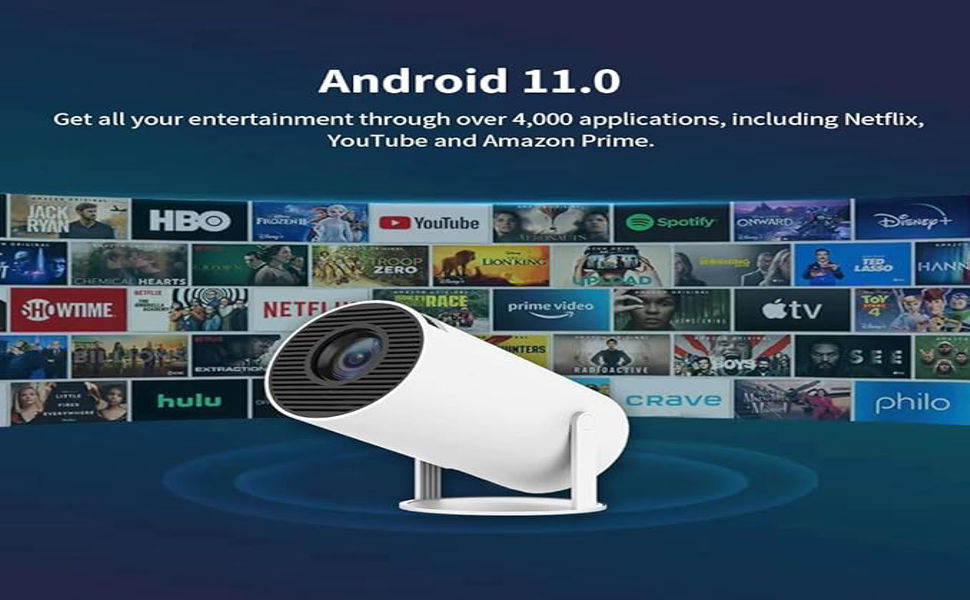
Figure 4.1: A comprehensive view of the BIGASUO BGP14 projector, highlighting its sleek, compact design and various advanced features for home entertainment.
4.1 Front Panel
- Projection Lens: Emits the image.
4.2 Rear Panel / Side Panel
- Power Port: Connects to the power adapter.
- HDMI Port: Connects to external devices like laptops, gaming consoles, or TV sticks.
- USB Port: Connects to USB drives for media playback.
- Audio Out: Connects to external speakers or headphones.
- Ventilation Grilles: For heat dissipation.
5. Setup
5.1 Placement
Position the projector on a stable, flat surface. Ensure there are no obstructions blocking the lens or ventilation grilles. The projector can be placed on a table, mounted on a tripod, or even project onto a ceiling.

Figure 5.1: This image showcases the versatility of the BIGASUO BGP14 projector, demonstrating its ability to project images onto both a wall from a table and onto a ceiling from a floor stand, highlighting flexible placement options.
5.2 Power Connection
- Connect the power adapter to the projector's power port.
- Plug the power adapter into a wall outlet.
- Press the power button on the projector or remote control to turn it on.
5.3 Focus Adjustment
Adjust the focus ring on the projector lens until the projected image appears clear and sharp.
5.4 Keystone Correction
The BIGASUO BGP14 features automatic keystone correction. If the image appears trapezoidal, the projector will automatically adjust it to a rectangular shape. Manual adjustment options may also be available in the settings menu for fine-tuning.
6. Operating Instructions
6.1 Navigating the Android OS
The projector runs on Android 11.0. Use the remote control to navigate the interface. The home screen provides access to various applications and settings.

Figure 6.1: This image shows the BIGASUO BGP14 projector displaying its Android 11 OS interface, featuring icons for 'Online video', 'My Apps', 'Projection', and 'Projection screen', emphasizing its capability to run over 4000 applications.
6.2 Connecting to Wi-Fi
- From the home screen, navigate to Settings.
- Select Network & Internet.
- Turn on Wi-Fi and select your desired network from the list.
- Enter the Wi-Fi password if prompted and connect. The projector supports 5G+2.4G Dual WiFi 6 for fast and stable connections.

Figure 6.2: The BIGASUO BGP14 projector is shown projecting a dynamic race car scene, with a visual representation of its 5G+2.4G Dual WiFi 6 connection capabilities. Icons for Airplay, Miracast, and DLNA indicate its screen mirroring functionalities.
6.3 Screen Mirroring
The projector supports various screen mirroring protocols:
- Airplay: For Apple iOS devices.
- Miracast: For Android devices.
- DLNA: For media sharing across compatible devices.
To use screen mirroring, ensure your device and the projector are connected to the same Wi-Fi network. Select the appropriate mirroring option on the projector's interface and follow the on-screen instructions on your mobile device.

Figure 6.3: This image illustrates the BIGASUO BGP14 projector's WiFi 6 ultra-fast wireless connection, showing a smartphone mirroring a racing game onto the projected screen. Text highlights the built-in WiFiDisplay feature for mirroring content from Android and Apple devices.
6.4 Using Built-in Apps
The Android 11.0 OS allows access to over 4,000 applications, including popular streaming services like Netflix, YouTube, and Amazon Prime Video. Navigate to the 'Apps' section on the home screen to browse and launch applications.

Figure 6.4: This image illustrates the BIGASUO BGP14 projector's Android 11.0 operating system, showcasing a wide array of streaming application logos such as Netflix, YouTube, and Amazon Prime, indicating access to over 4,000 applications for entertainment.
6.5 Connecting External Devices (HDMI/USB)
- HDMI: Connect an HDMI cable from your external device (e.g., laptop, game console, TV stick) to the projector's HDMI port. The projector should automatically detect the input, or you may need to select the HDMI source from the input menu.
- USB: Insert a USB flash drive into the projector's USB port. The projector's media player will typically launch automatically, allowing you to browse and play supported media files.
6.6 Bluetooth Connection
To connect Bluetooth audio devices (e.g., speakers, headphones):
- Go to Settings > Bluetooth.
- Turn on Bluetooth and put your audio device into pairing mode.
- Select your device from the list of available devices to pair.
7. Maintenance
7.1 Cleaning the Lens
Use a soft, lint-free cloth specifically designed for optical lenses. Gently wipe the lens in a circular motion. Avoid using abrasive cleaners or excessive force.
7.2 Cleaning the Ventilation Grilles
Regularly clean the ventilation grilles with a soft brush or a vacuum cleaner with a brush attachment to prevent dust buildup, which can lead to overheating.
7.3 Storage
When not in use, store the projector in a cool, dry place, away from direct sunlight and extreme temperatures. Use the original packaging or a protective case to prevent dust and damage.
8. Troubleshooting
If you encounter issues with your projector, refer to the following common problems and solutions:
| Problem | Possible Cause | Solution |
|---|---|---|
| No power | Power cable not connected; power outlet faulty | Check power cable connection; try a different outlet. |
| No image | Input source incorrect; cable loose; lens cap on | Select correct input source; check cable connections; remove lens cap. |
| Image blurry | Focus not adjusted; projection distance incorrect | Adjust the focus ring; ensure projector is within optimal projection distance. |
| No sound | Volume too low; external audio device not connected; source device muted | Increase projector volume; check external audio connections; unmute source device. |
| Wi-Fi connection issues | Incorrect password; router too far; network interference | Verify password; move projector closer to router; restart router. |
9. Specifications
Key technical specifications for the BIGASUO BGP14 Projector:
| Feature | Specification |
|---|---|
| Brand | BIGASUO |
| Model | BGP14 |
| Operating System | Android 11.0 |
| Connectivity | 5G+2.4G Dual WiFi 6, Bluetooth 5.0 |
| Video Decoding | 4K Support, 1080P Full HD |
| Projection Size | 40"-130" (optimal range) |
| Keystone Correction | Auto Keystone |
| Product Dimensions | 10 x 25 x 10 cm |
| Item Weight | 670 g |
| Light Source Wattage | 280 Watts |
| Minimum Throw Distance | 10 Millimetres |
| Maximum Throw Distance | 11 Millimetres |
10. Warranty and Support
The BIGASUO BGP14 Projector comes with a standard manufacturer's warranty. Please refer to the warranty card included in your package for specific terms and conditions. For technical support, troubleshooting assistance, or warranty claims, please contact BIGASUO customer service through the contact information provided on the product packaging or the official BIGASUO website.
Please retain your purchase receipt as proof of purchase for warranty purposes.