
1. Introduction
This manual provides essential instructions for the setup, operation, and maintenance of your SPC Zeus 2 Pro Smartphone. Designed for ease of use, this device features a simplified interface, physical buttons, and dedicated support features for seniors. Please read this manual thoroughly to ensure proper usage and to maximize the benefits of your new smartphone.
2. Package Contents
Upon opening the package, verify that all the following items are present:
- SPC Zeus 2 Pro Smartphone
- Charging Base
- USB Type-C Cable
- Wall Adapter
- SIM Tray Ejector Tool
- Quick Start Guide (This Manual)
3. Device Overview
The SPC Zeus 2 Pro is equipped with a 6.1-inch display and physical buttons for call management, designed for straightforward interaction.

Figure 3.1: Front view of the SPC Zeus 2 Pro Smartphone in its charging base, displaying the simplified "Easy Mode" interface with large, clear icons for essential functions. Physical call answer and end buttons are located at the bottom.
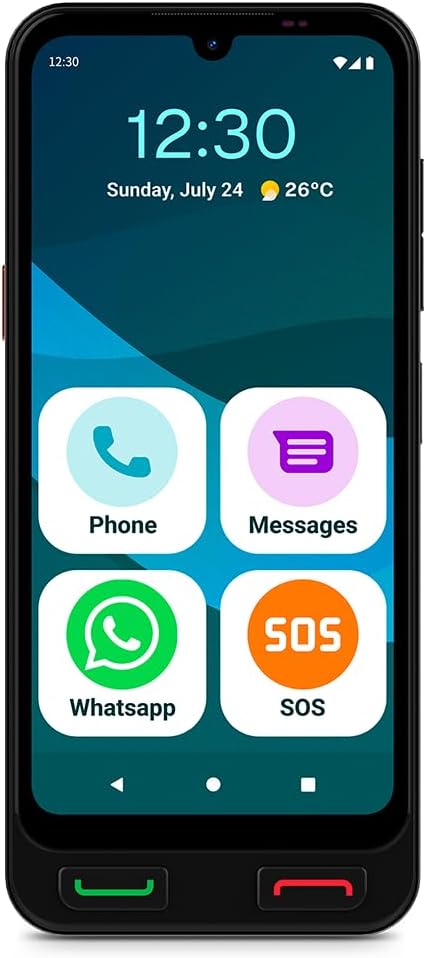
Figure 3.2: Front view of the SPC Zeus 2 Pro Smartphone, highlighting the 6.1-inch screen and the "Easy Mode" layout with oversized application icons.
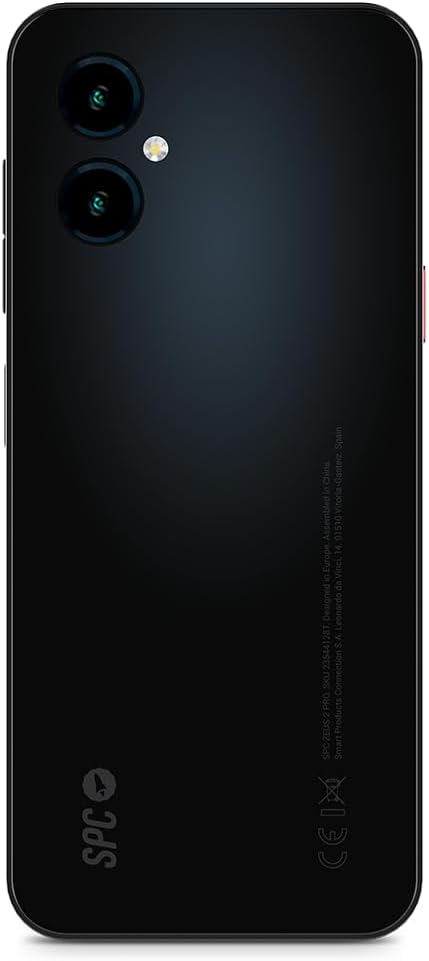
Figure 3.3: Rear view of the SPC Zeus 2 Pro Smartphone, featuring the dual camera system and the brand's logo.
3.1. Physical Buttons and Ports
- Call Answer Button: Green button below the screen to accept incoming calls.
- Call End Button: Red button below the screen to end calls or return to the home screen.
- SOS Button: Located on the side, for emergency contact activation.
- Volume Buttons: On the side, to adjust audio levels.
- Power Button: On the side, to turn the device on/off or lock/unlock the screen.
- USB Type-C Port: For charging and data transfer.
4. Setup
4.1. Initial Power On and Configuration
- Press and hold the Power Button until the screen illuminates.
- Follow the on-screen start-up assistant. This guide will walk you through initial settings.
- During setup, you can choose between Android Mode (standard smartphone interface) or Easy Mode (simplified interface with large icons).
- Adjust icon size and distribution as prompted.
4.2. SIM Card / eSIM Installation
Your SPC Zeus 2 Pro supports Dual SIM functionality and eSIM.
- Locate the SIM card tray on the side of the device.
- Insert the provided SIM tray ejector tool into the small hole next to the tray and gently push until the tray pops out.
- Place your Nano-SIM card(s) into the designated slots on the tray.
- Carefully reinsert the tray into the phone.
- For eSIM activation, follow the instructions provided by your mobile network operator.
4.3. Charging the Device
The smartphone comes with a convenient charging base.
- Connect the USB Type-C cable to the charging base and the wall adapter.
- Plug the wall adapter into a power outlet.
- Place the SPC Zeus 2 Pro Smartphone into the charging base. Ensure it is seated correctly and the charging indicator appears on the screen.
- Alternatively, you can connect the USB Type-C cable directly to the phone's charging port.

Figure 4.1: The SPC Zeus 2 Pro Smartphone positioned in its charging base, illustrating the ease of charging without direct cable connection to the phone.
5. Operating Instructions
5.1. Making and Receiving Calls
- To Make a Call: In Easy Mode, tap the "Phone" icon or a contact photo. Select the desired contact or dial the number. Press the green physical button to initiate the call.
- To Receive a Call: When a call comes in, press the green physical button to answer.
- To End a Call: Press the red physical button to terminate the call.
5.2. Messaging (SMS and WhatsApp)
- SMS: Tap the "Messages" icon to send and receive text messages.
- WhatsApp: Tap the "WhatsApp" icon to access the application for instant messaging and calls.
5.3. Using the SOS Button
The dedicated SOS button is designed for emergencies.
- In an emergency, press and hold the SOS Button on the side of the phone.
- The phone will automatically initiate a cycle of calls and SMS messages to pre-configured emergency contacts.
- This cycle will repeat up to three times if no response is received from the emergency contacts.
5.4. SPC Care Application
The SPC Care app allows family members to remotely assist with phone settings and monitor the user's safety.
- Remote Settings: Family members can rearrange icons, adjust volume, or increase font size from their own smartphone (Android or iOS) via the SPC Care app.
- Real-time Location: The app provides real-time location tracking, allowing authorized family members to know the user's whereabouts.
- Security Notifications: The SPC Care app can send notifications if the phone has been unused for several hours or if the battery level is low, indicating potential issues.
5.5. Camera Usage
The SPC Zeus 2 Pro features a 50 MP rear camera and a 5 MP front camera.
- Tap the Camera icon on the home screen or app drawer to open the camera application.
- Select between the front or rear camera.
- Tap the shutter button to capture photos or record videos.
5.6. Security Features
The device supports fingerprint and facial recognition for secure unlocking.
- Navigate to Settings > Security to set up fingerprint or face unlock.
- Follow the on-screen instructions to register your fingerprint or facial data.
5.7. NFC Payments
The SPC Zeus 2 Pro supports NFC for contactless payments.
- Ensure NFC is enabled in Settings > Connected devices > Connection preferences > NFC.
- Set up your preferred payment application (e.g., Google Pay) and add your payment cards.
- To make a payment, hold the back of your phone near a compatible payment terminal.
6. Maintenance
6.1. Battery Care
- Avoid extreme temperatures, which can degrade battery life.
- Charge the device regularly, preferably using the provided charging base or cable.
- Do not leave the battery completely discharged for extended periods.
6.2. Cleaning
- Use a soft, lint-free cloth to clean the screen and body of the phone.
- Avoid using harsh chemicals or abrasive materials.
- Keep ports free of dust and debris.
7. Troubleshooting
| Problem | Possible Cause | Solution |
|---|---|---|
| Phone does not turn on | Low or depleted battery | Charge the phone using the provided charger and cable/base for at least 30 minutes. |
| Cannot make or receive calls | No network signal, SIM card issue, or airplane mode is on. | Check network signal strength. Ensure SIM card is correctly inserted. Turn off airplane mode in settings. Contact your service provider. |
| Screen is unresponsive | Software glitch or temporary freeze. | Restart the phone by holding the power button. If unresponsive, force restart (refer to device specific instructions if available, usually holding power and volume down). |
| SPC Care app notifications not received | App permissions, internet connection, or settings issue. | Ensure the phone has an active internet connection. Check app permissions for notifications. Verify settings within the SPC Care app on both devices. |
8. Specifications
| Feature | Detail |
|---|---|
| Model Name | ZEUS 2 PRO |
| Model Number | 23544128T |
| Brand | SPC |
| Operating System | Android 15 |
| Screen Size | 6.1 Inches |
| Resolution | 720 x 1560 |
| Refresh Rate | 60 Hz |
| RAM | 4 GB |
| Internal Storage | 128 GB (Expandable) |
| CPU Speed | 2.3 GHz (Octa-core) |
| Rear Camera | 50 Megapixels |
| Front Camera | 5 Megapixels |
| Battery Composition | Lithium-ion |
| Connectivity | Bluetooth, USB Type C, NFC |
| Special Features | Dual SIM, Mobile Hotspot, Integrated GPS, Expandable Memory, Fast Charging Support, Fingerprint Unlock, Face Unlock, SOS Button, Charging Base. |
9. Warranty and Support
Your SPC Zeus 2 Pro Smartphone is covered by a standard manufacturer's warranty. Please refer to the warranty card included in your package for specific terms and conditions.
For technical support, troubleshooting assistance, or further inquiries, please visit the official SPC website or contact their customer service department. Contact information can typically be found on the product packaging or the manufacturer's website.


