
1. Introduction
This manual provides detailed instructions for setting up, operating, and maintaining your Dexnor Ultra-Light Magnetic Detachable Keyboard Case. Designed for enhanced productivity, this keyboard case transforms your iPad into a versatile laptop-like device.
Please read this manual thoroughly before using the product to ensure proper function and longevity.
2. Compatibility
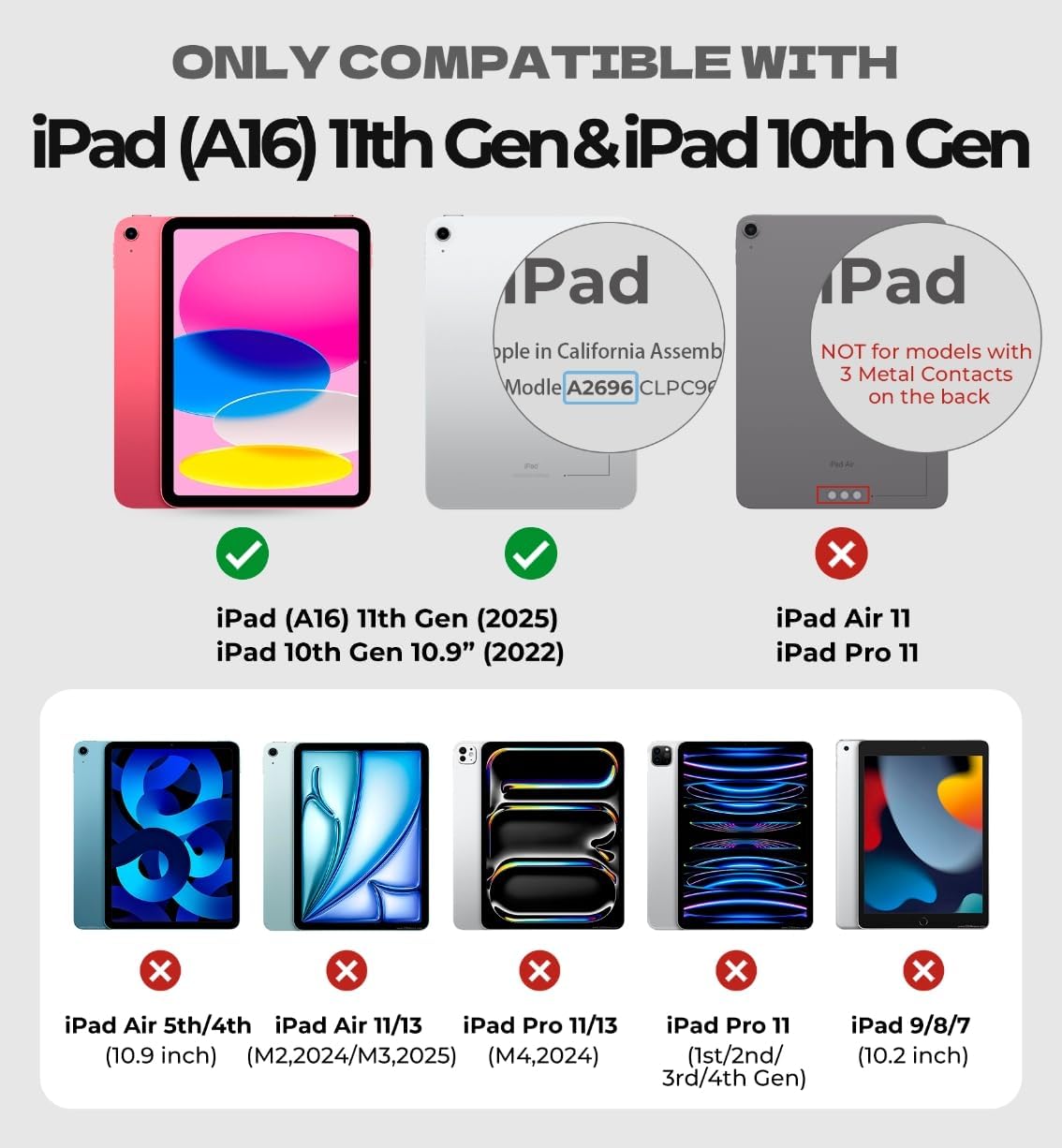
This Dexnor Keyboard Case is precisely engineered for the following iPad models:
- iPad 10th Generation (10.9", 2022) - Models: A2696, A2757, A2777
- iPad (A16) 11th Generation (11", 2025) - Models: A3354, A3355, A3356
Important Note:
- Verify the "A" code on the back of your iPad before purchase.
- This case is NOT compatible with iPad 9th/8th/7th Gen, iPad Air 4th/5th Gen, iPad Air 11 inch, or iPad Pro 11 inch.
- The magnetic attachment feature will not function with iPad models that have 3 metal contacts on the back.
- iPad and Apple Pencil are NOT included.
3. Key Features
- Ultra-light & Portable Design: Weighing just 1.16 lbs, this case is designed for on-the-go productivity.
- Ultra-strong Magnetic Attachment: Embedded magnets ensure secure and firm attachment of your iPad, providing stable support on a desk or lap. The ergonomic 120-degree viewing angle enhances comfort.
- Multi-touch Trackpad: Enjoy smooth and precise navigation with multi-finger gestures for laptop-like control. The trackpad can be disabled by pressing Fn + Spacebar.
- Rechargeable and Long-lasting Battery: Features a 650mAh lithium polymer battery, offering up to 1200 hours of standby time, 200 hours of use without backlight, and 8 hours with the brightest backlight.
- Laptop-like Typing Experience: Well-spaced, responsive scissor-switch keys and a full row of shortcut keys provide efficient typing.
- All-around Protection: Protects your iPad from scratches and daily wear. Includes a built-in pencil holder for secure storage of your Apple Pencil (not included).
- Upgraded Power-saving Design: The keyboard automatically powers on when the case is opened and turns off when closed, putting your iPad to sleep. The keyboard enters sleep mode after 30 minutes of inactivity, and backlight after 45 seconds.

4. Setup Instructions
- Power On: Open the keyboard case. The keyboard will automatically power on (no physical switch required).
- Attach iPad: Lay the back cover flat and magnetically attach your iPad to it. Then, fit the iPad securely into the magnetic slot above the keyboard.
- Bluetooth Pairing:
- Press and hold the Fn key and the B key simultaneously for 3 seconds to enter Bluetooth pairing mode.
- On your iPad, navigate to Settings > Bluetooth and ensure Bluetooth is turned On.
- In the "OTHER DEVICES" list, find and select "Dexnor Keyboard" to pair with your iPad.
5. Operating Instructions
5.1. Trackpad Usage
The built-in multi-touch trackpad provides precise navigation and supports various gestures for enhanced productivity.
- Basic Navigation: Tap to click, drag to move items.
- Multi-finger Gestures: Supports common iPadOS gestures for zooming, managing files, browsing webpages, and switching applications.
- Disable Trackpad: To prevent accidental input (palm rejection), press Fn and Spacebar simultaneously.

5.2. Backlight Control
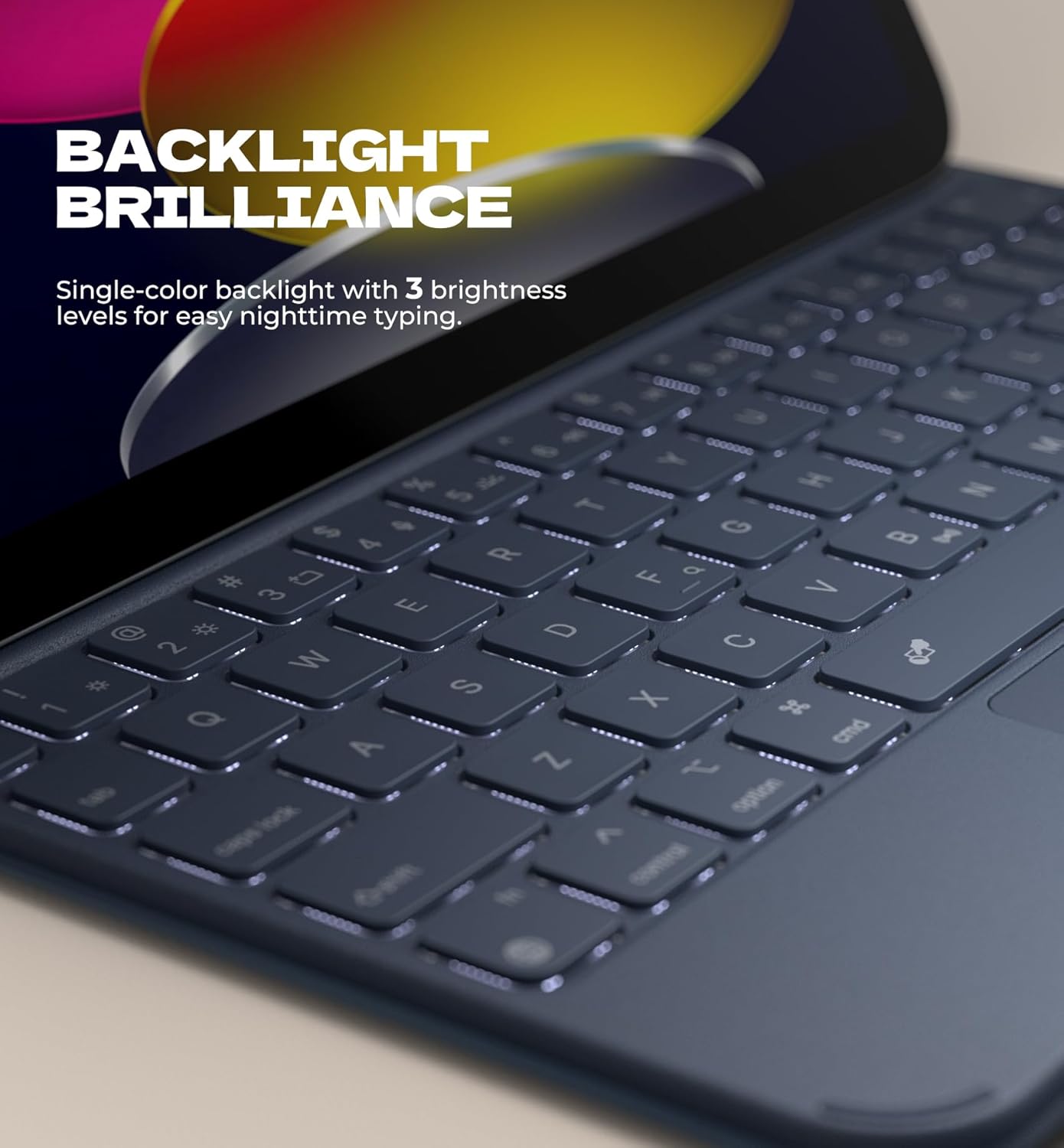
The keyboard features a single-color backlight with 3 adjustable brightness levels for comfortable typing in low-light conditions.
- To adjust brightness, use the dedicated backlight control keys in the function row.
- The backlight will automatically sleep after 45 seconds of inactivity to conserve battery.
5.3. Shortcut Keys
A full row of shortcut keys provides quick access to common functions, enhancing efficiency.
- Press Fn and the corresponding key in the first row for multimedia controls and other shortcuts.
6. Charging and Battery
The keyboard case is equipped with a 650mAh lithium polymer battery.
- Charging: Connect the included USB-C cable to the charging port on the keyboard and to a power source.
- Battery Indicators: Refer to the LED indicators near the charging port for battery status:
- Red LED: Low Battery
- Yellow LED: In Charging
- Green LED (or light off): Fully Charged
- Battery Life: Up to 1200 hours standby time, 200 hours use without backlight, 8 hours continuous use with brightest backlight.

7. Maintenance
- Cleaning: Use a soft, damp cloth to clean the exterior of the case. Avoid harsh chemicals or abrasive materials.
- Storage: When not in use, close the case to protect both the keyboard and your iPad. The magnetic clasp ensures it stays securely closed.
- Pencil Holder: Utilize the built-in pencil holder to keep your Apple Pencil safe and easily accessible.
- Avoid Liquids: Do not expose the keyboard case to excessive moisture or liquids.
8. Troubleshooting
| Problem | Possible Cause | Solution |
|---|---|---|
| Keyboard not powering on. | Low battery; Case not opened fully. | Charge the keyboard; Ensure the case is fully opened to activate auto-wake. |
| Unable to pair via Bluetooth. | Keyboard not in pairing mode; Bluetooth off on iPad; Interference. | Press Fn + B for 3s; Turn iPad Bluetooth off/on; Move closer to iPad. |
| Trackpad not responding. | Trackpad disabled; Software glitch. | Press Fn + Spacebar to enable; Restart iPad and keyboard. |
| Backlight not working. | Backlight off or at lowest setting; Low battery. | Adjust brightness using backlight keys; Charge the keyboard. |
| Magnetic attachment is weak. | Incorrect iPad model; Obstruction. | Ensure iPad is compatible (no 3 metal contacts); Remove any debris. |
9. Specifications
- Model Number: DK010
- Product Dimensions: 10.43 x 7.76 x 0.82 inches
- Item Weight: 1.12 pounds (510 g)
- Battery: 1 A battery required (included), 650mAh Lithium Polymer
- Connectivity Technology: Bluetooth
- Keyboard Description: Multi Functional
- Number of Keys: 64
- Keyboard Backlighting: Single Color, 3 brightness levels
- Material: Premium PU leather
10. What's in the Box
- 1 x Dexnor Keyboard Case for iPad A16 / iPad 10th Gen
- 1 x USB-C Cable
- 1 x Quick-start Guide
- 1 x User Manual (this document)
11. Warranty and Support
For warranty information and customer support, please refer to the contact details provided on the product packaging or visit the official Dexnor website. Keep your purchase receipt for warranty claims.
For further assistance, you may also contact the seller directly through the platform where the product was purchased.


