
Introduction
The Reyke Android Air Tracker is a Google-certified smart tag designed to help you locate your valuable items. This device is compatible with Android 9+ smartphones and integrates seamlessly with the Google Find Hub Device app. Use it to track keys, wallets, backpacks, luggage, and more, ensuring your belongings are always within reach.
Important Compatibility Note: This tracker is designed exclusively for Android 9+ devices and is not compatible with iOS or Huawei devices. Some Android devices may require system updates for full compatibility.

The Reyke Android Air Tracker 4-pack includes four black trackers, each with a lanyard, designed for use with Android devices.
Package Contents
Your Reyke Android Air Tracker package includes the following items:
- 4 x Reyke Android Air Trackers (Model TAG01NC)
- 4 x Lanyards for attaching trackers to items
- CR2032 Lithium Metal batteries (pre-installed or included for replacement)
- User Manual / Quick Start Guide
Setup Guide
1. App Installation
Before setting up your tracker, ensure you have the latest version of the Google Find Hub app installed on your Android smartphone (Android 9+ required). You can download it from the Google Play Store.
2. Fast Pairing
For a quick and easy setup, follow these steps:
- Ensure Bluetooth and mobile data are enabled on your Android phone.
- Press the power button once on your Reyke Android Air Tracker.
- Keep the tracker near your Android phone. A pop-up notification should appear on your phone.
- Tap 'Connect' on the pop-up.
- Follow any on-screen prompts and tap 'Agree and Continue' to complete the pairing process.
This official seller video provides a step-by-step guide on how to set up your Reyke Android Air Tracker using both fast pairing and manual methods with the Google Find Hub app.
3. Manual Setup
If the fast pairing pop-up does not appear, you can set up your tracker manually:
- Go to your phone's Settings.
- Scroll down and tap Google.
- Select All Services.
- Tap Connected Devices and Sharing, then select Devices.
- Ensure Scan for nearby devices is turned on.
- Your Reyke Android Air Tracker should appear in the list. Tap on it.
- Tap 'Agree and Continue' and follow any remaining on-screen instructions to complete the setup.

Visual guide for connecting the tracker: 1. Press power button, 2. Connection pop-up, 3. Click 'Open app', 4. Connection complete.
Operating Your Tracker
1. Locating Items
Once your tracker is paired, you can locate items using the Google Find Hub app:
- Play Sound: Within Bluetooth range (up to 180 ft / 50m), you can make the tracker emit a loud beep (up to 105dB) to help you pinpoint its exact location.
- View on Map: If the tracker is out of Bluetooth range, the app will display its last known location on a map, utilizing the Google Find My Device network.

Locate your items by playing a loud sound (up to 105dB) from the tracker, guided by the Google Find Hub app.
2. Lost Mode
If an item with your tracker is lost, activate Lost Mode in the Google Find Hub app. This feature leverages Google's vast network of Android devices to help locate your item, even if it's far away. No subscription is required for this service.
3. Device Sharing
The Share Device feature allows you to grant access to up to 5 other users (in addition to yourself) to view the tracker's location. This is ideal for shared items like family keys or luggage.
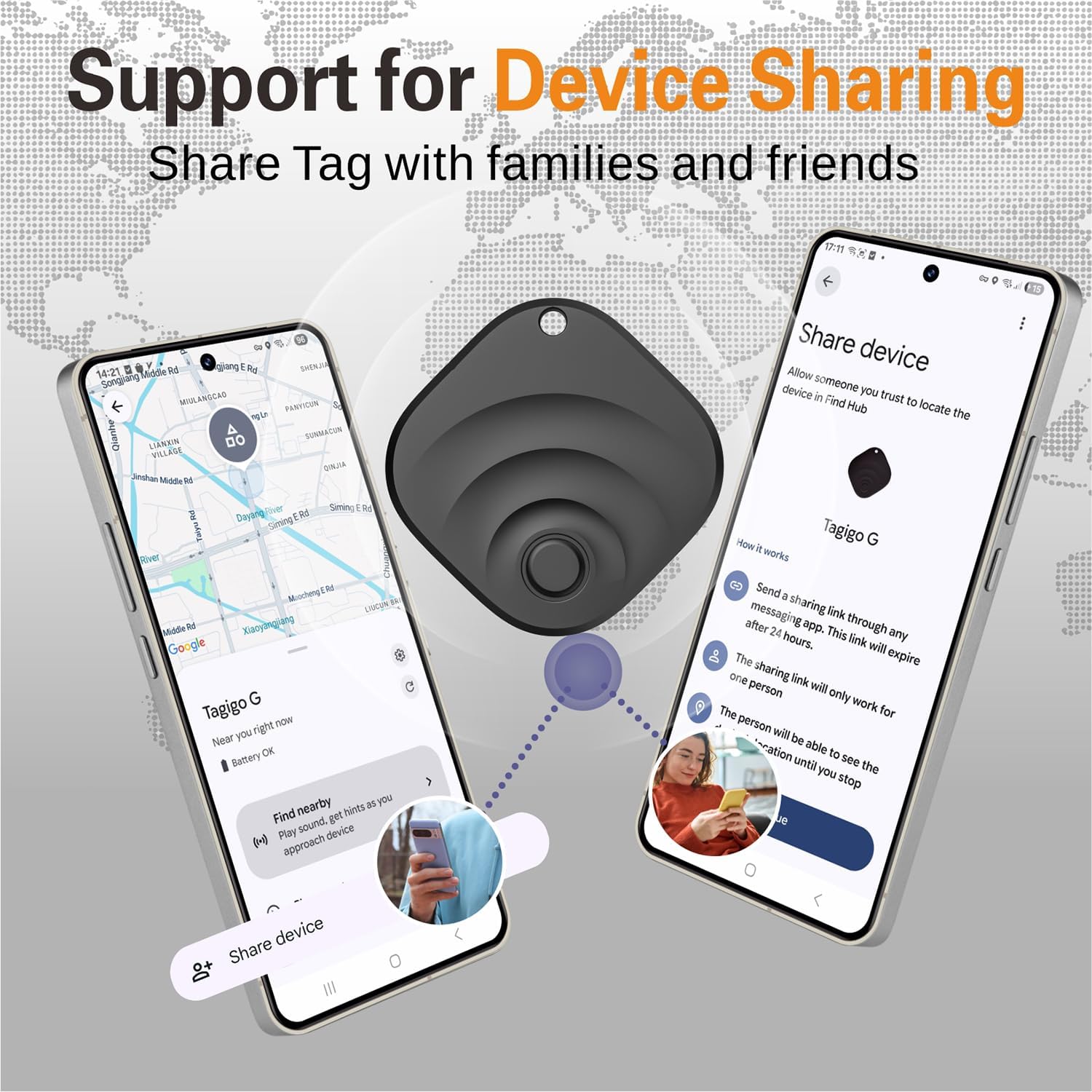
The device sharing feature allows up to 5 additional users to view the tracker's location through the app.
Maintenance
Battery Replacement
The Reyke Android Air Tracker uses a standard CR2032 Lithium Metal battery. The battery typically lasts for approximately 2 years. When the battery is low, you can easily replace it by opening the tracker casing (a small tool may be required) and inserting a new CR2032 battery.

Key specifications of the tracker, including its compact size, Bluetooth range, sound output, and replaceable battery.
Troubleshooting
Pairing Issues
- Pairing window not appearing: If the fast pairing pop-up does not appear, ensure your Android device's system is updated to the latest version. Restarting your phone can also resolve this issue.
- Connectivity problems: Verify that Bluetooth and mobile data are active on your smartphone. Ensure the tracker is within close proximity to your phone during the pairing process.
Product Specifications
| Feature | Specification |
|---|---|
| Model Number | TAG01NC |
| Product Dimensions | 1.26 x 1.26 x 0.31 inches (33 x 33 x 8 mm) |
| Item Weight | 2.39 ounces |
| Battery Type | 1 Lithium Metal battery (CR2032, included) |
| Battery Life | Approximately 2 years |
| Connectivity | Bluetooth |
| Bluetooth Range | Up to 180 ft (50m) |
| Sound Output | 90-105dB |
| Material | Plastic |
| Compatibility | Android 9.0 and above (Not for iOS/Huawei) |

The Reyke Android Air Tracker is compatible with Android smartphones running version 9.0 and above. It does not support Apple or Huawei devices.
Important Information
Privacy and Security
All location data is encrypted and not stored on the device, ensuring your privacy and security when using the Reyke Android Air Tracker.
Warranty and Support
Information regarding product warranty and customer support was not provided in the source data. Please refer to the product packaging or the manufacturer's official website for details.