
1. Introduction
Thank you for choosing the Winnes 4K WiFi Mini Body Cam Sports Camera, Model 25A10004. This compact and versatile camera is designed to capture high-quality video and photos in various environments, from daily activities to extreme sports. This manual provides essential information on setting up, operating, and maintaining your camera to ensure optimal performance.
2. Product Overview and Components
The Winnes 4K WiFi Mini Body Cam is a high-definition sports camera featuring a 120° wide-angle lens, 4K video recording capabilities, and Wi-Fi connectivity. Its compact design and multiple mounting options make it suitable for a wide range of uses.
Key Features:
- 4K Ultra HD Video Recording: Capture crisp, detailed footage.
- 120° Wide-Angle Lens: Provides a broad field of view for immersive recordings.
- Integrated Wi-Fi: Connects to your smartphone for live viewing, control, and instant sharing.
- Versatile Mounting: Features a magnetic base, portable clip, and various accessories for diverse attachment options.
- Waterproof Capability: Submersible up to 30 meters with the included waterproof case.
- Long Battery Life: 800 mAh battery offers up to 3.5 hours of recording, with support for recording while charging.
- Expandable Storage: Supports microSD (TF) cards up to 256 GB (not included).
Package Contents:
The product package typically includes the following components:
- Winnes 4K WiFi Mini Body Cam
- USB Charging Cable
- Waterproof Case
- Frame Mount
- Back Clip
- Magnetic Lanyard
- Helmet Mount
- Bike Mount
- 360° Adapter
- Curved and Flat Base Mounts
- Instruction Manual


3. Setup
3.1. Charging the Battery
Before first use, fully charge the camera's internal 800 mAh battery. Connect the camera to a USB power source (e.g., computer, wall adapter, power bank) using the provided Type-C USB cable. The charging indicator light will typically show the charging status and turn off or change color when fully charged.
3.2. Inserting a MicroSD Card
The camera requires a microSD (TF) card for storing recordings. A card up to 256 GB is supported (not included). Ensure the card is formatted correctly (FAT32 or exFAT, depending on capacity) before use. Insert the microSD card into the designated slot on the camera until it clicks into place. To remove, gently push the card in again until it springs out.
Note: Using a high-speed (Class 10 or U3 recommended) microSD card is crucial for optimal 4K video recording performance.
4. Operating Instructions
The Winnes Mini Body Cam features intuitive controls for easy operation.
4.1. Power On/Off
- To Power On: Press and hold the Power/Mode button for a few seconds until the indicator light illuminates.
- To Power Off: Press and hold the Power/Mode button again for a few seconds until the indicator light turns off.
4.2. Recording Video
- Once powered on, the camera typically defaults to video recording mode.
- Press the Record button once to start recording. The indicator light will flash to indicate recording is in progress.
- Press the Record button again to stop recording. The indicator light will stop flashing and return to a steady state.
4.3. Taking Photos
- To switch to photo mode, press the Mode button (if separate from Power button, otherwise consult specific camera button layout).
- Press the Shutter button (often the same as Record button) once to take a photo. The indicator light may flash briefly.
Note: For detailed button functions and mode switching, refer to the quick start guide included in your package or the camera's on-screen interface if available.
5. Wi-Fi Connectivity and App Control
The integrated Wi-Fi allows you to connect your camera to a smartphone or tablet for live preview, remote control, and easy transfer of files.
5.1. App Installation
Download the official companion application to your mobile device. You can typically find the app by scanning a QR code in the product packaging or by visiting the provided link:
App Download Link: https://www.6zhentan.com/app/d0001/index.html
5.2. Connecting to Wi-Fi
- Ensure the camera is powered on.
- Press the Wi-Fi button (or specific button combination) twice to activate Wi-Fi mode. The camera's Wi-Fi indicator will activate.
- On your mobile device, go to Wi-Fi settings and connect to the camera's Wi-Fi network (e.g., "Action_Cam_XXXXXX").
- Open the installed companion app. The app should automatically detect and connect to the camera, providing a live view and control options.

6. Mounting Options
The Winnes Mini Body Cam offers a variety of mounting solutions for different activities and perspectives.
6.1. Magnetic Base and Clip
- The camera features an integrated magnetic base for quick attachment to metallic surfaces.
- Use the portable back clip to attach the camera to clothing, bags, or other thin objects. The clip often allows for 360° rotation for flexible positioning.
- The magnetic lanyard allows for wearing the camera around the neck, providing a hands-free recording option.

6.2. Helmet and Bike Mounts
- Utilize the helmet mount to secure the camera to bicycle, motorcycle, or other sports helmets for POV (Point of View) footage.
- The bike mount allows for attachment to handlebars, providing stable recording during cycling.
- Various curved and flat adhesive bases are included for mounting on different surfaces.


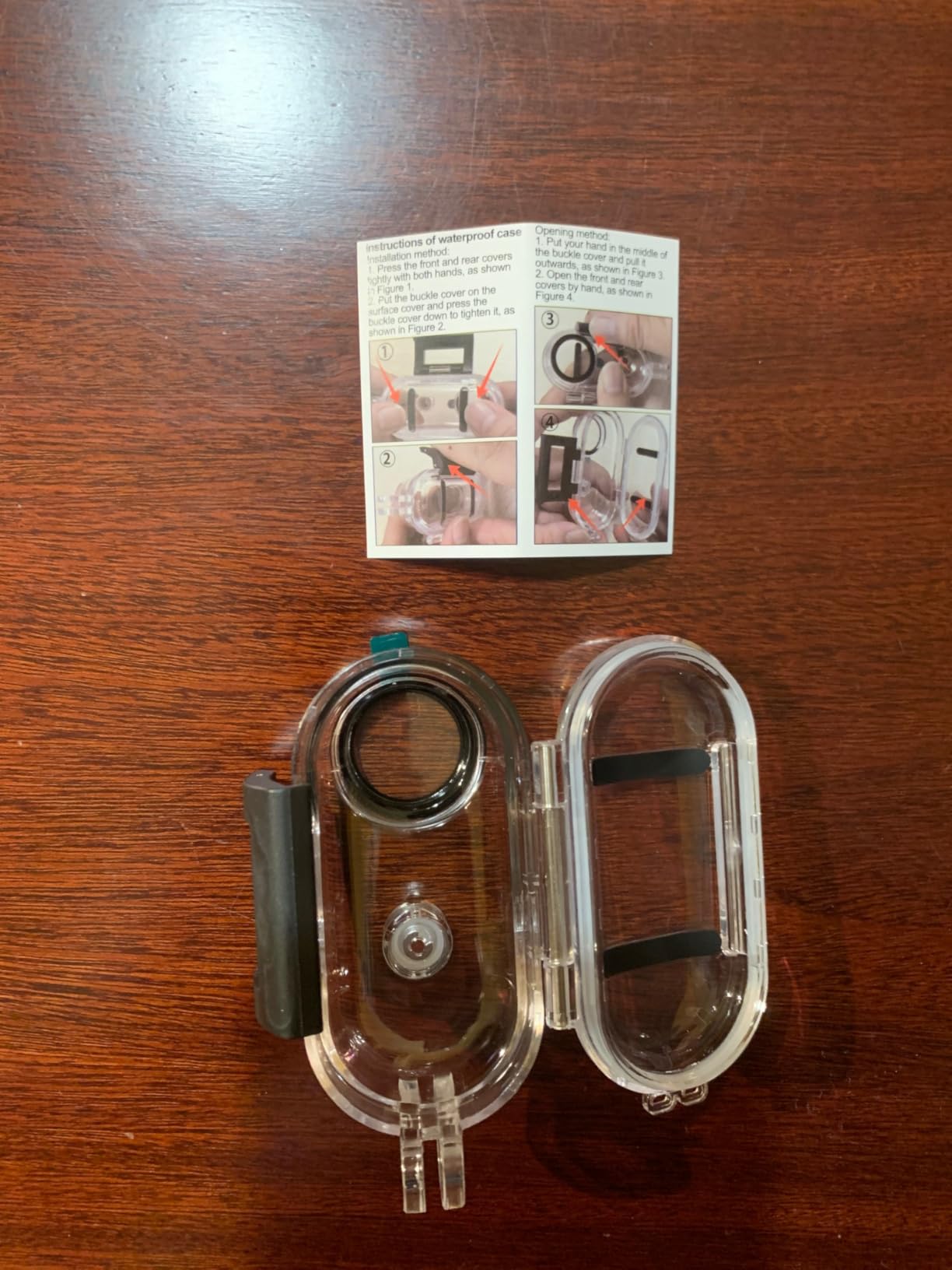
7. Waterproof Case Usage
The included waterproof case allows the camera to be used in aquatic environments, protecting it from water damage up to a depth of 30 meters.
- Before placing the camera in the waterproof case, ensure the case is clean and free of debris.
- Carefully insert the camera into the case, ensuring it is properly seated.
- Close and secure all latches on the waterproof case firmly.
- Always perform a dry test of the waterproof case without the camera inside before using it in water for the first time, or after any impact.
- After use in saltwater, rinse the case with fresh water and allow it to dry completely.
8. Charging and Battery Management
The camera is equipped with an 800 mAh battery, providing approximately 3.5 hours of continuous recording. It supports recording while charging.
- Connect the camera to a 5V/1A USB power adapter or a computer using the provided Type-C USB cable for charging.
- The charging indicator light will show the charging status. Refer to the camera's specific LED behavior for full charge indication.
- For extended recording sessions, connect the camera to a power bank or a compatible motorcycle power supply while in use.
9. Storage (MicroSD Card)
The camera records to a microSD (TF) card. It supports capacities up to 256 GB.
- Always use a genuine, high-speed microSD card (Class 10 or UHS-I U3 recommended) from a reputable brand to ensure stable 4K recording.
- Format the microSD card in the camera's settings (if available) or via a computer before initial use and periodically to maintain performance.
- Regularly back up your footage to a computer or external storage device to prevent data loss.
10. Maintenance
Proper maintenance ensures the longevity and optimal performance of your camera.
- Cleaning: Use a soft, lint-free cloth to clean the camera body and lens. For the lens, use a specialized lens cleaning solution if necessary. Avoid abrasive materials.
- Storage: Store the camera in a cool, dry place away from direct sunlight and extreme temperatures.
- Battery Care: If storing for extended periods, charge the battery to about 50% every few months to prolong its lifespan.
- Waterproof Case: Inspect the waterproof case's O-ring and seals regularly for any signs of wear or damage. Replace if necessary.
11. Troubleshooting
If you encounter issues with your camera, refer to the following common problems and solutions:
| Problem | Possible Cause / Solution |
|---|---|
| Camera does not power on. | Battery is depleted. Charge the camera fully. Ensure the power button is pressed and held sufficiently. |
| Cannot record video/take photos. | MicroSD card is full, not inserted correctly, or corrupted. Insert a new/formatted card. Ensure the card is Class 10 or higher. |
| Wi-Fi connection issues. | Ensure Wi-Fi is enabled on the camera and your mobile device. Check if the app is updated. Try restarting both devices. |
| Poor video quality. | Lens might be dirty. Clean the lens. Ensure sufficient lighting. Use a high-speed microSD card. |
| Camera freezes or becomes unresponsive. | Perform a soft reset by pressing and holding the power button until it turns off, then restart. If persistent, remove and reinsert the microSD card. |
If the problem persists, please contact Winnes customer support for further assistance.
12. Specifications
| Feature | Detail |
|---|---|
| Model Name | 25A10004 |
| Video Capture Resolution | 4K (3840 pixels effective) |
| Lens Angle | 120° Wide-Angle |
| Connectivity Technology | Wireless (Wi-Fi) |
| Battery Capacity | 800 mAh |
| Battery Life (approx.) | Up to 3.5 hours |
| Storage Support | MicroSD (TF) card up to 256 GB (not included) |
| Waterproof Depth | Up to 30 meters (with included waterproof case) |
| Recommended Use | Outdoor |
| Dimensions (Package) | 19.9 x 12.8 x 5.6 cm |
| Weight (Item) | 320 g |
13. Warranty and Support
For warranty information and technical support, please refer to the documentation provided with your purchase or contact the seller directly. Keep your proof of purchase for warranty claims.