
1. Introduction
The SIXTOP DAB+ Dual DIN Car Radio offers a comprehensive in-car entertainment and connectivity solution. This manual provides detailed instructions for the installation, operation, and maintenance of your new car radio, ensuring optimal performance and user experience. Please read this manual thoroughly before installation and use.
2. Key Features
- 7-inch Touchscreen Display: Intuitive and responsive interface for easy control.
- Wireless & Wired CarPlay: Seamless integration with Apple iPhones for navigation, music, calls, and more.
- Wireless & Wired Android Auto: Connect Android smartphones for access to maps, media, and voice commands.
- Mirror Link (Wired): Display your iOS or Android phone screen directly on the radio for shared content.
- Bluetooth 5.2 Connectivity: Supports hands-free calling and wireless audio streaming for safe driving.
- FM/DAB+ Radio: Access a wide range of radio stations with clear digital sound quality.
- Multi-function USB Port: Play music and videos from USB drives, and fast charge mobile devices.
- Steering Wheel Control Support: Manage essential functions without taking your hands off the wheel.
- Reversing Camera Input: Automatically displays a clear view from a connected rear camera for safer parking.
- Customizable EQ Sound Effects: Adjust audio output for a personalized listening experience.
- Colorful Button Backlight: Choose from various colors to match your car's interior or personal preference.
- Calendar Function: Keep track of your schedule directly from the car radio display.
- Screen Synchronization: Share video content from the main unit to external rear displays.
3. Setup and Installation
This section covers the physical installation and initial configuration of the SIXTOP DAB+ Dual DIN Car Radio. Professional installation is recommended.
3.1 Unpacking and Inspection
- Carefully remove all components from the packaging.
- Verify that all items listed in the packing list are present.
- Inspect the unit for any signs of damage.

Image: This image displays the packing list and dimensions of the SIXTOP Dual DIN Car Radio. It shows the main unit with approximate dimensions of 18.0cm (7.0 inches) wide and 10.3cm (4.0 inches) high, and a depth of 11.5cm (4.5 inches). Included accessories are a power cable, horn cable, user manual, mounting bracket, DAB antenna, and a 12LED rear camera.
3.2 Installation Dimensions
The unit measures approximately 180mm (L) x 103mm (H) x 115mm (D) or 7.0 inches (L) x 4.0 inches (H) x 4.5 inches (D). Ensure your vehicle's dashboard opening is compatible with these dimensions for a Dual DIN unit.
3.3 Wiring Connections
- Power Cable: Connect the yellow wire to the constant 12V supply, the red wire to the accessory 12V supply (switched with ignition), and the black wire to ground.
- Horn Cable: Connect as per your vehicle's wiring diagram for audio output.
- DAB Antenna: Connect the provided DAB antenna to the designated port on the radio. For optimal reception, ensure the antenna is properly mounted and grounded.
- Reversing Camera: Connect the video input cable from the rear camera to the "Reverse Input" port (CVBS) on the radio. Connect the camera's power to the vehicle's reverse light circuit so it activates automatically when reverse gear is engaged.
- Steering Wheel Controls (SWC): Connect the SWC wires from your vehicle to the corresponding inputs on the radio. Configuration may be required in the radio's settings menu.
- USB Ports: Connect USB devices for media playback or charging.
- AUX Input: Connect external audio sources via the 3.5mm AUX jack.
3.4 Mounting
Secure the radio into the dashboard using the provided mounting brackets. Ensure all cables are properly routed and secured to prevent interference or damage.
4. Operating Instructions
4.1 Power On/Off
Press the power button (usually a physical knob or a touch icon) to turn the unit on or off.
4.2 Touchscreen Operation
Navigate the interface by tapping, swiping, and dragging on the 7-inch touchscreen.
4.3 Radio (FM/DAB+)

Image: This image shows the SIXTOP car radio's FM/DAB interface. The screen displays radio frequencies like 87.5 MHz, 90.00 MHz, and 108.00 MHz, with options for band selection, scan, local/DX, AF, TA, PTY, and RDS. A driver is visible in the background, indicating in-car use.
- Select the "Radio" icon from the main menu.
- Choose between FM and DAB+ bands.
- Use the scan function to find available stations or manually tune to a frequency.
- Save preferred stations to preset buttons for quick access.
4.4 CarPlay / Android Auto

Image: This image illustrates the CarPlay and Android Auto functionalities of the SIXTOP car radio. It displays smartphone apps like WhatsApp, Spotify, and navigation on the radio screen, highlighting both wireless and wired connection options for seamless integration with Apple and Android devices.
- Wireless Connection: Enable Bluetooth and Wi-Fi on your smartphone. Pair your phone with the car radio via Bluetooth. Follow the on-screen prompts to initiate CarPlay or Android Auto.
- Wired Connection: Connect your smartphone to the radio's USB port using a certified USB cable. The system will automatically launch CarPlay or Android Auto.
- Access navigation, music, calls, and other compatible apps through the radio's interface or voice commands.
4.5 Mirror Link
- Connect your iOS or Android phone to the radio's USB port.
- Follow the instructions on the radio screen and your phone to enable screen mirroring.
- This allows your phone's display to be replicated on the radio screen.
4.6 Bluetooth Functions
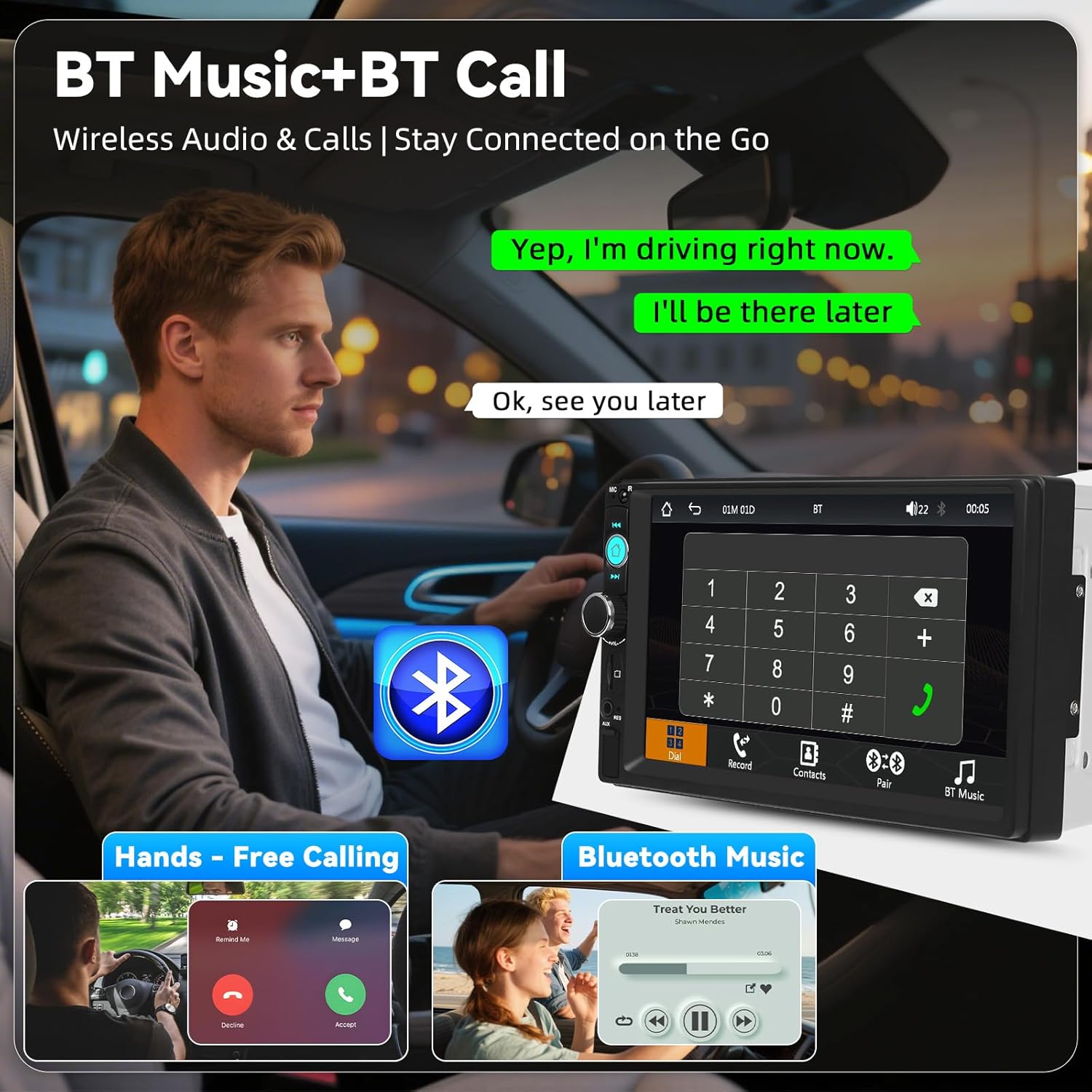
Image: This image highlights the Bluetooth capabilities of the SIXTOP car radio, showing a hands-free call interface with a dial pad and contact synchronization. It also depicts Bluetooth music playback, allowing users to stream audio wirelessly from their mobile devices.
- Pairing: Go to the Bluetooth settings on the radio and your phone. Search for and select the radio's Bluetooth name (e.g., "SIXTOP Car BT") to pair.
- Hands-Free Calling: Once paired, you can make and receive calls directly through the radio. Use the on-screen dial pad or access your phone's contacts.
- Bluetooth Music: Stream audio from your paired phone to the car speakers. Control playback (play/pause, skip) from the radio.
4.7 USB Media Playback
- Insert a USB drive containing audio or video files into the USB port.
- Select the "USB" icon from the main menu.
- Browse and play your media files.
4.8 Sound Settings (EQ)

Image: This image displays the Equalizer (EQ) settings interface, allowing users to customize sound modes like Jazz, Classic, Rock, Pop, Flat, and User-defined. Below, it shows the Steering Wheel Control (SWC) setup menu, enabling users to program buttons on their steering wheel for hands-free control of the radio.
- Access the "EQ" or "Sound Settings" menu.
- Adjust bass, treble, balance, and fader.
- Choose from preset equalizer modes (e.g., Pop, Rock, Classic) or customize your own.
4.9 Reversing Camera

Image: This image illustrates two key features: USB fast charging, showing a smartphone being charged rapidly, and the HD reversing camera view, providing a clear rear perspective with parking guidelines for safe maneuvering.
- When the vehicle is shifted into reverse gear, the radio will automatically display the rear camera feed.
- Parking guidelines may be adjustable in the settings.
4.10 Steering Wheel Controls
- If connected, access the "Steering Wheel Control" menu in the settings.
- Follow the on-screen instructions to program the buttons on your steering wheel to control radio functions (e.g., volume, track skip, mode).
4.11 Colorful Key Illumination

Image: This image highlights the "Multiple Play" feature, showing the radio playing video content, and the "Color Key Light" feature, which allows users to select various colors for the button backlighting, enhancing the aesthetic appeal of the unit.
- Navigate to the "Display" or "System" settings to customize the color of the button backlighting.
4.12 Screen Synchronization (Share Same Video)

Image: This image shows the "Share Same Video" function, where the video playing on the main car radio unit is simultaneously displayed on two rear-seat monitors, providing synchronized entertainment for all passengers.
- If external monitors are connected, enable the screen synchronization feature in the settings to share video content.
5. Maintenance
- Cleaning the Screen: Use a soft, lint-free cloth to gently wipe the touchscreen. For stubborn marks, slightly dampen the cloth with water or a screen-safe cleaner. Avoid abrasive materials or harsh chemicals.
- General Cleaning: Keep the unit free from dust and debris. Use a soft brush or compressed air to clean crevices around buttons and ports.
- Software Updates: Check the manufacturer's website periodically for any available firmware updates to ensure optimal performance and access to new features. Follow update instructions carefully.
6. Troubleshooting
- No Power:
- Check all power connections (yellow, red, black wires) for secure contact.
- Verify the vehicle's fuse for the radio is intact.
- No Sound:
- Ensure speaker wires are correctly connected.
- Check volume levels and mute settings on the radio.
- Verify the audio source is selected correctly.
- Bluetooth Connection Issues:
- Ensure Bluetooth is enabled on both the radio and your phone.
- Delete previous pairings and try pairing again.
- Move your phone closer to the radio.
- CarPlay/Android Auto Not Launching:
- For wired connections, use a high-quality, certified USB cable.
- Ensure your phone's operating system is up to date.
- Check the radio's settings for CarPlay/Android Auto activation.
- For wireless, ensure both Bluetooth and Wi-Fi are active on your phone.
- Poor Radio Reception (FM/DAB+):
- Check the antenna connection.
- Ensure the DAB antenna is properly installed and grounded.
- In areas with weak signals, reception quality may vary.
- Reversing Camera Not Displaying:
- Verify the camera's video input cable is securely connected to the radio.
- Ensure the camera is receiving power and its trigger wire is correctly connected to the reverse light circuit.
7. Specifications
| Feature | Detail |
|---|---|
| Screen Material | IPS |
| Voltage | 12V DC |
| CPU Chip | F133 |
| Screen Size | 7 inches |
| Resolution | 1024 x 600 |
| Mirror Link | Supported |
| Radio Band | FM |
| Radio Chip | QN8035 |
| Power Output | 45 W |
| Operating Temperature | -10 ~ 60 °C |
| Bluetooth Version | 5.2 |
| Colorful Backlight | Supported |
| Reverse Input | CVBS |
| Power Amplifier Chip | TDA7388 |
| Radio Frequency | 87.5-108 MHz |
| Audio Formats | MP3/WMA/WAV/APE/FLAC |
| Video Formats | RM/RMVB/AVI/MP4/MKV/3GP |
| Image Formats | JPG, BMP, PNG |
| Supported Languages | English, Chinese, Spanish, Portuguese, Russian, Italian, German, French, Turkish, Czech, Arabic, Polish, Hebrew |
8. Warranty and Support
Image: This image depicts a man driving a car, symbolizing an enriched and safe driving experience, aligning with the brand's commitment to customer satisfaction and product reliability.
- 2-Year Repair or Replacement: Your product is covered by a 2-year warranty for repair or replacement due to manufacturing defects.
- 30-Day Replacement: Enjoy a 30-day replacement policy for any initial product issues.
- 18-Hour Online Response: Expect a response to your inquiries within 18 hours.
- Lifetime Technical Support: Benefit from ongoing technical assistance for the lifespan of your product.

Image: This image shows customer service representatives wearing headsets, symbolizing the availability of support and assistance for product inquiries and technical issues.
For technical assistance or warranty claims, please contact us via Amazon Message or email: sixtop123@163.com.
