1. Introduction
The OTTOCAST P3 is an advanced wireless CarPlay and Android Auto AI Box designed to enhance your in-car infotainment system. Running on Android 12 with OttoDrive 2.0, it offers a personalized and secure user experience, allowing for seamless integration of smartphone features and entertainment applications directly onto your vehicle's display.
Key features include wireless CarPlay and Android Auto connectivity, the Android 12 operating system, OttoDrive 2.0 UI, 8GB RAM + 128GB ROM, a Qualcomm Snapdragon 665 processor, HDMI output for external displays, Nano SIM card support for data, extensive app compatibility, and split-screen functionality.

2. Package Contents
Verify that all items are present in the package:
- 1 x OTTOCAST P3 AI Box
- 1 x USB Cable (Type-A to Type-C)
- 1 x User Manual (this document)
3. Specifications
| Feature | Detail |
|---|---|
| Model Number | P3 |
| Operating System | Android 12 with OttoDrive 2.0 |
| Processor | Qualcomm Snapdragon 665 |
| Memory | 8GB RAM + 128GB ROM |
| Expandable Storage | Micro SD card slot (up to 256GB) |
| Connectivity | USB, Dual-band Wi-Fi (2.4GHz + 5.0GHz), Dual Bluetooth |
| Output Ports | 1 x Mini HDMI, 1 x USB Type A |
| SIM Card Support | Nano SIM (data communication only) |
| Audio Output Mode | Stereo |
| Video Encoding | H.264, H.265/HEVC, MPEG-4, etc. |
| Dimensions | 4.45 x 4.37 x 1.73 inches |
| Item Weight | 8.8 ounces |

4. Compatibility
The OTTOCAST P3 is designed for wide compatibility, but specific requirements must be met:
- Your vehicle must have factory-wired CarPlay. The P3 connects to the USB port typically used for wired CarPlay.
- Your smartphone must support either Apple CarPlay or Android Auto for optimal performance.
- Important Note: The P3 is not compatible with BMW vehicles or Sony aftermarket head units.
- For Mitsubishi vehicles, it is recommended to double-check compatibility on the official OTTOCAST website before purchase.

5. Setup Instructions
Follow these steps to set up your OTTOCAST P3 AI Box:
- Connect the Device: Plug the OTTOCAST P3 into your car's USB port that supports wired CarPlay. Use the provided USB cable.
- Initial Boot-up: The device will power on automatically. The first boot may take approximately one minute as the system initializes.
- Connect to Phone: On your car's display, follow the on-screen prompts to connect your smartphone via Bluetooth and Wi-Fi to the P3. This establishes the wireless CarPlay or Android Auto connection.
- OttoDrive 2.0 Setup: Once connected, you will access the OttoDrive 2.0 interface. You may be prompted to log in with a Google account to download applications from the Google Play Store.
- Automatic Connection: After the initial setup, the P3 will automatically connect to your phone and car's system when you start your vehicle.
6. Operating Instructions
6.1 Wireless CarPlay and Android Auto
The P3 enables wireless connectivity for both Apple CarPlay and Android Auto. Once your phone is paired, these services will launch automatically, providing access to navigation, music, calls, and messages through your car's display.
6.2 OttoDrive 2.0 OS and App Usage
The device runs on Android 12 with the OttoDrive 2.0 user interface. This allows you to download and install various applications directly from the Google Play Store, such as YouTube, Netflix, TikTok, Hulu, Google Maps, Waze, Amazon Music, and YouTube Music. The UI is customizable, allowing you to personalize color schemes and widgets for a tailored experience.

6.3 Split Screen Functionality
The P3 supports split-screen mode, enabling you to run two applications simultaneously on your car's display. You can choose from 3:7, 5:5, or 7:3 screen split ratios and easily switch between the left and right applications as needed. This is useful for navigation while playing media.

6.4 HDMI Output
The integrated mini HDMI output port allows you to connect external displays, such as rear-seat headrest monitors. This feature enables passengers to enjoy video content independently from the main car display.

6.5 Nano SIM Card Support
The P3 supports Nano SIM cards for data communication, providing an independent internet connection for the device. Please note that this function is for data only and does not support voice communication.
6.6 UI Customization and Ambient Lighting
The OttoDrive 2.0 OS allows for extensive UI customization, including personalized homepage layouts and widgets. The device also features multiple ambient lighting modes (running, breathing, gradient, musical) to match your car's interior or personal preference.

7. Maintenance
- Keep Clean: Regularly wipe the device with a soft, dry cloth to remove dust and debris.
- Avoid Extremes: Do not expose the device to extreme temperatures, direct sunlight for prolonged periods, or excessive moisture.
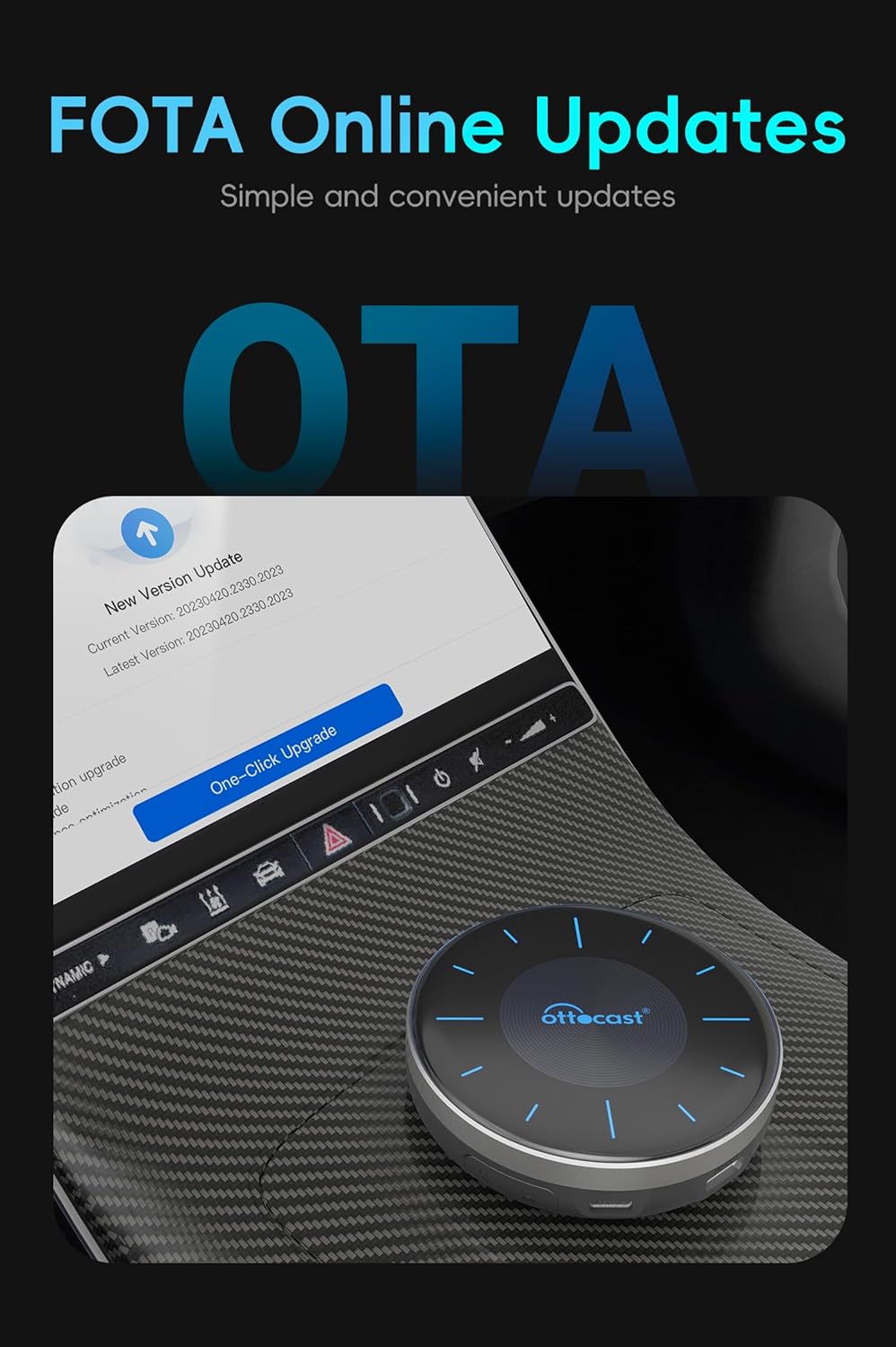
- Firmware Updates: Periodically check for and install FOTA (Firmware Over-The-Air) updates to ensure optimal performance, security, and access to new features. Updates can be initiated directly from the device's settings menu.
- Handle with Care: Avoid dropping the device or subjecting it to strong impacts.
8. Troubleshooting
8.1 Device Not Connecting / No Display
- Ensure the P3 is securely plugged into the correct USB port (the one designated for wired CarPlay).
- Verify that your car supports factory-wired CarPlay.
- Check your phone's Bluetooth and Wi-Fi settings to ensure it's discoverable and attempting to connect to the P3.
- Restart both your car's infotainment system and your smartphone.
8.2 App Compatibility Issues (e.g., Disney+)
- Some applications may not be fully optimized for the Android 12 system on the P3.
- Check the Google Play Store for updates to the specific application.
- Ensure the P3's firmware is up to date.
8.3 Audio/Video Lag or Glitchy Performance
- Ensure a strong and stable Wi-Fi or cellular data connection for streaming content.
- Close any unnecessary background applications running on the P3 to free up resources.
- Check for and install the latest firmware updates for the P3.
- Restart the device if performance issues persist.
8.4 Slow Startup Time
- The initial boot-up of the Android system can take some time (approximately 40-45 seconds). This is normal.
- Subsequent starts should be faster.
9. Warranty and Support
For warranty information, technical support, or further assistance, please refer to the official OTTOCAST website or utilize the OttoPilot App. The OttoPilot App provides resources for breakdown maintenance, customer support, and online upgrades.


