
1. Introduction
This manual provides detailed instructions for the setup, operation, and maintenance of your POTTMACEE S8PRO 14.2-inch Triple Laptop Screen Extender. Please read this manual thoroughly before using the product to ensure proper functionality and to maximize your productivity.
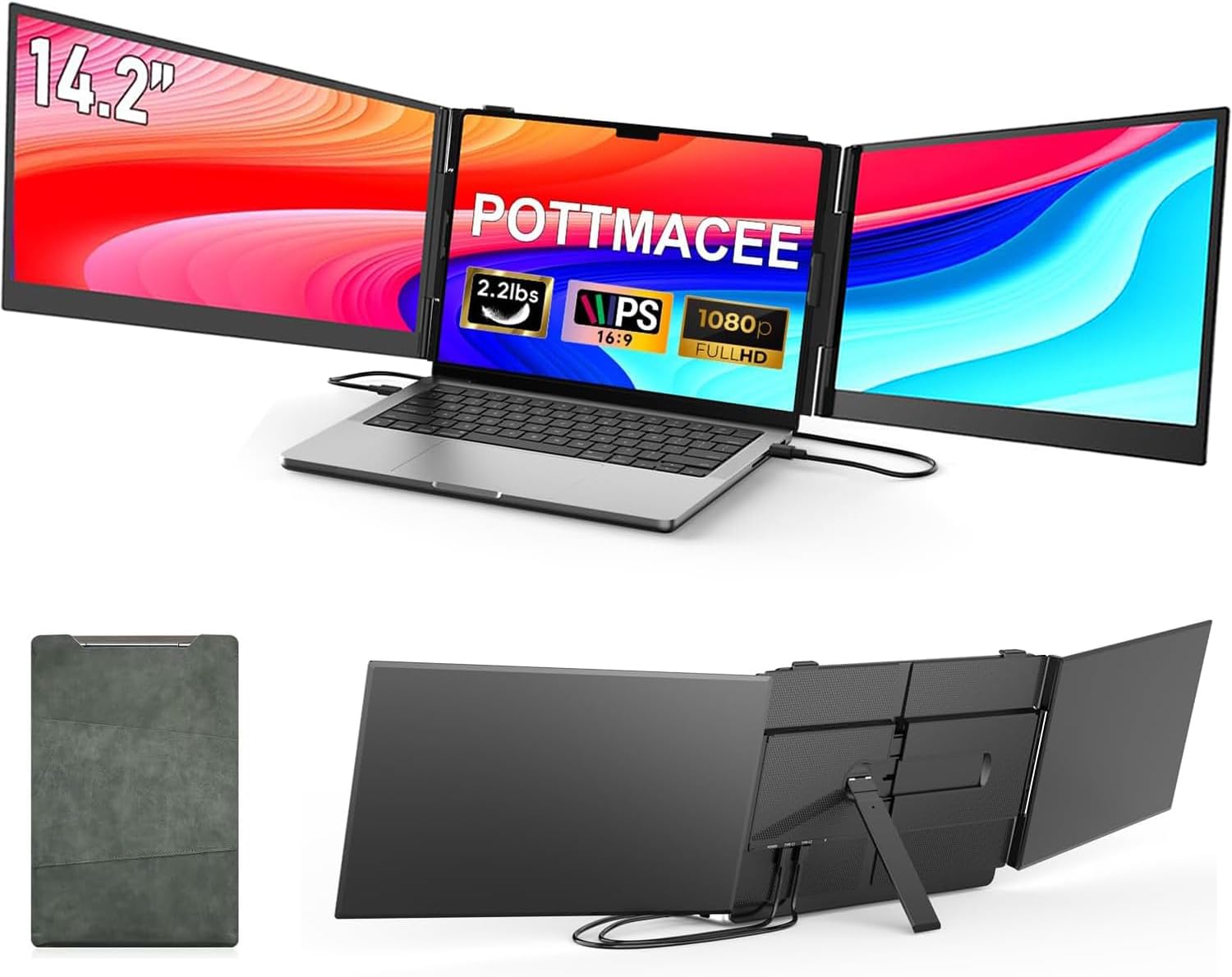
Image 1.1: The POTTMACEE S8PRO Triple Laptop Screen Extender in use, expanding a laptop's display to three screens.
2. Package Contents
Verify that all items listed below are included in your package:
- 14.2'' Triple Screen Extender x1
- USB-C to USB-C Cable x2
- USB-A to USB-C Cable x1
- HDMI to USB-C Cable x1
- H5-T Compatibility Cable x1
- Travel Bag x1
- User Manual x1
- User Guide x1

Image 2.1: All components included in the POTTMACEE S8PRO Triple Laptop Screen Extender package.
3. Product Overview
3.1 Key Features
- Ultra-thin and Ultra-light Design: Each screen is 0.17 inches thick, and the entire unit weighs 2.2 pounds, enhancing portability.
- Aluminum Alloy Construction: Provides superior heat dissipation and a premium feel, ensuring durability and stability without damaging your laptop.
- Multiple Display Modes: Supports extended, mirrored, portrait, and duplicate display modes for enhanced multitasking.
- Plug-and-Play Connectivity: No drivers required for most modern operating systems via full-featured USB-C.
- Wide Compatibility: Compatible with Windows, macOS, ChromeOS, Linux, Android, and Dex.

Image 3.1: Visual representation of the S8PRO's ultra-thin and lightweight design.
3.2 Components and Controls
Familiarize yourself with the main components and control elements of the screen extender:
- Main Unit: The central frame that attaches to your laptop.
- Side Screens: Two 14.2-inch FHD 1080P portable monitors.
- Integrated Kickstand: Adjustable for stability and viewing angle.
- Power Button: To turn the screens on/off.
- Multi-function Buttons: For navigating the On-Screen Display (OSD) menu and adjusting settings.
- USB-C Ports (Type-C1, Type-C2): Full-featured ports for video, audio, and power.
- Charging Interface (PD): For external power supply if needed.

Image 3.2: Key physical features including screen rotation, kickstand, and control buttons.
4. Setup Instructions
Follow these steps to set up your POTTMACEE S8PRO Triple Laptop Screen Extender:
- Attach to Laptop: Gently open the main unit and position it over the top edge of your laptop screen. The clamps should securely grip the laptop frame without obstructing the screen.
- Adjust Kickstand: Extend the integrated kickstand from the back of the main unit to provide stable support for the entire setup. Adjust its length and angle for optimal balance and viewing.
- Connect Cables: Refer to the '5. Connectivity Options' section for detailed wiring diagrams based on your laptop's available ports. Ensure all necessary cables are securely connected.
- Power On: Press the power button on the screen extender. The screens should automatically detect your laptop's signal.
- Configure Display Settings: Your operating system (Windows, macOS, etc.) should recognize the new displays. You may need to go to your display settings to arrange the screens, set resolution, and choose your preferred display mode (Extended, Mirrored, etc.).

Image 4.1: Visual guide for connecting the screen extender to your laptop using different cable configurations.
5. Operating Instructions
5.1 Display Modes
The screen extender supports various display modes to suit your workflow:
- Extended Mode: Each screen acts as an independent display, allowing you to spread your workspace across three monitors. This is ideal for multitasking.
- Mirroring Mode: All three screens display the same content as your primary laptop screen. Useful for presentations or sharing content.
- Portrait Mode: Individual screens can be rotated to a vertical orientation, beneficial for coding, document review, or web browsing.

Image 5.1: Examples of Mirroring, Extended, and Portrait display modes.
5.2 On-Screen Display (OSD) Menu
Use the multi-function buttons on the extender to access and navigate the OSD menu. This allows you to adjust settings such as brightness, contrast, color temperature, and input source for each screen independently.
5.3 Compatibility
The POTTMACEE S8PRO is designed for broad compatibility:
- Operating Systems: Windows, macOS, ChromeOS, Linux, Android, Dex.
- Laptop Sizes: Fits 13-inch to 17.3-inch laptops.

Image 5.2: Overview of wide compatibility and port layout.
6. Connectivity Options
The S8PRO offers flexible connection methods depending on your laptop's ports:
6.1 Two Full-featured USB-C Ports
If your laptop has two full-featured USB-C ports, use two USB-C to USB-C cables to connect both screens. This provides video, audio, and power through a single cable per screen.
6.2 One Full-featured USB-C Port and HDMI/USB-A
If your laptop has one full-featured USB-C port, use a USB-C to USB-C cable for one monitor. For the second monitor, use an HDMI cable for video and a USB-A to USB-C cable for power and data.
6.3 Laptops Without Full-featured USB-C (Using H5-T Adapter)
For laptops lacking full-featured USB-C ports, an H5-T compatibility cable is provided. This adapter converts USB-A/C to video output. Connect the H5-T adapter along with an HDMI cable for video, and a USB-A to USB-C cable for power. An external power supply may be required for optimal performance.

Image 6.1: Connection methods for different laptop port configurations.

Image 6.2: Connection method using the H5-T adapter for broader compatibility, including MacBooks with M1/M2/M3 chipsets.
7. Maintenance
To ensure the longevity and optimal performance of your screen extender, follow these maintenance guidelines:
- Cleaning: Use a soft, lint-free cloth slightly dampened with water or a screen-cleaning solution to wipe the display surfaces. Avoid harsh chemicals or abrasive materials.
- Storage: When not in use, fold the extender and store it in the provided travel bag to protect it from dust and scratches.
- Handling: Handle the unit with care. Avoid dropping it or applying excessive force to the screens or hinges.
- Temperature: Do not expose the device to extreme temperatures or direct sunlight for prolonged periods.
8. Troubleshooting
If you encounter issues with your POTTMACEE S8PRO, refer to the following common problems and solutions:
- No Signal/Blank Screen:
- Ensure all cables are securely connected to both the extender and your laptop.
- Verify that your laptop's display settings are configured to detect and extend to external monitors.
- If using an H5-T adapter, ensure it is correctly connected and receiving power.
- Try restarting your laptop.
- Screens Not Powering On:
- Check if the power button on the extender is pressed.
- Ensure your laptop is providing sufficient power through the USB-C ports, or connect an external power supply if necessary.
- Incorrect Display Resolution/Orientation:
- Adjust display settings in your operating system (e.g., Windows Display Settings, macOS System Preferences > Displays).
- Ensure the correct resolution (1920x1080) is selected for each screen.
- Flickering or Unstable Display:
- Check for loose cable connections.
- Ensure your laptop's graphics drivers are up to date.
- If using an external power supply, ensure it is stable.
If these steps do not resolve your issue, please contact POTTMACEE customer support for further assistance.
9. Specifications
| Feature | Specification |
|---|---|
| Product Dimensions | 2.6 x 14 x 8.2 inches |
| Item Weight | 2.2 pounds |
| Model Number | S8PRO |
| Connectivity Technologies | USB Type C, USB-A + HDMI |
| Special Features | Built-In Speakers, Portable, Ultra-Thin |
| Display Technology | LCD |
| Display Resolution | 1920x1080 (FHD 1080p) |
| Screen Size | 14 Inches (each) |
| Aspect Ratio | 16:9 |
| Screen Surface Description | IPS Panel |
| Manufacturer | POTTMACEE |
10. Warranty and Support
Your POTTMACEE S8PRO Triple Laptop Screen Extender comes with a 2-year support period. We are committed to your satisfaction.
If you experience any connection problems, have questions, or require clarification on any aspect of the product, please do not hesitate to contact us. Our support team is available to assist you and will respond within 24 hours.
Contact Information:
- Please reach out to "POTTMACEE-US" through the platform where you purchased the product.
