
Nokia N151DL
Nokia C200 N151DL Smartphone User Manual
Model: N151DL
1. Introduction
This manual provides comprehensive instructions for setting up, operating, maintaining, and troubleshooting your Nokia C200 N151DL smartphone. Designed for ease of use, this guide will help you maximize the features of your device, including its 6.1" HD+ display, 32GB internal storage, and 4000mAh battery.
The Nokia C200 N151DL runs on Android 12, offering a smooth and intuitive user experience. Key features include a large, clear touchscreen, a long-lasting battery, ample storage with microSD support, and facial recognition for security.
2. What's in the Box
Upon unboxing your Nokia C200 N151DL, please ensure all the following items are present:
- Nokia C200 N151DL Smartphone
- USB-C Cable
- SIM Ejector Tool
3. Device Overview
Familiarize yourself with the physical components of your Nokia C200 N151DL smartphone.
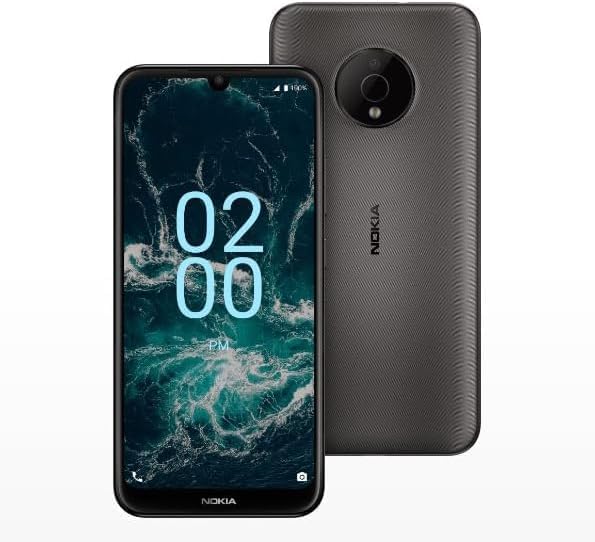
Figure 3.1: Nokia C200 N151DL Front and Back View. This image displays both the front and rear of the Nokia C200 N151DL smartphone. The front highlights the 6.1-inch HD+ display, while the rear shows the circular camera module and the textured black finish with Nokia branding.
3.1 Front View
- Display: 6.1-inch HD+ touchscreen for all interactions.
- Front Camera: Located at the top center for selfies and video calls.
- Earpiece: For audio during phone calls.
3.2 Rear View
- Main Camera: Located in a circular module at the top center, for capturing photos and videos.
- Flash: Provides illumination for photos in low light.
- Nokia Branding: Located vertically on the back cover.
3.3 Side and Bottom Views
- Power Button: On the right side, used to turn the device on/off or wake/sleep the screen.
- Volume Buttons: On the right side, above the power button, to adjust media and call volume.
- USB-C Port: At the bottom, for charging and data transfer.
- SIM/microSD Card Tray: On the left side, for inserting SIM and memory cards.
4. Setup
4.1 Inserting the SIM Card and microSD Card
- Locate the SIM/microSD card tray on the left side of the phone.
- Insert the SIM ejector tool into the small hole next to the tray. Press gently until the tray pops out.
- Place your Nano-SIM card into the designated slot on the tray with the gold contacts facing down.
- If using a microSD card (up to 256GB, not included), place it into its designated slot on the tray.
- Carefully push the tray back into the phone until it clicks into place.
4.2 Charging the Battery
Before first use, it is recommended to fully charge your Nokia C200 N151DL.
- Connect the USB-C cable to the USB-C port at the bottom of your phone.
- Connect the other end of the USB-C cable to a compatible USB power adapter (not included) and plug it into a wall outlet, or connect it to a computer's USB port.
- The charging indicator will appear on the screen.
4.3 Powering On/Off
- To Power On: Press and hold the Power button on the right side of the phone until the Nokia logo appears.
- To Power Off: Press and hold the Power button until the power options menu appears, then tap "Power off".
- To Restart: Press and hold the Power button until the power options menu appears, then tap "Restart".
4.4 Initial Setup Wizard
The first time you power on your phone, you will be guided through an initial setup wizard. Follow the on-screen prompts to:
- Select your language.
- Connect to a Wi-Fi network.
- Sign in with your Google account or create a new one.
- Set up screen lock (PIN, pattern, password, or facial recognition).
- Restore data from a previous device (optional).
5. Operating Instructions
5.1 Basic Navigation
- Tap: To select an item, open an app, or press a button.
- Touch and hold: To open contextual menus or move items.
- Swipe: To scroll through lists, switch between home screens, or dismiss notifications.
- Pinch: To zoom in or out on photos and web pages.
5.2 Making Calls and Sending Messages
- Making a Call: Open the "Phone" app, enter the number, and tap the call icon.
- Sending a Text Message: Open the "Messages" app, tap "Start chat", enter the recipient and your message, then tap send.
5.3 Using the Camera
Your Nokia C200 N151DL features a main camera for crisp photos.
- Open the "Camera" app.
- Frame your shot on the screen.
- Tap the shutter button to take a photo.
- Switch between photo and video modes as needed.
5.4 Connecting to Wi-Fi
- Go to "Settings" > "Network & internet" > "Internet".
- Turn on Wi-Fi.
- Select your desired Wi-Fi network from the list.
- Enter the password if prompted, then tap "Connect".
5.5 App Management
- Downloading Apps: Use the Google Play Store app to browse and download new applications.
- Uninstalling Apps: Touch and hold an app icon on the home screen or app drawer, then drag it to "Uninstall" or select "App info" and tap "Uninstall".
- Updating Apps: Open the Google Play Store, tap your profile icon, then "Manage apps & device" to update installed apps.
6. Maintenance
6.1 Battery Care
- Avoid extreme temperatures, as they can degrade battery life.
- Do not let the battery completely drain frequently.
- Use only Nokia-approved chargers and cables.
6.2 Cleaning Your Device
- Use a soft, lint-free cloth to clean the screen and body.
- Avoid using harsh chemicals, abrasive cleaners, or aerosol sprays.
- Do not expose the device to excessive moisture.
6.3 Software Updates
Regularly check for and install software updates to ensure your device has the latest features, security patches, and performance improvements.
- Go to "Settings" > "System" > "System update".
- Tap "Check for update" and follow the on-screen instructions.
7. Troubleshooting
This section addresses common issues you might encounter with your Nokia C200 N151DL.
7.1 Phone Not Turning On
- Ensure the battery is charged. Connect the phone to a charger for at least 30 minutes.
- Try a forced restart: Press and hold the Power button for about 10-15 seconds.
7.2 Apps Crashing or Freezing
- Close and reopen the app.
- Clear the app's cache: Go to "Settings" > "Apps" > [App Name] > "Storage & cache" > "Clear cache".
- Restart your phone.
- Ensure the app is updated to its latest version.
7.3 Poor Battery Life
- Reduce screen brightness.
- Disable Wi-Fi, Bluetooth, and GPS when not in use.
- Close background apps.
- Check "Battery usage" in Settings to identify power-hungry apps.
7.4 Network Connectivity Issues
- Toggle Airplane Mode on and off.
- Restart your phone.
- Check if your SIM card is properly inserted.
- Contact your carrier (Tracfone) for network-specific issues.
8. Specifications
| Feature | Detail |
|---|---|
| Model Name | Nokia C200 |
| Item Model Number | N151DL |
| Operating System | Android 12.0 |
| Display | 6.1" HD+ |
| Internal Storage | 32GB (expandable via microSD) |
| Memory (RAM) | 3 GB |
| Battery Capacity | 4000 mAh |
| Color | Black |
| Wireless Carrier | Tracfone (Locked) |
| Cellular Technology | 4G |
| Connector Type | USB Type C |
| Included Components | Phone, USB-C Cable, SIM Ejector Tool |
9. Warranty and Support
For detailed warranty information regarding your Nokia C200 N151DL smartphone, please refer to the warranty card included with your purchase or visit the official Nokia support website.
For technical support, troubleshooting assistance beyond this manual, or service inquiries, please contact Nokia customer support or your wireless carrier, Tracfone.
- Nokia Support: www.nokia.com/phones/support
- Tracfone Support: www.tracfone.com/support
Please have your device's model number (N151DL) and IMEI number ready when contacting support.
Related documentsN151DL


Ask a question about this manual
Ask about setup, troubleshooting, compatibility, parts, safety, or missing instructions. Manuals+ will review the question and use this page’s manual context to help answer it.