
Introduction
This manual provides essential information for setting up, operating, maintaining, and troubleshooting your Nokia C300 TA-1515 smartphone. Please read this guide carefully to ensure optimal performance and longevity of your device.
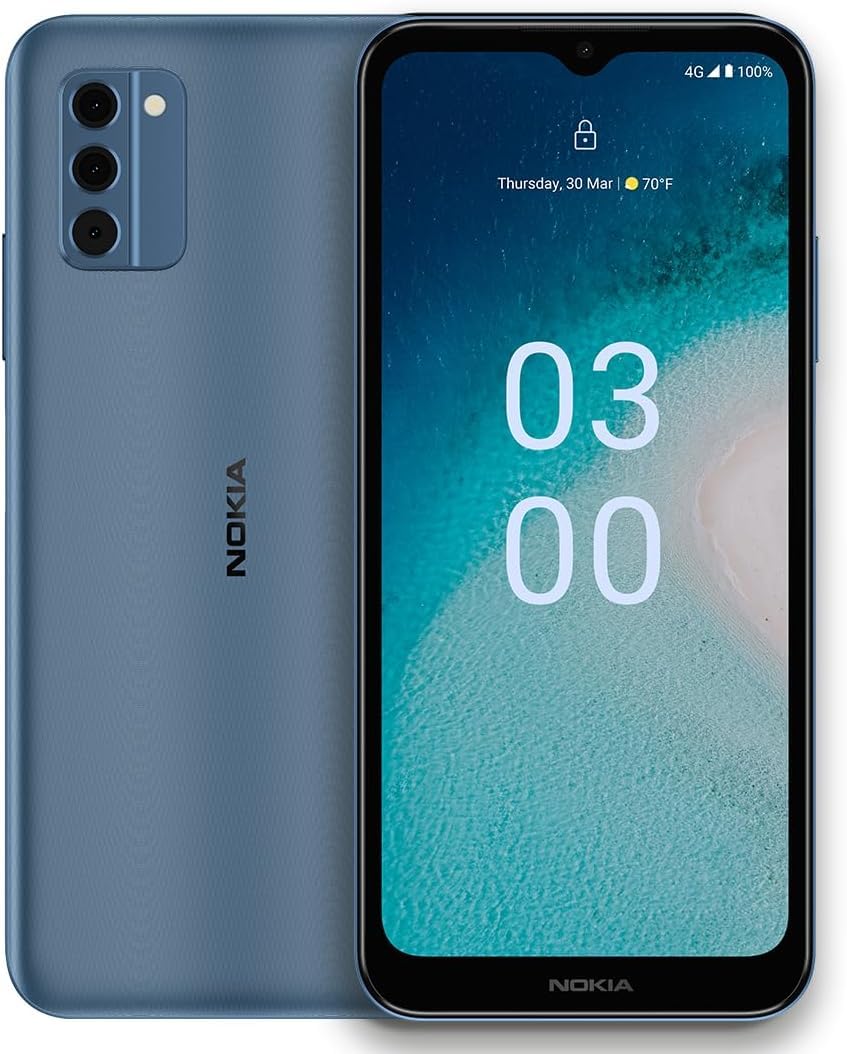
Image: Nokia C300 TA-1515 Smartphone, front view. This image displays the device's sleek design and screen.
Setup
1. Unboxing and Initial Inspection
Carefully remove all items from the packaging. Verify that the following components are present:
- Nokia C300 TA-1515 Smartphone
- USB-C Cable
- SIM Ejector Tool
Inspect the device for any visible damage. If any components are missing or damaged, contact customer support.
2. Inserting the SIM Card and microSD Card (Optional)
- Locate the SIM card tray on the side of the phone.
- Insert the SIM ejector tool into the small hole next to the tray and press gently until the tray pops out.
- Place your Nano-SIM card(s) and/or microSD card (if applicable) into the designated slots on the tray. Ensure the gold contacts face downwards.
- Carefully push the tray back into the phone until it clicks into place.
3. Charging the Battery
Before first use, fully charge the phone's battery. The Nokia C300 TA-1515 is equipped with a 4000 mAh battery.
- Connect the USB-C cable to the phone's charging port.
- Connect the other end of the USB-C cable to a compatible USB power adapter (not included) and plug it into a wall outlet.
- The charging indicator will appear on the screen. Allow the phone to charge until the battery icon shows full.
4. Powering On and Initial Configuration
- Press and hold the Power button (usually on the right side) until the Nokia logo appears.
- Follow the on-screen prompts to complete the initial setup, including language selection, Wi-Fi connection, Google account setup, and security settings.
Operating Your Device
1. Basic Navigation
- Touchscreen Gestures: Tap to select, swipe to scroll, pinch to zoom.
- Home Screen: Access apps, widgets, and notifications.
- Notification Panel: Swipe down from the top of the screen to view notifications and quick settings.
- App Drawer: Swipe up from the bottom of the screen to access all installed applications.
2. Making Calls and Sending Messages
- Calls: Open the Phone app, enter the number, and tap the call icon.
- Messages: Open the Messages app, tap "Start chat," enter recipient and message, then send.
3. Connecting to Wi-Fi and Mobile Data
- Wi-Fi: Go to Settings > Network & internet > Wi-Fi. Turn Wi-Fi on, select your network, and enter the password.
- Mobile Data: Go to Settings > Network & internet > Mobile network. Ensure "Mobile data" is enabled.
4. Camera Usage
Open the Camera app. Tap the shutter button to take photos or the video icon to record videos. Explore different modes and settings within the app.
Maintenance
1. Software Updates
Keep your device's software up to date for optimal performance and security. Go to Settings > System > System update to check for and install updates.
2. Cleaning Your Device
Use a soft, lint-free cloth to clean the screen and body of your phone. Avoid abrasive materials or harsh chemicals. Do not expose the device to excessive moisture.
3. Battery Care
- Avoid extreme temperatures.
- Do not let the battery drain completely regularly.
- Use only approved chargers and cables.
4. Storage Management
Regularly review and delete unnecessary files, apps, and media to free up storage space. You can check storage usage in Settings > Storage.
Troubleshooting
| Problem | Possible Solution |
|---|---|
| Device not powering on | Ensure the battery is charged. Press and hold the Power button for at least 10 seconds to force a restart. |
| Apps crashing or freezing | Close and reopen the app. Clear the app's cache (Settings > Apps > [App Name] > Storage & cache > Clear cache). Restart the phone. |
| Poor battery life | Reduce screen brightness, disable unused features (Wi-Fi, Bluetooth, GPS), close background apps. Check battery usage in Settings > Battery. |
| Cannot connect to Wi-Fi | Ensure Wi-Fi is enabled. Restart your router. Forget the network and reconnect. |
| No mobile data | Ensure mobile data is enabled in settings. Check your SIM card is correctly inserted. Contact your carrier to verify your plan. |
If issues persist, consider performing a factory reset (backup your data first) or contact Nokia support.
Specifications
| Feature | Detail |
|---|---|
| Model Name | Nokia C300 |
| Model Number | TA-1515 |
| Operating System | Android 12.0 |
| Display Size | 6.5 Inches HD+ |
| Resolution | 1520 x 720 |
| RAM | 3 GB |
| Internal Storage | 32 GB (expandable via microSD) |
| Battery Capacity | 4000 mAh |
| Connectivity | 4G LTE, GSM, HSPA, Wi-Fi, Bluetooth, GPS |
| What's in the Box | Phone, USB-C Cable, SIM Ejector Tool |
Warranty and Support
Your Nokia C300 TA-1515 comes with a standard manufacturer's warranty. For detailed warranty terms and conditions, please refer to the warranty card included with your purchase or visit the official Nokia support website.
For technical assistance, troubleshooting, or to find service centers, please visit the official Nokia support portal:
You can also contact your retailer or service provider (e.g., Consumer Cellular) for support related to your specific plan or device purchase.


