
Introduction
Thank you for purchasing the Portronics Apollo 20 Wireless Bluetooth Speaker with Dual Karaoke Microphones. This manual provides detailed instructions for setting up, operating, and maintaining your device to ensure optimal performance and longevity. Please read this manual thoroughly before use and retain it for future reference.
Package Contents
Please check the package for the following items:
- Portronics Apollo 20 Party Speaker (1 N)
- Charging Cable (1 N)
- Wireless Karaoke Microphones (2 N)
- User Manual (1 N)
Product Overview
Familiarize yourself with the components of your Portronics Apollo 20 speaker.

Figure 1: Front view of the Portronics Apollo 20 speaker with dual microphones. The speaker features a central grille, RGB LED light strip, and a top handle. Two wireless microphones are shown attached to the sides.

Figure 2: The Portronics Apollo 20 speaker emphasizing its 25W audio output for loud and punchy sound quality.

Figure 3: Illustration of two individuals enjoying the dual wireless karaoke microphones, highlighting features like mic echo control, rechargeable mics, and voice changer effects.
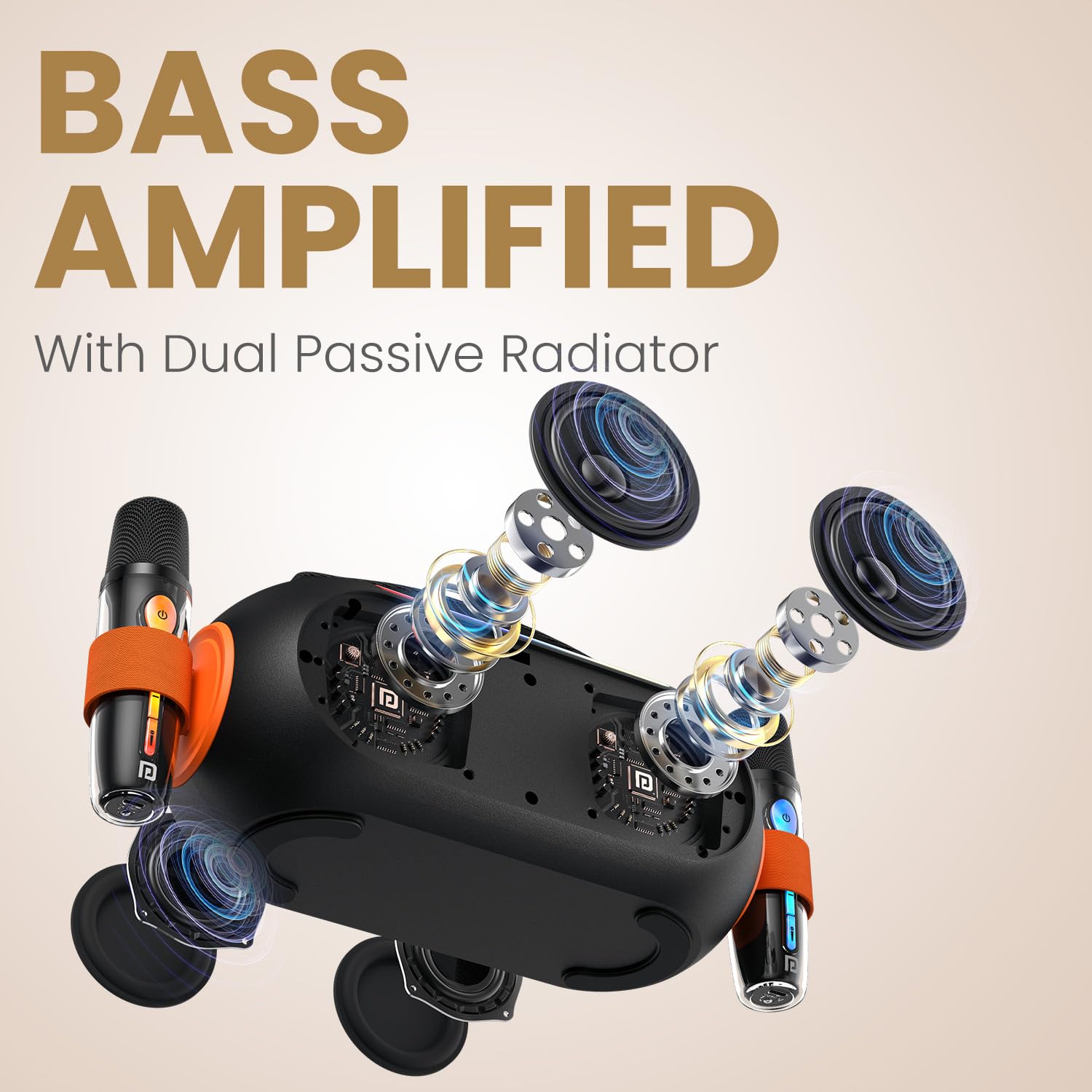
Figure 4: An internal diagram illustrating the dual passive radiators responsible for bass amplification within the speaker.
Setup
1. Charging the Speaker
Before first use, fully charge the speaker. Use the provided Type-C charging cable.
- Connect the Type-C end of the charging cable to the speaker's charging port.
- Connect the USB-A end to a compatible USB power adapter (not included) or a computer's USB port.
- The charging indicator light will illuminate. It will turn off or change color once fully charged.

Figure 5: The speaker's Type-C charging port, illustrating its capability for up to 5 hours of playtime on a single charge.
2. Charging the Microphones
The wireless microphones are rechargeable. Use their respective charging ports (usually Type-C) and the provided cable.
- Locate the charging port on each microphone.
- Connect the charging cable to the microphone and a USB power source.
- The microphone's indicator light will show charging status.
3. Powering On/Off
- To Power On: Press and hold the Power button on the speaker for a few seconds until you hear an audible prompt or see the LED lights activate.
- To Power Off: Press and hold the Power button again until the speaker powers down.
4. Bluetooth Pairing
Pair your speaker with a Bluetooth-enabled device (smartphone, tablet, laptop).
- Ensure the speaker is powered on and in Bluetooth pairing mode (indicated by a flashing LED light or an audible prompt).
- On your device, go to Bluetooth settings and enable Bluetooth.
- Search for available devices. Select "Portronics Apollo 20" from the list.
- Once paired, the speaker will indicate a successful connection, and the LED light may change to a solid color.

Figure 6: The speaker showcasing its Bluetooth 5.4V technology for instant pairing and vibrant RGB LED lights.
Operating Instructions
1. Playing Music
- After successful Bluetooth pairing, open your music application on your connected device and start playback.
- Use the volume controls on the speaker or your connected device to adjust the audio level.
- The speaker may have dedicated buttons for Play/Pause, Next Track, and Previous Track. Refer to the physical buttons on your speaker.
2. Using Karaoke Microphones
The Apollo 20 comes with two wireless microphones for karaoke.
- Power On Microphones: Press and hold the power button on each microphone to turn them on. They should automatically connect to the speaker.
- Microphone Volume: Adjust the microphone volume using the dedicated controls on the microphone or the speaker, if available.
- Voice Changing Effects: Press the designated button on the microphone to cycle through various voice changing effects.
- Echo Control: Some microphones may feature an echo control. Adjust this to enhance your vocal performance.
3. RGB LED Lights
The speaker features dynamic RGB LED lights that pulse to the beat of the music.
- The LED lights activate automatically when the speaker is powered on.
- Refer to the speaker's control panel for any dedicated buttons to change light modes or turn them off/on.
4. USB-A Port Playback
The speaker supports music playback from a USB-A drive.
- Insert a USB-A drive containing MP3 audio files into the USB-A port on the speaker.
- The speaker should automatically detect the USB drive and begin playback.
- Use the speaker's control buttons to manage playback (Play/Pause, Next/Previous Track, Volume).
Maintenance
- Cleaning: Use a soft, dry cloth to clean the speaker and microphones. Do not use abrasive cleaners, alcohol, or chemical solvents.
- Storage: Store the device in a cool, dry place away from direct sunlight and extreme temperatures.
- Battery Care: To prolong battery life, avoid fully discharging the speaker and microphones frequently. Charge them regularly, even if not in use for extended periods.
- Water Resistance: While the product may be splash-proof, avoid submerging it in water or exposing it to heavy rain.
Troubleshooting
| Problem | Possible Solution |
|---|---|
| Speaker does not power on. | Ensure the speaker is charged. Connect it to a power source using the Type-C cable. |
| Cannot pair via Bluetooth. |
|
| No sound from speaker. |
|
| Microphones not working. |
|
| Poor sound quality. |
|
Specifications
| Feature | Detail |
|---|---|
| Model Name | Apollo 20 |
| Model Number | POR-2736 |
| Wattage | 25 Watts |
| Bluetooth Version | V5.4 |
| Playtime | Up to 5 Hours |
| Battery Capacity | 2000 mAh (Speaker) |
| Power Source | Battery Powered |
| Charging Port | Type-C |
| Audio Input | Wireless Microphone, Bluetooth, USB-A |
| Special Features | Dual Passive Radiator, Dual Wireless Karaoke Mic, RGB LED Light, Voice Changing Effects |
| Material | ABS Plastic |
| Product Dimensions | 21.5 x 17.2 x 12.8 cm |
| Item Weight | 1.59 kg |
Warranty and Support
Portronics products are designed for reliability and performance. For warranty information and customer support, please refer to the warranty card included in your package or visit the official Portronics website.
Manufacturer Contact:
- Email: help@portronics.com
- Phone: +91 9555-245-245
- Address: Portronics Digital Pvt ltd, First Floor Property No D 8 Upper Basement Sector 8 Noida Uttar Pradesh 201301, India
Please have your model number (POR-2736) and purchase details ready when contacting support.


