

Introduction
Thank you for choosing the InnoView 23.8-inch 4K Dual Portable Monitor. This innovative device is designed to enhance your productivity and entertainment experience by providing an expanded workspace. Featuring dual 4K UHD displays, 100% sRGB color gamut, and flexible rotation, it offers a versatile solution for various computing needs. This manual provides essential information for setting up, operating, and maintaining your monitor.

Image: The InnoView Dual Portable Monitor, showcasing its sleek design and dual screens.
Safety Information
Please read and follow these safety guidelines to ensure safe operation and prolong the life of your InnoView Dual Portable Monitor:
- Do not expose the monitor to rain, moisture, or extreme temperatures.
- Avoid placing heavy objects on the monitor.
- Use only the provided power adapter and cables.
- Keep the monitor away from strong magnetic fields.
- Clean the screen with a soft, lint-free cloth. Do not use liquid cleaners directly on the screen.
- If any issues arise, refer to the troubleshooting section or contact customer support. Do not attempt to repair the device yourself.
Package Contents
Please check the package for the following items:
- InnoView 23.8-inch 4K Dual Portable Monitor
- Type-C to Type-C Cable (Full-Featured)
- HDMI Cable
- Power Adapter (65W)
- User Manual (this document)
Product Overview
Familiarize yourself with the ports and controls of your InnoView Dual Portable Monitor.

Image: Detailed view of the monitor's side panel, highlighting the various input and control ports.
Ports and Controls:
- Type-C 3.1 (Full-Feature): For power, video, and data transmission.
- DP 1.4 (DisplayPort): For video input.
- HDMI 2.1: For video input.
- 3.5mm Earphone Jack: For audio output.
- Merge Shortcut Keys: For switching display modes.
- Volume Key: To adjust audio volume.
- Power Button: To turn the monitor on/off.
Setup Guide
Follow these steps to connect and set up your InnoView Dual Portable Monitor.
1. Powering the Monitor
- Locate the white-labeled power cable and connect it to the provided power adapter.
- Plug the power adapter into a power source.
- Insert the other end of the power cable into the full-feature Type-C port on the monitor.
Video: Demonstrates connecting the power cable and adapter to the monitor.
2. Connecting to Your Computer
The monitor supports various connection methods. Ensure your laptop's USB-C port supports video output (Thunderbolt, Data + Video Output, or Data + DisplayPort Alt Mode).

Image: Guide to identifying compatible USB-C ports on your laptop for display functionality.
For MacBook:
For extended display on Mac, connect both a full-featured Type-C cable and an HDMI cable from your MacBook to the monitor.
- Type-C Power + HDMI Cable: Supports Tiling, Mirroring, and Extended modes.
- Full-Featured Type-C Cable: Supports Tiling and Mirroring modes only.
- Full-Featured Type-C Cable + HDMI Cable: Supports Tiling, Mirroring, and Extended modes.
Video: Step-by-step guide on connecting the monitor to a MacBook for extended display.
For Windows Laptops:
Connect the monitor to your Windows laptop using a full-featured Type-C cable or a combination of DisplayPort/HDMI and power. Note that HDMI alone does not support extended mode for Windows.
Video: Instructions for setting up extended mode on a Windows system.
Using a Docking Station:
If your laptop lacks an HDMI port, a docking station can be used to facilitate the connection.
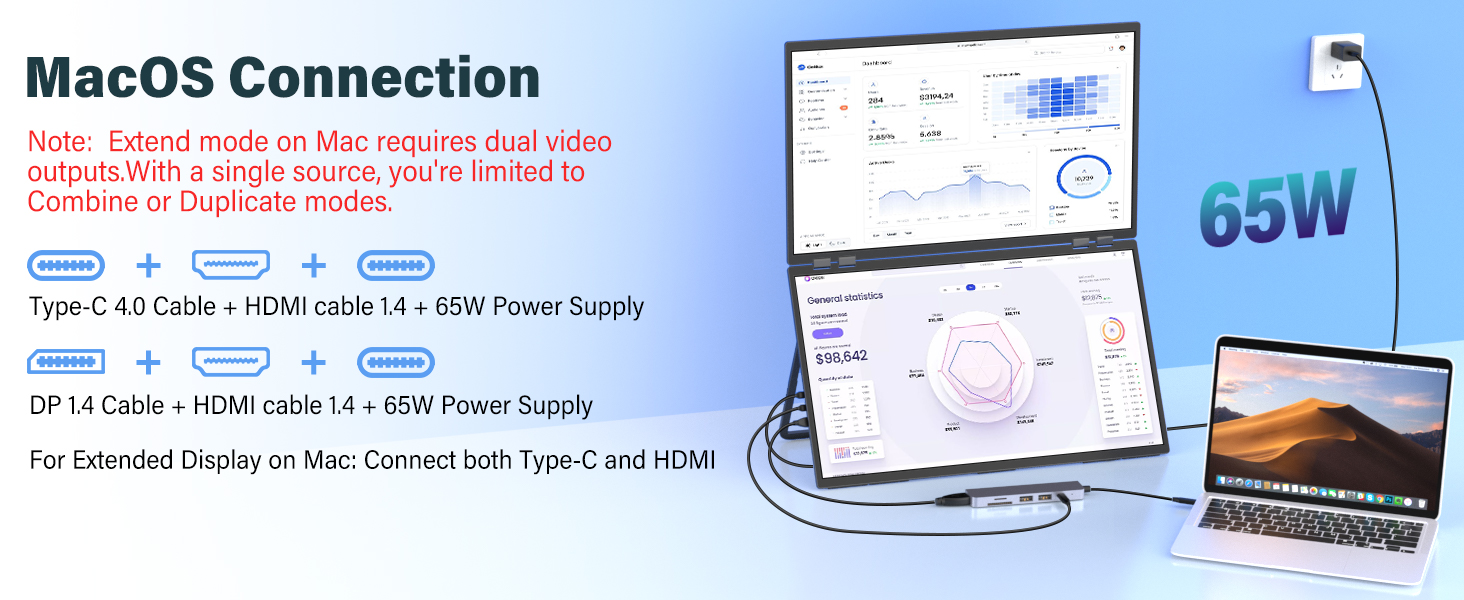
Image: Example of connecting the monitor to a Mac laptop using a docking station.
Operating Instructions
Display Modes
The InnoView Dual Portable Monitor supports multiple display modes to suit your workflow:
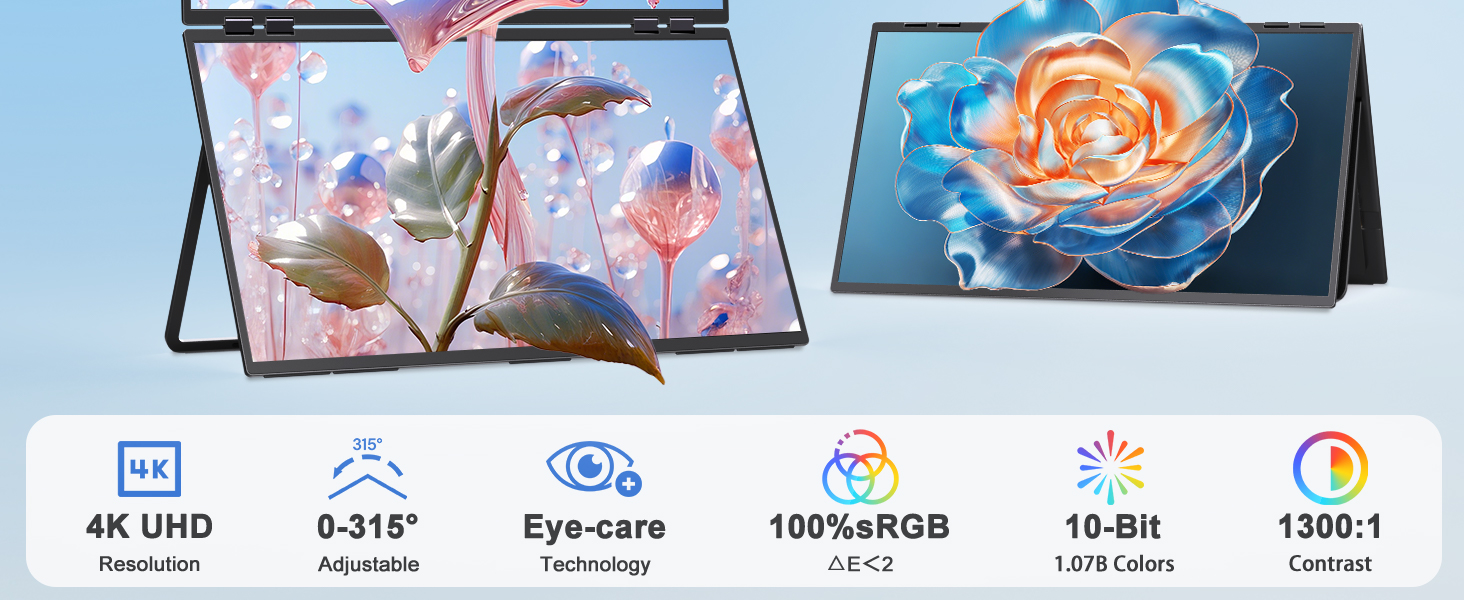
Image: Visual representation of the different display modes available.
- Tiling Mode (Default for Mac): Displays two separate screens, one above the other, for an expanded workspace.
- Splicing Mode (Default for Windows): Combines both screens into one large, continuous display.
- Extended Mode: Extends your desktop across both screens, allowing for multitasking.
- Duplicate (Mirror) Mode: Mirrors the content of your primary screen onto the secondary screen.
- Flip Mode: Flips the top screen's content for face-to-face sharing.
To switch between modes, use the 'Merge shortcut keys' on the monitor or adjust settings in your computer's display preferences.
Arranging Displays (Mac & Windows)
After connecting, you may need to arrange your displays in your operating system's settings to match your physical setup.
- Navigate to your laptop's System Settings (Mac) or Display Settings (Windows).
- Look for 'Arrange Displays' (Mac) or 'Identify' and 'Extend desktop' options (Windows).
- Drag and drop the virtual displays to match their physical arrangement (e.g., one above the other).
- Apply the changes.
Video: Demonstrates arranging displays in macOS settings.
Video: Demonstrates arranging displays in Windows settings.
Physical Adjustments
The monitor features a 315° adjustable rotation and 180° folding capability, allowing you to find the optimal viewing angle for individual use or collaborative sharing.

Image: Different use cases demonstrating the monitor's flexibility for professionals, designers, meetings, and students.
Features
- Dual 23.8" 4K Folding Screens: Provides a doubled workspace for enhanced productivity.
- Pro Color + 4K Detail: Both screens offer 100% sRGB wide color gamut and UHD 3840x2160 resolution for precise color reproduction and sharp clarity.
- Driver-Free Setup: Plug and play compatibility with macOS and Windows, requiring no additional driver installation.
- Flexible Rotation: Features 180° folding and 315° flip mode for versatile viewing angles and easy screen sharing.
- Eye Care Technology: Includes AI Blue Light Filter and Owl-Eye Vision for reduced eye strain and improved visual clarity in various lighting conditions.
- Built-in Speakers: Integrated audio for convenience.

Image: Key features of the monitor, including resolution, adjustability, and color accuracy.
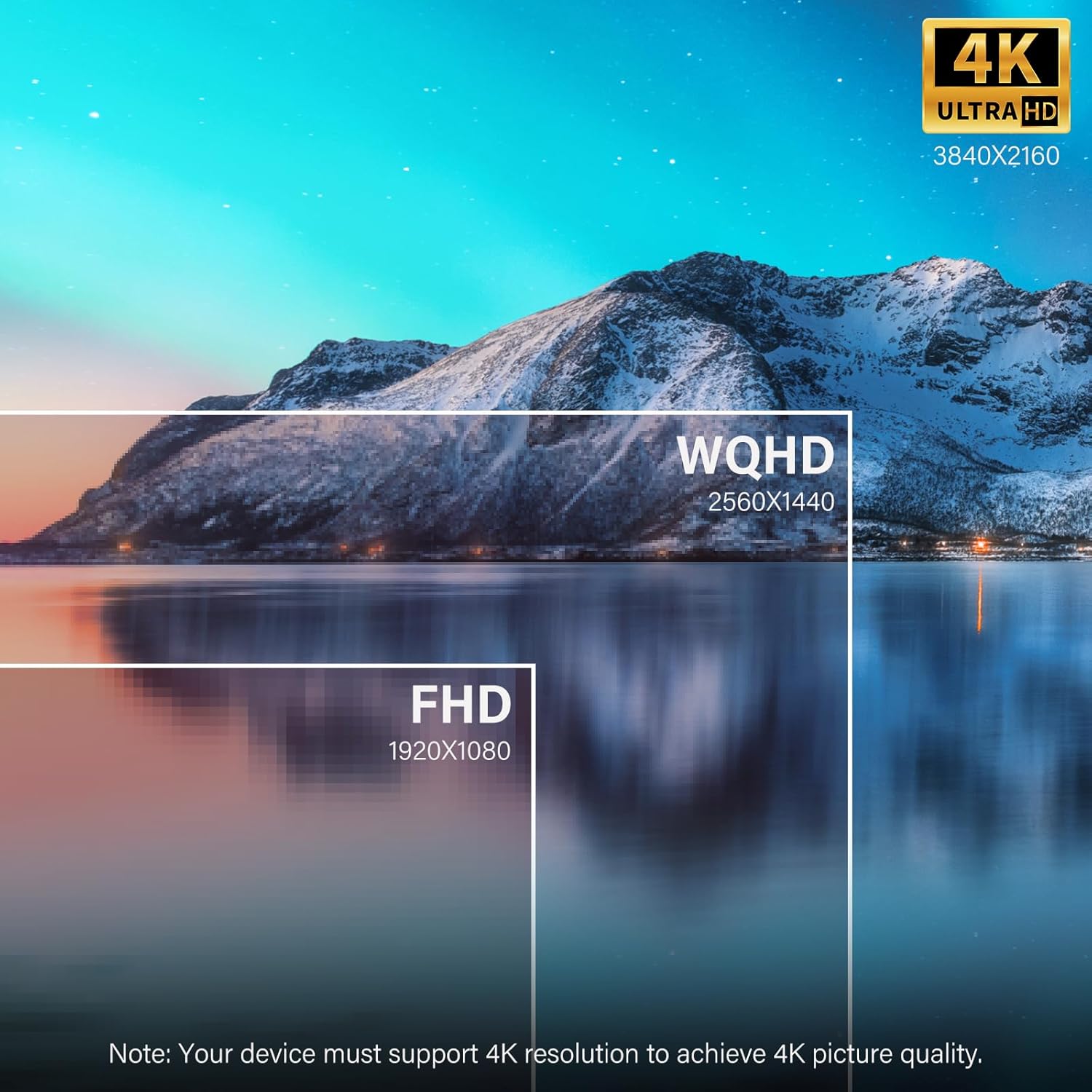
Image: Visual comparison of different display resolutions, showcasing the clarity of 4K.
Specifications
| Feature | Specification |
|---|---|
| Brand | InnoView |
| Model Number | US-609-4k |
| Screen Size | 23.8 Inches |
| Resolution | 4K UHD 3840x2160p |
| Aspect Ratio | 16:9 |
| Refresh Rate | 60 Hz |
| Contrast Ratio | 1300:1 |
| Brightness | 300 Candela |
| Color Gamut | 100% sRGB |
| Response Time | 5 Milliseconds |
| Connectivity | DisplayPort, HDMI, USB Type C (Full-Featured) |
| Additional Features | AI Blue Light Filter, Anti Glare Screen, Built-In Speakers, Swivel Adjustment, Tilt Adjustment |
| Item Dimensions (D x W x H) | 0.65"D x 21.33"W x 12.71"H |
| Item Weight | 1.8 Kilograms (3.97 lbs) |

Image: Visual representation of the monitor's dimensions and weight.
Maintenance
To ensure the longevity and optimal performance of your monitor, follow these maintenance tips:
- Cleaning: Gently wipe the screen with a soft, dry microfiber cloth. For stubborn smudges, lightly dampen the cloth with water or a screen-safe cleaner (do not spray directly on the screen).
- Storage: When not in use, fold the monitor to protect the screens and store it in a cool, dry place.
- Handling: Avoid dropping or subjecting the monitor to strong impacts. Handle with care, especially when adjusting the screens.
- Ventilation: Ensure proper airflow around the monitor to prevent overheating.
Troubleshooting
If you encounter any issues with your InnoView Dual Portable Monitor, please refer to the following common solutions:
- No Display/Signal:
- Ensure all cables (power, video) are securely connected.
- Verify your laptop's USB-C port supports video output.
- Check your computer's display settings to ensure the monitor is detected and configured correctly (e.g., Extended or Duplicate mode).
- Try a different cable or port on your computer if available.
- Incorrect Resolution/Display Mode:
- Adjust the display settings in your operating system to select the desired resolution (3840x2160) and display mode (Tiling, Splicing, Extended, Duplicate).
- Ensure your device supports 4K resolution for optimal picture quality.
- No Audio:
- Check the volume settings on both the monitor and your computer.
- Ensure the correct audio output device is selected in your computer's sound settings.
- Flickering Screen:
- Ensure the video cable is properly connected.
- Try reducing the display resolution or refresh rate in your computer's settings.
If the issue persists after trying these steps, please contact InnoView customer support.
Warranty and Support
Your InnoView Dual Portable Monitor comes with a 30-day no-questions-asked return policy and an 18-month full warranty. This ensures reliable quality assurance and dedicated support.
For any inquiries, technical assistance, or warranty claims, please contact InnoView customer support through the official channels provided at the point of purchase or on the InnoView website.

Image: The dual portable monitor in use, demonstrating an efficient workspace.


