
1. Introduction
This manual provides detailed instructions for the setup, operation, and maintenance of your YFDSPSM 4K+ HD/4K/HDR Streaming Device. Please read this manual thoroughly before using the device to ensure optimal performance and longevity.
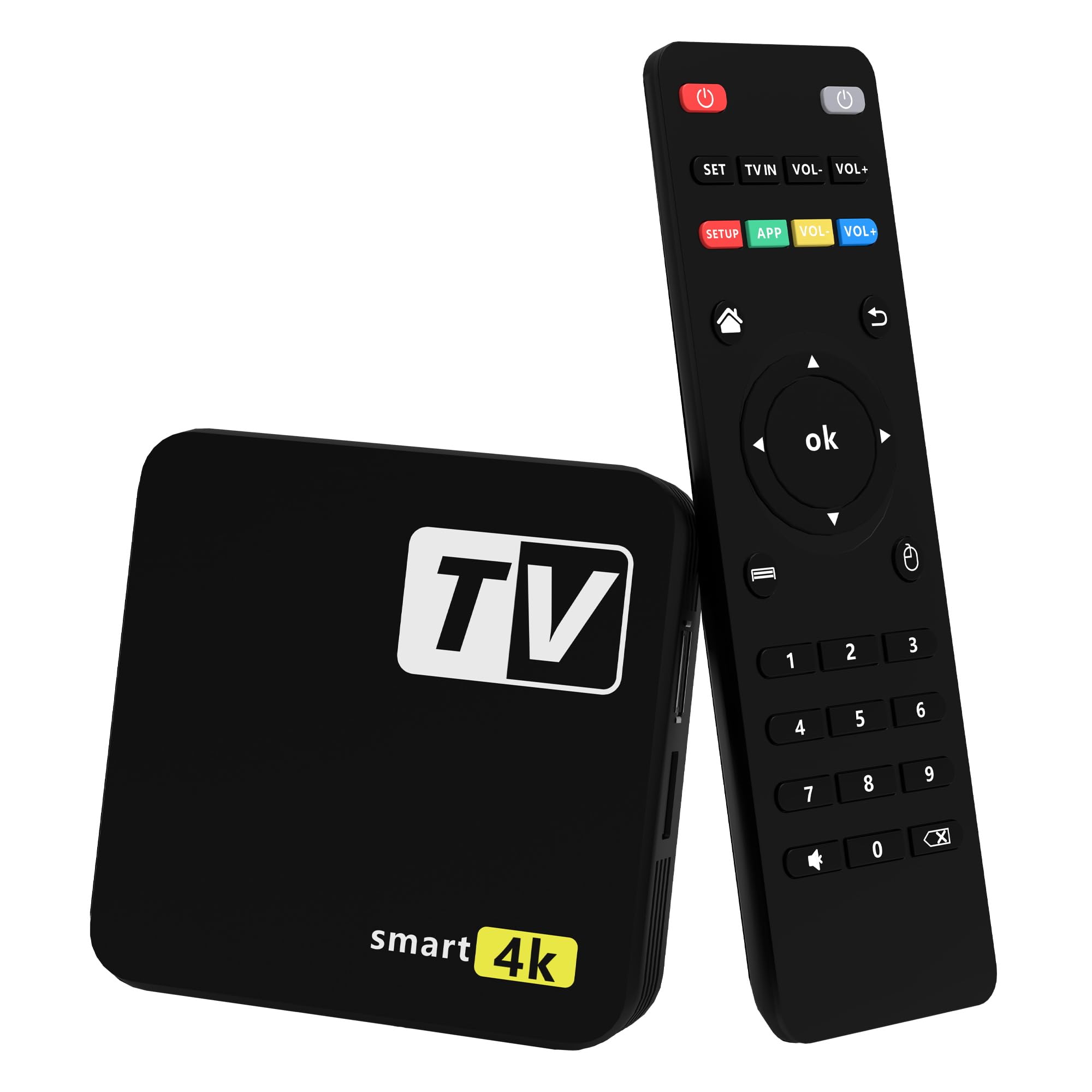
Image 1.1: The YFDSPSM 4K+ HD/4K/HDR Streaming Device. This image displays the compact black streaming box with a 'TV' logo and 'smart 4k' branding on its top surface.
2. Setup Guide
Follow these steps to set up your YFDSPSM Streaming Device:
- Connect to TV: Connect one end of the included HDMI cable to the HDMI port on your streaming device and the other end to an available HDMI input on your television.
- Connect Power: Plug the power adapter into the DC IN port on the streaming device, then plug the adapter into a wall outlet. The device should power on automatically.
- Select TV Input: Turn on your television and select the correct HDMI input source using your TV remote.
- Initial Setup: Follow the on-screen instructions to complete the initial setup, which includes selecting your language, connecting to a Wi-Fi network (or Ethernet), and logging into your Google account.

Image 2.1: Illustration of a 4K streaming device connected to a television. This image highlights the necessary connections for the streaming device, including HDMI and power, demonstrating how it integrates with a home entertainment system.
3. Operating Instructions
Your YFDSPSM Streaming Device runs on Android TV OS, providing access to a wide range of streaming services and applications.
3.1 Remote Control Functions
The included remote control allows you to navigate the Android TV interface. Familiarize yourself with the buttons:
- Power Button: Turns the device on or off.
- Navigation Pad (Up/Down/Left/Right/OK): Used to move through menus and select items.
- Back Button: Returns to the previous screen.
- Home Button: Returns to the Android TV home screen.
- Volume Buttons: Controls the TV volume.
- Google Assistant Button: Activates voice commands for search and control.
3.2 Accessing Streaming Services
From the home screen, you can access pre-installed applications like Netflix, Hulu, and Amazon Prime Video. You can also download additional apps from the Google Play Store.
3.3 Google Assistant and Chromecast
Utilize the built-in Google Assistant for voice search, controlling smart home devices, and getting information. The integrated Chromecast feature allows you to cast content from compatible smartphones, tablets, and computers directly to your TV.
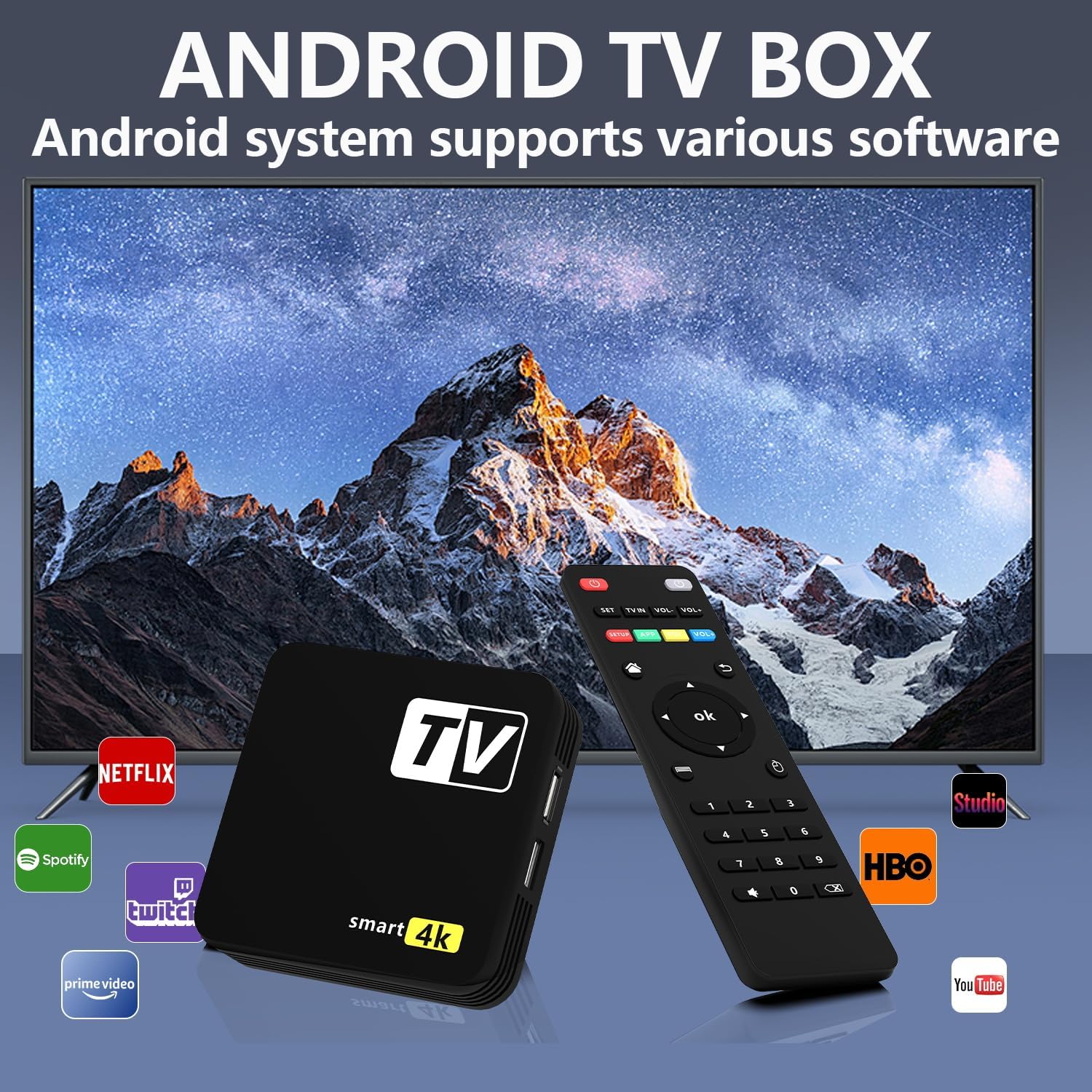
Image 3.1: The YFDSPSM streaming device and its remote control, surrounded by icons of popular streaming applications such as Netflix, Spotify, Twitch, Prime Video, HBO, and YouTube. This illustrates the device's compatibility with various entertainment platforms.
4. Maintenance
Proper maintenance ensures the longevity and optimal performance of your streaming device.
- Cleaning: Use a soft, dry cloth to clean the device. Avoid liquid cleaners or abrasive materials.
- Software Updates: Ensure your device's software is up to date. Navigate to Settings > Device Preferences > About > System update to check for and install updates.
- Storage Management: Periodically clear app caches and uninstall unused applications to free up storage space and improve performance.
- Ventilation: Ensure the device is placed in a well-ventilated area to prevent overheating. Do not cover ventilation openings.
5. Troubleshooting
If you encounter issues with your device, refer to the following common problems and solutions:
| Problem | Solution |
|---|---|
| Device does not power on | Ensure the power adapter is securely connected to the device and a working power outlet. Try a different outlet. |
| No signal on TV / Black screen | Verify the HDMI cable is firmly connected to both the device and the TV. Ensure your TV is set to the correct HDMI input source. Try a different HDMI port or cable. |
| Remote control is unresponsive | Replace the batteries in the remote control. Ensure there are no obstructions between the remote and the device. If the remote uses Bluetooth, try re-pairing it according to the on-screen instructions during initial setup or in device settings. |
| Buffering or slow application loading | Check your internet connection speed and Wi-Fi signal strength. Move the device closer to your Wi-Fi router or use an Ethernet cable for a more stable connection. Restart the streaming device and your Wi-Fi router. Close background applications. |
| Cannot sign into Google Play Store | Ensure your internet connection is active. Verify your Google account credentials. Clear the cache and data for the Google Play Store app in Settings > Apps. |
6. Specifications
Key technical specifications for the YFDSPSM 4K+ HD/4K/HDR Streaming Device:
- Brand: YFDSPSM
- Model Name: SF20250910
- Connectivity Technology: HDMI, Wi-Fi (2.4G/5G Dual-Band WiFi 6)
- Special Features: Google Assistant, Chromecast
- Resolution: 4K (3840 pixels)
- Supported Internet Services: Netflix, Hulu, Amazon Prime Video, and more via Google Play Store
- Form Factor: TV Box
- Color: Black
- Compatible Devices: Television, Smartphone, Tablet, Personal Computer, Laptop
- Memory Storage Capacity: 8 GB (Internal Storage)
- RAM: 2 GB
- Video Codec: H.264, H.265/HEVC
- Manufacturer: YFDSPSM

Image 6.1: A television screen displaying a vibrant 4K HDR image of a starry night sky over mountains, contrasting with a 1080P image. This illustrates the superior clarity, brightness, contrast, and color accuracy delivered by 4K HDR 10+ technology.
7. Warranty and Support
YFDSPSM is committed to providing excellent customer service for your streaming device.
- After-Sales Service: Enjoy 24-hour professional after-sales support for any inquiries or issues.
- Return or Exchange: A 30-day return or exchange policy is available from the date of purchase.
- Technical Support: Benefit from lifetime technical support for your device.
For support, please refer to the contact information provided with your purchase or visit the official YFDSPSM website.