
1. Introduction
Thank you for choosing the Vikye Portable WiFi Hotspot M5 E. This device provides high-speed 4G/5G mobile internet access, allowing you to connect multiple devices on the go. This manual will guide you through the setup, operation, and maintenance of your new portable router.
2. Product Overview
The Vikye M5 E is a compact and portable mobile router designed for reliable internet access using a SIM card. It supports LTE CAT4 standards, delivering speeds up to 300Mbps, and can connect up to 10 devices simultaneously.
Package Contents:
- 1 x Vikye Portable Router (M5 E)
- 1 x Charging Cable
- 1 x Instruction Manual

Image: Vikye Portable WiFi Hotspot M5 E with its included charging cable.
Device Features:
- SIM Card Slot: For 4G/5G internet connectivity without broadband.
- High-Speed Network: Supports LTE CAT4 for speeds up to 300Mbps.
- USB Rechargeable: Can be charged via computer USB, power bank, or car charger.
- Long Battery Life: 2100mAh battery provides over 10 hours of continuous use.
- Wide Compatibility: Connects up to 10 devices (smartphones, tablets, laptops, etc.).
- Network Bands: FDD B1 3 5 7 8 20, TDD B40 41.
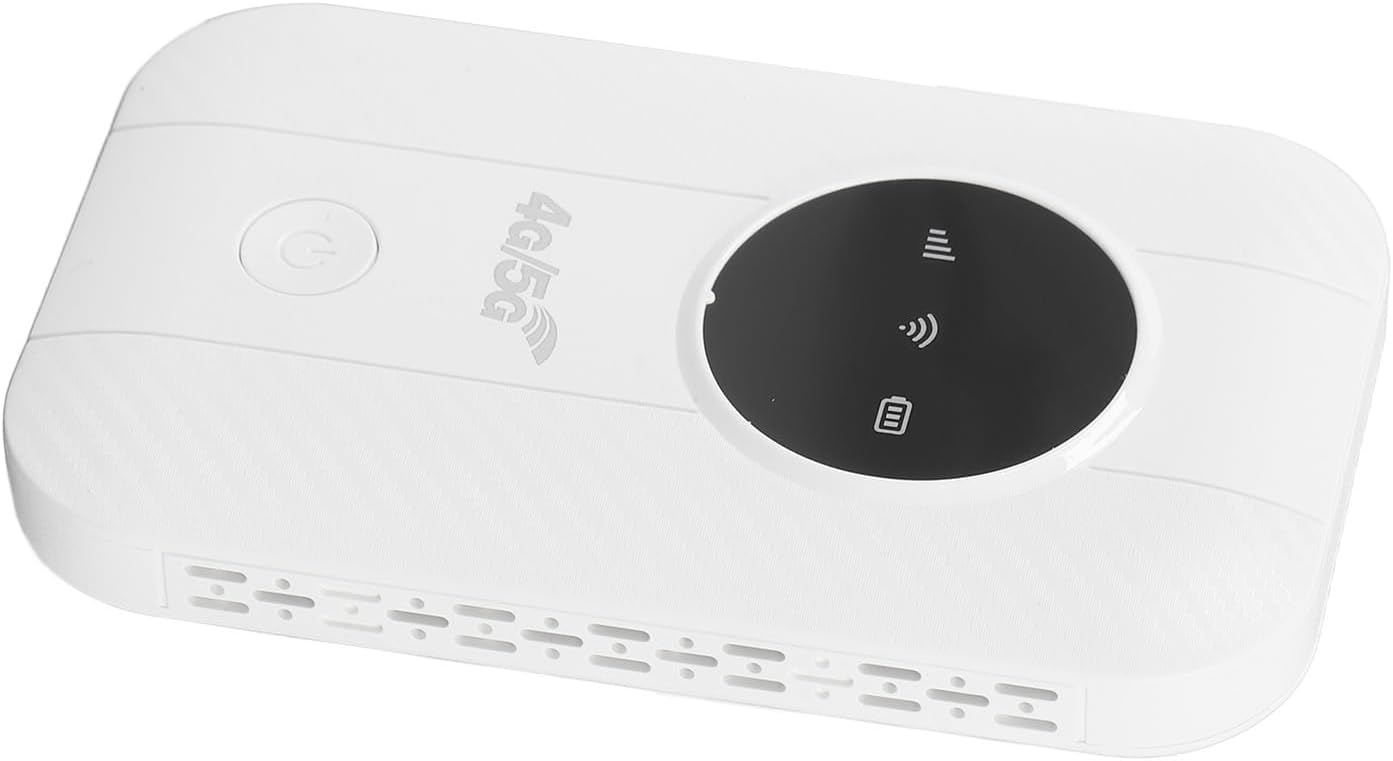
Image: Top view of the Vikye M5 E router, displaying its indicator lights and power button.

Image: Close-up of the USB-C charging port located on the side of the Vikye M5 E.
3. Setup Instructions
Follow these steps to set up your Vikye Portable WiFi Hotspot M5 E:
- Insert SIM Card: Locate the SIM card slot on the device. Carefully insert a Micro SIM card into the slot until it clicks into place. Ensure the SIM card is activated by your service provider before insertion.
- Disable SIM PIN (if necessary): If your SIM card has a PIN code enabled, you may need to disable it using a mobile phone before inserting it into the router. The router may not be plug-and-play with a PIN-protected SIM.
- Power On: Press and hold the power switch (usually located on the front or side) for a few seconds until the indicator lights illuminate.
- Initial Configuration (APN Settings): In some cases, you may need to manually configure the Access Point Name (APN) settings. To do this, connect a device (e.g., laptop, smartphone) to the router's default Wi-Fi network (SSID and password usually found on a sticker inside the SIM card compartment or on the device itself). Open a web browser and enter the router's IP address (e.g., 192.168.0.1 or 192.168.1.1) to access the administration interface. Navigate to the network settings to update the APN according to your service provider's specifications.
4. Operating Instructions
Once your Vikye M5 E is set up and powered on, you can begin using it to access the internet:
- Connect Devices: On your smartphone, tablet, or laptop, search for available Wi-Fi networks. Select the network name (SSID) corresponding to your Vikye M5 E.
- Enter Password: Input the Wi-Fi password (Key) provided on the device's label or in the administration interface.
- Access Internet: Once connected, your device should have internet access. The router supports up to 10 connected devices simultaneously.
- Charging: Connect the provided charging cable to the USB-C port on the router and to a USB power source (computer, power bank, car charger) to recharge the internal 2100mAh battery.

Image: Illustration of multiple individuals using the Vikye M5 E for internet access in different environments.
5. Maintenance
To ensure optimal performance and longevity of your Vikye M5 E:
- Cooling: For extended periods of use, especially when multiple devices are connected or during high data usage, ensure the device has adequate ventilation to prevent overheating. Avoid covering the device or placing it in enclosed spaces.
- Battery Care: The built-in 2100mAh Li-Polymer battery provides over 10 hours of continuous use. To prolong battery life, avoid fully discharging the battery frequently and store the device in a cool, dry place when not in use for extended periods.
- Cleaning: Use a soft, dry cloth to clean the exterior of the device. Do not use liquid cleaners or aerosols.
6. Troubleshooting
If you encounter issues with your Vikye M5 E, refer to the following common solutions:
- No Internet Connection:
- Ensure the SIM card is correctly inserted and activated.
- Check if the SIM card has a PIN code enabled. If so, disable it using a mobile phone.
- Verify the APN settings in the router's administration interface match your service provider's requirements.
- Check the signal strength indicators on the router. Move to an area with better network coverage if the signal is weak.
- Restart the router by turning it off and then on again.
- Cannot Connect to Wi-Fi:
- Ensure the router is powered on and its Wi-Fi indicator light is active.
- Double-check the Wi-Fi password (Key) you are entering.
- Try connecting with another device to rule out an issue with your specific device.
- Slow Internet Speed:
- Check the network signal strength. Weak signal can lead to slower speeds.
- Reduce the number of connected devices if many are actively using bandwidth.
- Ensure the device is not overheating.
7. Specifications
| Feature | Detail |
|---|---|
| Model | M5 E (Eurasian Version) |
| Network Bands | FDD: B1, B3, B5, B7, B8, B20; TDD: B40, B41 |
| Chipset | For 8916 |
| Battery Type | Li Polymer, 2100mAh (Built-in) |
| SIM Card Slot | Micro SIM (Card not included) |
| Max Speed | Up to 300Mbps (LTE CAT4) |
| Connected Devices | Up to 10 |
| Item Weight | 4.2 ounces |
| Package Dimensions | 5.12 x 4.33 x 1.18 inches |
8. Safety Information
Please read and follow these safety guidelines to prevent damage to your device or injury:
- Do not expose the device to extreme temperatures, direct sunlight, or high humidity.
- Avoid dropping or subjecting the device to strong impacts.
- Do not attempt to disassemble, repair, or modify the device yourself. This will void the warranty.
- Use only the provided charging cable or a certified compatible cable.
- Keep the device away from water and other liquids.
- Dispose of the device and its battery responsibly according to local regulations.
9. Warranty and Support
Your Vikye Portable WiFi Hotspot M5 E comes with a standard manufacturer's warranty. Please refer to the warranty card included in your package for specific terms and conditions. For technical support or customer service inquiries, please contact your retailer or visit the official Vikye website for contact information.