
Introduction
Thank you for purchasing the Yodoit PTM18 Portable Monitor. This 18.5-inch Full HD (1080P) IPS display features a 100Hz refresh rate, USB Type-C connectivity, and integrated speakers, designed to enhance your productivity and entertainment experience on the go. This manual provides detailed instructions for setup, operation, and maintenance to ensure optimal performance.
Product Overview
The Yodoit PTM18 is a versatile portable monitor designed for various applications, including extending your laptop screen, connecting to gaming consoles, or mirroring your smartphone display. Its slim and lightweight design makes it an ideal companion for travel and mobile workstations.
Key Features:
- 18.5-inch FHD IPS Display: Enjoy stunning 1920 x 1080 resolution with a 100Hz refresh rate, 178° wide viewing angles, and accurate color reproduction.
- Wide Compatibility: Connects seamlessly with laptops, PCs, Macs, smartphones (with full-featured Type-C port), and game consoles (Xbox, PlayStation, Switch).
- Dual USB Type-C Ports: Features two full-featured USB-C ports for power and video transmission, simplifying connectivity.
- Mini HDMI Port: Provides an alternative video input option.
- HDR & Eye Care: Supports High Dynamic Range (HDR) for enhanced contrast and brightness, along with low blue light technology to reduce eye strain.
- Integrated Dual Speakers: Delivers clear audio without the need for external speakers.
- Fold-Out Kickstand & Protective Cover: The included cover doubles as an adjustable stand, offering versatile viewing angles and protection.
- VESA Mount Compatible: Allows for flexible mounting options (75x75mm).

Figure 1: Overview of Yodoit PTM18 Portable Monitor's key display features, including 100Hz refresh rate and 1080P FHD resolution.

Figure 2: The monitor's ultra-portable design with integrated dual speakers for enhanced audio.
Setup Guide
Follow these steps to set up your Yodoit PTM18 Portable Monitor.
1. Unpacking and Stand Setup
- Carefully remove the monitor and all accessories from the packaging.
- The monitor comes with a protective cover that also functions as a stand. Fold the cover to create a stable base for the monitor. Adjust the angle between 12° and 60° for optimal viewing.
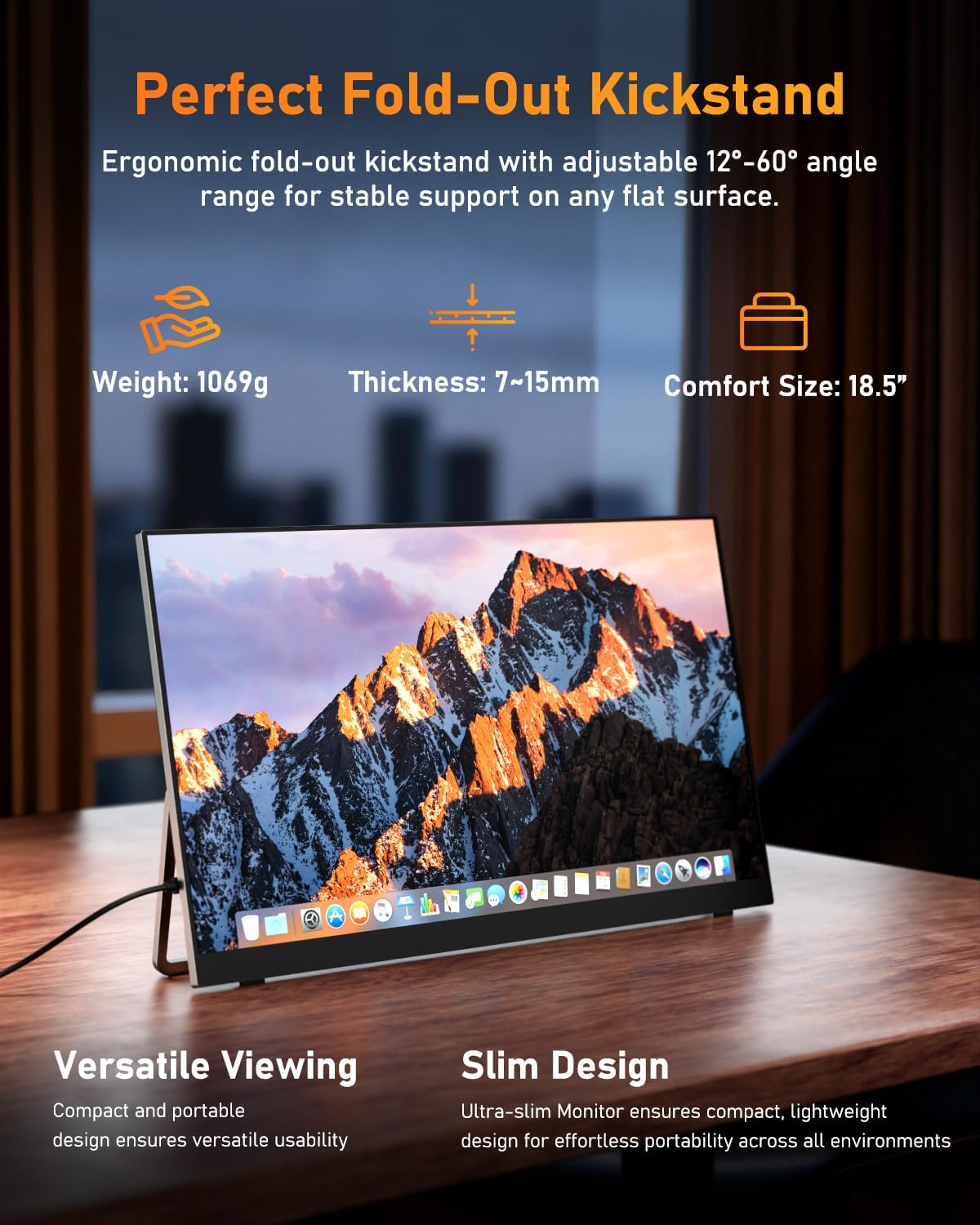
Figure 3: The monitor's integrated fold-out kickstand provides stable support and adjustable viewing angles.
2. Connecting to Your Device (Plug & Play)
The Yodoit PTM18 monitor supports various connection methods. No driver installation is required.
Option A: USB Type-C (Full-Featured) Connection
- If your device (laptop, smartphone, etc.) has a full-featured USB Type-C port that supports both video output and power delivery, use a single USB Type-C to Type-C cable (included) to connect your device to either of the monitor's USB Type-C ports.
- This single cable will provide both power and video signal to the monitor.
- To achieve the full 100Hz refresh rate, a direct USB-C to USB-C cable connection is required.
Option B: Mini HDMI + USB Type-C (Power) Connection
- If your device does not have a full-featured USB Type-C port, or if you prefer to use HDMI:
- Connect one end of the mini HDMI to HDMI cable (included) to the monitor's mini HDMI port and the other end to your device's HDMI port.
- Connect one end of the USB Type-C to USB-A cable (included) to one of the monitor's USB Type-C ports and the USB-A end to a power source (e.g., a wall adapter, laptop USB-A port, or power bank). This provides power to the monitor.
- Note: When using a mini-HDMI to HDMI cable combined with a USB-A to USB-C connection, the refresh rate may be limited. For 100Hz performance, use a direct USB-C to USB-C connection.
Option C: USB-A Port Functionality
- The USB-A port on the monitor is functional only when using a USB-C to USB-C cable for connection to your host device. It allows you to connect external mice or keyboards to the monitor, which then pass through to your host device. This function does not apply to HDMI connections.

Figure 4: Detailed view of the monitor's connectivity ports (2x Type-C, HDMI 2.0, 3.5mm Audio, USB-A) and a visual guide to compatible devices.
Operating Instructions
1. Power On/Off
- The monitor will automatically power on when connected to a compatible device and receiving power.
- To power off, disconnect the power source.
2. On-Screen Display (OSD) Menu
The OSD menu allows you to adjust various display settings. Use the control buttons on the side of the monitor to navigate and select options.
- Menu Button: Press to open the OSD menu.
- Up/Down Buttons: Use to navigate through menu options or adjust values.
- Enter Button: Press to confirm a selection.
- Exit Button: Press to exit the OSD menu.
Common OSD settings include Brightness, Contrast, Color Temperature, HDR Mode, Input Source, and Volume.
3. Display Modes
When connected to a laptop or PC, you can configure the display mode through your operating system settings:
- Extended Mode: Extends your desktop across both screens, providing more workspace.
- Duplicate Mode (Mirror Mode): Duplicates your primary screen onto the portable monitor.
- Single Mode: Uses only the portable monitor as the display.

Figure 5: The monitor supports VESA mounting and various display modes for flexible use.
4. Refresh Rate
The monitor supports a 100Hz refresh rate for smoother visuals, especially in gaming. To ensure 100Hz operation:
- Use a direct USB Type-C to USB Type-C cable connection from a compatible device.
- Verify and adjust the refresh rate in your device's display settings (e.g., Windows Display Settings, macOS System Preferences).
5. Audio Output
- The monitor has built-in dual speakers. Audio will automatically play through them when connected via USB-C or HDMI.
- You can adjust the volume via the OSD menu or your connected device's volume controls.
- A 3.5mm audio jack is available for connecting external headphones or speakers.
Maintenance
Cleaning the Monitor:
- Always disconnect the monitor from power before cleaning.
- Use a soft, lint-free cloth slightly dampened with water or a mild, non-abrasive screen cleaner.
- Do not spray cleaner directly onto the screen.
- Avoid using alcohol, ammonia, or abrasive cleaners, as they can damage the screen surface.
Storage:
- When not in use, store the monitor in its protective cover to prevent scratches and damage.
- Store in a cool, dry place away from direct sunlight and extreme temperatures.
Troubleshooting
No Signal / Black Screen:
- Ensure all cables (USB-C, HDMI, power) are securely connected.
- If using HDMI, ensure the monitor is also receiving power via USB-C.
- Check if your device's USB-C port supports video output (full-featured USB-C).
- Try connecting to a different device or using different cables to rule out cable or source issues.
- Verify the input source selection in the monitor's OSD menu.
No Power:
- Ensure the power source (USB-C adapter, laptop port) is functioning correctly.
- Try a different USB-C cable or power adapter.
Image Flickering or Unstable:
- Ensure cables are securely connected.
- Check for electromagnetic interference from other devices.
- If using HDMI + USB-C for power, ensure sufficient power is supplied.
Cannot Achieve 100Hz Refresh Rate:
- A direct USB-C to USB-C connection is required for 100Hz. HDMI connections may be limited.
- Ensure your host device's graphics card and drivers support 100Hz output at 1080P resolution.
- Adjust the refresh rate in your operating system's display settings.
No Audio or Low Volume:
- Check the volume settings on both the monitor (OSD menu) and your connected device.
- Ensure the correct audio output device is selected on your computer (e.g., "Yodoit PTM18" or "External Display").
- If using headphones, ensure they are properly plugged into the 3.5mm audio jack.
Specifications
| Feature | Specification |
|---|---|
| Brand | Yodoit |
| Model Number | PTM18 |
| Screen Size | 18.5 Inches |
| Resolution | 1920 x 1080 (FHD) |
| Refresh Rate | 100Hz |
| Panel Type | IPS |
| Aspect Ratio | 16:9 |
| Response Time | 2 Milliseconds |
| Connectivity | 2x USB Type-C (Full-Featured), 1x Mini HDMI, 1x USB-A, 1x 3.5mm Audio Jack |
| Product Dimensions (D x W x H) | 16.54"D x 9.84"W x 0.39"H (423mm x 251mm x 7-15mm) |
| Item Weight | 2 Kilograms (approx. 1069g / 2.35 lbs) |
| VESA Mount | 75 x 75 mm |
| Speakers | Built-in Dual Speakers |
| HDR Support | Yes |
| Low Blue Light | Yes |

Figure 6: Physical dimensions of the Yodoit PTM18 Portable Monitor.
Energy Information:
For detailed energy consumption and product information, please refer to the EU EPREL database:
- EPREL Registration Number: 2234268
- EPREL Link: https://eprel.ec.europa.eu/qr/2234268
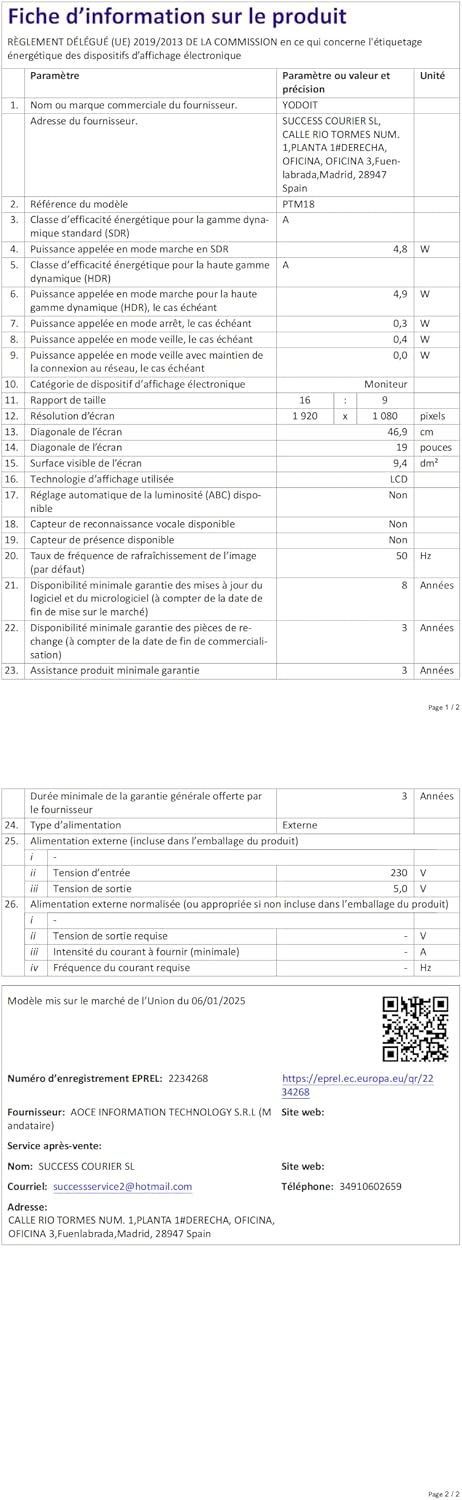
Figure 7: EU Energy Label for the Yodoit PTM18 Portable Monitor.
Warranty and Support
Yodoit products are designed for reliability and performance. For warranty information and technical support, please contact Yodoit customer service.
- Customer Service Email: successservice7@hotmail.com
- Manufacturer: Yodoit Limited
- Minimum guaranteed availability of software and firmware updates: 8 years
- Minimum guaranteed availability of spare parts: 3 years
- Minimum guaranteed product support: 3 years
Please retain your purchase receipt for warranty claims.

