
1. Introduction
This manual provides essential information for the setup, operation, maintenance, and troubleshooting of your NIMO 17.3-inch FHD IPS Laptop, model Nimo N176. Please read this guide thoroughly to ensure proper use and to maximize the lifespan of your device.

Image 1.1: The NIMO 17.3-inch FHD IPS Laptop, model Nimo N176, showcasing its full display and keyboard.
2. Package Contents
Verify that all items listed below are included in your product packaging:
- 1 x Nimo N176 Laptop
- 1 x Type-C 65W PD Fast Charger
- 1 x User Manual (this document)
- Windows 11 Home Operating System (pre-installed)
3. Setup
3.1 Initial Power On
- Unpack the laptop and charger from the box.
- Connect the Type-C 65W PD Fast Charger to the laptop's Type-C port and a power outlet.
- Open the laptop lid. The laptop may power on automatically, or you may need to press the power button located on the keyboard.
- Follow the on-screen instructions to complete the initial Windows 11 setup, including language, region, network connection, and user account creation.
3.2 Charging the Laptop
The NIMO laptop includes a Type-C 65W PD fast charger and a 6.56ft USB-C to USB-C cable. This charger supports Power Delivery (PD) for efficient charging.
- Connect the charger to the laptop's Type-C port.
- A full charge provides approximately 5 hours of average battery life.
- The charger can also be used to charge other compatible USB-C devices such as tablets and smartphones.

Image 3.2: The included Type-C 65W PD Fast Charger and USB-C cable, capable of charging the laptop and other compatible devices.
3.3 Fingerprint Reader Setup
The laptop features a built-in fingerprint sensor on the touchpad for secure and quick login.
- Navigate to Windows Settings > Accounts > Sign-in options.
- Locate the 'Fingerprint recognition (Windows Hello)' section.
- Follow the on-screen prompts to register your fingerprint. You may need to set up a PIN first.
- Once registered, you can use your fingerprint to unlock the laptop.
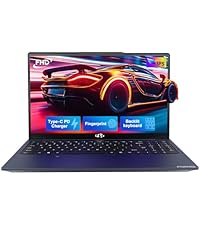
Image 3.3: Close-up of the touchpad showing the integrated fingerprint sensor for one-touch secure login.
4. Operating Instructions
4.1 Keyboard Backlight
The NIMO N176 laptop is equipped with a backlit keyboard for improved visibility in low-light conditions.
- To toggle the backlight on/off or adjust its brightness, use the dedicated function keys (usually Fn + Fx, where Fx is a specific function key with a backlight icon). Refer to the keyboard layout for the exact key combination.
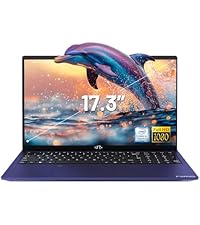
Image 4.1: The backlit keyboard illuminated, demonstrating its utility for typing in dim environments.
4.2 Webcam Privacy Switch
For enhanced privacy, the laptop features a physical switch to disable the webcam.
- Locate the small physical switch next to the webcam lens at the top of the display.
- Slide the switch to cover the lens for privacy. Slide it back to uncover the lens and enable the webcam.

Image 4.2: The laptop's integrated webcam with its physical privacy switch, shown in both open and closed positions.
4.3 Connectivity Ports
The Nimo N176 laptop offers various ports for connecting external devices:
- USB 2.0 Port: 1 port, typically for peripherals like mice or keyboards.
- USB 3.0 Ports: 3 ports, for high-speed data transfer with compatible devices.
- Type-C Port (PD Charge Only): For power input using the provided charger.
- Type-C Port (Multifunction): Supports data transfer and potentially video output (check specific model capabilities).
- HDMI Port: For connecting to external displays or projectors.
- Headphone Jack: For audio output to headphones or external speakers.
- Micro SD Card Slot: For expanding storage or transferring data from memory cards.
- Kensington Lock Slot: For physical security of the laptop.

Image 4.3: Diagram illustrating the various connectivity ports available on the NIMO N176 laptop, including USB, HDMI, and Type-C ports.
5. Maintenance
5.1 RAM and SSD Upgrade
The NIMO N176 laptop is designed to support user-upgradable RAM and SSD components.
- Warning: Opening the laptop to perform upgrades may void your warranty if not done correctly or if damage occurs. Consult professional assistance if you are unsure.
- Ensure the laptop is powered off and disconnected from the charger before attempting any internal modifications.
- Refer to the detailed service manual (if available) or contact NIMO support for specific instructions on accessing and replacing RAM and SSD modules.
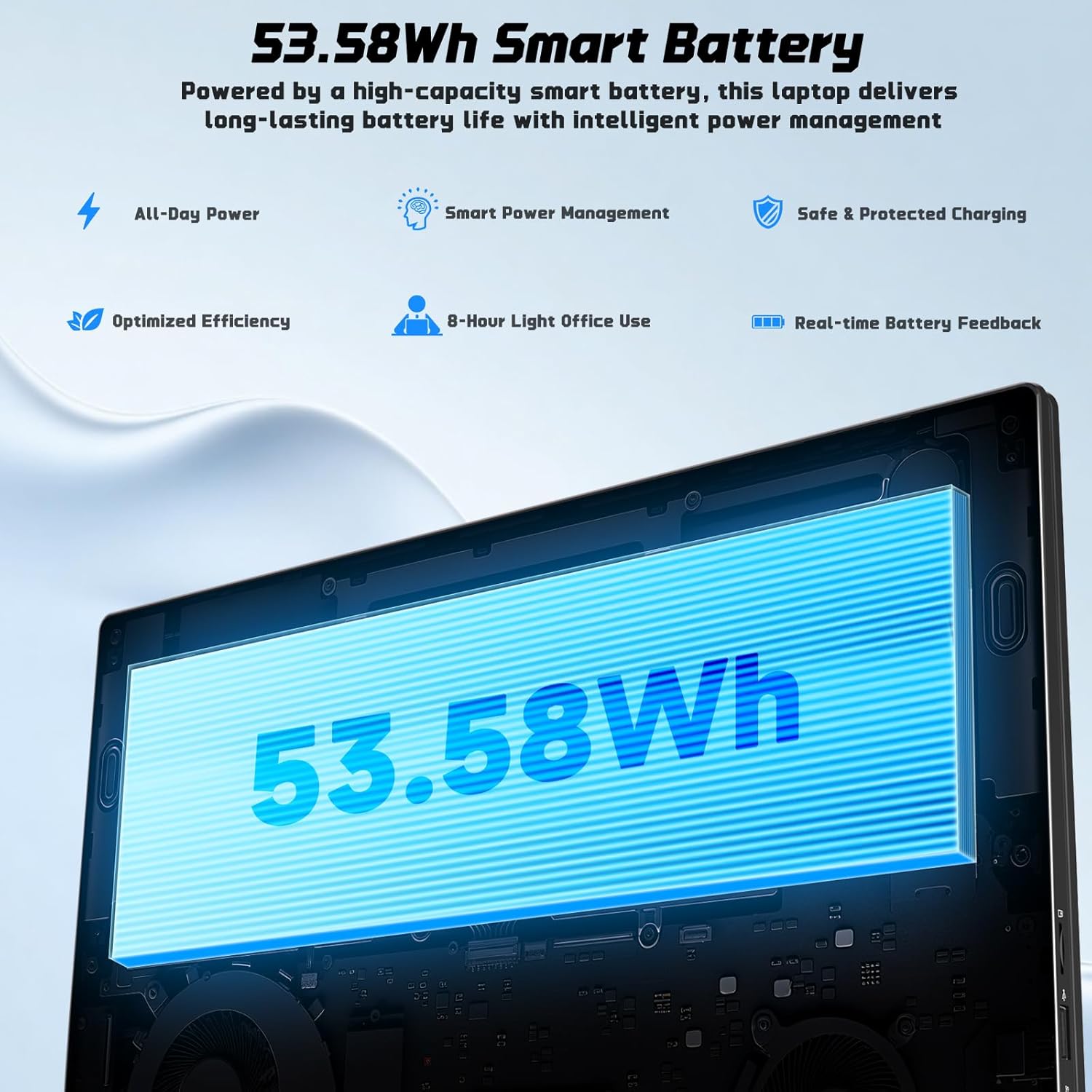
Image 5.1: Internal view of the NIMO laptop, highlighting the locations of the RAM and SSD for potential upgrades.
5.2 Cleaning Your Laptop
Regular cleaning helps maintain the laptop's appearance and performance.
- Screen: Use a soft, lint-free cloth specifically designed for electronics. Dampen it slightly with water or a screen cleaner. Avoid harsh chemicals.
- Keyboard and Chassis: Use a soft cloth. For stubborn dirt, a slightly dampened cloth with mild soap solution can be used, ensuring no liquid enters openings. Compressed air can remove dust from between keys.
- Always power off the laptop and disconnect it from power before cleaning.
6. Troubleshooting
This section addresses common issues you might encounter with your NIMO N176 laptop.
- Laptop not powering on: Ensure the charger is properly connected and the power outlet is functional. Try a different outlet. If the battery is completely drained, it may take a few minutes of charging before the laptop responds.
- Screen is blank: Check if the laptop is powered on. Try connecting an external monitor to see if there's a display output. Adjust screen brightness using function keys.
- Wi-Fi connectivity issues: Ensure Wi-Fi is enabled in Windows settings. Restart your router and the laptop. Check for updated network drivers.
- Slow performance: Close unnecessary applications. Check for sufficient free space on the SSD. Run a virus scan. Consider upgrading RAM or SSD if performance remains consistently low.
- Keyboard or touchpad not responding: Restart the laptop. Check for updated drivers in Device Manager. Ensure the touchpad hasn't been accidentally disabled via a function key.
For more complex issues or if the problem persists, please refer to the Warranty and Support section for contact information.
7. Specifications
Detailed technical specifications for the NIMO N176 laptop:
| Feature | Specification |
|---|---|
| Brand | NIMO |
| Model Name | Nimo N176 |
| Screen Size | 17.3 Inches |
| Screen Resolution | 1920 x 1080 pixels (FHD IPS) |
| Processor | Intel Pentium N100 (4 Cores, up to 3.4GHz) |
| RAM | 8 GB DDR4 (3200 MHz) |
| Hard Drive | 512 GB SSD (PCIe) |
| Graphics Coprocessor | Integrated Graphics (Intel) |
| Operating System | Windows 11 Home |
| Wireless Type | Wi-Fi 6 (802.11a/b/g/n/ac), Bluetooth 5.2 |
| USB Ports | 1 x USB 2.0, 3 x USB 3.0 |
| Other Ports | HDMI, Type-C (PD Charge Only), Type-C (Multifunction), Headphone Jack, Micro SD Slot |
| Webcam | 2 MP Rear Webcam Resolution (Note: Front webcam is typically 720p HD) |
| Battery Life | Approx. 5 Hours (53.58Wh Lithium Polymer) |
| Item Weight | 3.84 pounds |
| Product Dimensions | 15.66 x 9.99 x 0.74 inches |
| Special Features | Backlit Keyboard, Fingerprint Reader, HD Audio, Memory Card Slot, Numeric Keypad |

Image 7.1: The NIMO laptop's 17.3-inch FHD IPS display, highlighting its visual clarity and anti-glare properties.

Image 7.2: Visual representation of the Intel N100 processor, indicating its performance capabilities.

Image 7.3: Diagram illustrating the 53.58Wh smart battery, emphasizing its capacity and power management features.
8. Warranty and Support
NIMO provides comprehensive support for your product.
- Manufacturer's Warranty: Your NIMO N176 laptop is covered by a 2-year manufacturer's warranty. This warranty covers defects in materials and workmanship under normal use.
- Returns Policy: A 90-day hassle-free return and exchange service is offered by NIMO Direct Inc.
- Customer Support: For any concerns, technical assistance, or warranty claims, please contact NIMO's dedicated support team. Refer to the contact information provided on the NIMO official website or in your purchase documentation.
Image 8.1: Visual representation of NIMO's after-sales service, including domestic assembly, 90-day returns, and 2-year support.
