Introduction
This manual provides detailed instructions for the installation, operation, and maintenance of your FENVI AX5400 PCIe WiFi 6E Card. This tri-band wireless network adapter offers Wi-Fi 6E connectivity and Bluetooth 5.3 for desktop PCs running Windows 10 or 11 (64-bit).

Image: FENVI AX5400 PCIe WiFi 6E Card components, including the main card, two antennas, a Bluetooth USB cable, and a low-profile bracket.
Product Features
- Tri-Band Wi-Fi 6E AX5400 Speeds: Supports 2.4GHz (574Mbps), 5GHz (2402Mbps), and 6GHz (2402Mbps) for a combined 5400Mbps.
- Bluetooth 5.3: Provides ultra-low latency connectivity for headphones, controllers, and other peripherals, with LE Audio support.
- Advanced Wi-Fi 6E Technologies: Incorporates MU-MIMO, OFDMA, and 160MHz channel width for efficient multi-device handling.
- MT7922 Chipset: Powered by the MT7922 chip for reliable Wi-Fi 6E performance, backward compatible with Wi-Fi 5/4.
- Desktop-Optimized Design: Features PCIe x1/x4/x8/x16 slot compatibility, detachable 6dBi high-gain antennas, and a heat sink for stability.
- Operating System Compatibility: Optimized for Windows 10/11 (64-bit) systems.

Image: Visual representation of the FENVI AX5400's core features, including Bluetooth 5.3, Tri-Band capability, MT7922 chipset, MU-MIMO technology, and a maximum speed of 5400 Mbps.
Setup and Installation
Follow these steps to properly install your FENVI AX5400 PCIe WiFi 6E Card into your desktop PC.
- Power Off PC: Ensure your computer is completely powered off and unplugged from the power source. Open the PC case.
- Insert PCIe Card: Locate an available PCIe slot (x1, x4, x8, or x16) on your motherboard. Carefully insert the FENVI AX5400 card into the slot until it is firmly seated.
- Connect Bluetooth Cable: Connect the small end of the provided Bluetooth USB cable to the 4-pin connector on the WiFi card. Connect the other end (9-pin USB connector) to an available F_USB header on your motherboard. This connection is essential for Bluetooth functionality.
- Install Antennas: Screw the two high-gain antennas onto the connectors at the back of the installed card. Adjust their angle for optimal signal reception.
- Close Case & Power On: Close your PC case, reconnect the power cable, and power on your computer.
- Install Drivers: Once Windows starts, download and install the latest drivers from the official FENVI website. This ensures full functionality and performance.
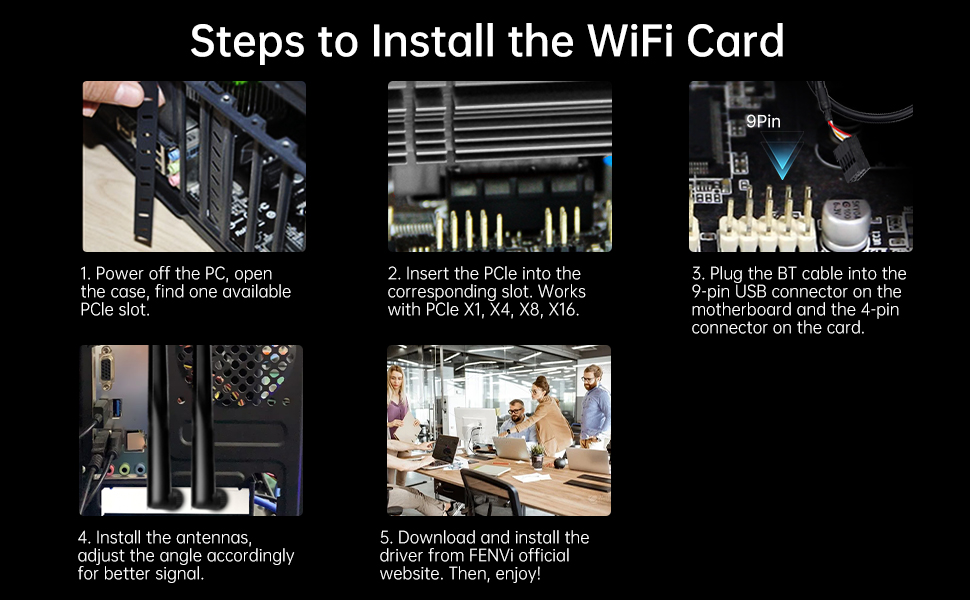
Image: Visual guide illustrating the five key steps for installing the FENVI AX5400 WiFi card: opening the PC, inserting the card into a PCIe slot, connecting the Bluetooth USB cable, attaching the antennas, and installing drivers.
Operating Instructions
Wi-Fi Connectivity
After successful driver installation, your computer will detect available Wi-Fi networks. Navigate to your Windows network settings to connect to your desired Wi-Fi network. The card supports 2.4GHz, 5GHz, and 6GHz bands. For optimal performance, connect to a 6GHz network if your router supports Wi-Fi 6E.
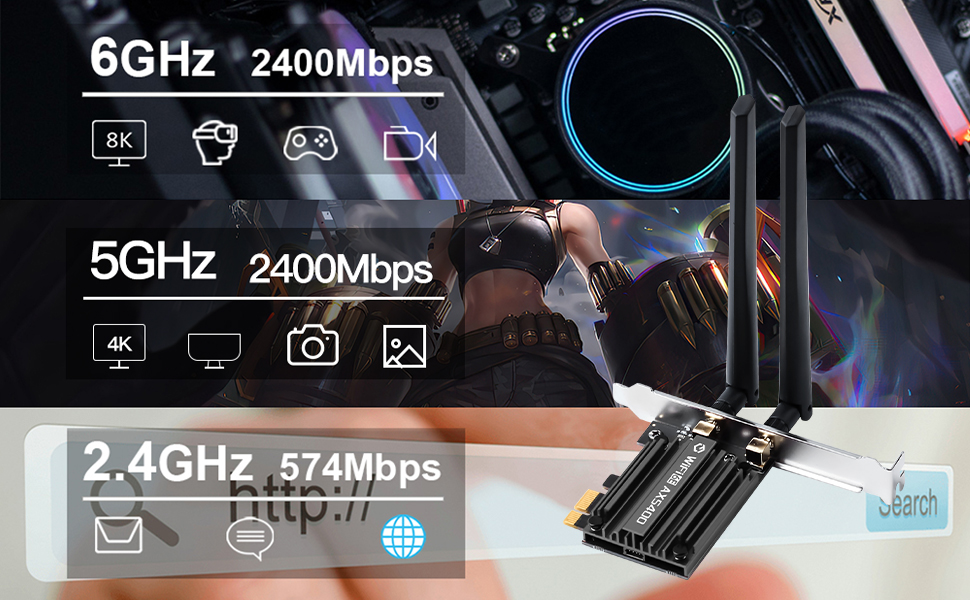
Image: Diagram illustrating the speed distribution across the three Wi-Fi bands: 2.4GHz at 574 Mbps, and both 5GHz and 6GHz at 2402 Mbps, highlighting the high-speed capabilities of the AX5400.
Bluetooth Functionality
Ensure the Bluetooth USB cable is correctly connected to both the card and your motherboard's F_USB header. You can then pair Bluetooth devices such as headphones, speakers, game controllers, and keyboards through your Windows Bluetooth settings.

Image: Illustration of the FENVI AX5400's Bluetooth 5.3 capabilities, showing its ability to connect to a range of Bluetooth devices including headphones, game controllers, mice, and keyboards.
Maintenance
- Driver Updates: Regularly check the official FENVI website for the latest driver updates to ensure optimal performance and security.
- Antenna Positioning: Adjust the antennas as needed to maintain the best possible signal strength. Avoid placing obstructions near the antennas.
- Physical Inspection: Periodically inspect the card and its connections inside your PC to ensure everything is securely seated and free from dust buildup.
Troubleshooting
- No Wi-Fi or Bluetooth:
- Ensure the card is fully seated in the PCIe slot.
- Verify the Bluetooth USB cable is correctly connected to both the card and the motherboard.
- Confirm that drivers are installed correctly. Reinstall if necessary.
- Check Device Manager in Windows for any error symbols next to the network adapter or Bluetooth device.
- Poor Signal Strength or Slow Speeds:
- Adjust the angle and position of the external antennas.
- Ensure your router is placed optimally and is not obstructed.
- Confirm you are connected to the appropriate Wi-Fi band (5GHz or 6GHz for higher speeds).
- Update your router's firmware and the card's drivers.
- Bluetooth Devices Not Pairing:
- Ensure the Bluetooth USB cable is securely connected.
- Put the Bluetooth device into pairing mode.
- Remove and re-add the Bluetooth device in Windows settings.
- Restart your computer.
Specifications
| Model | AX5400 |
| Wi-Fi Standard | Wi-Fi 6E (802.11ax) |
| Frequency Bands | 2.4GHz, 5GHz, 6GHz (Tri-Band) |
| Max Speed | 574Mbps (2.4GHz), 2402Mbps (5GHz), 2402Mbps (6GHz) - Total 5400Mbps |
| Bluetooth Version | Bluetooth 5.3 |
| Chipset | MT7922 |
| Interface | PCI Express (PCIe x1/x4/x8/x16 compatible) |
| Antennas | 2x Detachable 6dBi High-Gain Antennas |
| Operating System | Windows 10/11 (64-bit) |
| Dimensions (Card) | Approx. 5.7cm x 7.1cm (2.24in x 2.8in) |
| Antenna Length | Approx. 16cm (6.3in) |
| Included Accessories | Low-profile bracket, Bluetooth USB cable, WiFi antennas |
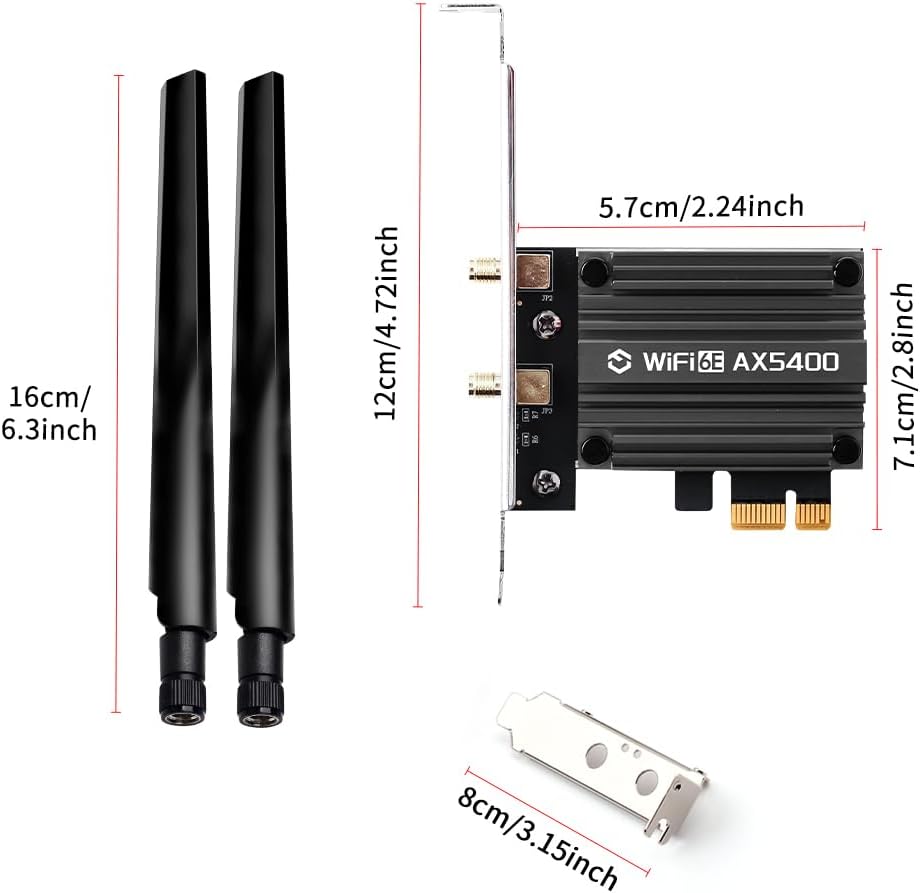
Image: Detailed dimensions of the FENVI AX5400 WiFi card and its antennas, providing measurements for the card's length and width, and the antenna's height.
Warranty and Support
For warranty information, please refer to the documentation included with your purchase or visit the official FENVI website. For technical support, driver downloads, and further assistance, please visit the FENVI support page or contact their customer service.
Official FENVI Website: www.fenvi.com


