
Introduction
Thank you for choosing the LEOBOG HI75C Pro Wireless Mechanical Keyboard. This manual provides detailed instructions for setting up, operating, and maintaining your keyboard to ensure optimal performance and longevity. The HI75C Pro features a 75% layout with 81 keys, a durable aluminum alloy case, GASKET design for enhanced typing feel, and versatile tri-mode connectivity.

Image: The LEOBOG HI75C Pro Wireless Mechanical Keyboard, showcasing its 75% layout and RGB backlighting.
Key Features
- Aluminium Alloy Cover: Constructed from top-tier aluminum for superior heat dissipation, robustness, and durability. Features an exquisite powder coating process to prevent fingerprints.
- GASKET Design: Greatly reduces cavity noise and improves typing sound, providing a satisfying low-noise typing experience.
- Tri-Mode Connection: Supports BT5.0, 2.4GHz wireless, and USB wired connections. Can connect up to five devices simultaneously with easy switching via shortcut keys or a side button.
- 75% Layout: An 81-key layout that balances concise design with complete functionality, optimizing desk space.
- RGB Backlit: Features 16.8 million RGB lighting colors with 17 lighting effects. Includes 10 music rhythm RGB lighting modes. Backlighting can be turned off via the knob to conserve battery.
- Dual-Mode Knob: A multi-functional knob for precise control. In office mode (indicator light on), rotate to adjust volume. In game mode (indicator light breathing), rotate to adjust light brightness.
- High Speed Response: Equipped with an advanced gaming keyboard chip, offering a response speed of up to 2.8ms.
- Hot-Swappable: Supports 3-pin/5-pin switches, allowing for easy customization and maintenance of switches.
- Ergonomic Keycap Height Design: Scientific step-by-step keycap design promotes relaxed wrist and finger positioning.
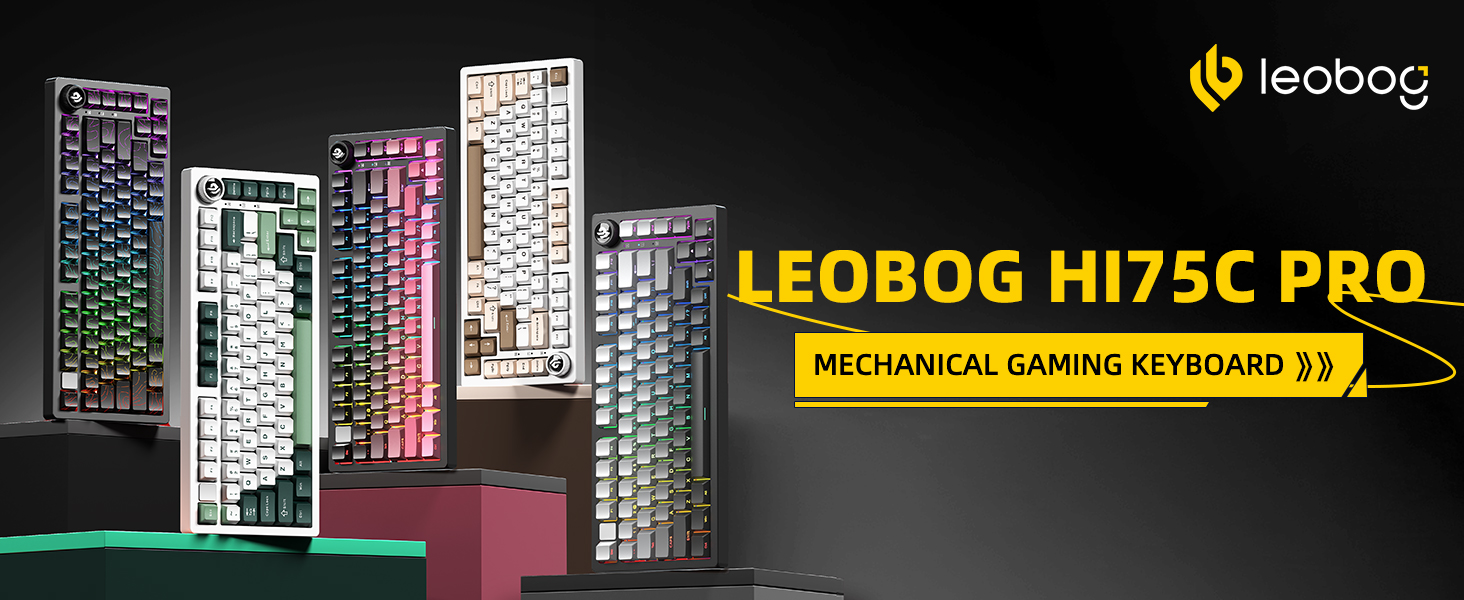
Image: Overview of the LEOBOG HI75C Pro's main features, including connectivity options, hot-swappable design, RGB backlighting, 75% layout, gasket structure, and 4000mAh battery.
Package Contents
Please check the package contents upon unboxing to ensure all items are present:
- LEOBOG HI75C Pro Wireless Mechanical Keyboard
- Keycap Puller
- USB Cable (Type-C)
- Replace Switch (Spare switches for customization)
Setup
1. Initial Connection
Your LEOBOG HI75C Pro keyboard offers three connection modes: USB-C wired, 2.4GHz wireless, and Bluetooth 5.0.
- USB-C Wired Connection:
- Locate the USB-C port on the keyboard (usually on the side or back).
- Connect the provided USB-C cable to the keyboard and the other end to an available USB port on your computer.
- Ensure the mode switch on the keyboard is set to "USB" or "Wired" mode. The keyboard should be recognized automatically by your operating system.
- 2.4GHz Wireless Connection:
- Locate the 2.4GHz USB receiver (dongle), typically stored in a compartment on the keyboard.
- Plug the USB receiver into an available USB port on your computer.
- Set the mode switch on the keyboard to "2.4G" or "Wireless" mode. The keyboard should connect automatically.
- Bluetooth 5.0 Connection:
- Set the mode switch on the keyboard to "BT" or "Bluetooth" mode.
- Press and hold FN + 1, FN + 2, or FN + 3 for 3-5 seconds to enter pairing mode for one of the three Bluetooth channels. The indicator light will flash rapidly.
- On your computer or device, open Bluetooth settings and search for "LEOBOG HI75C Pro" (or similar).
- Select the keyboard to pair. Once connected, the indicator light will stop flashing and remain solid.
- To switch between paired Bluetooth devices, press FN + 1, FN + 2, or FN + 3 briefly.

Image: The keyboard illustrating its three connection modes: USB Type-C, 2.4GHz wireless, and Bluetooth, compatible with various devices.
2. Operating System Compatibility
The LEOBOG HI75C Pro is compatible with multiple operating systems. Use the following key combinations to switch modes:
- FN + Q: Android mode
- FN + W: Windows mode
- FN + E: Mac mode
- FN + R: iOS mode

Image: Diagram illustrating FN key combinations for switching between Android, Windows, Mac, and iOS operating system modes, and 2.4G pairing.
Operating Instructions
1. Dual-Mode Knob Control
The multi-functional knob on your keyboard allows for quick adjustments to volume and lighting.
- Switching Modes: Press and hold the Mode key (usually located near the knob) to toggle between Office Mode and Game Mode.
- Office Mode: When the indicator light is continuously on, the keyboard is in Office Mode. Rotate the knob to adjust the system volume.
- Game Mode: When the indicator light is breathing, the keyboard is in Game Mode. Rotate the knob to adjust the RGB lighting brightness.
- Turning off Lights: If you do not require backlighting, you can use the knob to turn off the lights, extending battery life significantly (up to approximately one month without lights).
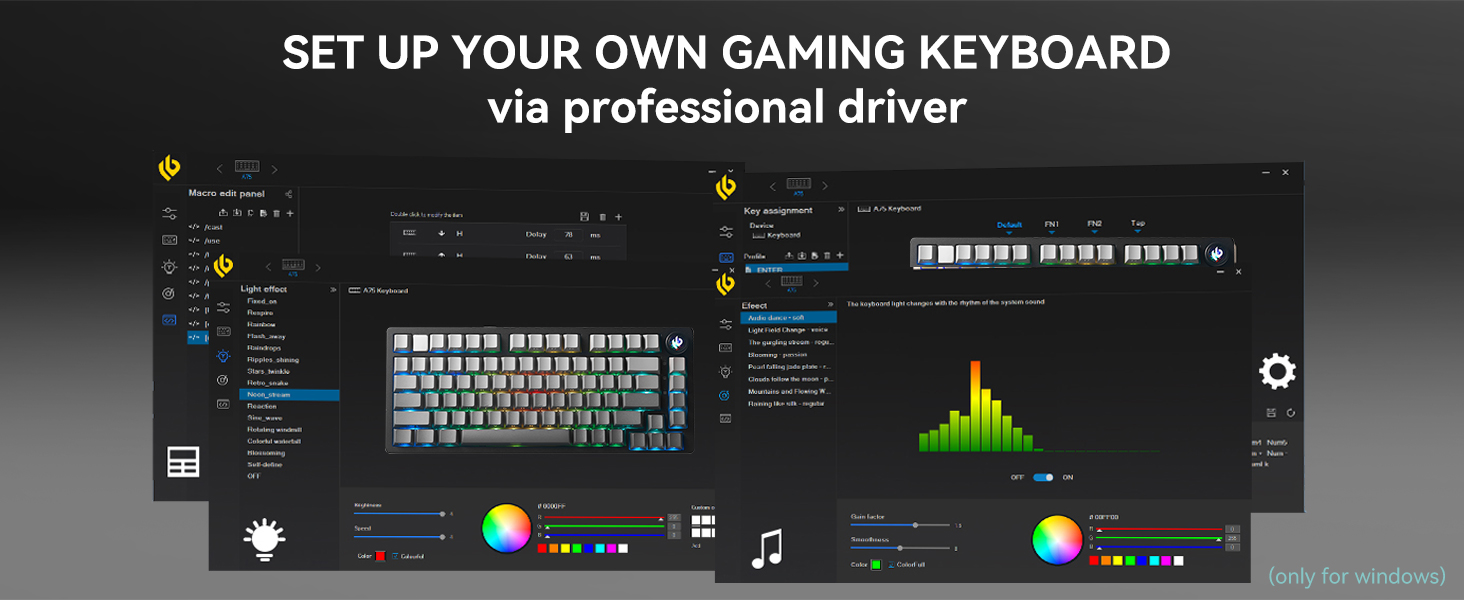
Image: Illustration of the multimedia knob's functionality, detailing how to switch between Game Mode (knob indicator breathing) and Office Mode (knob indicator on) for lighting and volume control.
2. RGB Backlighting
The keyboard features vibrant RGB backlighting with various effects.
- There are 17 pre-set lighting effects to choose from.
- When used with the dedicated driver software, you can access 10 additional music rhythm RGB lighting effects.
- Adjust brightness using the knob in Game Mode.
Image: The keyboard displaying its vibrant RGB backlighting with multiple effects.
3. Hot-Swappable Switches
The LEOBOG HI75C Pro supports hot-swappable 3-pin and 5-pin mechanical switches, allowing you to easily change switches without soldering.
- Use the provided keycap puller to carefully remove the desired keycap.
- Use the provided switch puller to gently extract the switch from the PCB.
- Align the pins of the new switch with the holes on the PCB and press firmly until it clicks into place. Ensure the pins are not bent.
- Replace the keycap.

Image: Close-up of the keyboard demonstrating its hot-swappable switch sockets and custom keycaps, with a Seiya switch removed.
Maintenance
1. Cleaning the Keyboard
- Disconnect the keyboard from your computer before cleaning.
- Use a soft brush or compressed air to remove dust and debris from between the keycaps.
- For deeper cleaning, use the provided keycap puller to remove keycaps and clean the switches and plate with a damp cloth (ensure it's not dripping wet) or cotton swabs. Allow to dry completely before reassembling.
- Wipe the aluminum alloy case with a soft, dry cloth. Avoid harsh chemicals.
2. Battery Management
The keyboard is equipped with a 4000mAh battery.
- Charge the keyboard using the provided USB-C cable when the battery is low.
- To maximize battery life, turn off RGB backlighting when not needed.
Image: An illustration highlighting the keyboard's 4000mAh battery capacity.
Troubleshooting
- Keyboard not responding:
- Ensure the keyboard is properly connected via USB-C, 2.4GHz receiver, or Bluetooth.
- Check the mode switch on the keyboard to match your connection method.
- Verify the battery level and charge if necessary.
- Try connecting to a different USB port or device.
- Bluetooth connection issues:
- Ensure the keyboard is in Bluetooth pairing mode (FN + 1/2/3 held for 3-5 seconds).
- Remove the keyboard from your device's Bluetooth list and attempt to re-pair.
- Ensure your device's Bluetooth is enabled and discoverable.
- RGB lighting not working or incorrect:
- Check if the keyboard is in Game Mode and adjust brightness using the knob.
- Ensure the battery is sufficiently charged.
- If using driver software, verify settings.
- Software/Driver issues:
For optimal functionality, including advanced RGB customization and macro settings, dedicated driver software is available. It is crucial to download the correct software version for the HI75C Pro model. Some users have reported issues with incorrect firmware/software from general LEOBOG websites. It is recommended to check the official LEOBOG support channels or reputable vendor websites (e.g., WhatGeek's product listing for HI75C Pro) for the most up-to-date and compatible software. Look for software named "LEOBOG ONE Setup v2.0 20250527.exe" or newer.
Image: A visual representation of the LEOBOG professional driver software, used for customizing lighting effects, key assignments, and macros.
Specifications
| Model Number | HI75C Pro |
| Layout | 75% (81 keys) |
| Connectivity | Bluetooth 5.0, 2.4GHz Wireless, USB-C Wired |
| Case Material | Aluminum Alloy |
| Mounting Style | Gasket Mount |
| Switches | Hot-swappable (3-pin/5-pin compatible), Seiya Switch (default) |
| Backlighting | RGB (16.8 million colors, 17 effects, 10 music rhythm effects with driver) |
| Battery Capacity | 4000mAh |
| Response Speed | Up to 2.8ms |
| Product Dimensions | 14.4"L x 6.08"W x 2.1"H |
| Item Weight | 3.3 pounds |
| Compatible Devices | PC, Laptop, Mac, Smartphone, Tablet, Gaming Console |
Official Product Video
Video: An official product video from LEOBOG MALL showcasing the LEOBOG Hi75C PRO Aluminum Alloy Mechanical Gaming Keyboard, highlighting its design, features, and typing sound.
Warranty and Support
LEOBOG provides customer support for its products. For any inquiries, technical assistance, or warranty claims, please refer to the official LEOBOG website or contact the seller directly.

Image: Customer service graphic, symbolizing available support channels.


