
1. Introduction
Thank you for purchasing the WISHOLY M10 Mini Projector. This manual provides essential information for setting up, operating, and maintaining your device. Please read it thoroughly before use to ensure optimal performance and safety.
The WISHOLY M10 is an ultra-compact projector featuring built-in Android TV, 1080P Full HD resolution with 4K input support, 18000 Lumens brightness, and advanced connectivity options including Wi-Fi 6 and Bluetooth 5.4. Its electric focus, automatic keystone correction, and 270° rotation capability offer flexible and effortless projection for various environments.

Image 1.1: WISHOLY M10 Mini Projector showcasing its compact design and Android TV capabilities.
2. Important Safety Information
- Do not look directly into the projector lens when the lamp is on. The intense light can cause eye damage.
- Ensure proper ventilation around the projector. Do not block ventilation openings.
- Use only the power adapter supplied with the projector.
- Keep the projector away from water, moisture, and extreme temperatures.
- Avoid placing the projector on unstable surfaces.
- Do not attempt to disassemble or repair the projector yourself. Contact qualified service personnel.
- Keep out of reach of children.
3. Package Contents
Please check that all the following items are included in your package:
- WISHOLY M10 Mini Projector
- Remote Control
- Power Adapter
- HDMI Cable
- User Manual
4. Product Overview
Familiarize yourself with the projector's components and ports.
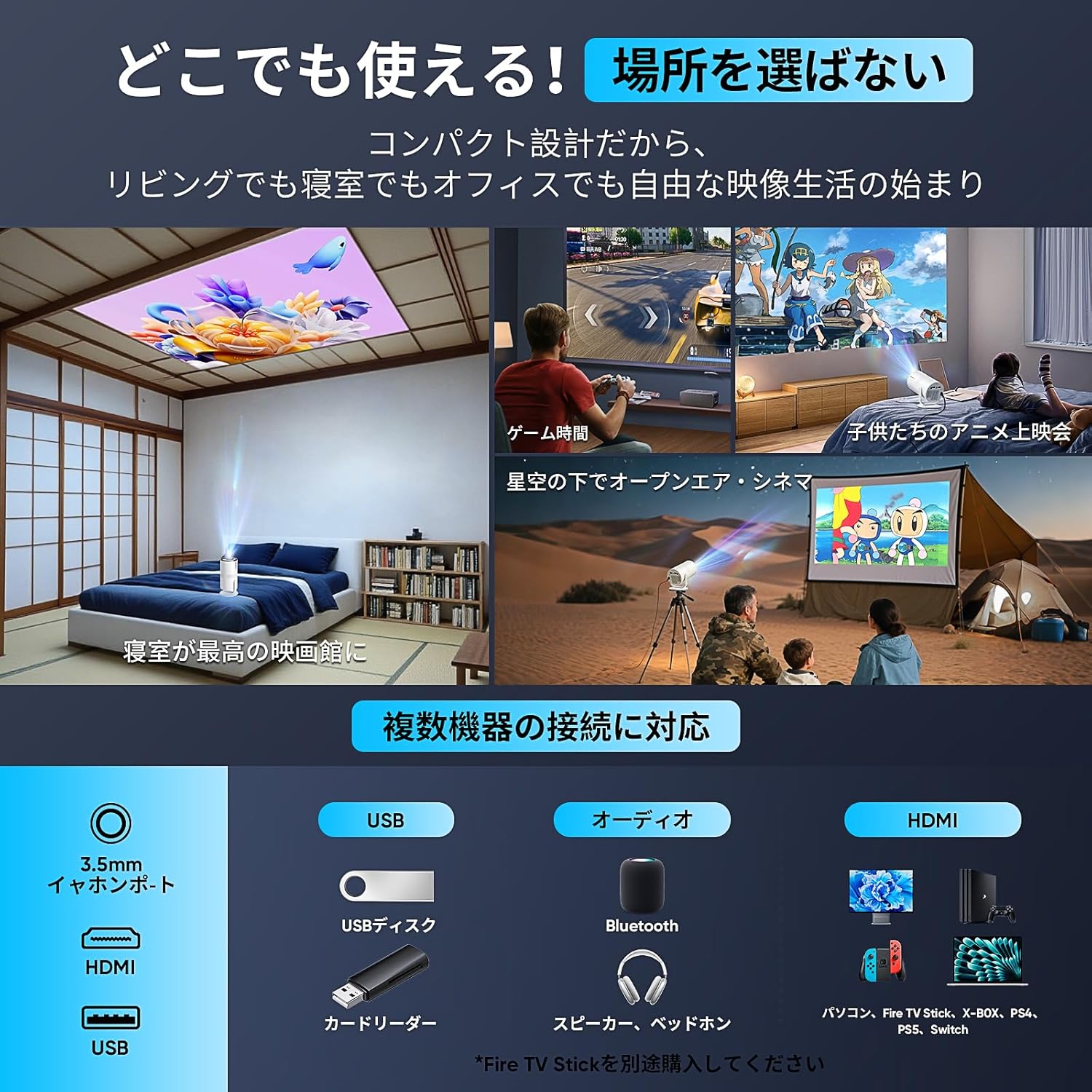
Image 4.1: Rear view of the WISHOLY M10 Mini Projector highlighting its connectivity ports.
4.1. Ports and Controls
- Power Button: Turns the projector on/off.
- USB Port: Connect USB storage devices for media playback.
- HDMI Port: Connect external devices like laptops, gaming consoles, or TV boxes.
- 3.5mm Audio Jack: Connect external speakers or headphones.
- DC IN: Power input port.
- Focus Wheel (if applicable): Manual focus adjustment (though electric focus is primary).
5. Setup Guide
5.1. Initial Placement and Power Connection
- Place the projector on a stable, flat surface. The 270° rotatable stand allows for flexible positioning, including ceiling projection.
- Connect the power adapter to the DC IN port on the projector and then plug it into a power outlet.
- Press the power button to turn on the projector.

Image 5.1: The projector's 270° rotation feature enables versatile placement and projection angles.
5.2. Focus and Keystone Correction
The WISHOLY M10 features electric focus and automatic keystone correction for a clear, rectangular image.
- Electric Focus: Use the remote control to adjust the focus with a single click, ensuring a sharp image.
- Automatic Keystone Correction: The projector will automatically correct image distortion (trapezoidal effect) if it's placed at an angle. No manual adjustment is typically needed.

Image 5.2: Electric focus and automatic keystone correction ensure a perfectly aligned and sharp image.
5.3. Network and Bluetooth Connection
- Wi-Fi 6: Navigate to the Wi-Fi settings in the Android TV interface, select your network, and enter the password. Wi-Fi 6 provides ultra-fast and low-latency streaming.
- Bluetooth 5.4: Go to Bluetooth settings to pair with wireless headphones, speakers, or other Bluetooth audio devices for enhanced sound.

Image 5.3: The projector supports Wi-Fi 6 for superior wireless performance.
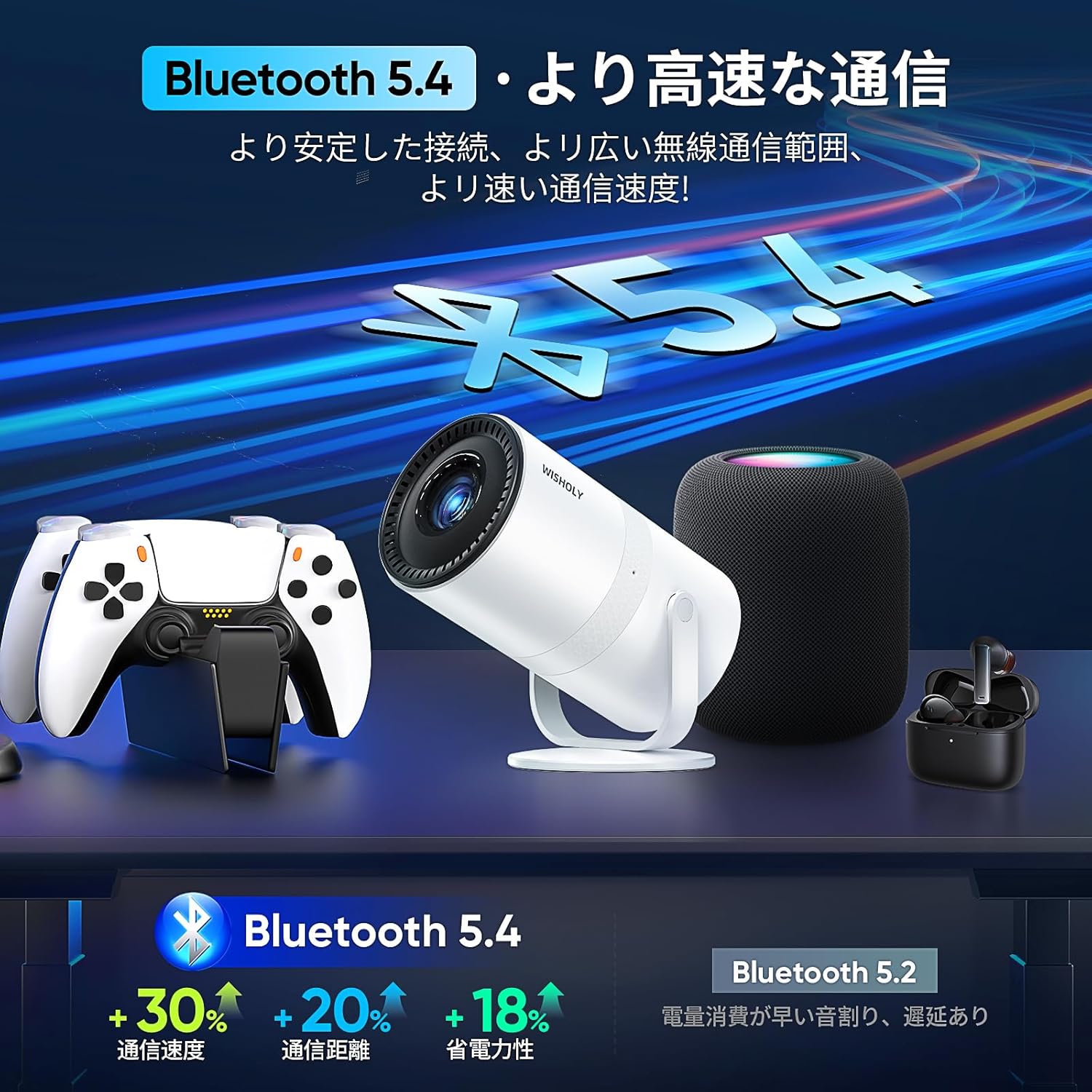
Image 5.4: Bluetooth 5.4 connectivity for seamless audio pairing with external devices.
6. Operating Instructions
6.1. Android TV Interface
The WISHOLY M10 comes with Android TV built-in, providing direct access to a wide range of entertainment applications.
- Use the remote control to navigate the Android TV home screen.
- Download and install apps like Netflix, YouTube, Amazon Prime Video, Hulu, and more from the Google Play Store.
- Ensure you are connected to Wi-Fi for online streaming services.

Image 6.1: The Android TV interface provides access to numerous streaming applications.
6.2. Connecting External Devices
You can connect various devices to your projector:
- HDMI: Connect laptops, gaming consoles (PS, Switch), TV boxes, or DVD players using an HDMI cable. Select the HDMI input source from the projector's menu.
- USB: Insert a USB flash drive or external hard drive into the USB port to play local media files (videos, photos, music).
- Screen Mirroring: Wirelessly mirror your smartphone, tablet, or PC screen via Wi-Fi 6. (Note: Not compatible with Google Pixel. Some Android devices may not support screen mirroring; verify your device's capabilities.)
6.3. Adjusting Projection Size (Zoom)
The projector supports a zoom function to adjust the image size without moving the projector. Use the remote control to access the zoom settings and adjust the projection from 50% to 100%.
6.4. 270° Rotation
The integrated stand allows the projector to rotate 270 degrees, enabling projection onto walls, ceilings, or any desired surface. Simply adjust the projector's angle to suit your viewing needs.
7. Maintenance
7.1. Cleaning the Lens
Use a soft, lint-free cloth specifically designed for optical lenses to gently wipe the projector lens. Do not use abrasive cleaners or excessive force.
7.2. Cleaning the Projector Body
Wipe the projector's exterior with a soft, dry cloth. For stubborn dirt, slightly dampen the cloth with water and then wipe dry. Avoid using chemical cleaners.
7.3. Ventilation
Ensure the ventilation openings are clear of dust and obstructions to prevent overheating. Use a soft brush or compressed air to clean the vents periodically.
7.4. Storage
When not in use for an extended period, store the projector in a cool, dry place, protected from dust and direct sunlight. It is recommended to use the original packaging for storage.
8. Troubleshooting
| Problem | Possible Cause | Solution |
|---|---|---|
| No image / Blurry image | Power not connected; Focus issue; Keystone issue; Input source incorrect. | Check power connection; Use remote for electric focus; Automatic keystone correction should activate; Select correct input source (HDMI/Android TV). |
| No sound | Volume too low; Muted; External audio device not connected/paired; Incorrect audio output. | Increase volume; Unmute; Pair Bluetooth device or connect via 3.5mm jack; Check audio output settings in Android TV. |
| Wi-Fi connection issues | Incorrect password; Out of range; Router issue. | Verify password; Move projector closer to router; Restart router. |
| Screen mirroring not working | Device incompatibility; Network issue. | Ensure your device supports screen mirroring (Google Pixel not compatible); Check Wi-Fi connection. |
| Projector overheating | Blocked ventilation; Prolonged use in hot environment. | Ensure vents are clear; Operate in a well-ventilated area; Allow projector to cool down. |
9. Specifications
| Feature | Detail |
|---|---|
| Brand | WISHOLY |
| Model Number | M10 |
| Color | White + Black |
| Native Resolution | 1920 x 1080 (1080P Full HD) |
| Brightness | 18000 Lumens |
| Contrast Ratio | 12000:1 |
| Connectivity Technology | Wi-Fi 6, Bluetooth 5.4 |
| Input Ports | USB, HDMI, 3.5mm Audio |
| Special Features | Built-in Android TV, Electric Focus, Automatic Keystone Correction, 270° Rotation, Built-in Speaker, 50% Zoom Function, Silent Design |
| Product Dimensions | Approx. 9.5 x 10.4 x 12.5 cm |
| Product Weight | 445 g |
| Max Projection Size | 200 inches |
10. Warranty and Support
The WISHOLY M10 Mini Projector comes with a 2-year warranty, with an option for extension. This warranty covers manufacturing defects and ensures peace of mind.
For any inquiries regarding setup, operation, troubleshooting, or warranty claims, please contact our customer support center. Our specialized staff is available year-round to provide assistance in Japanese.
Customer Support Contact: Please refer to the contact information provided on your product packaging or the official WISHOLY website.

