
hohem V3 Ultra
hohem iSteady V3 Ultra Gimbal Stabilizer User Manual
Model: V3 Ultra | Brand: hohem
1. Introduction
The hohem iSteady V3 Ultra is an advanced 3-axis gimbal stabilizer designed for smartphones, offering exceptional stability and intelligent features for video recording and content creation. It integrates AI tracking, a built-in extendable rod, a tripod, a dual-color temperature fill light, and a detachable remote control, providing a versatile and portable solution for capturing smooth, professional-quality footage.
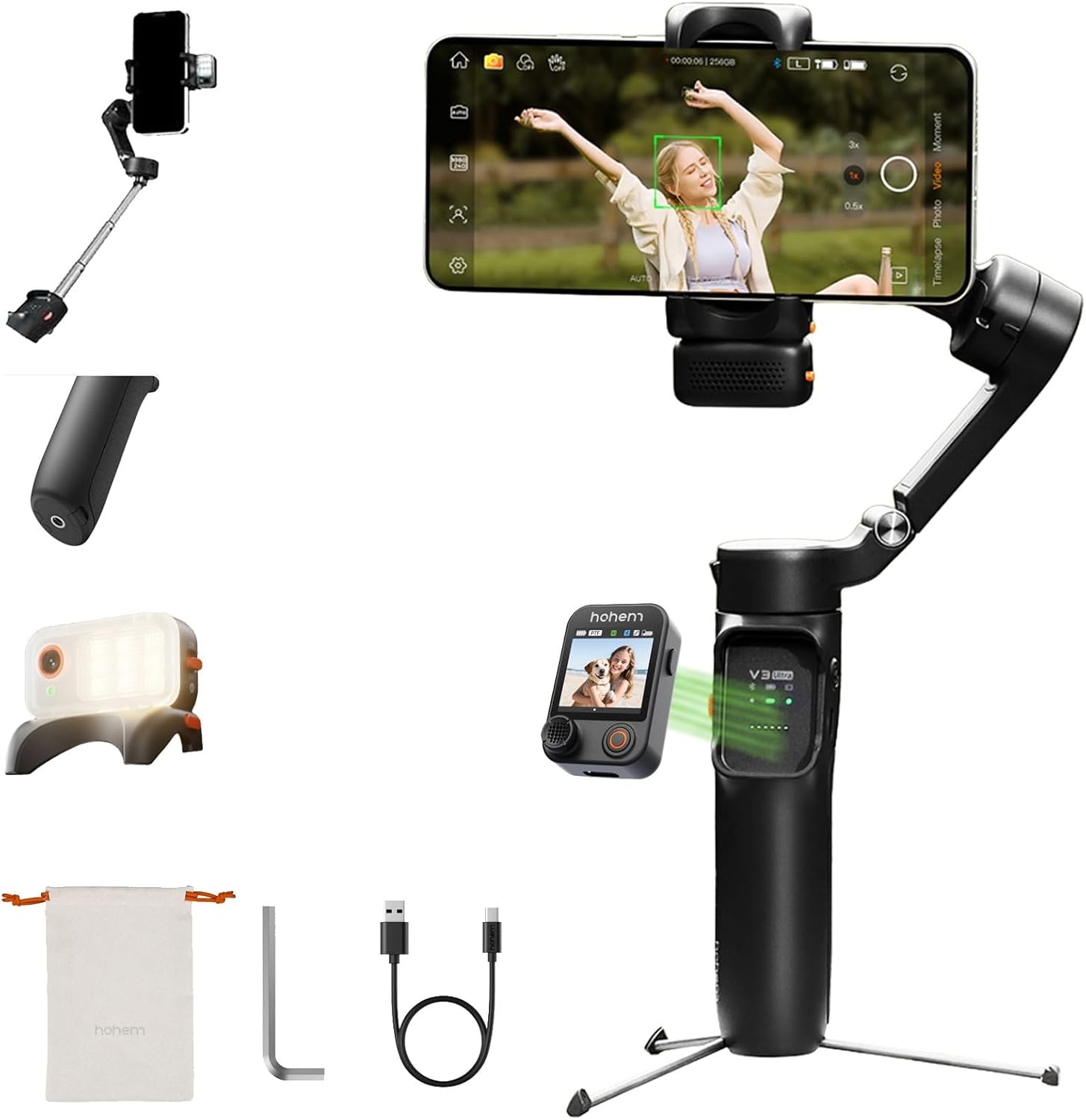
Figure 1.1: The hohem iSteady V3 Ultra Gimbal Stabilizer, showcasing its compact design and integrated features.
2. Package Contents
Verify that all items listed below are included in your package:
- hohem iSteady V3 Ultra Gimbal Stabilizer
- AI Tracker Module
- Touchscreen Remote Controller
- Type-C Charging Cable
- Hex Key
- Storage Pouch
- Quick Start Guide
- Warranty Card
- Safety Guidelines

Figure 2.1: All components included in the hohem iSteady V3 Ultra retail package.
3. Product Overview
Familiarize yourself with the main components of the iSteady V3 Ultra:
- Gimbal Body: Main handle and motor assembly.
- Phone Clamp: Securely holds your smartphone.
- 3-Axis Motors: Provide stabilization across pan, tilt, and roll axes.
- Control Panel: Buttons and joystick for basic operations.
- Detachable Touchscreen Remote: Allows remote control and live view.
- AI Vision Sensor: Built-in sensor for intelligent tracking.
- Fill Light: Integrated light with adjustable color temperature and brightness.
- Extendable Rod: Telescopic rod for extended reach.
- Built-in Tripod: Foldable legs for stable tabletop placement.
- USB-C Port: For charging the gimbal.

Figure 3.1: Front view of the iSteady V3 Ultra.

Figure 3.2: Side view illustrating the detachable remote.
4. Setup
4.1 Charging the Gimbal
Before first use, fully charge the iSteady V3 Ultra. Connect the provided USB-C cable to the gimbal's charging port and a USB power adapter (not included). The indicator lights will show charging status. A full charge provides up to 15 hours of operation.
4.2 Mounting Your Smartphone
Open the phone clamp and carefully insert your smartphone. Ensure the phone is centered and securely held. For optimal balance, place the phone as close to the gimbal's center of gravity as possible.
4.3 Balancing the Gimbal
Proper balancing is crucial for stable footage and efficient motor operation. Adjust the phone's position within the clamp until it remains level when the gimbal is powered off. This minimizes motor strain and extends battery life.
5. Operating Instructions
5.1 Power On/Off
Press and hold the power button for 3 seconds to power on or off the gimbal.
5.2 Gimbal Modes
The iSteady V3 Ultra supports various operating modes. Refer to the quick start guide for detailed button functions to switch between modes such as Pan Follow, Pan & Tilt Follow, All Lock, and POV (Point of View).
5.3 AI Tracking
The built-in AI vision sensor enables automatic tracking of subjects without needing an app. Activate AI tracking by double-tapping the touchscreen remote or using specific hand gestures.
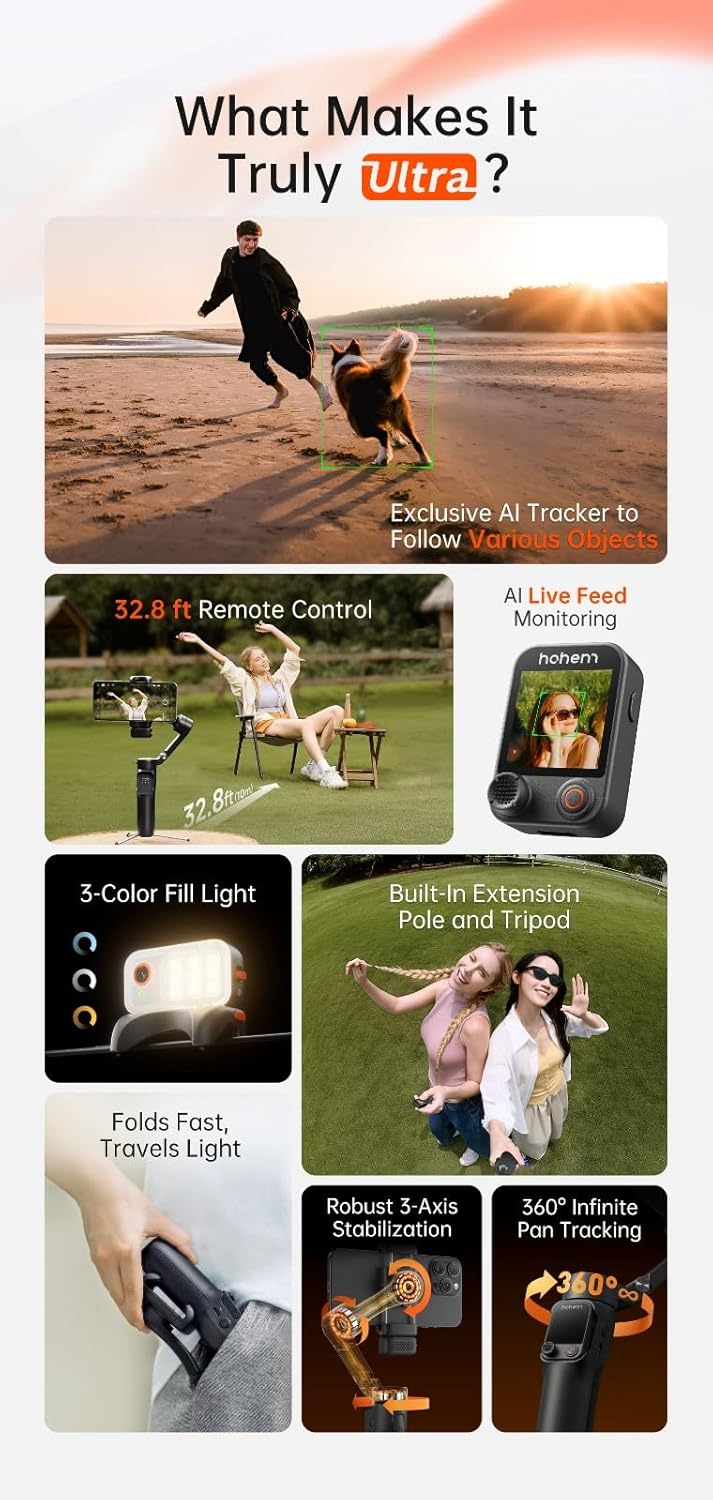
Figure 5.1: AI tracking in action, demonstrating precise subject recognition.

Figure 5.2: Gesture control for starting/stopping AI tracking and recording.
5.4 Detachable Remote Control
The remote control features a 1.22-inch full-color touchscreen for live monitoring and direct control of gimbal functions. It can be detached for remote operation up to 10 meters, allowing for flexible shooting angles and self-filming.

Figure 5.3: Remote control in use for distant filming.
5.5 Fill Light
The integrated fill light offers three brightness levels and dual-color temperature settings (cool, warm, natural). Press the dedicated button on the remote or gimbal to cycle through settings and adjust illumination for various lighting conditions.

Figure 5.4: The integrated fill light module.
5.6 Extendable Rod & Tripod
The built-in extendable rod can be pulled out to increase reach for wider shots or group photos. The integrated tripod legs fold out from the base, providing a stable platform for stationary recording or time-lapses.

Figure 5.5: Gimbal with extended rod and deployed tripod.
6. App Integration
For enhanced functionality and creative features, download the official Hohem App from your smartphone's app store. The app unlocks advanced camera techniques such as Hitchcock zoom, dreamy panoramas, and motion control. It also supports wireless phone charging through the gimbal.
7. Maintenance
7.1 Cleaning
Wipe the gimbal with a soft, dry cloth. Do not use liquid cleaners or solvents. Ensure no dust or debris accumulates around the motors or joints.
7.2 Storage
Store the gimbal in its provided storage pouch in a cool, dry place away from direct sunlight and extreme temperatures. Avoid placing heavy objects on top of the gimbal.
8. Troubleshooting
8.1 Gimbal Not Powering On
- Ensure the gimbal is fully charged.
- Press and hold the power button for at least 3 seconds.
8.2 Unstable Footage
- Verify that your smartphone is properly balanced in the clamp.
- Check for any obstructions preventing motor movement.
- Ensure the gimbal firmware is up to date via the Hohem App.
8.3 AI Tracking Not Responding
- Ensure the AI vision sensor is clean and unobstructed.
- Confirm sufficient lighting for the AI to detect subjects.
- Try recalibrating the AI tracking through the Hohem App if available.
8.4 Remote Control Disconnection
- Ensure the remote control is charged.
- Move closer to the gimbal to reduce interference.
- Re-pair the remote control with the gimbal if necessary (refer to quick start guide).
9. Specifications
| Feature | Detail |
|---|---|
| Model Number | V3 Ultra |
| Brand | hohem |
| Color | Black |
| Compatible Devices | Cellphone |
| Item Weight | 14.8 ounces (0.42 Kilograms) |
| Package Dimensions | 7.4 x 4.84 x 2.6 inches |
| Battery Life | Up to 15 hours |
10. Warranty and Support
For detailed warranty information, please refer to the warranty card included in your product package or visit the official hohem website. If you encounter any issues or require technical assistance, please contact hohem customer support through their official channels.
Official hohem Website: www.hohem.com
Related documentsV3 Ultra


Ask a question about this manual
Ask about setup, troubleshooting, compatibility, parts, safety, or missing instructions. Manuals+ will review the question and use this page’s manual context to help answer it.