
1. Introduction
Thank you for choosing the DigiLand R11 10.1 Inch Android 15 Computer Tablet. This manual provides essential information for setting up, operating, and maintaining your device. Please read it thoroughly to ensure optimal performance and longevity of your tablet.
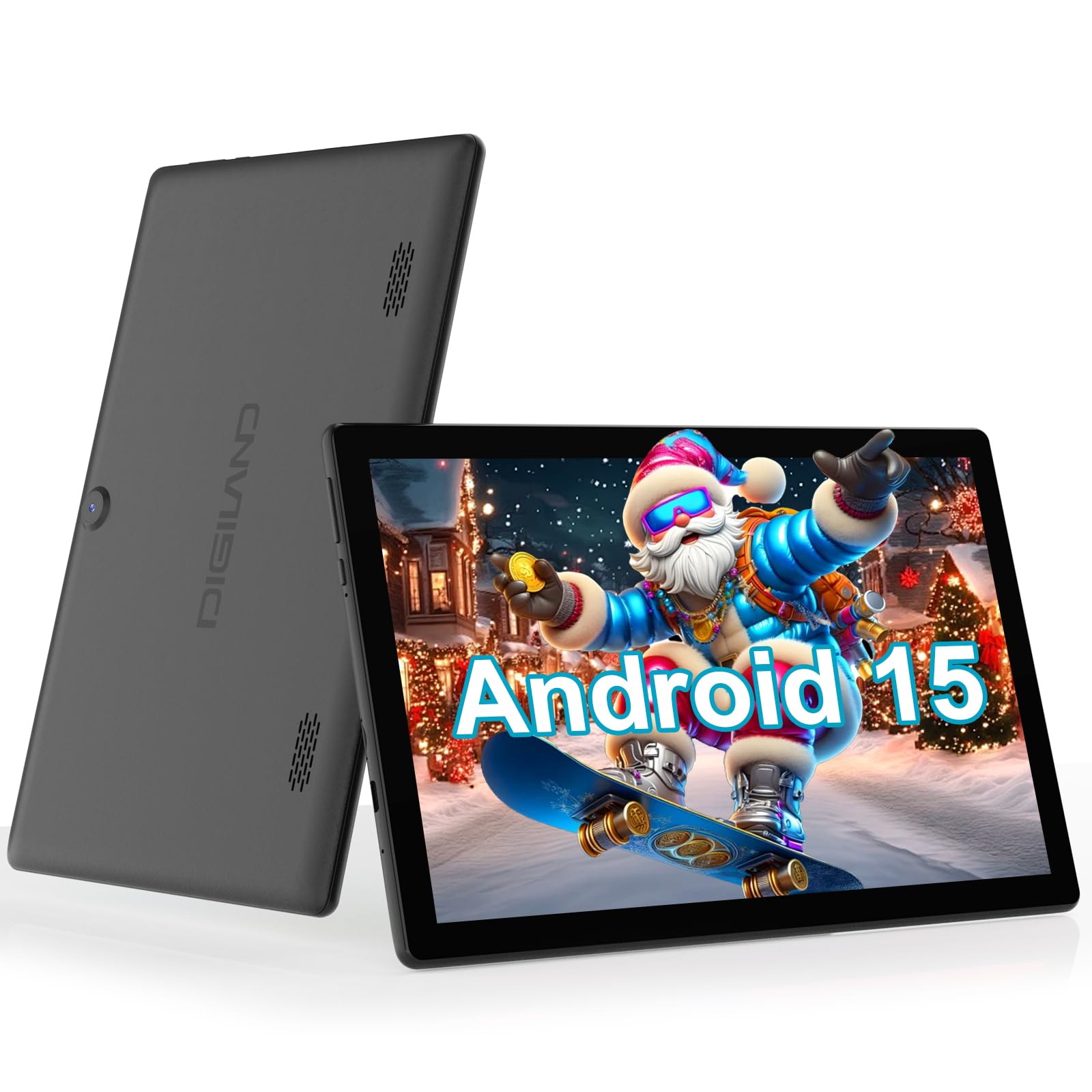
Figure 1: DigiLand R11 10.1 Inch Android 15 Tablet
2. What's in the Box
Upon unboxing your DigiLand R11 tablet, please verify that all the following items are included:
- DigiLand R11 10.1 Inch Android 15 Tablet
- 1.18W Power Adapter
- USB-C Cable
- User Manual (this document)
- After-sales Card

Figure 2: Box Contents
3. Device Overview
Familiarize yourself with the physical components and features of your DigiLand R11 tablet.

Figure 3: Tablet Features Overview (Android 15, Bluetooth 5.0, 6000mAh Battery, 2.4/5GHz WiFi, Dual Cameras)
Ports and Buttons
- Power Button: Located on the side, used to turn the tablet on/off or put it to sleep.
- Volume Buttons: Adjust the audio output level.
- USB-C Port: For charging and data transfer.
- Memory Card Slot: For expandable storage (supports up to 256GB).
- Headset Jack: For connecting wired headphones.
- Front Camera: For video calls and selfies.
- Rear Camera: For taking photos and videos.
- Dual Speakers: For audio output.
4. Setup
4.1 Initial Charge
Before first use, fully charge your tablet using the provided USB-C cable and power adapter. The battery indicator on the screen will show charging status.

Figure 4: Charging the Tablet
4.2 Power On/Off
- To Power On: Press and hold the Power button until the screen lights up.
- To Power Off: Press and hold the Power button, then select 'Power off' from the options on the screen.
- To Sleep/Wake: Briefly press the Power button.
4.3 Initial Setup Wizard
Follow the on-screen instructions to complete the initial setup, which includes:
- Selecting your language.
- Connecting to a Wi-Fi network.
- Signing in with your Google account (or creating a new one).
- Setting up screen lock and other security features.
5. Operating Instructions
5.1 Navigating the Android 15 Interface
Your tablet runs on Android 15 GO, offering an intuitive user experience. Key navigation elements include:
- Home Screen: The central hub for your apps and widgets.
- App Drawer: Swipe up from the home screen to access all installed applications.
- Notification Panel: Swipe down from the top of the screen to view notifications and quick settings.
- Navigation Bar: Located at the bottom of the screen, typically includes Back, Home, and Recent Apps buttons.
5.2 Connecting to Wi-Fi
- Go to Settings.
- Tap Network & internet.
- Turn on Wi-Fi.
- Select your desired network and enter the password if prompted.
5.3 Using Bluetooth 5.0
- Go to Settings.
- Tap Connected devices.
- Turn on Bluetooth.
- Select Pair new device and choose your device from the list.
5.4 Camera Operation
To open the camera app, tap the Camera icon on your home screen or app drawer. You can switch between front and rear cameras, take photos, and record videos.

Figure 5: Tablet Usage Scenarios
6. Specifications
| Feature | Specification |
|---|---|
| Operating System | Android 15 GO |
| Display | 10.1" IPS, 800 x 1280 pixels |
| Processor | Single-core ARM Cortex-A73 and quad-core ARM Cortex-A53, up to 1.75 GHz |
| RAM | 6GB |
| Internal Storage | 32GB (expandable up to 256GB via microSD) |
| Battery Capacity | 6000mAh (up to 6.5 hours usage) |
| Connectivity | Wi-Fi (2.4GHz & 5GHz), Bluetooth 5.0, USB OTG |
| Cameras | Dual cameras (front and rear) |
| Speakers | Dual speakers |
| Weight | 481.5g (1.32 pounds) |
| Dimensions | 10.17 x 6.41 x 0.31 inches |

Figure 6: Vivid Display
7. Maintenance
To keep your tablet in optimal condition, follow these maintenance guidelines:
- Cleaning: Use a soft, lint-free cloth to clean the screen and body. Avoid abrasive cleaners or solvents.
- Software Updates: Regularly check for and install system updates to ensure security and performance improvements. Go to Settings > System > System update.
- Battery Care: Avoid extreme temperatures. Do not let the battery fully drain frequently. Use only the provided charger.
- Storage Management: Periodically clear unnecessary files and apps to free up storage space and maintain performance.
8. Troubleshooting
If you encounter issues with your tablet, refer to the following common troubleshooting steps:
- Tablet not turning on: Ensure the battery is charged. Connect the charger and wait a few minutes before attempting to power on again.
- Screen unresponsive: Restart the tablet by holding the Power button for about 10-15 seconds until it reboots.
- Wi-Fi connection issues: Try restarting your Wi-Fi router. On the tablet, forget the network and reconnect.
- Apps crashing: Clear the cache for the problematic app (Settings > Apps > [App Name] > Storage > Clear cache). If the issue persists, uninstall and reinstall the app.
- Slow performance: Close unused apps, clear cache, and ensure sufficient free storage space. Consider a factory reset as a last resort (backup your data first).
9. Warranty and Support
Your DigiLand R11 tablet comes with a 1-year warranty policy. For any questions regarding product usage, technical support, or warranty claims, please contact our customer service team.
9.1 Customer Support
Our dedicated customer service team is available 24/7 to assist you. Please refer to the contact information provided on your After-sales Card or visit the official DigiLand website for support details.
Video 1: Overview of the DigiLand 10.1 inch tablet, demonstrating its features and functionality.