
1. Introduction and Overview
Welcome to your new DigiLand 10.1-inch Android Tablet MID1050. This manual provides essential information for setting up, operating, and maintaining your device. The tablet features a 10.1-inch display, an Octa-core processor, 6GB RAM, 32GB internal storage (expandable), and runs on Android 15. Please read this manual thoroughly to ensure proper use and to maximize your tablet's potential.
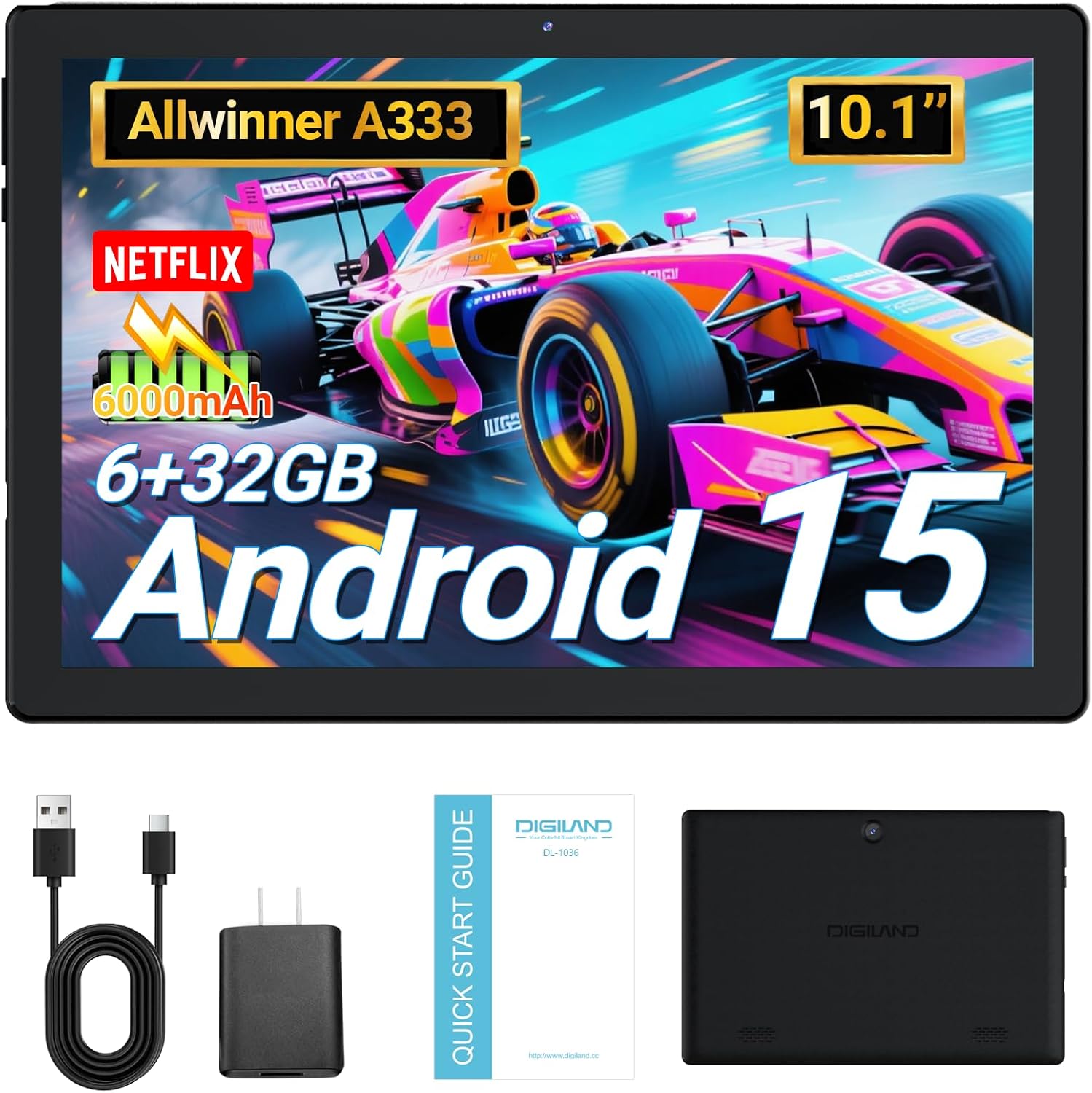
Image: DigiLand 10.1-inch Android Tablet MID1050.
2. Product Features
- Latest Android 15 System: Experience enhanced compatibility, faster response times, and smoother operation. The tablet is GMS certified and comes with Google Play pre-installed, supporting popular social applications.
- High Performance: Equipped with a high-performance Octa-core CPU, 6GB RAM (expandable to 3+3GB), and 32GB ROM. Storage can be expanded up to 1TB using an SD card.
- Multifunctional Design: Features a 5MP rear camera and a 2MP front camera. Includes Bluetooth 5.0, built-in GPS, 5G WiFi, FM radio, dual-speakers, and a 3.5mm headphone jack.
- 10.1-inch HD Screen: Enjoy a clear and vibrant visual experience with an 800x1280 IPS display. The 6000mAh rechargeable battery provides 8-10 hours of mixed use.

Image: Overview of DigiLand Android Tablet features.
3. What's in the Box
Upon unboxing your DigiLand tablet, please ensure all the following items are present:
- 1 x DigiLand 10.1-inch Android Tablet
- 1 x USB Cable
- 1 x 5V/1A Power Adapter (US regulations)
- 1 x User Manual (this document)
- 1 x Warranty Card
- 1 x Children's Silicone Case
4. Setup Guide
4.1 Charging the Tablet
Before first use, fully charge your tablet. Connect the provided USB cable to the tablet's Type-C port and the power adapter. Plug the adapter into a standard electrical outlet. The battery indicator on the screen will show charging status.
4.2 Powering On/Off
- To Power On: Press and hold the Power button (located on the side) until the DigiLand logo appears.
- To Power Off: Press and hold the Power button, then select 'Power off' from the options on the screen.
4.3 Initial Setup
Upon first power-on, follow the on-screen prompts to configure your tablet:
- Select your preferred language.
- Connect to a Wi-Fi network.
- Sign in with your Google account or create a new one.
- Review and accept the terms and conditions.
- Set up screen lock (PIN, pattern, or password).
4.4 Inserting a MicroSD Card
To expand storage, locate the MicroSD card slot on the side of the tablet. Gently insert the MicroSD card (up to 1TB supported) into the slot until it clicks into place. Ensure the card is oriented correctly.

Image: Diagram showing the location of ports and buttons on the DigiLand Android Tablet.
5. Operating Instructions
5.1 Basic Navigation
The tablet uses a multi-touch display. Common gestures include:
- Tap: Select an item or open an app.
- Swipe: Scroll through screens or lists.
- Pinch: Zoom in or out on images and web pages.
- Long Press: Access contextual menus or move icons.
5.2 Connecting to Wi-Fi
To connect to the internet:
- Go to Settings > Network & internet > Wi-Fi.
- Toggle Wi-Fi On.
- Select your desired network from the list.
- Enter the password if prompted, then tap Connect.
5.3 Bluetooth Pairing
To connect to Bluetooth devices:
- Go to Settings > Connected devices > Bluetooth.
- Toggle Bluetooth On.
- Ensure your Bluetooth device is in pairing mode.
- Select your device from the 'Available devices' list and follow any on-screen instructions to complete pairing.
5.4 Camera Usage
The tablet features a 2MP front camera and a 5MP rear camera.
- Open the Camera app from the home screen or app drawer.
- Tap the shutter button to take a photo.
- Switch between front and rear cameras using the camera icon.
- Select video mode to record videos.

Image: Capturing moments with the tablet's cameras.
5.5 App Management
Download and manage applications:
- Install Apps: Open the Google Play Store app, search for your desired app, and tap Install.
- Uninstall Apps: Long-press an app icon on the home screen or app drawer, then drag it to 'Uninstall' or go to Settings > Apps > select the app > Uninstall.

Image: The tablet's screen showing various applications.
5.6 Split Screen Multitasking
The tablet supports split-screen mode for multitasking:
- Open the first app you want to use.
- Swipe up from the bottom of the screen and hold to access recent apps.
- Tap the app icon at the top of the first app's card, then select 'Split screen'.
- Choose the second app from your recent apps or app drawer to fill the other half of the screen.

Image: Tablet displaying two applications simultaneously in split-screen mode.
5.7 Video Playback Demonstration
Watch this video for a demonstration of the tablet's functions and video playback capabilities.
Video: Android 15 Tablet Product Function Demonstration by GuYi-USA. This video showcases the tablet's interface and media playback.
6. Maintenance
6.1 Cleaning Your Tablet
Use a soft, lint-free cloth to clean the screen and body of the tablet. Avoid using abrasive cleaners, alcohol, or harsh chemicals, as these can damage the screen and finish.
6.2 Battery Care
- Avoid exposing the tablet to extreme temperatures (hot or cold).
- Charge the battery regularly, but avoid leaving it fully charged or fully depleted for extended periods.
- Use only the provided charger or a certified compatible charger.
6.3 Software Updates
Regularly check for and install software updates to ensure your tablet has the latest features, security patches, and optimal performance. Go to Settings > System > System update.
6.4 Storage Management
To maintain optimal performance, periodically manage your tablet's storage:
- Uninstall unused apps.
- Clear app caches (Settings > Apps > select app > Storage & cache > Clear cache).
- Transfer large files (photos, videos) to cloud storage or an external MicroSD card.
7. Troubleshooting
If you encounter issues with your tablet, refer to the following common problems and solutions:
| Problem | Solution |
|---|---|
| Tablet will not turn on | Ensure the battery is sufficiently charged. Connect the tablet to the charger for at least 30 minutes before attempting to power on again. |
| Wi-Fi connection issues | Check if your Wi-Fi router is working correctly. Restart both the router and the tablet. Forget the network in tablet settings and reconnect. |
| Apps are crashing or freezing | Clear the app's cache (Settings > Apps > [App Name] > Storage & cache > Clear cache). If the problem persists, try uninstalling and reinstalling the app. |
| Slow performance | Close unnecessary background applications. Free up storage space by deleting old files or uninstalling unused apps. Restart the tablet. |
| Screen is unresponsive | Perform a forced restart by holding the Power button for about 10-15 seconds until the tablet restarts. |
8. Specifications
Key technical specifications for the DigiLand 10.1-inch Android Tablet MID1050:
| Feature | Detail |
|---|---|
| Model Number | MID1050 |
| Operating System | Android 15 |
| Screen Size | 10.1 Inches |
| Max Screen Resolution | 800x1280 IPS |
| Processor | Octa-core (A133P) |
| RAM | 6GB |
| Internal Storage | 32GB (Expandable up to 1TB via TF card) |
| Front Camera | 2MP |
| Rear Camera | 5MP |
| Battery Capacity | 6000mAh (Approx. 8-10 hours mixed use) |
| Wireless Connectivity | 5G WiFi (802.11g) |
| Bluetooth | 5.0 |
| Dimensions (LxWxH) | 10.1 x 5.5 x 0.3 inches |
| Item Weight | 2.01 pounds |
9. Warranty and Support
9.1 Product Warranty
The DigiLand 10.1-inch Android Tablet MID1050 comes with a one-year warranty from the date of purchase. This warranty covers manufacturing defects and ensures the product meets quality standards.
9.2 Customer Support
For any quality problems, technical assistance, or warranty claims, please contact our customer service team. You can reach us via your Amazon Purchase Record. We are committed to ensuring customer satisfaction and providing the best possible service.