
1. Introduction
The Ultrbeka Wallet Tracker Slim Card is an ultra-thin, Apple MFi Certified Bluetooth tracker designed to help you locate your wallet, passport, or other personal items using the Apple Find My network. This device features wireless charging and provides separation alerts to prevent loss.

Image 1.1: The Ultrbeka Wallet Tracker Slim Card, showcasing its integration with the Apple Find My app on a smartphone and its placement near a wallet.
Key features include:
- Ultra-Thin Design: At just 1.8mm (0.07 inches), it fits seamlessly into wallets, cardholders, and passport sleeves.
- Apple MFi Certified: Ensures seamless compatibility and reliable performance with iOS devices and the Apple Find My network.
- Wireless Charging: Rechargeable via any Qi wireless charger, eliminating the need for battery replacement.
- Find My Network Compatibility: Locate lost items on a map or activate a sound alert from your iPhone, iPad, or Mac.
- Separation Alerts: Receive instant notifications when the tracker and your iPhone become separated.
2. Setup Instructions
Follow these steps to set up your Ultrbeka Wallet Tracker Slim Card with your Apple Find My app:
- Power On: Press and hold the power button on the tracker for 5 seconds until you hear a beep and see a blue light blinking. This indicates it is ready to connect.
- Open Find My App: On your iOS device (iPhone, iPad, or Mac), ensure Bluetooth is enabled and open the 'Find My' app.
- Add New Item: Navigate to the 'Items' tab in the Find My app. Tap the '+' icon and select 'Add New Item', then choose 'Other Supported Item'.
- Connect: The app will detect your Ultrbeka tracker. Tap 'Connect' when it appears on the screen.
- Link to Apple ID: Follow the on-screen prompts to link the tracker to your Apple ID. You may be asked to name your item.
- Finish: Once linked, the tracker will appear in your 'Items' list in the Find My app.
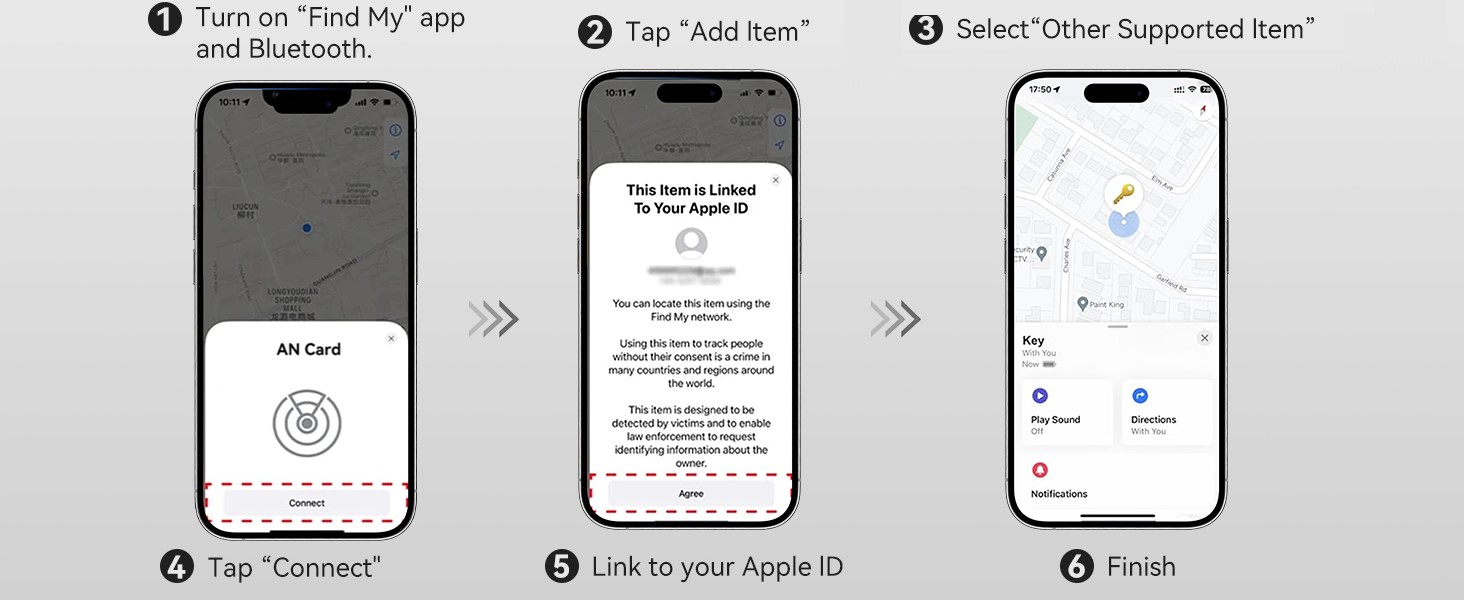
Image 2.1: Visual guide demonstrating the process of connecting the Ultrbeka tracker to the Apple Find My application on an iPhone.
Video 2.1: A demonstration of the easy setup process and how the card fits into a wallet.
3. Operating Instructions
Once your Ultrbeka Wallet Tracker is set up, you can use the Apple Find My app to locate your items and receive alerts.
3.1 Locating Your Item
To find your item:
- Open the 'Find My' app on your iOS device.
- Select the 'Items' tab.
- Tap on your Ultrbeka tracker from the list.
- You will see its last known location on a map.
- To hear a sound from the tracker, tap 'Play Sound'. This is useful when the item is nearby.
- To get directions to your item, tap 'Directions'.

Image 3.1: A smartphone screen showing the Apple Find My app interface, with options to 'Play Sound' or get 'Directions' to the Ultrbeka tracker.

Image 3.2: The Apple Find My app providing map-based directions to a lost item, indicated by the Ultrbeka tracker.
3.2 Separation Alerts
The Ultrbeka tracker can notify you if you leave your item behind:
- Ensure 'Always Allow' for location access is enabled for the Find My app in your iOS settings.
- You will receive an instant alert on your iPhone if your tracker moves out of range from your device.

Image 3.3: A smartphone screen showing a 'Left behind' notification from the Apple Find My app, indicating the Ultrbeka tracker has been separated from the user's iPhone.
Video 3.1: An overview of the Ultrbeka Wallet Tracker's features, including its slim design and rechargeable battery.
4. Charging
The Ultrbeka Wallet Tracker features a rechargeable battery and supports wireless charging.
- To charge, place the side of the tracker with the charging icon (lightning bolt) onto any Qi-compatible wireless charging pad.
- The tracker will indicate charging status (e.g., an LED light).
- No wireless charger is included with the product.

Image 4.1: The Ultrbeka Wallet Tracker Slim Card placed on a wireless charging pad, illustrating the charging process.
5. Maintenance
To ensure the longevity and optimal performance of your Ultrbeka Wallet Tracker:
- Cleaning: Wipe the device with a soft, dry cloth. Avoid using harsh chemicals or abrasive materials.
- Water Resistance: The tracker has an IP67 rating, meaning it is resistant to dust and can withstand immersion in water up to 1 meter for up to 30 minutes. However, it is not recommended for prolonged submersion or use during water sports.
- Temperature: Avoid exposing the device to extreme temperatures (hot or cold) or direct sunlight for extended periods.
- Storage: Store the tracker in a cool, dry place when not in use.

Image 5.1: The Ultrbeka Wallet Tracker Slim Card highlighting its dimensions and key features, including IP67 water resistance.
6. Troubleshooting
If you encounter issues with your Ultrbeka Wallet Tracker, try the following:
- Tracker Not Responding: Ensure the tracker is charged. Place it on a wireless charging pad to confirm.
- Cannot Connect to Find My:
- Make sure Bluetooth is enabled on your iOS device.
- Restart your iOS device.
- Try re-pairing the tracker by following the setup instructions in Section 2.
- No Separation Alerts: Verify that 'Always Allow' for location access is granted to the Find My app in your iOS device's privacy settings.
- Inaccurate Location: The accuracy of location tracking depends on the Apple Find My network. In areas with fewer Apple devices, location updates might be less frequent or precise.
- Sound Not Loud Enough: The sound alert volume is fixed. Ensure there are no obstructions muffling the sound.
7. Specifications
| Brand | Ultrbeka |
| Model Number | AN tag |
| Operating System Compatibility | Apple Find My (iOS ONLY) |
| Item Weight | 0.64 ounces |
| Product Dimensions (LxWxH) | 0.07 x 0.07 x 0.07 inches (1.8mm thickness) |
| Color | Black |
| Battery Type | 1 Lithium Ion battery (included) |
| Charging | Wireless (Qi-compatible) |
| Material | Plastic |
8. Warranty and Support
For warranty information, technical support, or any product-related inquiries, please refer to the official Ultrbeka website or contact their customer service directly. Keep your purchase receipt for warranty claims.