
CallToU WT42 DBM
CallToU WT42 DBM 2-Way Wireless Intercom System User Manual
Brand: CallToU | Model: WT42 DBM
Product Overview
The CallToU WT42 DBM 2-Way Wireless Intercom System provides reliable and convenient communication for various settings, including homes, caregiving environments, and outdoor activities. Featuring a 3300FT range, VOX hands-free operation, and a durable, water-resistant design, this system is built for ease of use and long-lasting performance. It operates without the need for Wi-Fi or subscriptions, offering a straightforward communication solution.
What's in the Box
- 2 x CallToU WT42 DBM Intercom Units
- 2 x USB Type-C Charging Cables
- 2 x Power Adapters
- 1 x User Manual
Key Features
- Extended Range: Enjoy stable communication up to 3300 feet, connecting rooms, floors, yards, and even across streets.
- VOX Hands-Free Operation: Talk without pressing buttons, ideal for multitasking or users with limited mobility.
- Durable & Water-Resistant Design: Built to withstand spills and outdoor conditions, ensuring long-lasting performance.
- Long-Lasting Rechargeable Battery: 1000mAh battery provides up to 100 hours of battery life, rechargeable via Type-C.
- No Network or Subscriptions: Operates independently, requiring no Wi-Fi, data, monthly fees, or apps.
- Keypad Lock: Prevents accidental channel changes, enhancing user-friendliness.
Setup Guide
1. Initial Charging
Before first use, fully charge both intercom units. Connect the provided USB Type-C cables to the intercoms and the power adapters to a wall outlet. The indicator light will show charging status.

Image: A CallToU intercom unit connected to a USB-C charging cable and power adapter, illustrating the charging process.
2. Powering On/Off
Long press the power button (usually marked with a circle and vertical line) to turn the intercom unit on or off. A verbal confirmation will indicate the power status.
3. Channel Selection
Ensure all intercom units intended for communication are set to the same channel. Use the CH+ or CH- buttons to select the desired channel (1-16).
4. Pairing (if necessary)
The units are typically pre-paired. If re-pairing is needed, follow the steps in the video below. This usually involves setting both units to the same channel and performing a specific button sequence.
Video: Demonstrates how to pair CallToU wireless intercom units, ensuring they can communicate with each other.
Operating Instructions
1. Push-to-Talk (PTT) Communication
To speak, press and hold the large "TALK" or "PTT" button. Release the button to listen. The indicator light will typically show red when transmitting and green when receiving.

Image: A close-up of the CallToU intercom highlighting the Push-to-Talk (PTT) button for communication.
2. VOX Hands-Free Mode
The Voice Operated Exchange (VOX) feature allows for hands-free communication. When activated, the intercom will automatically transmit when it detects your voice, eliminating the need to press the PTT button.

Image: An elderly man using the CallToU intercom hands-free while gardening, demonstrating the VOX function.
Video: Illustrates the 3300ft range and VOX hands-free capabilities of the CallToU intercom system for home use.
3. Adjusting Volume
Use the VOL+ and VOL- buttons to adjust the listening volume to a comfortable level. The system offers 8 adjustable volume levels.

Image: A graphic showing the CallToU intercom with visual representation of 8 adjustable volume levels.
4. Keypad Lock
To prevent accidental changes to channels or settings, activate the keypad lock feature. Refer to the video below for specific instructions on how to lock and unlock the keypad.
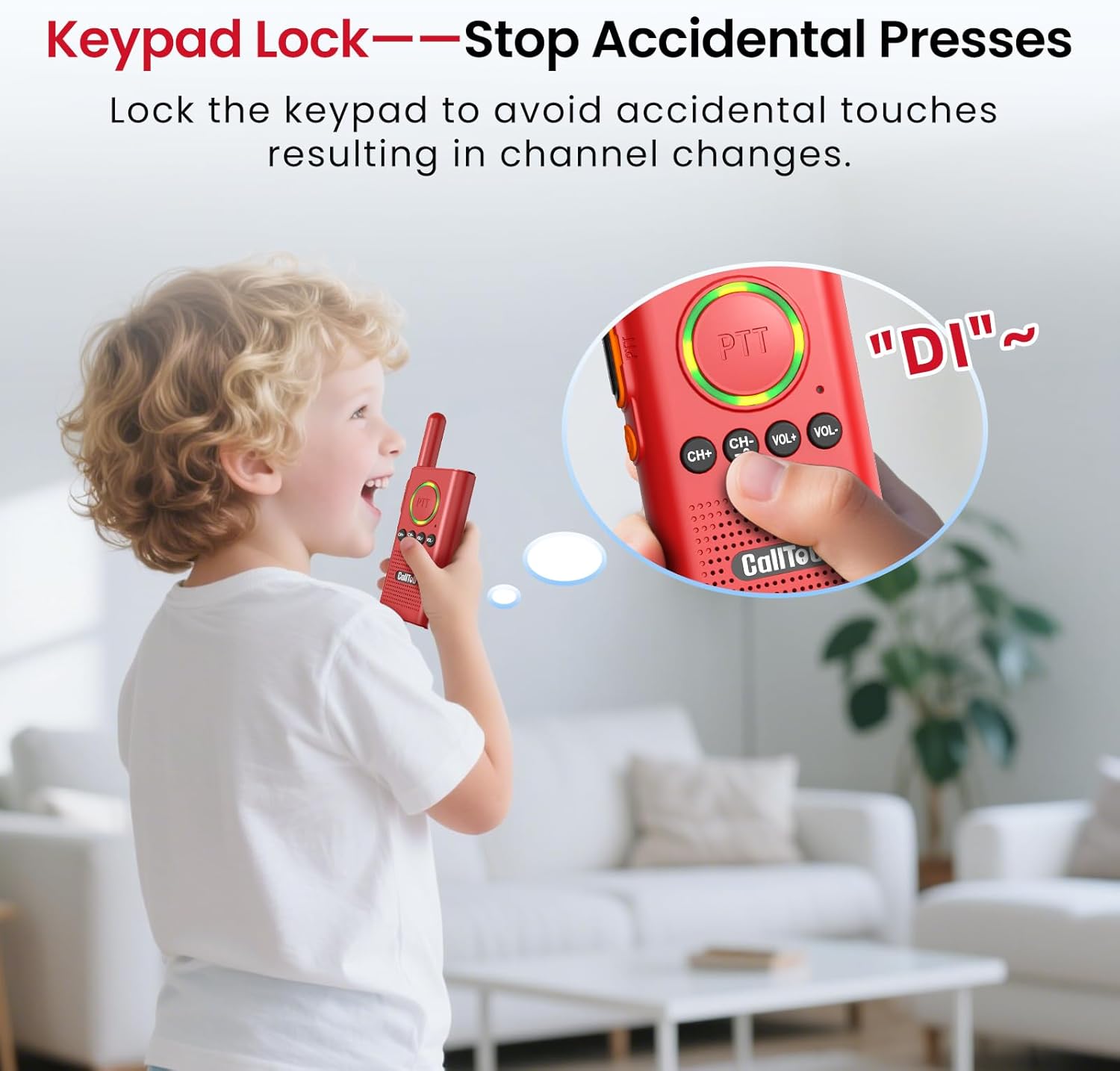
Image: A child using the CallToU intercom, illustrating the keypad lock feature to prevent accidental presses.
Video: Demonstrates the steps to lock the keyboard on the CallToU WT42 Intercom to prevent unintended changes.
Charging & Battery Information
The CallToU intercom units are equipped with a 1000mAh rechargeable Lithium Metal battery, providing up to 100 hours of battery life (or 36 hours standby). Always use the provided USB Type-C charging cables and power adapters.
Low Battery Alert
When the battery is low, your intercom will emit a "di-di-di" alert sound every 20 seconds, and a flashing green light (blinks once per second) will appear. It is recommended to charge the unit before bed to avoid disturbance from alerts at night.

Image: Illustrates the low battery alert on the CallToU intercom, showing the "didi didi" sound and flashing green light.
Charging Process
- First, turn off the intercom unit.
- Connect the USB Type-C cable to the intercom and the power adapter to a wall outlet. Use only the original charger and cable.
- Observe the indicator light for charging status:
- Getting Ready (first 2 minutes): Solid Green light. The radio is checking the battery.
- Charging (2 minutes to 6 hours): Solid Red light. The battery is now charging.
- Fully Charged (after 6 hours): Solid Green light (for over 3 minutes). The battery is full. You can now unplug the radio and turn it on.

Image: Visual guide detailing the three stages of charging for the CallToU intercom, indicated by light color and duration.
Maintenance
- Cleaning: Wipe the units with a soft, damp cloth. Do not use harsh chemicals or abrasive cleaners.
- Storage: Store the intercoms in a cool, dry place when not in use. Avoid extreme temperatures.
- Battery Care: For optimal battery life, avoid fully discharging the battery frequently. Charge regularly.
Troubleshooting
| Problem | Possible Solution |
|---|---|
| No sound/Cannot communicate |
|
| Poor sound quality/Static |
|
| Unit not charging |
|
| Keypad locked |
|
Specifications
| Feature | Detail |
|---|---|
| Brand | CallToU |
| Model Number | WT42 DBM |
| Color | Red |
| Number of Channels | 16 |
| Special Feature | Keypad Lock |
| Water Resistance Level | Water Resistant |
| Battery Type | 1 Lithium Metal battery (included) |
| Battery Life | 100 Hours (Average) |
| Connectivity Protocol | UHF |
Warranty Information
This CallToU intercom system comes with a 1 Year Manufacturer Warranty. Please retain your proof of purchase for any warranty claims.
Customer Support
For further assistance, technical support, or warranty inquiries, please contact CallToU customer service:
- Website: www.calltou.com
- Email: service01@calltou.com
- Facebook: Calltou Caregiver Pager
Related documentsWT42 DBM

Ask a question about this manual
Ask about setup, troubleshooting, compatibility, parts, safety, or missing instructions. Manuals+ will review the question and use this page’s manual context to help answer it.