
1. Introduction
This manual provides essential instructions for the safe operation, setup, and maintenance of your Generic GT3 Mini Drone. Please read this manual thoroughly before operating the drone to ensure proper usage and to prevent damage or injury.
The GT3 Mini Drone is a compact, foldable quadcopter equipped with dual 4K cameras and an 180° adjustable lens, designed for aerial photography and recreational flight. It features optical flow hover for stable flight and intelligent obstacle avoidance for enhanced safety.
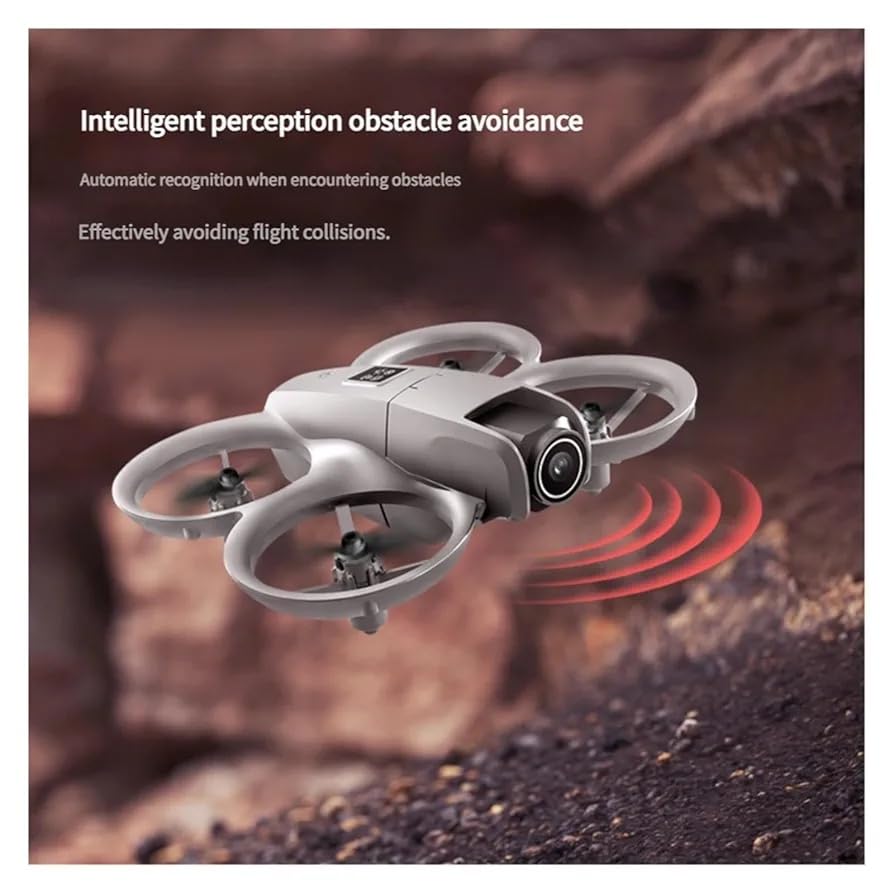
Figure 1: GT3 Mini Drone with included accessories (remote control, smartphone holder, packaging).
2. Safety Guidelines
Adhering to these safety guidelines is crucial for preventing accidents, injuries, and damage to the drone or property.
- Pre-Flight Check: Always inspect the drone, propellers, and battery for any damage before each flight.
- Environmental Conditions: Fly in open areas, away from people, animals, buildings, and power lines. Avoid flying in strong winds, rain, or snow.
- Battery Safety: Use only the provided charger and battery. Do not overcharge or puncture the battery. Discontinue use if the battery is damaged or swollen.
- Propeller Safety: Keep fingers, hair, and loose clothing away from rotating propellers. The drone features propeller guards for added safety.
- Line of Sight: Always maintain visual line of sight with the drone during flight.
- Age Recommendation: This drone is suitable for beginners and kids. Adult supervision is recommended for younger users.
- Obstacle Avoidance: While the drone has obstacle avoidance, it is not foolproof. Always be aware of your surroundings.
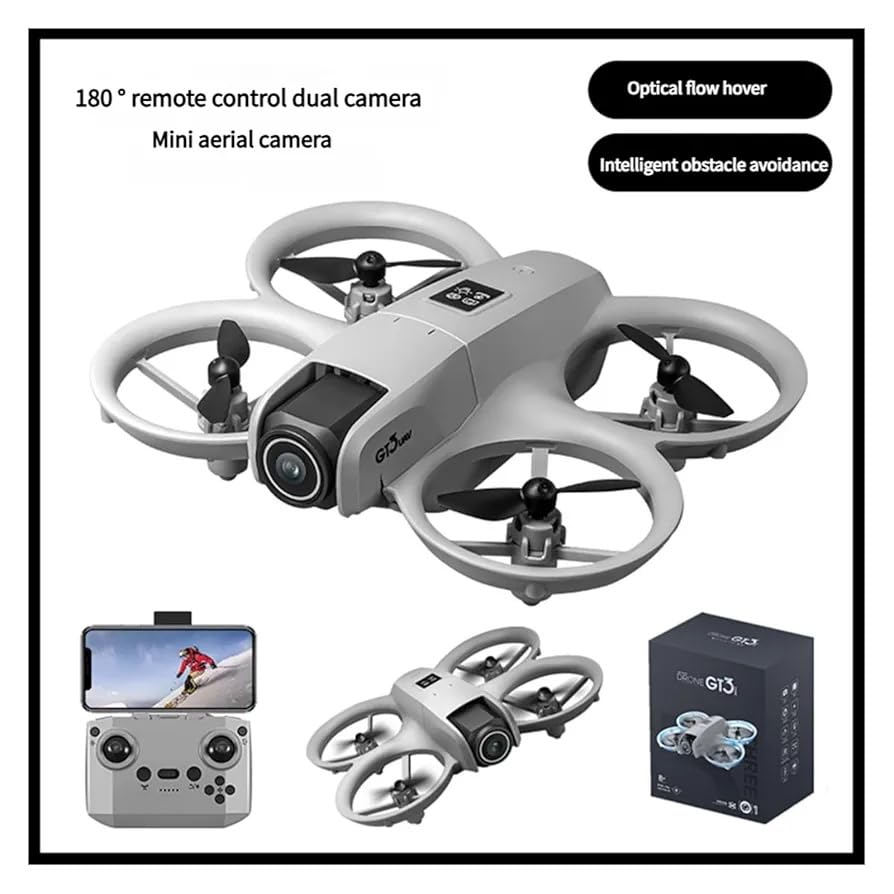
Figure 2: The GT3 Mini Drone features full surround protection for its propellers, enhancing safety during operation.
3. Package Contents
Verify that all items are present in the package:
- GT3 Mini Drone (1)
- Remote Control (1)
- Propellers (Set of spares)
- User Manual (1)
- Charging Cable (1)
- Screwdriver (1)
4. Setup Guide
4.1. Charging the Drone Battery
- Locate the drone battery and the charging cable.
- Connect the charging cable to the drone's charging port.
- Plug the other end of the charging cable into a USB power adapter (not included).
- The indicator light on the charging cable will show the charging status. Refer to the light's behavior for full charge indication.
- Do not leave the battery charging unattended.
4.2. Installing Remote Control Batteries
- Open the battery compartment on the back of the remote control.
- Insert the required batteries (e.g., 3x AAA, not included) according to the polarity markings.
- Close the battery compartment securely.
4.3. Unfolding the Drone
Gently unfold the drone's arms until they click into place. Ensure all arms are fully extended before flight.
4.4. App Installation and Connection
- Scan the QR code in the manual or on the packaging to download the official control app.
- Install the app on your smartphone.
- Turn on the drone and your smartphone's Wi-Fi.
- Connect your smartphone to the drone's Wi-Fi network (usually named "GT3-XXXXXX").
- Open the app to establish a connection with the drone.
4.5. Pairing Drone with Remote Control
- Place the drone on a flat, level surface.
- Press and hold the power button on the drone until the indicator lights flash.
- Turn on the remote control.
- Push the left joystick up and then pull it down. The drone's indicator lights will become solid, indicating successful pairing.
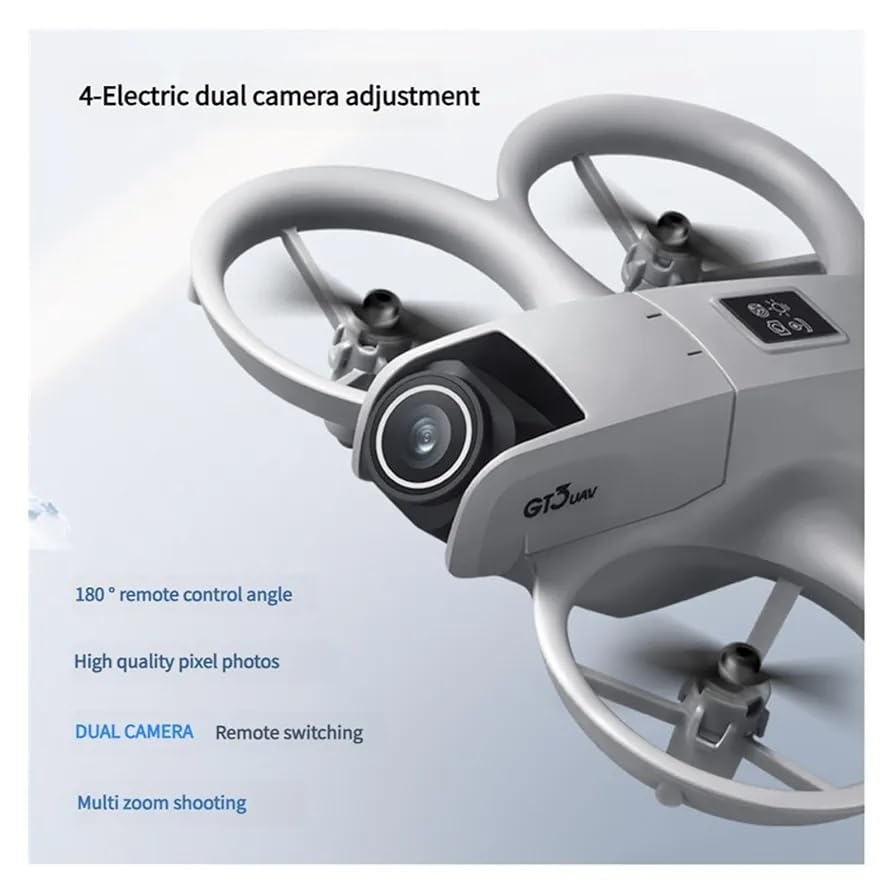
Figure 3: Simplified setup process: 1. Power on the drone. 2. Connect the remote control. 3. Perform handheld takeoff for easy control.
5. Operating Instructions
5.1. Basic Flight Controls
Familiarize yourself with the remote control or app interface before your first flight.
- Takeoff/Landing: Use the one-key takeoff/landing button or manually control with the left joystick (throttle).
- Altitude Control: Left joystick (throttle) controls ascent and descent.
- Directional Control: Right joystick controls forward, backward, left, and right movement.
- Rotation: Left joystick (yaw) controls left and right rotation.
5.2. Optical Flow Hover
The GT3 Mini Drone is equipped with optical flow hover technology, which helps maintain a stable position in the air, especially indoors or in areas with good ground texture. This feature assists in easier control for beginners.
5.3. Obstacle Avoidance
The drone features intelligent obstacle avoidance sensors. When an obstacle is detected, the drone may automatically adjust its flight path or stop to prevent collision. Always exercise caution and do not rely solely on this feature.
5.4. Camera Operation (Dual 4K Cameras, 180° Adjustable Lens)
The drone features dual 4K cameras and a 180° adjustable lens for versatile aerial photography and video recording.
- Adjusting Lens Angle: The 180° adjustable lens can be controlled via the remote or the app to capture different perspectives.
- Switching Cameras: Use the dedicated button on the remote or the app interface to switch between the dual cameras.
- Photo/Video Capture: Press the photo button to take still images or the video button to start/stop recording. Media will be saved to your connected smartphone or the drone's internal storage/SD card (if applicable).
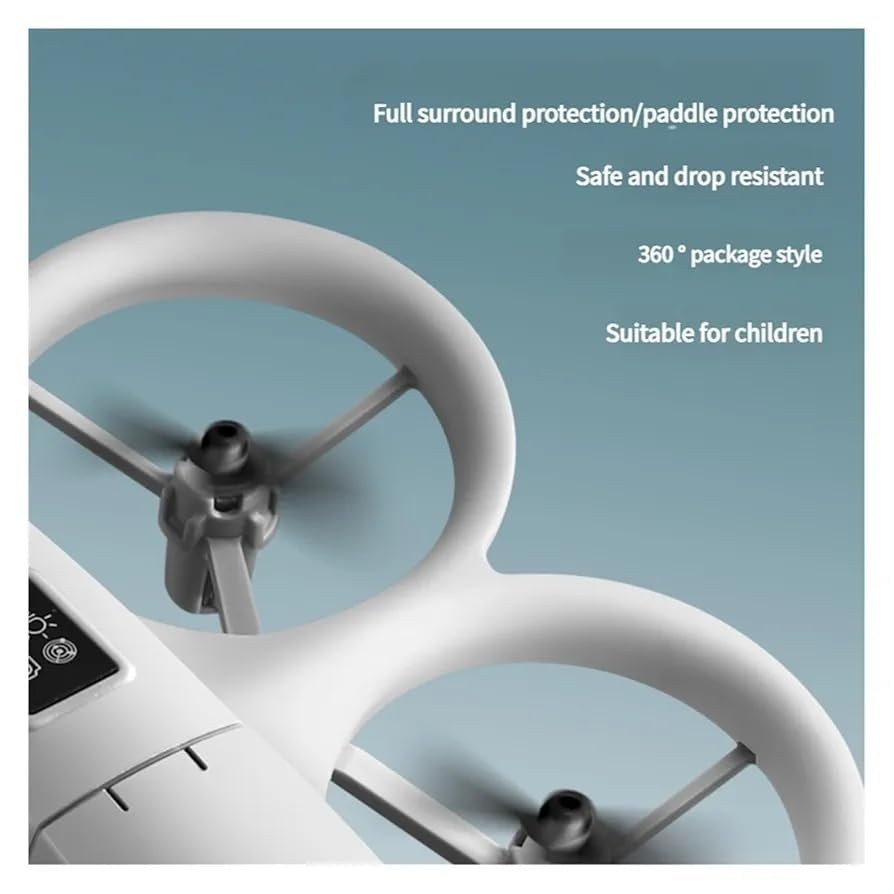
Figure 4: The drone's camera system allows for 180° remote control angle adjustment and remote switching between dual cameras for high-quality photos.
6. Maintenance
- Cleaning: Use a soft, dry cloth to clean the drone body and camera lens. Do not use harsh chemicals or solvents.
- Propeller Inspection: Regularly check propellers for cracks, bends, or damage. Replace damaged propellers immediately using the provided spares and screwdriver.
- Battery Care: Store batteries in a cool, dry place. Do not store fully charged or fully depleted batteries for extended periods. Charge the battery to about 50-60% for long-term storage.
- Storage: When not in use, fold the drone and store it in a safe, dry place away from direct sunlight and extreme temperatures.
7. Troubleshooting
| Problem | Possible Cause | Solution |
|---|---|---|
| Drone does not power on. | Battery is depleted or not properly inserted. | Charge the drone battery. Ensure the battery is correctly inserted. |
| Remote control does not connect. | Remote control batteries are low or pairing failed. | Replace remote control batteries. Repeat the pairing process (Section 4.5). |
| Drone is unstable during flight. | Not calibrated correctly, damaged propellers, or strong wind. | Perform gyroscope calibration (refer to app instructions). Check and replace damaged propellers. Fly in calm conditions. |
| App does not connect to drone. | Incorrect Wi-Fi connection or app issue. | Ensure your phone is connected to the drone's Wi-Fi network. Restart the app and drone. |
| Camera not recording/taking photos. | App not connected, storage full, or incorrect mode. | Ensure app is connected. Check phone storage. Verify camera mode in the app. |
8. Specifications
| Feature | Detail |
|---|---|
| Model Name | GT3 |
| Brand | Generic |
| Video Capture Resolution | 3840x2160 (4K) |
| Effective Still Resolution | 4000 MP |
| Special Features | 180° Adjustable Lens, Dual Cameras, Foldable Design, Obstacle Avoidance, Optical Flow Hover |
| Connectivity Technology | Bluetooth, Wi-Fi |
| Control Type | App Control |
| Skill Level | Beginner |
| Battery Composition | Lithium Ion |
| Item Weight | 250 Grams |
| Item Dimensions (L x W x H) | 15L x 15W x 5H Centimeters (Folded/Unfolded dimensions not specified, assuming compact) |
| Material Type | Metal, Plastic |
| Age Range (Description) | Kid |
9. Warranty and Support
For warranty information and technical support, please refer to the documentation provided with your purchase or contact the retailer/manufacturer directly. Keep your proof of purchase for warranty claims.


