
1. Introduction
This manual provides detailed instructions for the ESSAGER 8-in-1 USB C Hub with SSD Enclosure. It covers product features, setup, operation, maintenance, troubleshooting, and specifications to ensure optimal performance and user experience. Please read this manual thoroughly before using the device.
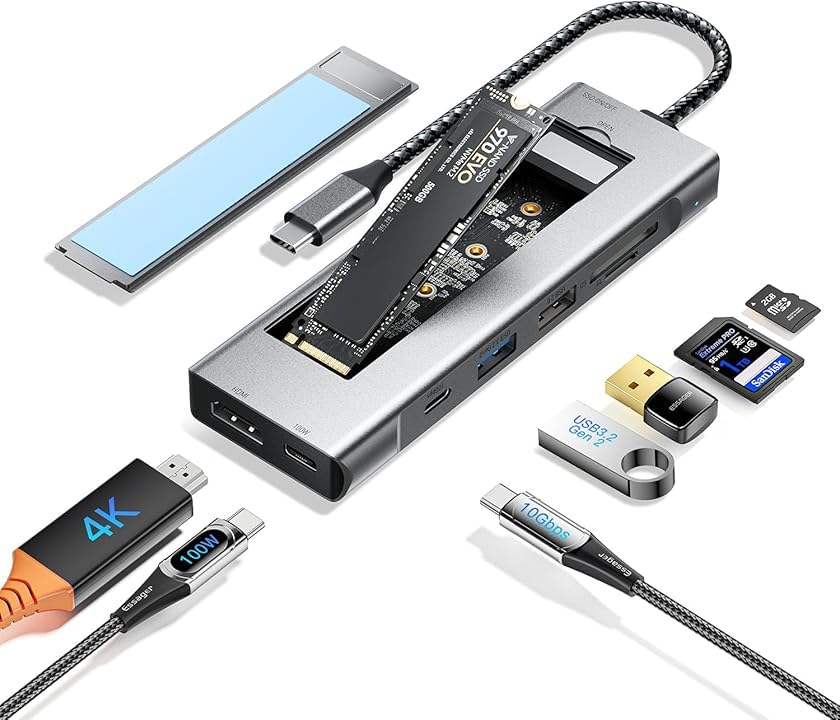
Figure 1: ESSAGER 8-in-1 USB C Hub with SSD Enclosure and included accessories.
2. Product Overview
The ESSAGER 8-in-1 USB C Hub is a versatile docking station designed to expand the connectivity of your USB-C enabled devices. It integrates an M.2 NVMe/SATA SSD enclosure, multiple USB ports, an HDMI output, a PD charging port, and an SD/TF card reader.
Key Features:
- 8-in-1 Expansion: Combines M.2 NVMe/SATA SSD enclosure, PD100W fast charging, 4K HDMI, 10Gbps USB-C, USB 3.2 Gen 2, USB 2.0, and SD/TF card reader.
- High-Speed Data Transfer: M.2 NVMe/SATA SSD interface supports up to 10 Gbps, with read/write speeds up to 900 MB/s. USB 3.2 Gen 2 ports also offer 10Gbps.
- 4K HD Video Output: HDMI 1.4 port supports 4K (3840 x 2160) resolution at 30Hz for immersive display.
- PD100W Fast Charging: Power Delivery port ensures rapid charging for your connected devices.
- Rapid Card Reading: SD/TF card reader supports transfer speeds up to 104 MB/s.
- Wide Compatibility: Compatible with Windows, macOS, Linux, Chrome OS, Android, and devices like MacBook Pro/Air, Huawei P30/Mate30, Samsung Note10/S10, Steam Deck, and Switch.
- Durable Design: Crafted from aluminum alloy for effective heat dissipation, ensuring portability and longevity.
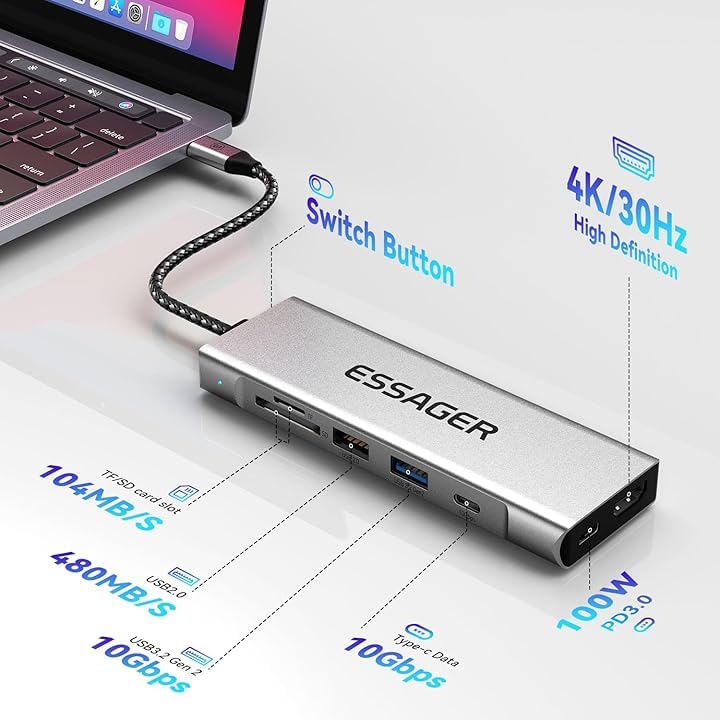
Figure 2: Detailed view of the hub's ports and their respective data transfer and power specifications.
3. Setup
3.1 SSD Installation
The hub features an integrated M.2 NVMe/SATA SSD enclosure. Follow these steps to install your M.2 SSD:
- Prepare the Enclosure: Open the SSD enclosure cover. If included, install the heat dissipation silicone pad onto the SSD slot.
- Insert SSD: Carefully insert your M.2 NVMe or SATA SSD into the M.2 slot. Ensure it is fully seated.
- Secure SSD: Use the provided screw to fix the SSD securely in place.
- Close Cover: Close the hard drive cover until it clicks into place.
Note: A brand new SSD must be initialized and formatted before it can be used by your operating system. Refer to your operating system's documentation for instructions on disk initialization (e.g., Disk Management on Windows, Disk Utility on macOS).
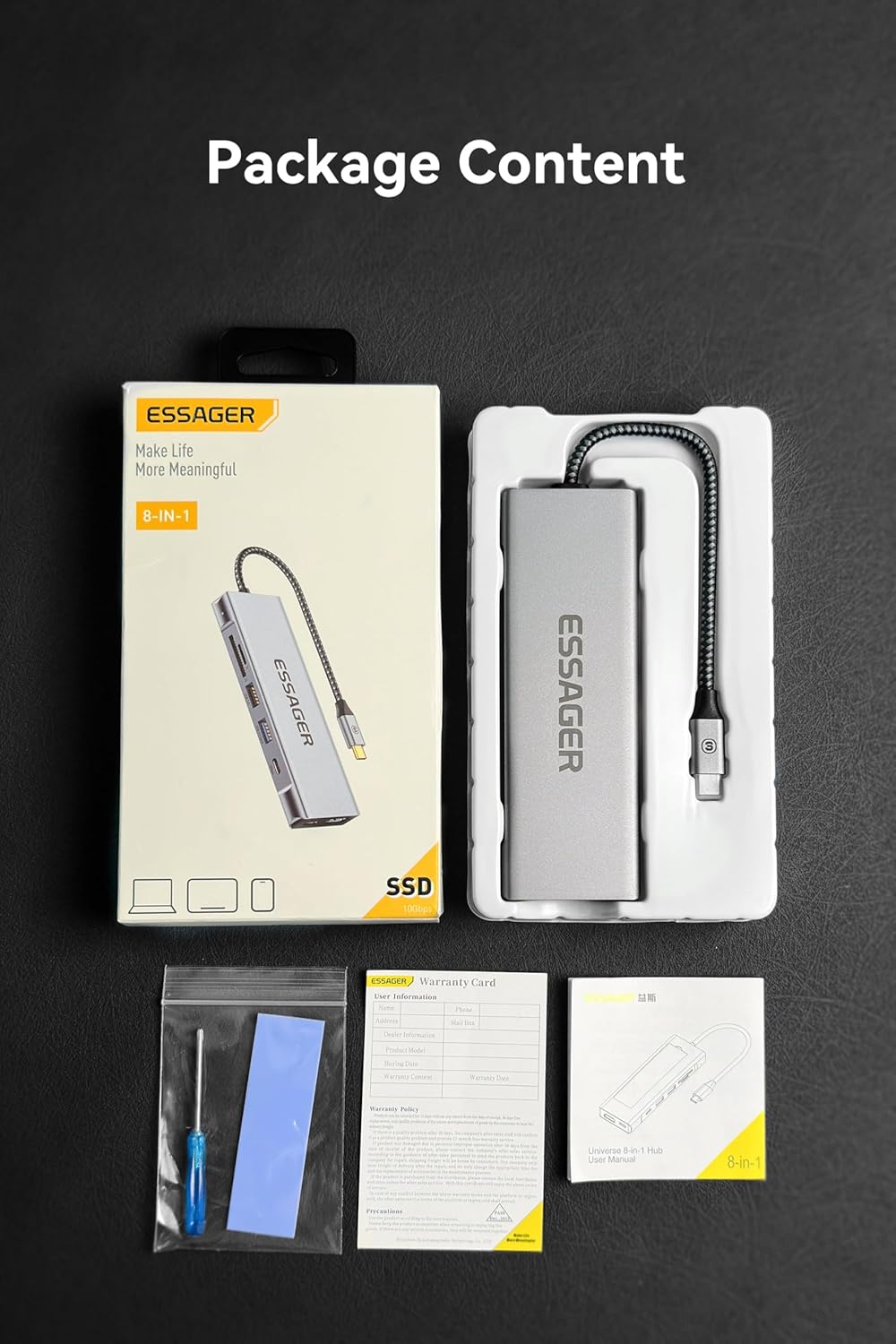
Figure 3: Step-by-step guide for installing an M.2 SSD into the enclosure.
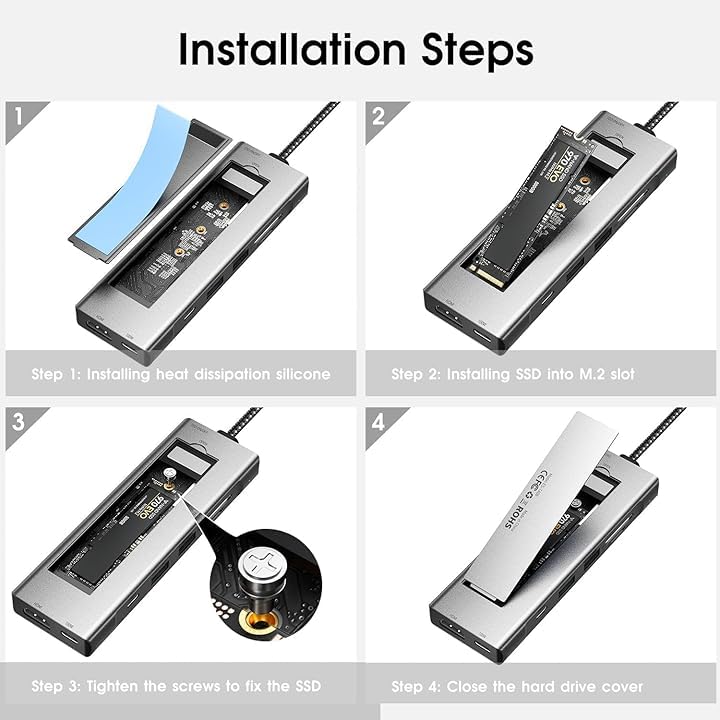
Figure 4: Illustration of compatible M.2 NVMe (M Key, B+M Key) and SATA (B+M Key) SSD types and supported sizes (2242, 2260, 2280).

Figure 5: Visual representation of M.2 NVMe and SATA SSD compatibility with the hub's enclosure.
3.2 Connecting the Hub to Your Device
Connect the integrated USB-C cable of the ESSAGER hub to a compatible USB-C port on your laptop, tablet, or smartphone. The hub is plug-and-play and typically requires no additional drivers for basic functionality.
4. Operating Instructions
4.1 Using the USB Ports
- USB 3.2 Gen 2 (10Gbps): Connect high-speed peripherals such as external hard drives, SSDs, or high-resolution cameras for fast data transfer.
- USB 2.0: Ideal for connecting standard peripherals like keyboards, mice, or printers.
- USB-C Data Port (10Gbps): Use this port for connecting USB-C devices that require high-speed data transfer.
4.2 HDMI Video Output
Connect an HDMI cable from the hub's HDMI port to an external monitor, TV, or projector. The hub supports 4K (3840 x 2160) resolution at 30Hz. Ensure your display device and HDMI cable support 4K resolution for optimal performance.

Figure 6: Examples of using the hub for screen projection and data sharing with laptops, tablets, and mobile phones.
4.3 Power Delivery (PD) Charging
Connect your original USB-C power adapter to the hub's PD port (marked "PD" or with a lightning bolt icon) to charge your host device (laptop, tablet) while using the hub. The hub supports up to 100W Power Delivery.
4.4 SD/TF Card Reader
Insert your SD or TF (Micro SD) card into the corresponding slot. The hub supports high-speed data transfer for quick photo and video transfers, up to 104 MB/s.
4.5 Data Sharing Switch
The hub features a switch to control data sharing. When the switch is in the "On" position, data sharing is enabled, allowing full functionality of connected peripherals and storage. When "Off", data sharing is disabled, which can be useful for privacy or security in certain scenarios.
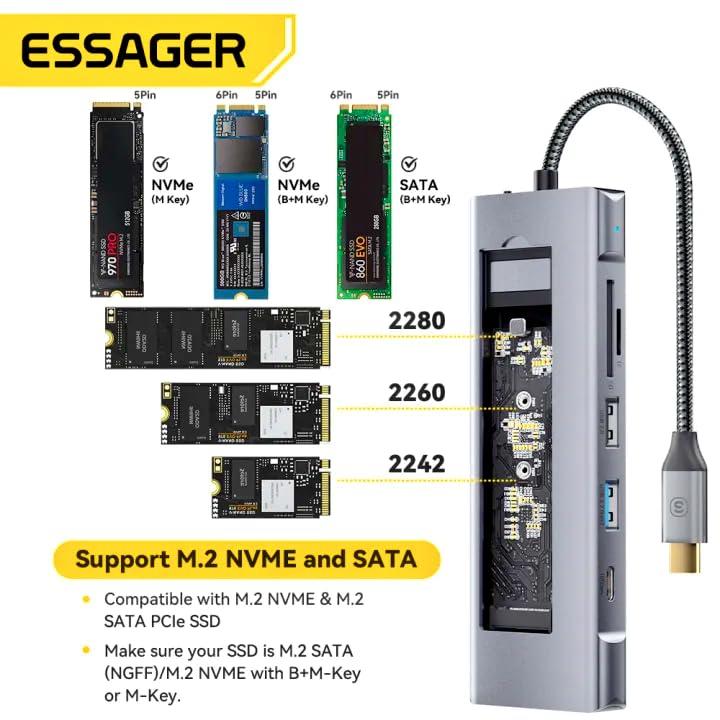
Figure 7: Location and function of the On/Off switch for data sharing.
5. Maintenance
To ensure the longevity and optimal performance of your ESSAGER USB C Hub, follow these maintenance guidelines:
- Cleaning: Use a soft, dry cloth to clean the exterior of the hub. Avoid using liquid cleaners or aerosols, as they may damage the device.
- Storage: Store the hub in a cool, dry place away from direct sunlight and extreme temperatures.
- Handling: Handle the hub with care. Avoid dropping it or subjecting it to strong impacts. Do not bend the integrated USB-C cable excessively.
- Heat Dissipation: The aluminum alloy design aids in heat dissipation. Ensure the hub is placed in a well-ventilated area during prolonged use to prevent overheating.
6. Troubleshooting
If you encounter issues with your ESSAGER USB C Hub, refer to the following common troubleshooting steps:
- Device Not Recognized:
- Ensure the hub's USB-C cable is securely connected to your host device.
- Try connecting the hub to a different USB-C port on your device.
- Restart your host device.
- SSD Not Detected:
- Verify that the SSD is correctly installed within the enclosure and securely fastened.
- For new SSDs, ensure they have been initialized and formatted through your operating system's disk management utility.
- Check if the SSD is compatible (M.2 NVMe or SATA, correct size).
- HDMI Display Issues:
- Ensure the HDMI cable is securely connected to both the hub and the display.
- Verify that your display is set to the correct input source.
- Check if your host device's display settings are configured to extend or duplicate the display.
- Try a different HDMI cable or display.
- Charging Not Working (PD Port):
- Ensure your USB-C power adapter is connected to the hub's PD port and is functioning correctly.
- Verify that your power adapter provides sufficient wattage for your host device (up to 100W supported by the hub).
- Slow Data Transfer:
- Ensure you are using the correct USB ports for high-speed devices (USB 3.2 Gen 2 or USB-C data port).
- Check the specifications of your connected device and cable to ensure they support the desired speeds.
7. Specifications
| Feature | Specification |
|---|---|
| Model | B0FG1B11P6 |
| Brand | ESSAGER |
| Product Dimensions | 1.7 x 4.4 x 14 cm |
| Item Weight | 150 g |
| Material | Aluminum Alloy |
| Operating System Compatibility | Windows, macOS, Linux, Chrome OS, Android |
| Hardware Interface | USB Type C |
| Number of Ports | 8 |
| SSD Enclosure | M.2 NVMe/SATA (10Gbps) |
| HDMI Output | 4K (3840 x 2160) @ 30Hz |
| Power Delivery (PD) | Up to 100W |
| USB Data Ports | 1x USB 3.2 Gen 2 (10Gbps), 1x USB 2.0, 1x USB-C Data (10Gbps) |
| Card Reader | SD/TF (up to 104 MB/s) |
| Special Features | Fast Data Transfer, Heat Resistant, Portable, NVMe Enclosure with HDMI Hub |
8. Warranty and Support
This product comes with a manufacturer's warranty. Please refer to the warranty card included in the product packaging for specific terms and conditions, including warranty period and coverage.

Figure 8: Product package content, including the warranty card and user manual.
Customer Support:
For technical assistance, troubleshooting, or warranty claims, please contact the importer/packer:
MRJ ELECTRONICS AHMEDABAD
Contact: 9023265213
Please have your product model number (B0FG1B11P6) and purchase details ready when contacting support.