
1. Product Overview
The HP All-in-One PC models 27-cr0902in and 27-cr0906in are designed for everyday computing tasks, offering a blend of performance and display quality. This manual provides essential information for setting up, operating, maintaining, and troubleshooting your device.
Key Features
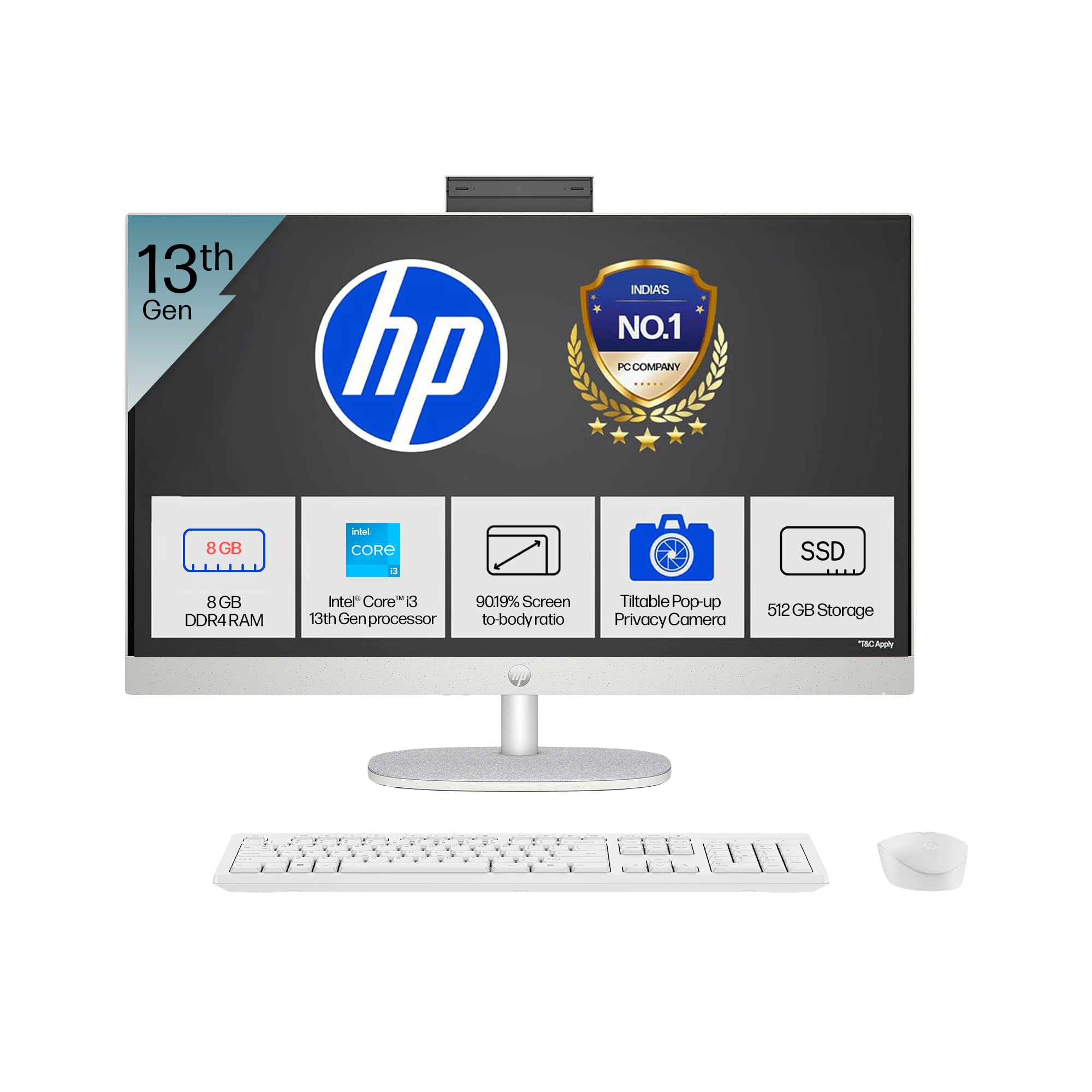
- Processor: Intel Core i3-1315U (up to 4.5 GHz with Intel Turbo Boost Technology, 6 cores, 8 threads)
- Memory: 8 GB DDR4-3200 MT/s RAM
- Storage: 512 GB PCIe NVMe M.2 SSD
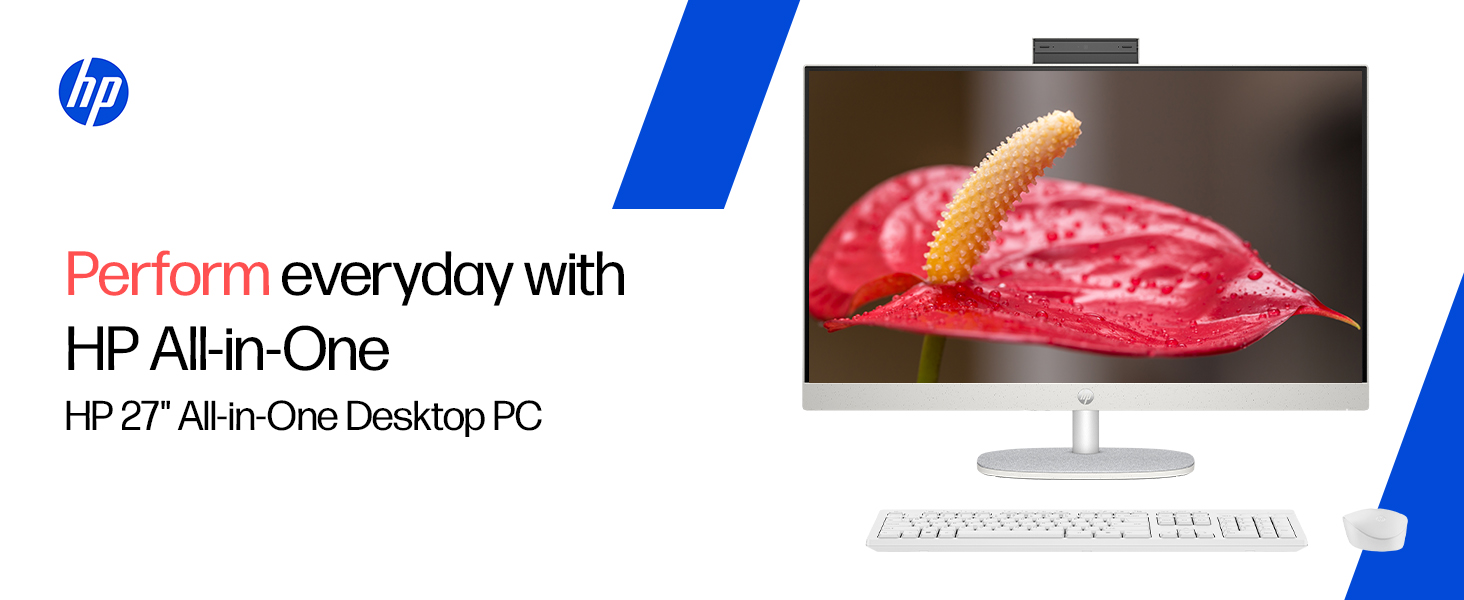
- Display: 27-inch (68.6 cm) diagonal, FHD (1920 x 1080), touch, IPS, three-sided microedge, anti-glare, 300 nits, 99% sRGB
- Graphics: Integrated Intel UHD Graphics
- Operating System: Windows 11 Home Single Language in S mode
- Camera: HP True Vision 1080p FHD IR tilt privacy camera with temporal noise reduction and integrated dual array digital microphones
- Connectivity: Wi-Fi 6 (2x2), Bluetooth 5.3, 1 USB Type-C 5Gbps, 2 USB Type-A 5Gbps, 2 USB 2.0 Type-A, 1 headphone/microphone combo, 1 RJ-45
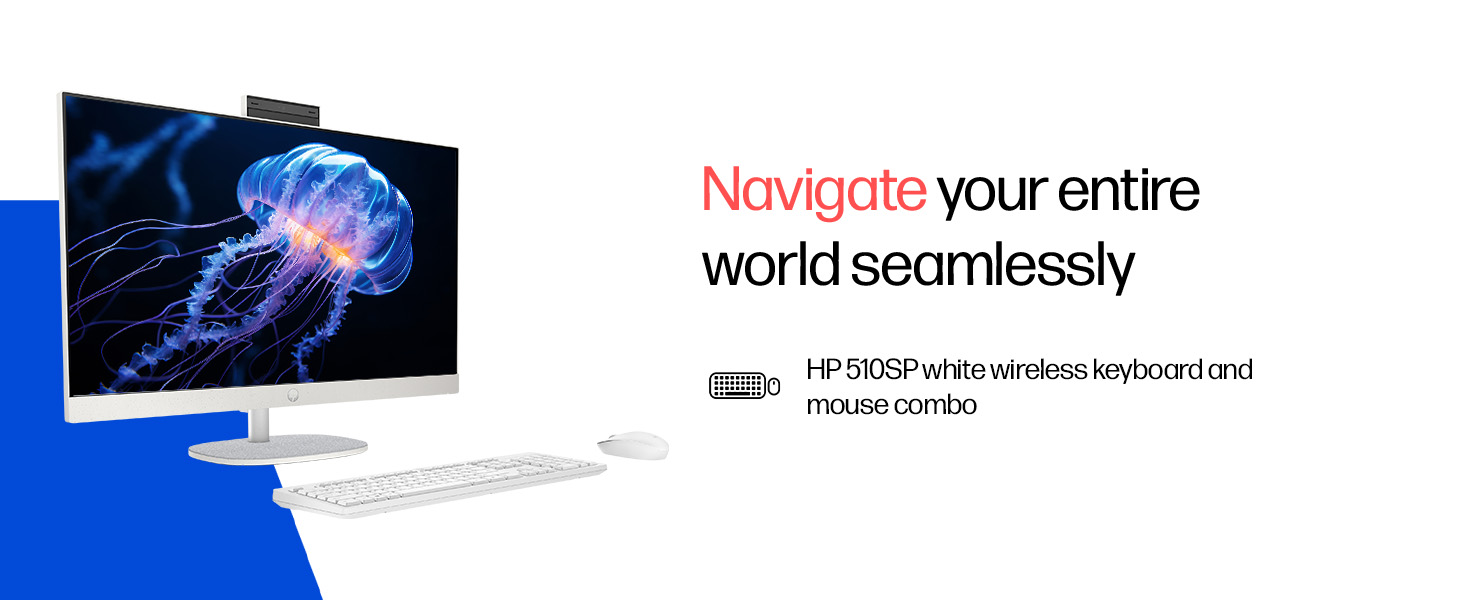
- Included Peripherals: HP 510SP White Wireless Keyboard and Mouse Combo
2. Setup Guide
Follow these steps to set up your HP All-in-One PC.
2.1 Unpacking the Box
Carefully remove all components from the packaging. Ensure the following items are present:
- HP All-in-One PC unit
- Power adapter and cable
- HP 510SP White Wireless Keyboard
- HP 510SP White Wireless Mouse
- Documentation (this manual, warranty information)
2.2 Connecting Peripherals
- Connect the Keyboard and Mouse: Insert the USB receiver for the wireless keyboard and mouse into an available USB port on the back of the All-in-One PC. Ensure batteries are installed in both the keyboard and mouse.
- Connect Power: Connect the power adapter to the power input port on the back of the All-in-One PC, then plug the power cable into a wall outlet.
- Optional Connections:
- External Devices: Connect any external USB devices (e.g., external hard drives, printers) to the available USB ports.
- Network Cable: If using a wired network connection, connect an Ethernet cable to the RJ-45 port.

2.3 Initial Power On
Press the power button, usually located on the side or back of the display. The PC will boot up, and you will be guided through the Windows 11 setup process. Follow the on-screen instructions to configure your operating system, network, and user accounts.
3. Operating Instructions
3.1 Power On/Off and Sleep Mode
- Power On: Press the power button.
- Shut Down: Click the Start button in Windows, then select Power > Shut down.
- Restart: Click the Start button in Windows, then select Power > Restart.
- Sleep: Click the Start button in Windows, then select Power > Sleep. You can also configure power settings in Windows to automatically enter sleep mode after a period of inactivity.
3.2 Using the Touch Display
Your HP All-in-One PC features a touch-enabled display. You can interact with the operating system and applications using touch gestures similar to a tablet or smartphone. Common gestures include tapping, swiping, pinching to zoom, and stretching to zoom out.
3.3 Using the HP True Vision Camera
The integrated HP True Vision 1080p FHD IR tilt privacy camera is suitable for video calls and facial recognition login (Windows Hello). The camera can be tilted for optimal viewing angles and includes a privacy shutter for security. To use the camera, open an application that requires camera access (e.g., Camera app, video conferencing software).
3.4 Audio and Microphones
The PC includes integrated dual 2W speakers and dual array digital microphones with temporal noise reduction for clear audio input during calls or recordings. You can adjust volume settings through the Windows sound controls.
4. Maintenance
Proper maintenance ensures the longevity and optimal performance of your HP All-in-One PC.
4.1 Cleaning the Device
- Display: Use a soft, lint-free cloth slightly dampened with water or a screen cleaning solution. Avoid harsh chemicals or abrasive materials.
- Chassis: Wipe the exterior surfaces with a soft, dry cloth.
- Keyboard and Mouse: Use a soft brush or compressed air to remove dust and debris.
- Always power off and unplug the PC before cleaning.
4.2 Software Updates
Regularly check for and install Windows updates and HP driver updates to ensure system stability, security, and performance. You can find Windows updates in the Settings app under "Windows Update." HP drivers can be found on the official HP support website.
4.3 System Backup
It is recommended to regularly back up your important data to an external drive or cloud storage to prevent data loss.
5. Troubleshooting
This section addresses common issues you might encounter with your HP All-in-One PC.
5.1 No Power / System Not Turning On
- Ensure the power cable is securely connected to both the PC and the wall outlet.
- Verify the wall outlet is functional by plugging in another device.
- Try a different power outlet.
5.2 Display Issues
- No image on screen: Ensure the PC is powered on. If connected to an external monitor, check the input source on the monitor.
- Flickering or distorted image: Update graphics drivers. If the issue persists, contact support.
- Touch screen not responding: Restart the PC. Ensure there are no obstructions on the screen. Check for driver updates for the touch display.
5.3 System Performance Issues (Slowdown, Hanging)
- Close unnecessary applications running in the background.
- Check Task Manager (Ctrl+Shift+Esc) for processes consuming high CPU, memory, or disk usage.
- Ensure your operating system and drivers are up to date.
- Run a full system scan for malware or viruses.
- Consider freeing up disk space on your SSD.
5.4 Peripheral Connectivity Problems (Keyboard/Mouse)
- Ensure the USB receiver is securely plugged into a USB port.
- Check the batteries in the wireless keyboard and mouse and replace them if necessary.
- Try plugging the USB receiver into a different USB port.
- Restart the PC.
6. Technical Specifications
Detailed specifications for the HP All-in-One PC 27-cr0902in/cr0906in.
| Feature | Detail |
|---|---|
| Brand | HP |
| Model Numbers | 27-cr0902in, 27-cr0906in |
| Processor | Intel Core i3-1315U (up to 4.5 GHz, 6 cores, 8 threads, 10 MB L3 cache) |
| Operating System | Windows 11 Home Single Language in S mode |
| Memory (RAM) | 8 GB DDR4-3200 MT/s (1 x 8 GB) |
| Storage | 512 GB PCIe NVMe M.2 SSD |
| Display | 27-inch (68.6 cm) FHD (1920 x 1080) IPS, touch, anti-glare, 300 nits, 99% sRGB |
| Graphics | Intel UHD Graphics (Integrated) |
| Camera | HP True Vision 1080p FHD IR tilt privacy camera with temporal noise reduction |
| Audio | Integrated dual array digital microphones, Dual 2W speakers |
| Wireless Connectivity | Realtek RTL8852BE Wi-Fi 6 (2x2), Bluetooth 5.3 |
| Ports | 1 USB Type-C 5Gbps, 2 USB Type-A 5Gbps, 2 USB 2.0 Type-A, 1 headphone/microphone combo, 1 RJ-45 |
| Keyboard & Mouse | HP 510SP White Wireless Keyboard and Mouse Combo |
| Dimensions (W x D x H) | 61.2 x 18.6 x 44.1 cm (24.11 x 7.33 x 17.36 inches) |
| Weight | 6.42 kg |
| Color | Shell White |
| Environmental Certifications | EPEAT Gold Registered, ENERGY STAR certified |
7. Warranty and Support
7.1 Warranty Information
Your HP All-in-One PC comes with a 1-year manufacturer warranty on the device from the date of purchase. Please retain your purchase receipt for warranty claims.
7.2 Technical Support
For any technical or product-related queries, please contact HP customer support:
- Toll-Free Numbers: 1800-258-7170 or 1860-258-3079
- Manufacturer Contact: HP India Sales Pvt. Ltd.
- Importer Contact: HP India Sales Private Limited, No. 24, Kothari Arena, Hosur Main Road, Adugodi, Bangalore, Karnataka, India, 560030
You can also visit the official HP support website for drivers, documentation, and further assistance.


