
1. Product Overview
The Xech Retro Typewriter Wireless Keyboard (Model X-202) combines a vintage aesthetic with modern multi-device connectivity. It features 84 round keycaps and supports connection to up to three devices simultaneously via Bluetooth 5.0 and a 2.4G USB dongle. An integrated holder allows for convenient placement of smartphones or tablets.

Image: Top-down view of the Xech Retro Typewriter Wireless Keyboard, showcasing its 84 round keycaps and classic design.
2. Setup Instructions
2.1. Battery Installation
The keyboard is powered by AAA batteries. To install or replace batteries:
- Locate the battery compartment on the underside of the keyboard.
- Open the battery compartment cover.
- Insert two (2) AAA batteries, ensuring correct polarity (+/-).
- Close the battery compartment cover securely.

Image: The underside of the keyboard showing the battery compartment and the storage slot for the 2.4G USB dongle.
2.2. Connecting via 2.4G USB Dongle
For 2.4G wireless connection:
- Locate the 2.4G USB dongle stored in the battery compartment on the underside of the keyboard.
- Remove the dongle.
- Plug the 2.4G USB dongle into an available USB-A port on your computer or device.
- Turn on the keyboard. The keyboard should automatically connect.
- Press the Fn + 4 keys to switch to 2.4G mode if not already selected.
2.3. Connecting via Bluetooth
The keyboard supports two Bluetooth connections (BT1 and BT2). To pair:
- Turn on the keyboard.
- Press Fn + 1 for Bluetooth Device 1 or Fn + 2 for Bluetooth Device 2. The indicator light will flash, indicating pairing mode.
- On your device (laptop, tablet, smartphone), enable Bluetooth and search for new devices.
- Select "Xech Keyboard" from the list of available devices.
- Follow any on-screen prompts to complete the pairing process. The indicator light on the keyboard will stop flashing once connected.
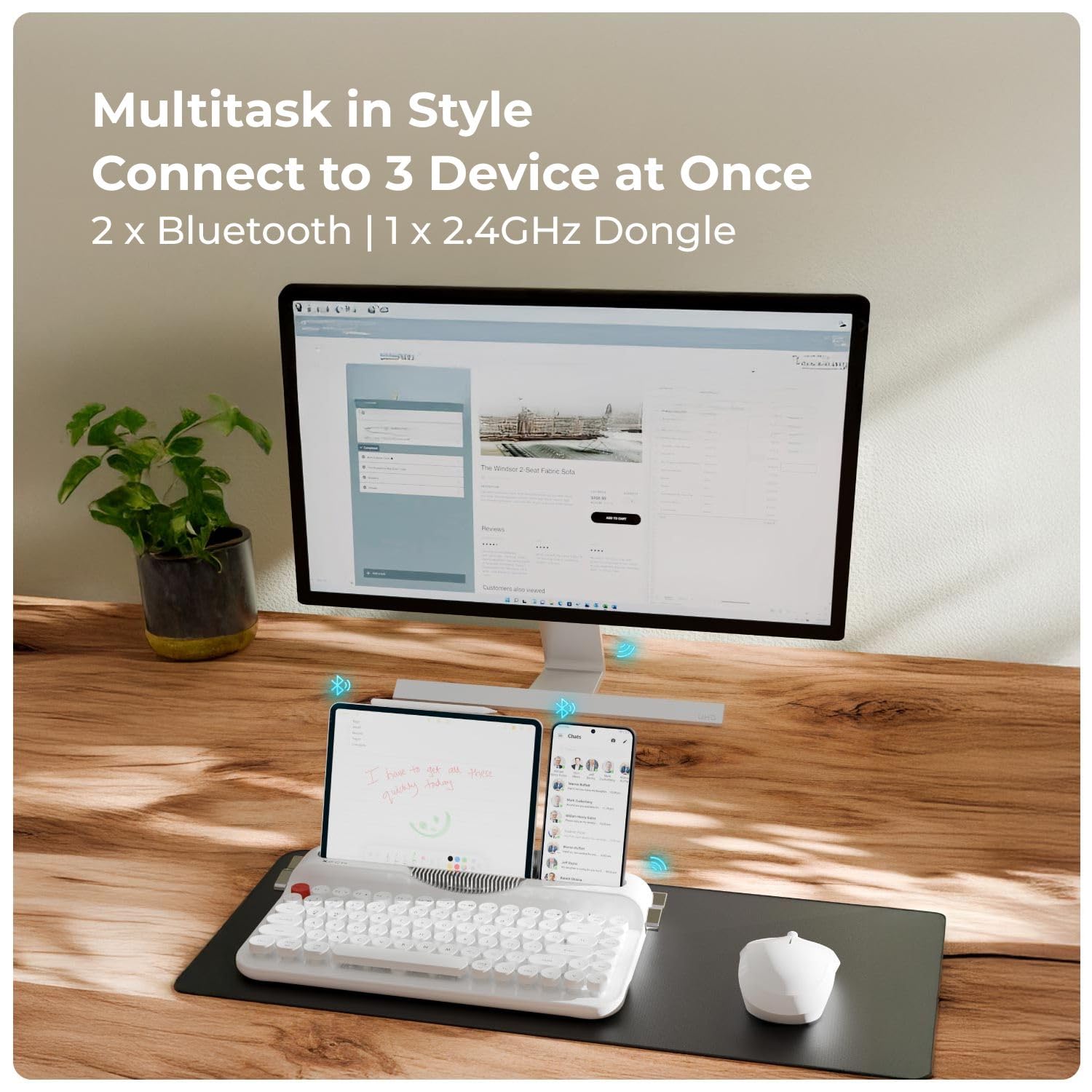
Image: The Xech keyboard demonstrating multi-device connectivity with a monitor, tablet, and smartphone.
3. Operating Instructions
3.1. Switching Between Devices
The keyboard allows seamless switching between three connected devices:
- Press Fn + 1 to switch to Bluetooth Device 1.
- Press Fn + 2 to switch to Bluetooth Device 2.
- Press Fn + 4 to switch to 2.4G USB dongle connection.
3.2. Multimedia Shortcut Keys
The keyboard includes dedicated shortcut keys for various multimedia functions. These are typically accessed by holding the Fn key and pressing the corresponding function key (F1-F12).
- Fn + F1: Media Player
- Fn + F2: Volume Down
- Fn + F3: Volume Up
- Fn + F4: Mute
- Fn + F5: Previous Track
- Fn + F6: Next Track
- Fn + F7: Play/Pause
- Fn + F8: Stop
- Fn + F9: Web Browser
- Fn + F10: Email
- Fn + F11: My Computer
- Fn + F12: Calculator
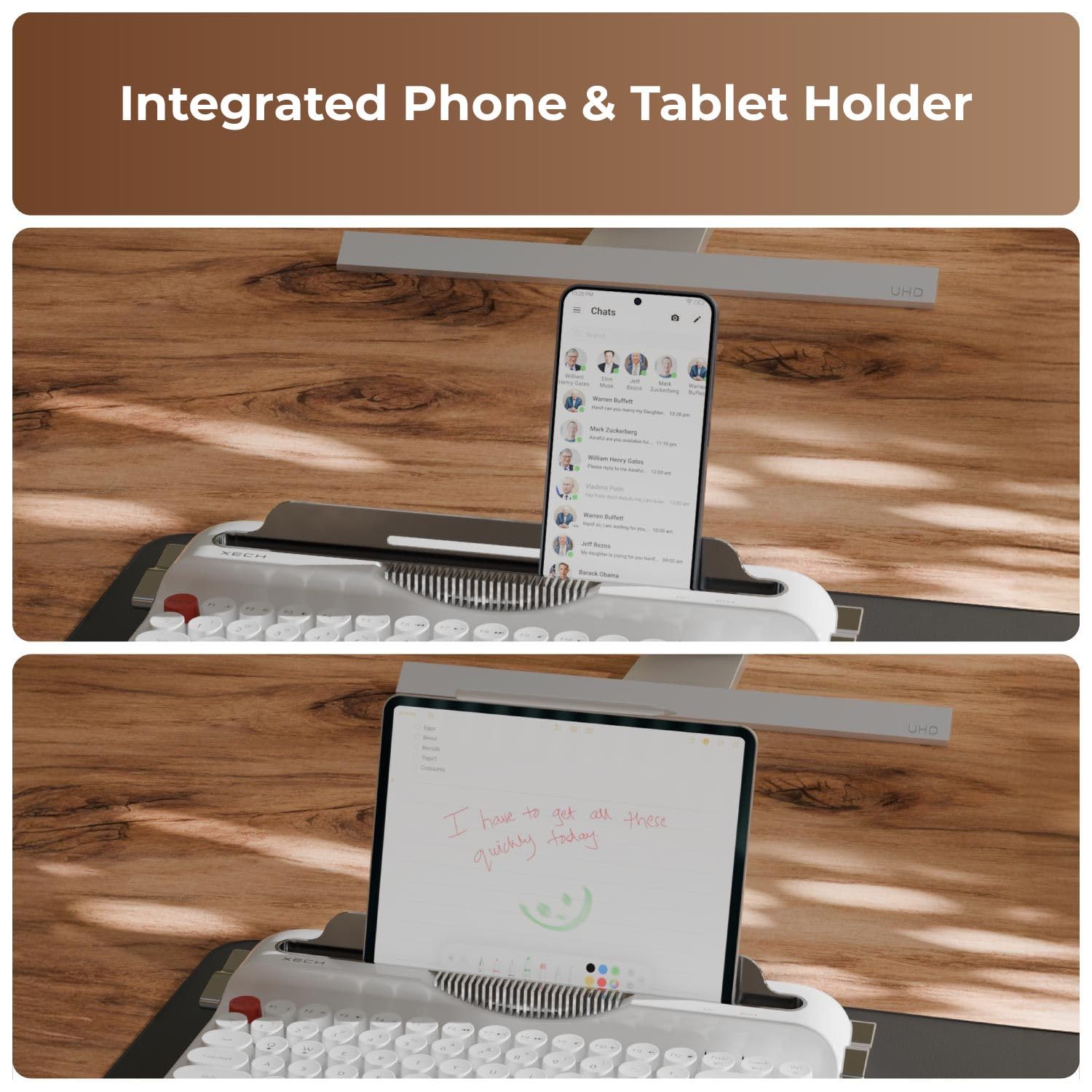
Image: A close-up view of the keyboard's function keys, highlighting the multimedia shortcuts.
3.3. Integrated Phone & Tablet Holder
The keyboard features an integrated slot at the top to hold your smartphone or tablet, providing an optimal viewing angle for multitasking.

Image: The Xech keyboard with a tablet securely placed in its integrated holder, demonstrating its utility for multitasking.
3.4. Power Saving Mode
To conserve battery life, the keyboard automatically enters a sleep mode after 10 minutes of inactivity. To wake it up, simply press any key.
4. Maintenance
4.1. Cleaning the Keyboard
To maintain the keyboard's appearance and functionality:
- Disconnect the keyboard from all devices before cleaning.
- Use a soft, lint-free cloth slightly dampened with water or a mild cleaning solution to wipe the surface.
- For cleaning between the keycaps, use compressed air or a small brush to remove dust and debris.
- Avoid using harsh chemicals, abrasive cleaners, or excessive moisture, as these can damage the keyboard.
4.2. Battery Replacement
When the keyboard's performance diminishes or it fails to power on, it may be time to replace the AAA batteries. Refer to Section 2.1 for battery installation instructions.
5. Troubleshooting
If you encounter issues with your Xech Retro Typewriter Wireless Keyboard, please refer to the following common solutions:
5.1. Keyboard Not Connecting
- Check Batteries: Ensure the batteries are correctly installed and have sufficient charge. Replace if necessary.
- Power On: Verify the keyboard is turned on.
- Correct Mode: Ensure you have selected the correct connection mode (Fn + 1/2 for Bluetooth, Fn + 4 for 2.4G).
- 2.4G Dongle: For 2.4G connection, ensure the USB dongle is securely plugged into your device's USB port.
- Bluetooth Pairing: For Bluetooth, ensure Bluetooth is enabled on your device and the keyboard is in pairing mode. Try unpairing and re-pairing the keyboard.
- Interference: Move the keyboard closer to your device and away from other wireless devices that might cause interference.
5.2. Keys Not Responding
- Battery Level: Low battery can cause intermittent key response. Replace batteries.
- Reconnection: Try disconnecting and reconnecting the keyboard (either by turning it off/on or re-pairing Bluetooth/re-inserting dongle).
- Clean Keys: Ensure no debris is lodged under the keycaps.
5.3. Lag or Delayed Input
- Distance: Reduce the distance between the keyboard and your device.
- Interference: Minimize potential wireless interference from other devices.
- Battery: Ensure batteries are not low.
6. Specifications
| Feature | Detail |
|---|---|
| Model Number | X-202 |
| Number of Keys | 84 |
| Keycap Type | Round Volcano Keycaps |
| Connectivity | 2x Bluetooth 5.0, 1x 2.4G USB |
| Dimensions (L x W x H) | 34.9 cm x 20.3 cm x 3 cm |
| Working Voltage | 3.0V |
| Active Power Consumption | <10mA |
| Sleep Power Consumption | <0.1mA |
| Power Source | AAA Batteries |
| Compatible Operating Systems | Windows XP/7/8/10+, macOS 10.10+, iOS, Android 4.3+ |
| Enclosure Material | Acrylonitrile Butadiene Styrene |
| Color | White |
| Box Contents | USB Cable, User Manual |
7. Warranty Information
The Xech Retro Typewriter Wireless Keyboard (Model X-202) comes with a 1-year warranty. This warranty covers manufacturing defects from the date of purchase. Please retain your proof of purchase for warranty claims. The warranty does not cover damage caused by misuse, accidents, unauthorized modifications, or normal wear and tear.
8. Support
For further assistance, technical support, or warranty inquiries, please contact Xech customer service:
- Email: support@xech.com
- Manufacturer: XECH (HK) LIMITED
- Importer/Packer: XECH Technologies Pvt Ltd
You can also visit the official Xech store for more product information and updates: Xech Store on Amazon