
Redragon K580 PRO, M921 RGB
Redragon K580 PRO Gaming Keyboard & M921 RGB Gaming Mouse User Manual
Model: K580 PRO, M921 RGB
1. Introduction
Welcome to the Redragon K580 PRO Gaming Keyboard and M921 RGB Gaming Mouse user manual. This guide provides detailed instructions on setting up, operating, maintaining, and troubleshooting your new gaming peripherals. Please read this manual thoroughly to ensure optimal performance and longevity of your products.
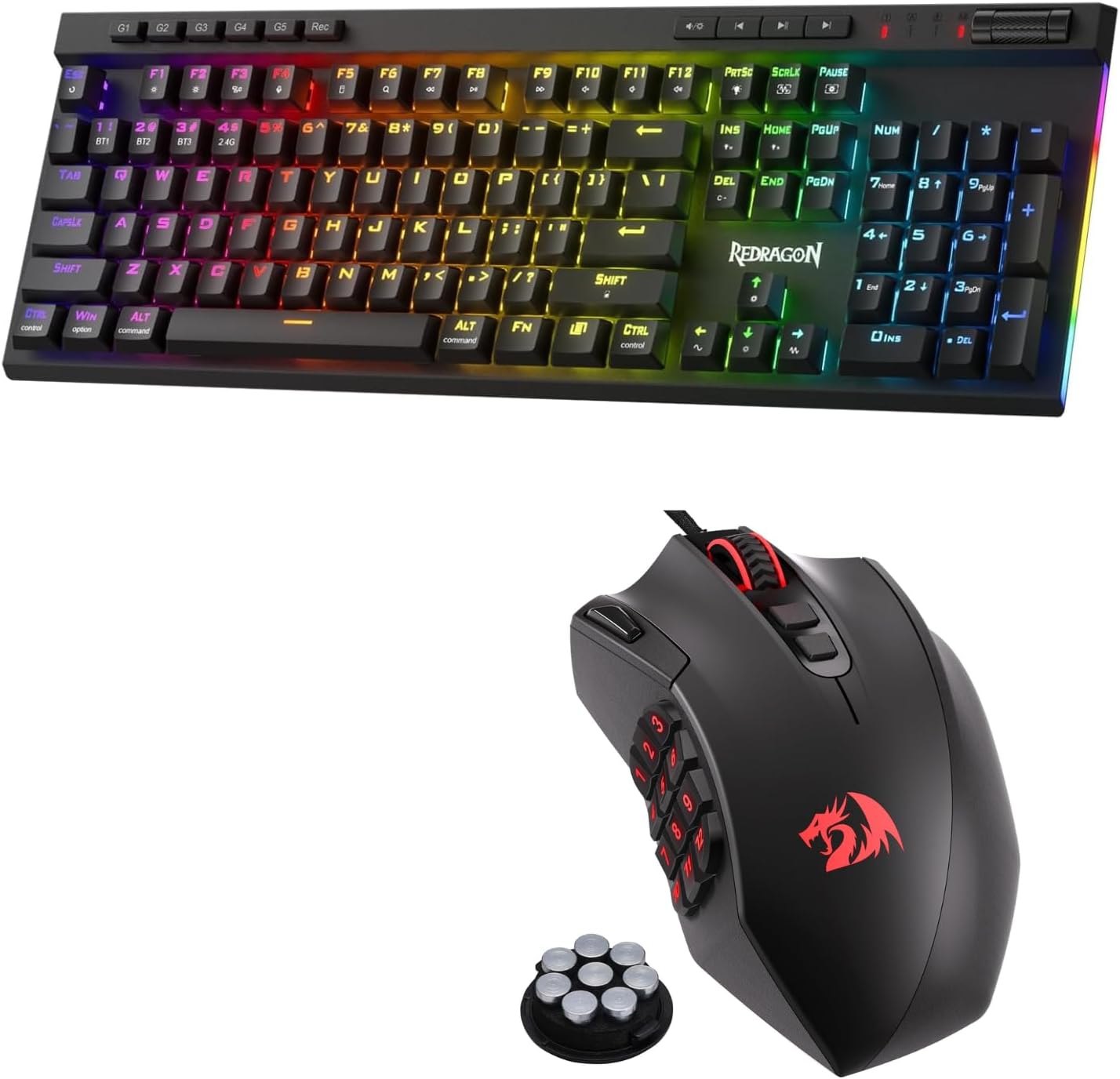
Figure 1: Redragon K580 PRO Gaming Keyboard and M921 RGB Gaming Mouse Combo
2. Product Overview
2.1 Redragon K580 PRO Gaming Keyboard
The Redragon K580 PRO is a full-sized mechanical gaming keyboard designed for performance and customization. Key features include:
- RGB Backlighting with multiple modes
- Dedicated Macro Keys for on-the-fly recording
- Hot-swappable mechanical switches
- All-in-One Control Knob for backlight and volume adjustment
- USB wired connectivity
2.2 Redragon M921 RGB Gaming Mouse
The Redragon M921 RGB is a high-precision gaming mouse offering extensive customization. Key features include:
- Up to 12400 DPI (adjustable)
- 18 Programmable Buttons, including 12 side hotkeys
- Rapid Fire Button
- Adjustable Weight Tuning System
- RGB Backlighting
- USB wired connectivity
3. Setup
Follow these steps to set up your Redragon K580 PRO Keyboard and M921 RGB Mouse:
- Unpack: Carefully remove the keyboard and mouse from their packaging.
- Connect Keyboard: Plug the USB connector of the K580 PRO keyboard into an available USB port on your computer.
- Connect Mouse: Plug the USB connector of the M921 RGB mouse into another available USB port on your computer.
- Driver Installation: Your operating system should automatically detect and install the necessary drivers. No additional software installation is typically required for basic functionality. For advanced customization (macros, lighting profiles), download the Redragon software from the official Redragon website.
- Placement: Position the keyboard and mouse comfortably on your desk for optimal gaming and work ergonomics.
4. Operating Instructions
4.1 K580 PRO Keyboard Features
4.1.1 RGB Backlighting
The K580 PRO features dynamic RGB backlighting with various effects and customizable colors. Use the dedicated control knob or function keys to cycle through lighting modes, adjust brightness, and change colors.

Figure 2: Immersive RGB Backlight on the K580 PRO Keyboard
4.1.2 Dedicated Macro Keys
The keyboard includes dedicated macro keys (G1-G5) that allow for on-the-fly macro recording without software. Press the 'Rec' button, then the desired macro key (G1-G5), type your sequence, and press 'Rec' again to save.

Figure 3: Dedicated Macro Keys (G1-G5) on the K580 PRO Keyboard
4.1.3 All-in-One Control Knob
The multi-function control knob located on the top right of the keyboard allows for quick adjustments. Rotate to control volume or backlight brightness. Press to switch between volume and backlight control modes.
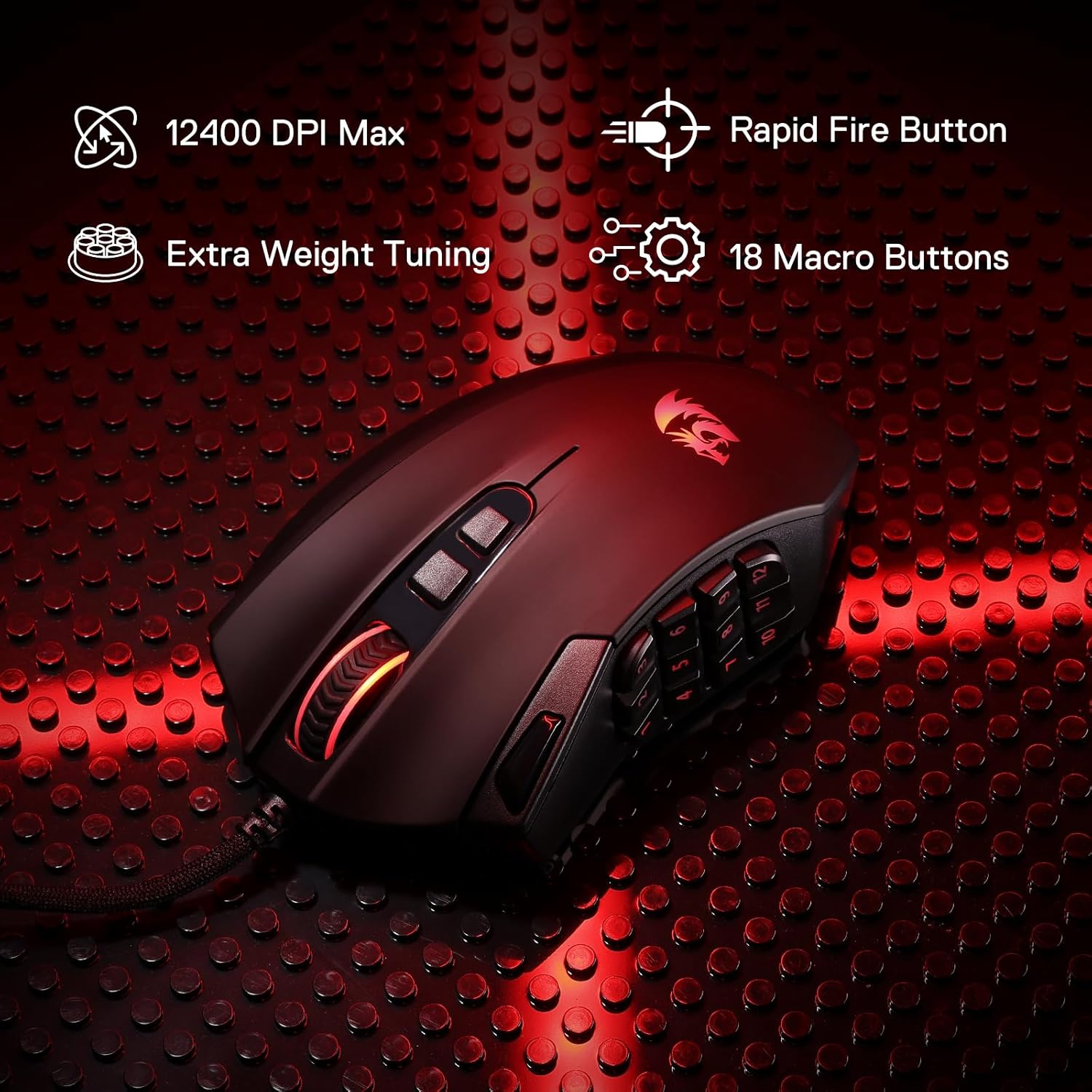
Figure 4: All-in-One Control Knob for Backlight and Volume Adjustment
4.1.4 Hot-Swappable Switches
The K580 PRO features hot-swappable sockets, allowing you to easily change mechanical switches without soldering. Use the included switch puller to remove switches and insert new compatible 3/5-pin switches.

Figure 5: Upgraded Hot-swappable Board on the K580 PRO Keyboard
4.2 M921 RGB Mouse Features
4.2.1 DPI Adjustment
The M921 RGB mouse offers 5 adjustable DPI levels, allowing you to switch sensitivity on the fly. Use the DPI buttons (usually located below the scroll wheel) to cycle through preset DPI values (e.g., 500, 1000, 2000, 3000, 6200, up to 12400 max via software).

Figure 6: 5 Adjustable DPI Levels for Precision Tailored to Your Play
4.2.2 Programmable Buttons
The M921 RGB mouse features 18 programmable buttons, including 12 side hotkeys, which can be customized using the Redragon software for macros, key binds, or multimedia functions.

Figure 7: Diagram of 18 Programmable Buttons on the M921 RGB Mouse
4.2.3 Rapid Fire Button
The dedicated Rapid Fire button allows for quick, repeated clicks with a single press, providing an advantage in fast-paced games.
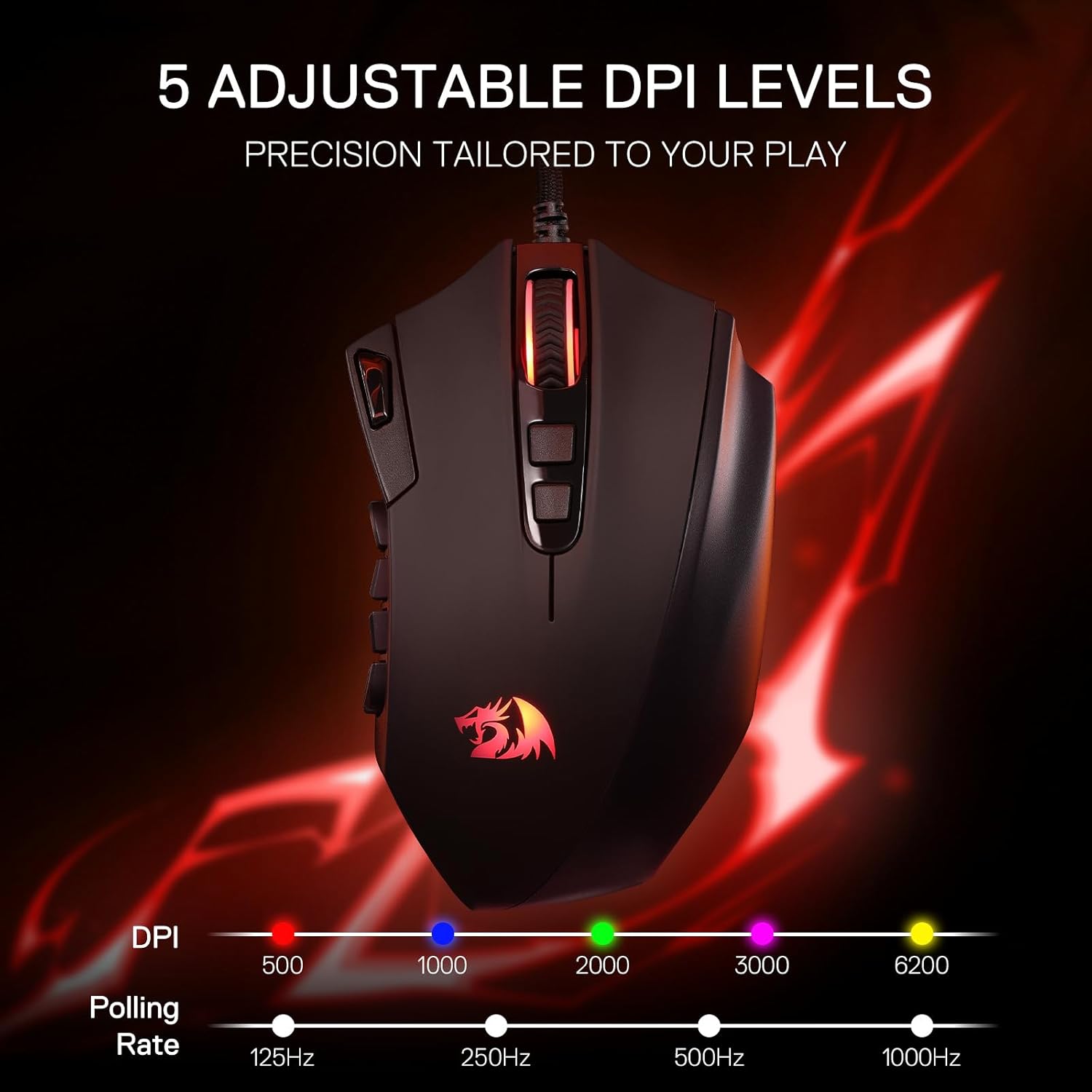
Figure 8: M921 RGB Mouse with Rapid Fire Button and Extra Weight Tuning
4.2.4 Extra Weight Tuning
The M921 RGB mouse includes an adjustable weight tuning system, allowing you to customize the mouse's feel and balance by adding or removing small weights from its base.
5. Maintenance
Proper maintenance ensures the longevity and performance of your Redragon peripherals.
- Cleaning: Use a soft, dry cloth to wipe down the surfaces of the keyboard and mouse. For deeper cleaning, use a cotton swab lightly dampened with isopropyl alcohol for hard-to-reach areas. Avoid excessive moisture.
- Keycap Removal (Keyboard): For thorough cleaning under keycaps, use the included keycap puller to carefully remove keycaps. Clean the switch area with compressed air. Reattach keycaps by pressing them firmly onto the switch stems.
- Storage: When not in use, store the keyboard and mouse in a clean, dry environment away from direct sunlight and extreme temperatures.
- Cable Care: Avoid sharp bends or kinks in the USB cables to prevent internal damage.
6. Troubleshooting
If you encounter issues with your Redragon K580 PRO Keyboard or M921 RGB Mouse, refer to the following common solutions:
- Device Not Recognized:
- Try plugging the device into a different USB port on your computer.
- Restart your computer.
- Ensure the USB cable is securely connected.
- Test the device on another computer to rule out a system-specific issue.
- Backlighting Not Working/Incorrect:
- Check if the brightness is turned down or off using the control knob or function keys.
- Ensure the Redragon software is not conflicting with hardware settings. Try resetting lighting profiles in the software.
- Macros Not Working:
- Ensure macros are recorded correctly. Re-record if necessary.
- Verify that the Redragon software is running and macros are enabled if using software-based macros.
- Mouse Cursor Jumps/Lag:
- Clean the optical sensor on the bottom of the mouse.
- Ensure you are using the mouse on a suitable mouse pad or surface.
- Check for any software conflicts or background processes consuming system resources.
- Keys/Buttons Unresponsive:
- For keyboard, try removing and re-inserting the keycap and switch if it's hot-swappable.
- Ensure no debris is lodged under the key/button.
- If using software, try resetting the device to factory defaults.
If these steps do not resolve your issue, please contact Redragon customer support for further assistance.
7. Specifications
| Feature | Specification |
|---|---|
| Product Name | Redragon K580 PRO Gaming Keyboard & M921 RGB Gaming Mouse |
| Keyboard Model | K580 PRO |
| Mouse Model | M921 RGB |
| Connectivity | Wired USB |
| Keyboard Switch Type | Hot-swappable Mechanical |
| Keyboard Backlight | RGB (Customizable) |
| Keyboard Macro Keys | 5 Dedicated Macro Keys |
| Mouse DPI | Up to 12400 DPI (5 adjustable levels) |
| Mouse Buttons | 18 Programmable Buttons |
| Mouse Polling Rate | Adjustable (e.g., 125Hz, 250Hz, 500Hz, 1000Hz) |
| Mouse Weight System | Adjustable Weight Tuning |
| Date First Available | May 7, 2025 |
| ASIN | B0FFSR87YH |
8. Warranty and Support
Redragon products come with a limited warranty. Please refer to the warranty card included with your product or visit the official Redragon website for detailed warranty terms and conditions.
For technical support, troubleshooting assistance, or warranty claims, please contact Redragon customer service through their official website or the contact information provided in your product packaging. When contacting support, please have your product model number (K580 PRO, M921 RGB) and purchase information ready.
Related documentsK580 PRO, M921 RGB


Ask a question about this manual
Ask about setup, troubleshooting, compatibility, parts, safety, or missing instructions. Manuals+ will review the question and use this page’s manual context to help answer it.