
1. Introduction
The SecuFirst CWL401S.32G is a comprehensive outdoor surveillance camera kit designed for reliable security monitoring. It features a 2K outdoor camera and a 7-inch indoor touchscreen monitor, offering a standalone surveillance solution that operates without requiring an internet connection or smartphone for basic functions. The system includes 32GB of local storage, expandable up to 2TB, and supports remote access via an optional smartphone application when connected to the internet.
2. Package Contents
Please verify that all items listed below are included in your package:
- 1 x Outdoor Camera
- 1 x 7-inch Touchscreen Monitor
- 2 x AC Power Adapters (1.8m cable)
- 1 x Power Extension Cable (1.8m)
- 1 x 32GB SD Card (pre-installed in monitor)
- 1 x Ethernet Cable

Image: Overview of the SecuFirst surveillance camera kit components, including the camera, monitor, and accessories.
3. Product Overview
3.1. 7-inch Touchscreen Monitor
The monitor serves as the central control unit for your surveillance system. It features a responsive touchscreen for easy navigation and viewing of live and recorded footage.

Image: Detailed diagram of the 7-inch touchscreen monitor, highlighting its various ports and indicators such as the recording indicator, power indicator, monitor microphone, power button, antenna connector, USB jack, speaker, monitor stand, Ethernet port, and SD card slot.
- Monitor Touchscreen: For interactive control and viewing.
- Recording Indicator: Lights up when recording is active.
- Power Indicator: Shows power status.
- Monitor Microphone: For two-way audio communication.
- Power Button: Press and hold for 3 seconds to power on/off.
- Antenna Connector: For wireless signal reception.
- USB Jack: For external storage or accessories.
- Speaker: For audio output.
- Monitor Stand: Integrated for desktop placement.
- Ethernet Connection (Network Jack): For optional internet connectivity.
- SD Card Slot: For inserting the 32GB SD card (included) or an expandable card.
3.2. Outdoor Surveillance Camera
The 2K outdoor camera is designed for robust performance in various weather conditions, featuring an IP66 weatherproof metal casing.

Image: Detailed diagram of the outdoor surveillance camera, showing its components such as the power status LED, light sensor, IR LEDs, passive infrared motion sensor, audio speaker, microphone, adjustable camera stand, antenna, and power connections.
- Power Status LED: Indicates camera operational status.
- Light Sensor: Detects ambient light for automatic day/night mode switching.
- IR LEDs: Infrared LEDs for night vision.
- Passive Infrared Motion Sensor: Detects thermal motion for accurate alerts.
- Audio Speaker: For two-way audio output.
- Microphone: For two-way audio input.
- Adjustable Camera Stand: Allows for flexible mounting and angle adjustment.
- Antenna: For wireless signal transmission to the monitor.
- AC Power Cable: Connects to the power adapter.
4. Setup
4.1. Initial Setup (No Wi-Fi Required)
The SecuFirst system is designed for easy plug-and-play installation. The camera and monitor are pre-paired at the factory, allowing for immediate use without complex network configuration.
- Connect the provided AC power adapters to the camera and the monitor.
- Plug both adapters into power outlets.
- The camera and monitor will automatically connect within seconds. Live video will appear on the monitor.

Image: Illustration showing the SecuFirst system operating without the need for internet or a smartphone, emphasizing its direct wireless connection.
The wireless range in open spaces is approximately 200 meters. This range may be reduced by walls, windows, and other obstructions. Avoid installing the outdoor camera near large metal objects, as this can interfere with the wireless signal.
4.2. Camera Installation
The camera is designed for wall mounting with screw-in installation.
- Choose a suitable outdoor location that provides the desired viewing angle and is within range of the monitor.
- Use the provided screws and anchors to securely mount the camera to a wall or ceiling.
- Adjust the camera stand to achieve the optimal viewing angle.
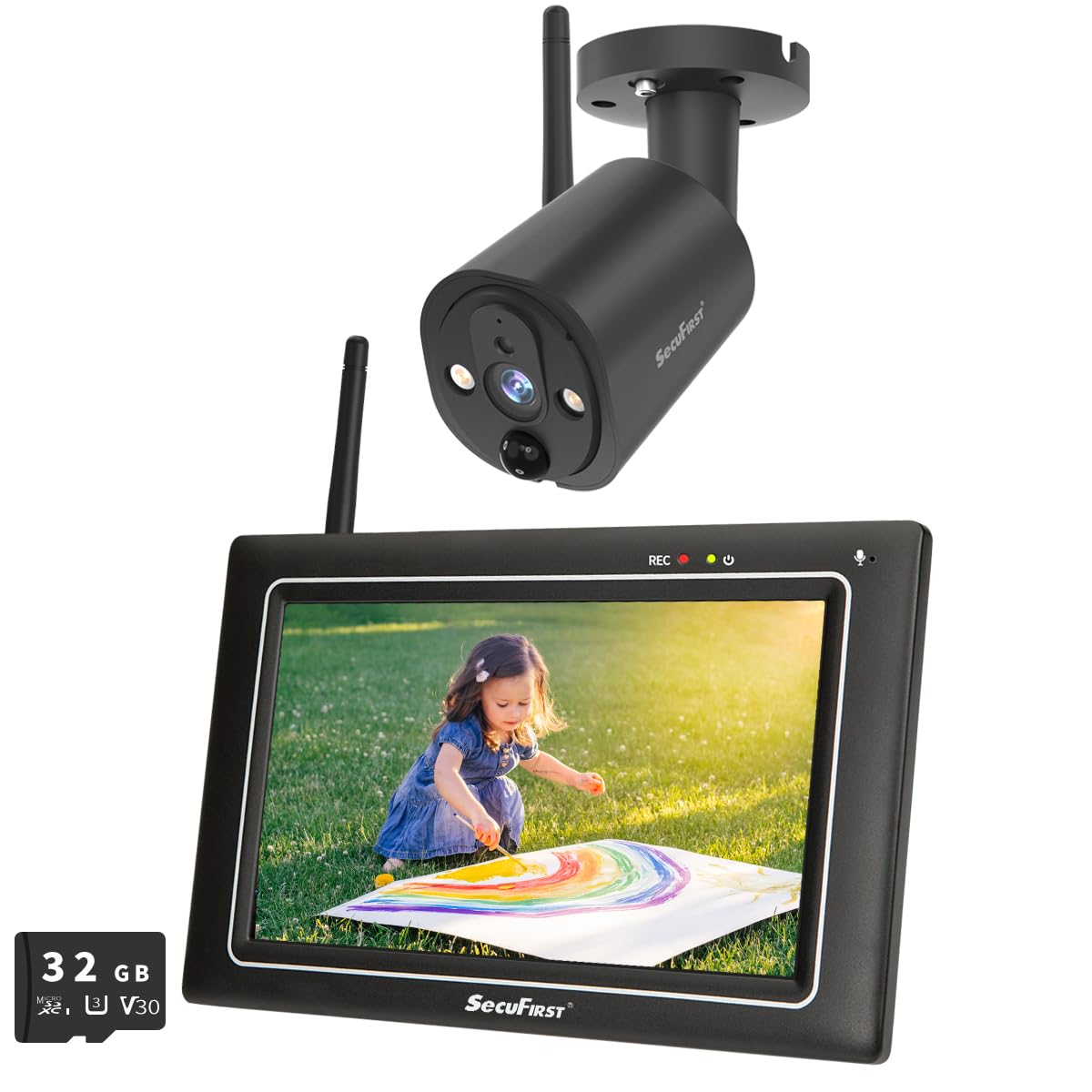
Image: The SecuFirst outdoor camera mounted securely under an eave, demonstrating a typical installation scenario.
4.3. Monitor Placement
Place the 7-inch touchscreen monitor in a convenient indoor location where you can easily view and interact with it. The integrated stand allows for stable placement on a desk or table.

Image: The SecuFirst monitor placed on a wooden surface indoors, displaying a live feed of a child playing, with a smartphone showing the companion app in the foreground.
5. Operating Instructions
5.1. Live View and Recording
Once powered on, the monitor will automatically display the live feed from the camera. You can navigate through different views if multiple cameras are connected.
- Live View: The 7-inch touchscreen allows you to view live video directly.
- Recording: The system automatically records based on motion detection. Recordings are stored on the included 32GB local memory within the monitor.
- Playback: Access recorded footage directly from the monitor. The system overwrites the oldest recordings when the memory is full.
- Storage Expansion: The local memory can be expanded with a 128GB SD card or up to 2TB using an external hard drive or USB stick (not included).

Image: The SecuFirst monitor displaying a list of recorded events, with playback controls visible, and an illustration of inserting an SD card for storage expansion.
5.2. Two-Way Audio
The system supports two-way audio, allowing you to speak through the monitor and hear audio from the camera's location.
- To speak, press and hold the microphone button on the monitor's touchscreen.
- Release the button to listen.

Image: The SecuFirst monitor displaying a live feed with two-way audio controls, alongside a smartphone showing the app interface with similar audio functions.
5.3. Motion Detection and Privacy Masking
The camera features an AI + PIR thermal motion detector for precise event triggering. You can customize detection settings directly from the monitor.
- Motion Detection Zones: Define specific areas within the camera's view where motion detection should be active.
- Privacy Masking: Mask out areas of the camera's view to protect privacy. These masked areas will not be recorded or displayed.
- Alarm Notifications: Configure alarm volume on the monitor and push notifications to the app (if connected to internet).

Image: The SecuFirst monitor displaying a live view with a highlighted 'Zone' area, indicating a configured motion detection zone.

Image: The SecuFirst monitor displaying a live view with a 'Privacy' box overlaying a section of the image, demonstrating the privacy masking feature.
5.4. Night Vision
The camera is equipped with IR LEDs to provide clear night vision, ensuring continuous surveillance even in low-light conditions.

Image: A split image demonstrating the camera's capability, showing a scene in clear color during the day and in black and white with night vision at night.
5.5. Smartphone App (Optional)
For remote access and advanced features, you can connect the monitor to the internet and use the dedicated smartphone application.
- Connect the monitor to your internet router via the Ethernet cable or Wi-Fi.
- Download the "Observer HD+" application from your smartphone's app store.
- Follow the in-app instructions to pair your monitor with the application.
- Once connected, you can view live video, listen, talk, and play back recordings from your smartphone or tablet anywhere.

Image: A smartphone displaying the "Observer HD+" app interface, showing options for live view, recorded video playback, and two-way audio, with a live feed of a child playing.
5.6. Expandability
The SecuFirst system is expandable and can support up to four cameras simultaneously, providing comprehensive coverage for your property.

Image: Visual representation of the SecuFirst system's expandability, showing configurations with one, two, and four cameras connected to a single monitor.
6. Maintenance
Regular maintenance ensures optimal performance and longevity of your SecuFirst surveillance system.
- Camera Lens: Periodically clean the camera lens with a soft, damp cloth to remove dust and dirt. Avoid abrasive cleaners.
- Monitor Screen: Wipe the touchscreen monitor with a microfiber cloth to keep it clean and clear.
- Power Connections: Ensure all power adapters and cables are securely connected and free from damage.
- Storage: Regularly check the available storage space on the SD card or external drive. Back up important recordings as needed.
7. Troubleshooting
If you encounter issues with your SecuFirst system, refer to the following common problems and solutions:
| Problem | Possible Solution |
|---|---|
| No video on monitor | Ensure both the camera and monitor are powered on. Check power connections. Verify the camera and monitor are within wireless range and are paired. |
| Poor wireless range or signal interference | Reduce obstacles (walls, metal objects) between the camera and monitor. Relocate the camera or monitor to improve line of sight. |
| Smartphone app not connecting | Ensure the monitor is connected to the internet via Ethernet or Wi-Fi. Check your home network connection. Verify correct app pairing steps. |
| Recordings not saving or full storage | Check the 32GB SD card is properly inserted. Verify motion detection settings are configured correctly. Consider expanding storage with a larger SD card or external HDD/USB. |
| Two-way audio not working | Ensure the microphone and speaker on both the camera and monitor are not obstructed. Check volume settings on the monitor. |
8. Specifications
| Feature | Detail |
|---|---|
| Brand | SecuFirst |
| Model Number | CWL401S.32G |
| Color | Black |
| Video Recording Resolution | 2K |
| Monitor Screen Size | 7 inches (Touchscreen) |
| Local Storage | 32GB SD Card (included) |
| Expandable Storage | Up to 128GB SD card or 2TB external HDD/USB |
| Wireless Technology | Wi-Fi (for camera-monitor connection and optional internet access) |
| Camera Weather Resistance | IP66 (Metal casing) |
| Motion Detection | AI + PIR Thermal Detector |
| Two-Way Audio | Yes |
| Night Vision | Yes |
| Max. Cameras Supported | 4 |
| Power Source | Electric Cable |
| Mounting Type | Wall Mount (Screw-in) |
| Product Dimensions (L x W x H) | 20 x 14.2 x 7.8 cm; 1.58 kilograms |
9. Warranty and Support
For warranty information, technical assistance, or any product-related inquiries, please contact SecuFirst customer service. Refer to your purchase documentation or the official SecuFirst website for specific warranty terms and contact details.
Manufacturer: ALC Electronics B.V.