
AMprime 8-Core Android 15 Car Stereo
AMprime 8-Core Android 15 Car Stereo User Manual
For Honda Civic (2013-2017) with Wireless CarPlay & Android Auto
1. Introduction
This manual provides detailed instructions for the installation, operation, and maintenance of your AMprime 8-Core Android 15 Car Stereo system. Please read this manual thoroughly before installation and use to ensure proper function and safety. This unit is designed specifically for Honda Civic models manufactured between 2013 and 2017.

Image 1.1: AMprime Car Stereo and Accessories Overview

Image 1.2: Key Features and Compatibility for Honda Civic 2013-2017
2. Safety Information
- Always ensure the vehicle is parked and the engine is off before attempting any installation or wiring.
- Incorrect wiring can cause damage to the unit or the vehicle's electrical system. If unsure, consult a professional installer.
- Do not operate the unit in a manner that distracts you from driving. Always prioritize road safety.
- Keep the unit away from water and excessive moisture.
- Use only specified power cables and accessories.
3. Package Contents
Verify that all items listed below are included in your package:
- AMprime 8-Core Android 15 Car Stereo Unit
- Power Cable (x2)
- USB Cable (x2)
- Rear Camera Input Cable
- Original USB Cable Adapter
- Microphone
- Canbus Decoder
- GPS Antenna
- RCA Cable Set
- User Manual (this document)
- Installation Tool
- AHD Backup Camera
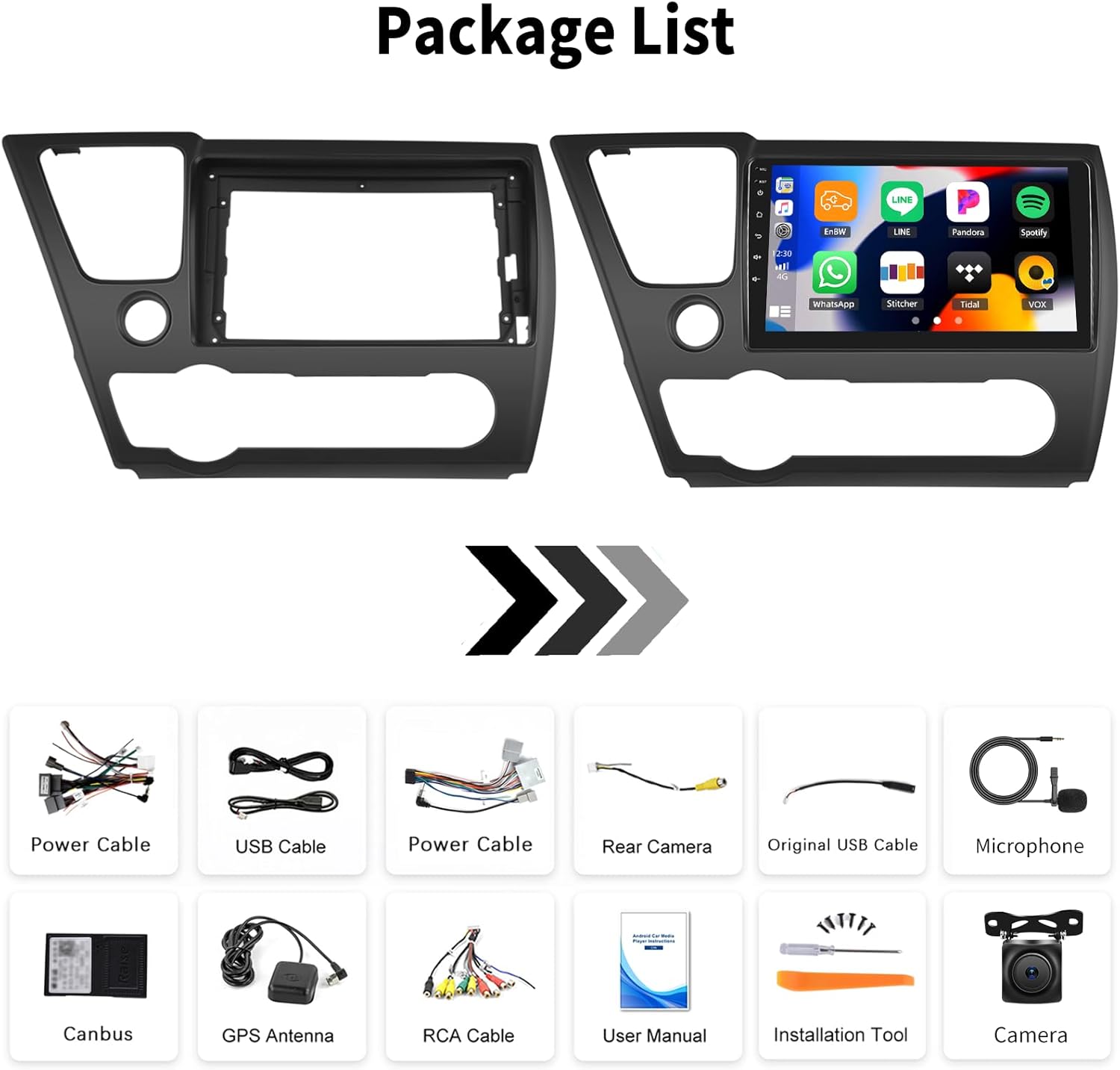
Image 3.1: Included Package Components
4. Setup and Installation
4.1 Compatibility Check
Ensure your Honda Civic's center console matches the compatible design. This unit is designed for specific dashboard configurations.
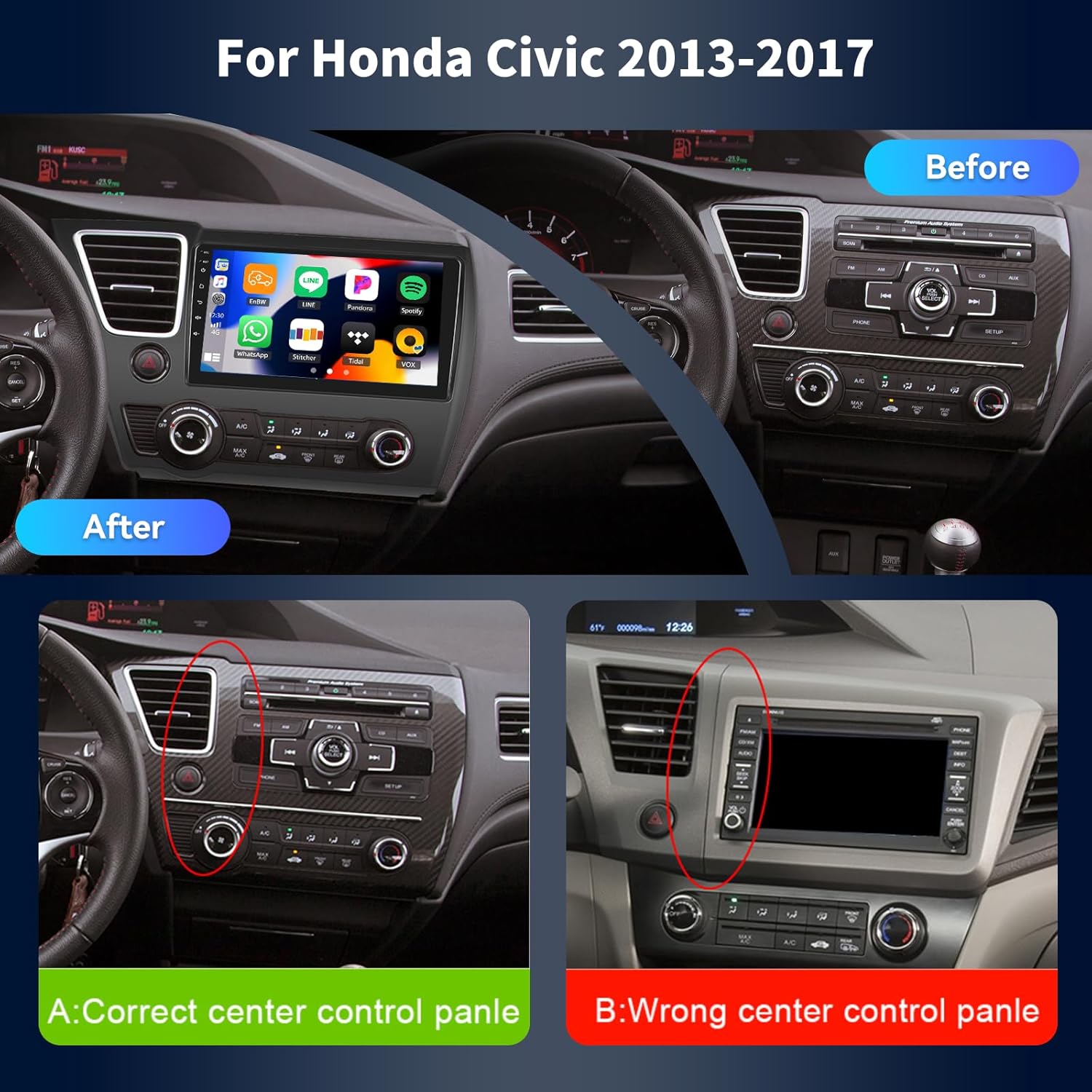
Image 4.1: Compatible vs. Incompatible Honda Civic Center Console
4.2 Wiring Diagram
Refer to the following diagram for correct wiring connections. Improper wiring can lead to malfunction or damage.

Image 4.2: Rear Panel Connections and Wiring Overview
4.3 AHD Backup Camera Installation
The included AHD backup camera provides a clear rear view. Connect it as shown in the diagram below. The camera image will automatically display when the vehicle is in reverse gear.

Image 4.3: Backup Camera Wiring and Features
5. Operating Instructions
5.1 Basic Operation
- Power On/Off: Press and hold the power button on the unit or steering wheel control.
- Volume Control: Adjust using the on-screen controls or steering wheel buttons.
- Touch Screen: The 9-inch capacitive touch screen responds to finger gestures for navigation and selection.
5.2 Wireless CarPlay & Android Auto
Connect your smartphone wirelessly via Bluetooth or USB to access CarPlay or Android Auto features. This allows for navigation, calls, messages, and music playback directly from your phone's interface on the stereo screen.

Image 5.1: CarPlay, Android Auto, and Mirror Link Interfaces

Image 5.2: Wireless CarPlay Functionality

Image 5.3: Wireless Android Auto Functionality
5.3 Mirror Link
The Mirror Link function allows you to project your smartphone's screen onto the car stereo display. This supports both iOS and Android devices.

Image 5.4: Wireless Mirror Link Feature
5.4 GPS Navigation
The unit includes a built-in GPS module with pre-installed offline maps for North America. Online navigation is also supported when connected to WiFi.

Image 5.5: GPS Navigation Interface

Image 5.6: GPS Navigation Features
5.5 WiFi Connection
Connect the stereo to a WiFi hotspot (e.g., from your smartphone) to access online features, download apps, and update software.

Image 5.7: WiFi Connectivity and Online Access
5.6 Bluetooth Function
Pair your smartphone via Bluetooth for hands-free calling and audio streaming. The unit supports Bluetooth 5.0 for stable connections.

Image 5.8: Bluetooth Call and Music Interface

Image 5.9: Built-in Bluetooth for Hands-Free Communication and Audio
5.7 FM/RDS Radio
Tune into your favorite FM radio stations. The RDS (Radio Data System) feature provides station information where available.

Image 5.10: FM/RDS Radio Interface
5.8 Steering Wheel Control (SWC)
The unit supports your vehicle's existing steering wheel controls, allowing you to manage volume, switch tracks, answer calls, and more without taking your hands off the wheel. Configuration may be required in the settings menu.

Image 5.11: Steering Wheel Control Learning Interface
5.9 DSP & EQ Settings
Utilize the Digital Sound Processor (DSP) and Equalizer (EQ) functions to customize the audio output. Adjust frequency bands, balance, and fade to optimize sound quality for your vehicle's speakers.

Image 5.12: DSP & EQ Adjustment Interface
5.10 Split Screen Function
The split-screen feature allows you to run two applications simultaneously on the display, such as navigation and music playback.

Image 5.13: Split Screen Functionality

Image 5.14: Enhanced 3-Split Screen Display
5.11 Backup Camera Operation
When the vehicle is shifted into reverse, the AHD backup camera automatically displays a wide-angle view on the stereo screen, assisting with safe parking and maneuvering.
Image 5.15: AHD Backup Camera View
6. Maintenance
- Screen Cleaning: Use a soft, lint-free cloth to clean the touch screen. Avoid abrasive cleaners or solvents.
- Software Updates: Periodically check for software updates via the system settings when connected to WiFi to ensure optimal performance and access to new features.
- General Care: Keep the unit free from dust and debris. Avoid extreme temperatures.
7. Troubleshooting
- No Power: Check all power connections and fuses. Ensure the vehicle's ignition is on.
- No Sound: Verify speaker connections. Check volume levels and mute settings. Ensure the correct audio source is selected.
- GPS Signal Issues: Ensure the GPS antenna is properly installed and has a clear view of the sky. Check GPS settings in the unit.
- Bluetooth Connectivity Problems: Ensure Bluetooth is enabled on both the stereo and your phone. Delete previous pairings and try reconnecting.
- CarPlay/Android Auto Not Connecting: Ensure your phone is compatible and the connection method (wireless/USB) is correct. Check phone settings for CarPlay/Android Auto permissions.
- GPS Voice Volume vs. Radio Volume: If GPS instructions are too quiet or do not lower radio volume, check the navigation app's settings for voice guidance volume and audio mixing options. Some apps allow independent volume control or ducking settings.
- Unit Freezes/Unresponsive: Perform a soft reset by pressing the reset button (if available) or by turning off the vehicle's ignition and restarting.
8. Specifications
| Feature | Specification |
|---|---|
| Operating System | Android 15 |
| CPU | 8-Core |
| RAM | 6GB |
| Internal Storage (ROM) | 128GB |
| Screen Size | 9 Inches |
| Display Resolution | 1024*600 |
| Touch Screen Type | Capacitive |
| Connectivity | Wireless CarPlay, Android Auto, Mirror Link, Bluetooth 5.0, WiFi, GPS |
| Radio Tuner | FM/RDS |
| Video Support | 1080p |
| Backup Camera Input | AHD Camera (Included) |
| Steering Wheel Control | Supported |
| USB Ports | Dual USB |
| Dimensions (Unit) | 228mm*218mm*131mm (approximate screen frame) |
| Parcel Dimensions | 25 x 20 x 6 cm; 1.1 kg |
9. Warranty Information
This product comes with a limited warranty. For specific details regarding warranty coverage, duration, and claims, please refer to the documentation provided with your purchase or contact AMprime customer support directly.
10. Customer Support
For technical assistance, troubleshooting, or any inquiries regarding your AMprime car stereo, please contact our customer support team:
- Email: AmprimeTechSupport@yeah.net

Image 10.1: AMprime Customer Support Contact
Ask a question about this manual
Ask about setup, troubleshooting, compatibility, parts, safety, or missing instructions. Manuals+ will review the question and use this page’s manual context to help answer it.