
1. Introduction
Thank you for purchasing the Gelielim Portable CD Player Boombox. This device offers versatile audio playback options including CD, FM radio, Bluetooth, and USB. It is designed for both home and portable use, featuring a compact design, LED lights, and remote control functionality. Please read this manual thoroughly before use to ensure proper operation and to maximize your listening experience.
Package Contents:
- CD Player Boombox x1
- AC Power Cable x1
- Remote Control x1
- User Manual x1

Image: Package contents including the boombox, remote, AC cable, and user manual.
2. Safety Instructions
- Do not expose the unit to rain or moisture to prevent fire or shock hazards.
- Do not open the casing. Refer servicing to qualified personnel only.
- Avoid placing the unit near heat sources or in direct sunlight.
- Ensure proper ventilation; do not block ventilation openings.
- Use only the specified power adapter.
- Keep out of reach of children.
- Remove batteries if the unit will not be used for an extended period.
3. Product Overview
Front Panel Controls and Ports:
- LCD Display: Shows current mode, track number, FM frequency, and volume level.
- VOL-/VOL+: Adjusts volume.
- MIC Jack: 3.5mm input for microphone.
- USB Port: For USB flash drives with MP3 files.
- Headphone Jack: 3.5mm output for headphones.
- IR Sensor: For remote control reception.
- STANDBY Indicator: Lights up when the unit is in standby mode.
Top Panel Controls:
- STB/MODE Button: Switches between CD, USB, Bluetooth, and FM Radio modes.
- PREV Button: Skips to previous track/station.
- NEXT Button: Skips to next track/station.
- STOP Button: Stops playback.
- PLAY/PAUSE Button: Plays or pauses playback.
- REP/PROG Button: Repeat or program tracks.
- CD Compartment: Top-loading for CDs.
Rear Panel:
- FM Antenna: Extend for better FM reception.
- AC Power Input: Connects to the AC power cable.
- Battery Compartment: Holds 4 C-size batteries (not included).

Image: Front panel of the boombox with various controls and ports labeled.
4. Setup
Powering the Device:
The boombox can be powered by either AC power or batteries.
AC Power:
- Connect the supplied AC power cable to the AC power input on the rear of the unit.
- Plug the other end of the AC power cable into a standard wall outlet.
Battery Power:
- Open the battery compartment cover on the bottom of the unit.
- Insert 4 C-size batteries (not included), ensuring correct polarity (+/-).
- Close the battery compartment cover securely.
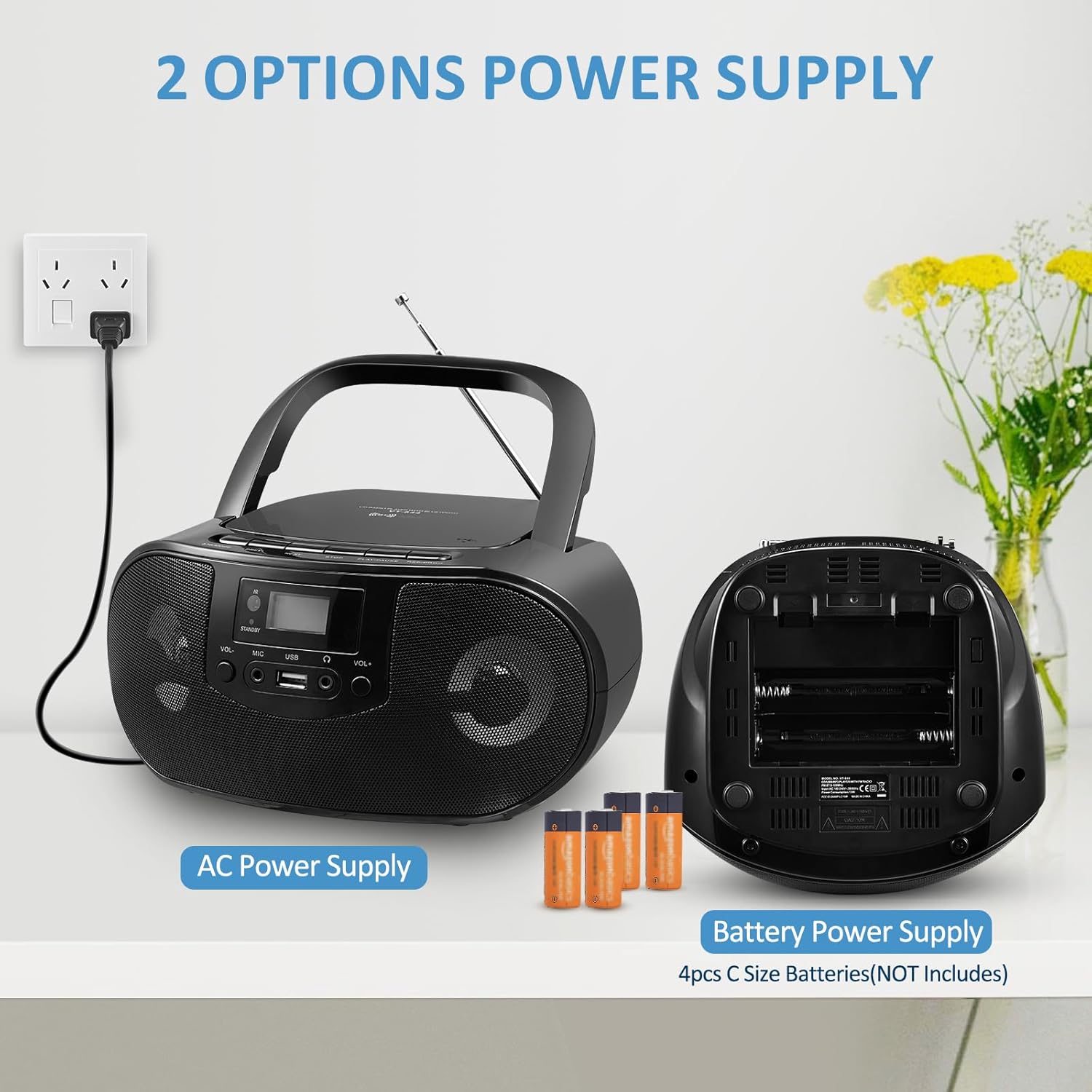
Image: Power options for the boombox, illustrating AC power connection and battery installation.
5. Operating Modes
Press the STB/MODE button on the unit or the MODE button on the remote control to switch between different playback modes: CD, USB, Bluetooth, and FM Radio.
5.1 CD Playback
- Press the STB/MODE button until 'CD' appears on the LCD display.
- Open the CD compartment cover by gently pressing the 'OPEN' area.
- Place a CD (CD-R, CD-RW, or MP3-CD) onto the spindle with the label side facing up.
- Close the CD compartment cover. The unit will read the disc and begin playback automatically.
- Use PLAY/PAUSE, STOP, PREV, and NEXT buttons to control playback.
- Press REP/PROG to repeat a track or program a sequence of tracks.

Image: Inserting a CD into the top-loading CD player.
Video: Demonstration of how to open and close the CD compartment and insert a CD.
5.2 FM Radio
- Press the STB/MODE button until 'TUNE' or the FM frequency appears on the LCD display.
- Extend the FM antenna on the rear of the unit for optimal reception.
- Auto Scan: Press and hold the PLAY/PAUSE button for 2-3 seconds. The radio will automatically scan and save available FM stations.
- Manual Scan: Briefly press the PREV or NEXT buttons to fine-tune the frequency.
- The FM frequency range is 87.5-108MHz. (Note: This device does not support AM radio).

Image: Using the FM radio function with the antenna extended for clear reception.
5.3 Bluetooth Mode
- Press the STB/MODE button until 'BT' appears on the LCD display. The unit will enter Bluetooth pairing mode, indicated by a flashing 'BT'.
- On your mobile device (phone, tablet, computer), enable Bluetooth and search for available devices.
- Select 'Gelielim 880BLK' from the list to pair.
- Once paired, 'BT' will stop flashing, and you can stream audio wirelessly from your device.
- The Bluetooth 5.0 connection offers a range of up to 26 feet.

Image: Connecting a mobile device to the boombox via Bluetooth for wireless audio streaming.
5.4 USB Playback
- Insert a USB flash drive containing MP3 audio files into the USB port on the front panel.
- Press the STB/MODE button until 'USB' appears on the LCD display.
- The unit will automatically detect and begin playing MP3 files from the USB drive.
- Use PLAY/PAUSE, STOP, PREV, and NEXT buttons to control playback.
5.5 AUX Input
Connect an external audio device (e.g., smartphone, MP3 player) to the 3.5mm headphone jack using an AUX cable (not included). The unit will automatically switch to AUX mode, allowing playback from the connected device.
5.6 Microphone Function
Plug a microphone (not included) into the 3.5mm MIC jack on the front panel. The boombox will function as a loudspeaker for the microphone input.

Image: Detail of the USB and Headphone/Mic jacks on the front panel.
6. Features
6.1 LED Light Modes
The boombox features built-in LED lights that can sync with the music. Use the LED button on the remote control to cycle through 3 colors and multiple lighting effects (Flash, Strobe, Fade modes) or to turn the lights off.

Image: The boombox showcasing its built-in RGB LED lighting with different colors.
Video: Demonstration of the Gelielim Portable CD Player Boombox with disco lights.
Video: Short demonstration of the disco light feature in action.
6.2 EQ Sound Modes
The EQ button on the remote control allows you to select from 5 preset equalizer sound effects: FLAT, CLASSIC, ROCK, JAZZ, and POP. Choose the mode that best suits your music genre or personal preference.

Image: Remote control showing the EQ button and the different sound modes available.
6.3 Remote Control Usage
The included remote control provides convenient access to all functions from a distance of up to 26 feet. Functions include power on/off, mode selection, volume adjustment, track/station skipping, mute, EQ modes, and LED light control.
Video: Detailed introduction to the functions of the remote control.
7. Maintenance
Cleaning:
- Wipe the exterior of the unit with a soft, dry cloth.
- Do not use abrasive cleaners or solvents.
- For the CD lens, use a specialized CD lens cleaner.
Storage:
When not in use, store the boombox in a cool, dry place away from direct sunlight and extreme temperatures.
8. Troubleshooting
| Problem | Possible Cause | Solution |
|---|---|---|
| No power | AC cable not connected properly; batteries depleted or incorrectly inserted. | Ensure AC cable is firmly plugged in. Replace batteries or check polarity. |
| No sound | Volume too low; Mute function activated; incorrect mode selected. | Increase volume. Press MUTE on remote. Select correct mode (CD, USB, BT, FM). |
| CD not playing | CD inserted incorrectly; CD is dirty or scratched; CD compartment not closed. | Reinsert CD correctly. Clean or replace CD. Ensure compartment is fully closed. |
| Radio static/poor reception | FM antenna not extended; weak signal. | Fully extend and adjust the FM antenna. Try moving the unit to a different location. |
| Bluetooth not connecting | Device not in pairing mode; Bluetooth not enabled on external device; device too far. | Ensure boombox is in BT mode. Enable Bluetooth on your device. Move device closer (within 26ft). |
| Remote control not working | Batteries depleted; obstruction between remote and unit. | Replace remote control batteries. Ensure clear line of sight to the IR sensor. |
9. Specifications
- Model Number: 880BLK
- Product Dimensions: 9.4 x 8.3 x 4.6 inches
- Item Weight: 9.6 ounces
- Connectivity Technology: Bluetooth 5.0
- FM Radio Frequency: 87.5-108MHz
- Supported Disc Types: CD, CD-R, CD-RW, MP3-CD
- Power Source: AC (cable supplied) / 4x C-size batteries (not included)
- Special Features: Built-In LED light, Lightweight, Portable, Remote Control, Headphone/Mic Jack, USB Playback
10. Warranty & Support
Gelielim is committed to providing high-quality products and customer satisfaction.
- Warranty: 12 Months Exchange or Return policy.
- Technical Support: Lifetime Technical Support is available.
- Customer Service: 24/7 Help & Support.
For any inquiries or assistance, please contact Gelielim customer service through the retailer's platform or visit the official Gelielim store online.


Images: Gelielim customer support and manufacturing quality assurance.