1. Introduction
This manual provides detailed instructions for the setup, operation, and maintenance of your Sihao A3 UV Flatbed Printer L1805. This high-resolution printer is designed for versatile printing on various materials, including phone cases, cups, stickers, and acrylics, offering a resolution of 5760 x 1440 dpi.
The printer features a white ink circulation system, automatic height measurement, and a one-click cleaning function to ensure optimal performance and print quality.
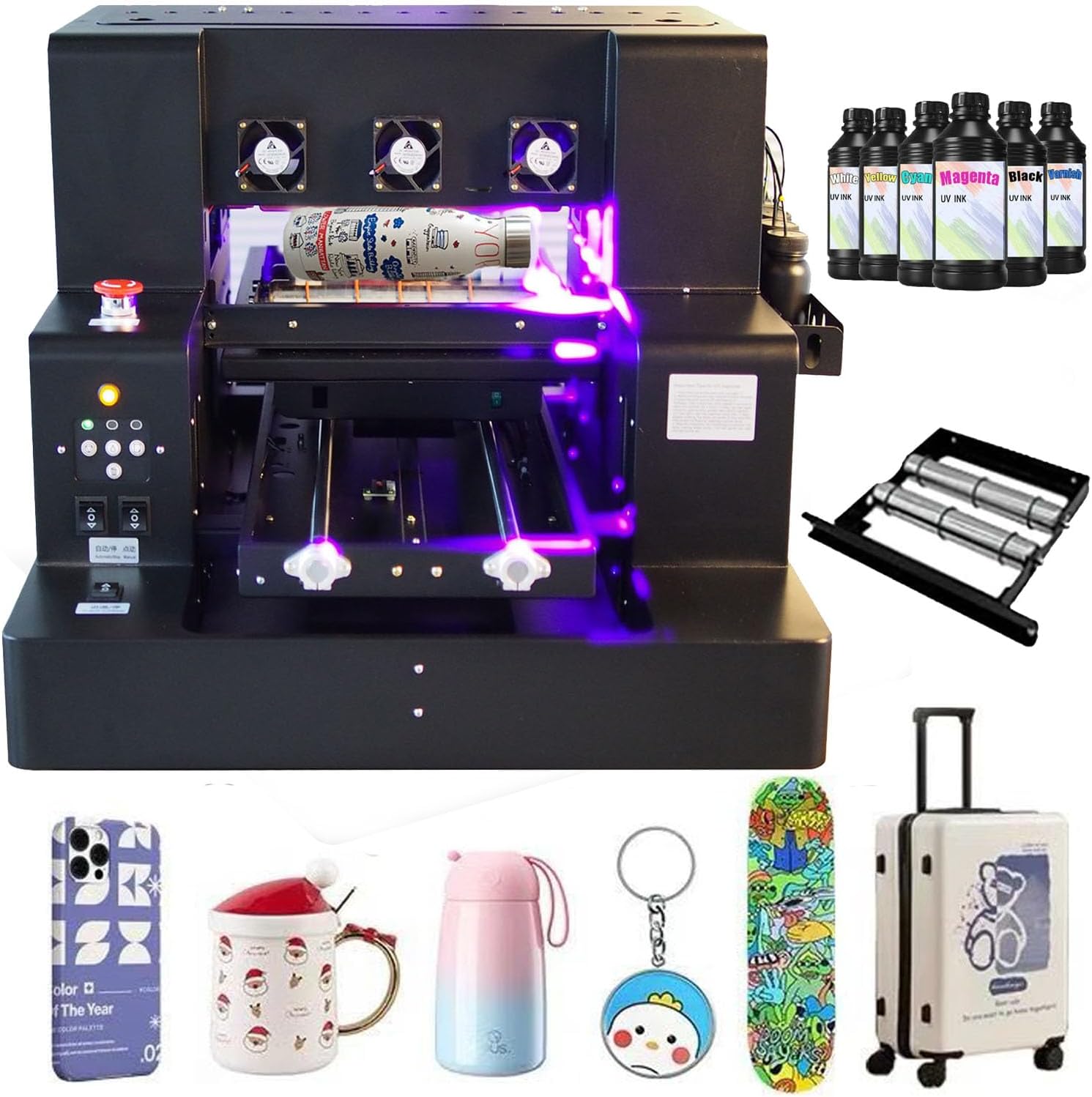
Figure 1: Sihao A3 UV Flatbed Printer L1805 and accessories.
2. Safety Instructions
- Always ensure the printer is connected to a grounded power outlet.
- Do not expose the UV lamp directly to eyes or skin. Use appropriate protective eyewear and gloves.
- Keep the printer in a well-ventilated area to dissipate fumes from UV inks.
- Avoid touching moving parts during operation.
- In case of emergency, press the red emergency stop button immediately.
- Keep inks and cleaning solutions out of reach of children and pets.
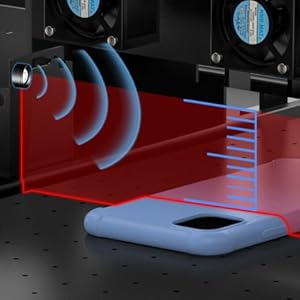
Figure 2: Emergency Stop Button for immediate shutdown.
3. Package Contents
Verify that all items are present in the package:
- 1x UV DTF Printer
- 1x USB User Manual (contains instructions and software)
- 1x Bottle Holder
- 6x Ink Bottles
- 1x Ink Damper
- 1x Syringe
- 1x Software
- USB and Power Cable

Figure 3: Contents of the printer package.
4. Product Overview
The Sihao A3 UV Flatbed Printer L1805 is equipped with several key features for efficient and high-quality printing:
- Suction Platform & Automatic Height Measurement: Ensures precise printing on various material thicknesses.
- Emergency Stop Button: For immediate safety shutdown.
- White Ink Circulation System: Prevents white ink precipitation and maintains fluidity.
- Auto-Cleaning Function: Simplifies maintenance and prevents nozzle clogs.
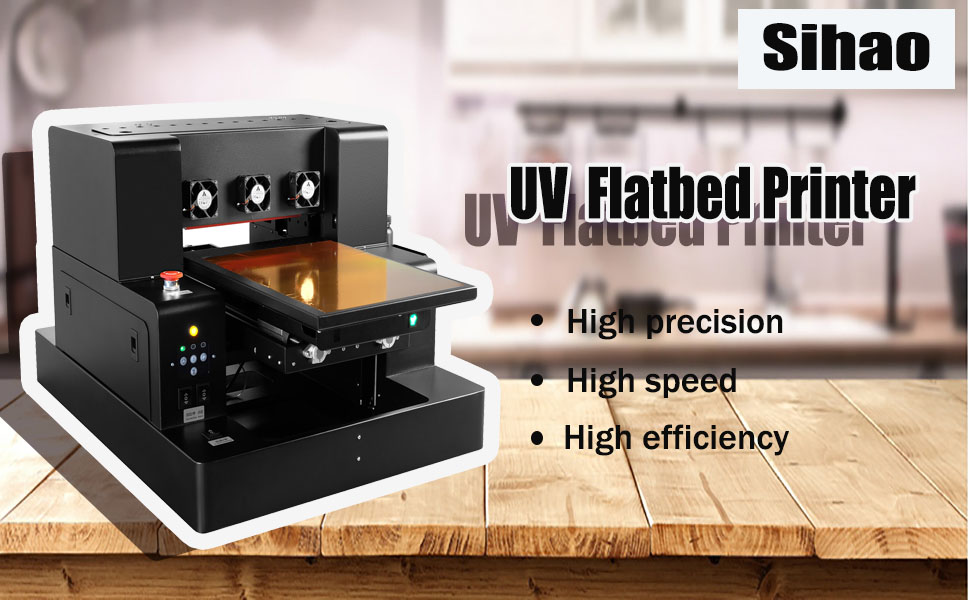
Figure 4: Key components and controls of the printer.
5. Setup
5.1 Powering On and Initial Cleaning
Before first use, ensure the printer is properly powered on and perform an initial cleaning cycle.
Video 1: Demonstrates powering on the printer and performing the initial powerful cleaning until ink flows out.
5.2 Connecting the USB Cable
After the initial cleaning, connect the USB cable from the printer to your computer.
Video 2: Shows how to plug in the USB cable after cleaning.
5.3 Installing the Bottle Holder
Attach the bottle holder to the printer for cylindrical object printing.
Video 3: Guide to installing the bottle holder for cylindrical printing.
5.4 Filling Ink Bottles
Carefully fill the ink bottles with the corresponding colors. Remember to shake white ink bottles thoroughly before use.
Video 4: Instructions for adding ink to the bottles and shaking white ink.
5.5 Installing the Ink Bottle Shelf
Securely install the ink bottle shelf on the side of the printer.
Video 5: Step-by-step guide for installing the ink bottle shelf.
6. Operating Instructions
6.1 Printing Stickers
Learn how to print high-quality stickers using your UV flatbed printer.
Video 6: Demonstration of printing colorful stickers on the flatbed.
6.2 Printing Phone Cases
Detailed steps for printing custom designs on phone cases.
Video 7: Illustrates the process of printing designs onto phone cases.
6.3 Automatic Printing Function
Utilize the automatic continuous print switch for streamlined printing tasks.
Video 8: Explains how to use the automatic continuous print switch for hands-free operation.
6.4 Printing Bottles
Instructions for setting up and printing on cylindrical bottles using the bottle holder.
Video 9: Shows the process of printing on bottles with the specialized holder.
6.5 Printing 3D Embossed Effects
Achieve textured, embossed prints by layering white ink.
Video 10: Illustrates how to create 3D embossed prints with varying thicknesses.

Figure 5: Various printing capabilities including cylinder, flat, DTF, and 3D varnish.

Figure 6: Diverse applications for the UV printer, from phone cases to home decor.
7. Maintenance
7.1 White Ink Automatic Mixing System
The printer features a white ink automatic mixing system to ensure consistent color and prevent pigment settling. This system activates automatically when the printer is powered on.

Figure 7: White Ink Automatic Mixing System.
7.2 White Ink Circulation System
The white ink circulation system maintains ink fluidity, prevents precipitation, and improves overall print quality. It is crucial for consistent white ink performance.
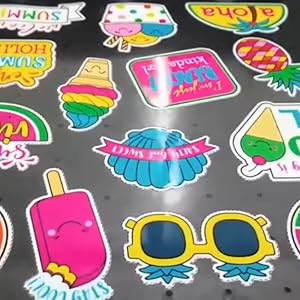
Figure 8: White Ink Circulation System.
7.3 One-Click Cleaning Function
Regularly use the one-click cleaning function to prevent nozzle blockages and ensure smooth ink flow, which is vital for printhead longevity and print quality.
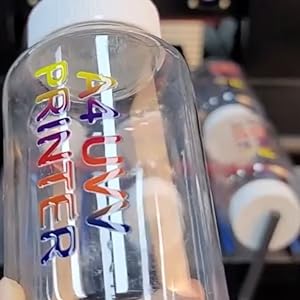
Figure 9: One-Click Cleaning Function.
8. Troubleshooting
For common issues, refer to the detailed instructions and software provided on the USB drive included with your printer. If you encounter problems opening or installing the software, or any other operational difficulties, please contact the seller for assistance.
9. Specifications
| Feature | Specification |
|---|---|
| Printer Type | A3 L805 UV Flatbed Printer |
| Print Platform Size | 33*50*15CM |
| UV Lamp Effective Area | 32*50CM |
| Maximum Bottle Size | Diameter 110mm, length 500mm |
| Diameter Range of Bottle | 5-11CM |
| Printer Nozzle Type | EPSON L805 |
| Software Setting Precision | 2880*1440dpi |
| Print Speed | 178 seconds (Photo mode) |
| Print Software | AcroRIP White ver10.3 |
| Print Interface | USB2.0 |
| Color of Printing | CMYK+V or CMYK+2W |
| Printer Size | 76*63*51CM |
| Computer Operating System | Windows 7-11 |

Figure 10: Detailed technical specifications of the printer.
10. Warranty and Support
Your purchase includes a USB drive containing the full instruction manual and necessary software. For any questions regarding installation, operation, or troubleshooting, please refer to the resources on the USB drive. If you encounter issues that cannot be resolved, do not hesitate to contact the seller, "Run smoothly store", for prompt assistance.


