
Introduction
This manual provides essential instructions for the safe and efficient use of your Uniwa Doov R17 Pro Smartphone. Please read this manual thoroughly before operating your device to ensure proper functionality and to avoid damage.

The Uniwa Doov R17 Pro Smartphone features a compact design with a physical keypad on the front and a camera module on the rear. The display shows the time and date.
1. Getting Started
1.1. Unboxing Your Device
Carefully unpack your Uniwa Doov R17 Pro Smartphone and verify that all components are present.

The retail package typically includes the Uniwa Doov R17 Pro Smartphone, a SIM ejector pin, a TPU protective case, a Type-C charging cable, and a basic instruction manual (which may be in Chinese).
Package Contents:
- Uniwa Doov R17 Pro Smartphone
- SIM Pin
- TPU Case
- Type-C Cable
- Instruction Manual (Note: This document serves as an English guide)
1.2. Installing SIM and SD Cards
The Uniwa Doov R17 Pro supports dual SIM cards and a microSD card for expandable storage. Follow these steps to install them:
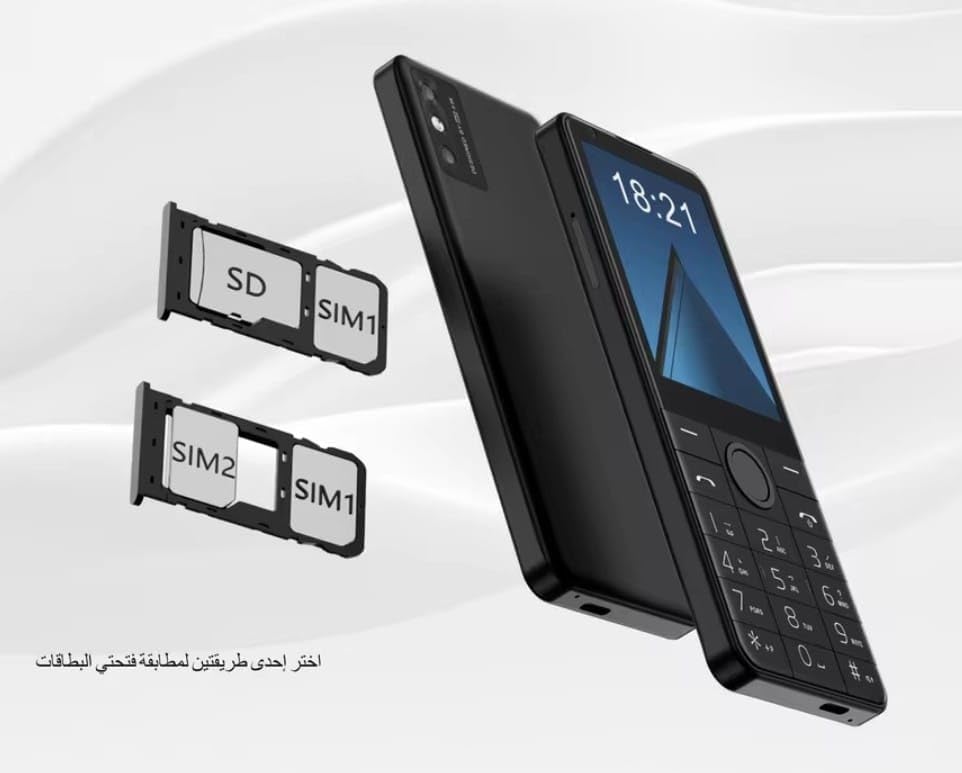
The image shows two card trays. One tray accommodates a SIM1 card and an SD card. The second tray accommodates a SIM1 card and a SIM2 card. The device supports flexible configurations for dual SIM or single SIM with expandable storage.
- Locate the SIM card tray slot on the side of your phone.
- Insert the SIM ejector pin into the small hole next to the tray and press gently until the tray pops out.
- Carefully pull out the tray.
- Place your Nano-SIM card(s) and/or microSD card into the designated slots on the tray. Ensure the gold contacts face downwards.
- Gently push the tray back into the slot until it is flush with the phone's body.
1.3. Charging the Battery
Before first use, fully charge the device battery.
- Connect the Type-C cable to the charging port on your phone.
- Connect the other end of the cable to a compatible USB power adapter (not included) or a computer's USB port.
- The charging indicator on the screen will show the charging status.
1.4. Powering On/Off
To power on, press and hold the Power button until the screen lights up. To power off, press and hold the Power button, then select "Power off" from the options on the screen.
2. Basic Operation
2.1. Screen and Navigation
The Uniwa Doov R17 Pro features a 3.54-inch touch screen and a physical keypad for navigation and input.
- Touch Screen: Tap to select, swipe to scroll, pinch to zoom.
- Physical Keypad: Use the directional keys for menu navigation and the numeric keys for dialing and text input.
- Home Button: Returns to the home screen.
- Back Button: Returns to the previous screen.
2.2. Making and Receiving Calls
To make a call, open the Phone application, dial the number using the keypad, and press the call button. To answer an incoming call, swipe the answer icon on the screen or press the designated call button.
2.3. Sending Messages
Open the Messaging application, select "New Message," enter the recipient's number or select from contacts, type your message using the keypad or on-screen keyboard, and send.
2.4. Connecting to Networks
Your device supports 4G LTE, Wi-Fi, and Bluetooth connectivity.
Wi-Fi Connection:
- Go to Settings > Network & internet > Wi-Fi.
- Turn on Wi-Fi.
- Select your desired network and enter the password if prompted.
Bluetooth Connection:
- Go to Settings > Connected devices > Bluetooth.
- Turn on Bluetooth.
- Select a device from the list to pair.
3. Device Maintenance
3.1. Cleaning Your Device
Use a soft, lint-free cloth to clean the screen and body of the phone. Avoid using harsh chemicals or abrasive materials that could damage the device.
3.2. Battery Care
To prolong battery life, avoid exposing the device to extreme temperatures (hot or cold). Do not leave the device charging for extended periods after it is fully charged.
3.3. Software Updates
Periodically check for software updates in Settings > System > System update to ensure your device has the latest features and security patches. It is recommended to perform updates over a Wi-Fi connection.
4. Troubleshooting Common Issues
- Device not turning on: Ensure the battery is charged. Press and hold the Power button for at least 10 seconds.
- No network signal: Check if SIM cards are correctly inserted. Verify network settings in Settings > Network & internet.
- Apps crashing: Try restarting the app or the phone. Clear app cache in Settings > Apps.
- Slow performance: Close unnecessary background apps. Free up storage space by deleting unused files or apps.
- Touch screen unresponsive: Restart the device. If the issue persists, contact support.
5. Product Specifications
The Uniwa Doov R17 Pro Smartphone offers the following technical specifications:

This image highlights key features: Android 13 System, 3.54 Inch Touch Screen, Support WiFi & BT, Support 4G Video Calling, 2300mAh Battery, and support for customization of keyboards for Russian, English, Arabic, and Hebrew. It also notes that the device is 'Not working in USA'.
| Feature | Detail |
|---|---|
| Model Name | Doov R17 Pro |
| Brand | Uniwa (Generic) |
| Operating System | Android 13.0 |
| Screen Size | 3.54 Inches |
| Resolution | 854 x 480 |
| Installed RAM Memory | 4 GB |
| Memory Storage Capacity | 64 GB ROM (Internal) |
| CPU Model | MediaTek MT8125 |
| CPU Speed | 3.4 GHz |
| Wireless Carrier | Unlocked for All Carriers |
| Product Dimensions | 14.3 x 6 x 1 cm; 122 g |
| Battery Capacity | 2300mAh |
| Connectivity | 4G LTE, Wi-Fi, Bluetooth |
6. Warranty and Support
6.1. Product Warranty
Your Uniwa Doov R17 Pro Smartphone is covered by a standard manufacturer's warranty. Please refer to the warranty card included in your package for specific terms and conditions, or contact your retailer for details.
Extended warranty and accidental damage protection plans may be available for purchase separately. Examples include 1-Year Extended Warranty Plan, 2-Years Extended Warranty Plan, and 1-Year Accidental Damage Protection Plan.
6.2. Customer Support
For technical assistance or support, please contact your point of purchase or visit the official Uniwa support website (if available). Keep your purchase receipt and product serial number handy when seeking support.
