Hantan Mini Wireless CarPlay & Android Auto Adapter
Model: HA006-1
1. Introduction
This manual provides detailed instructions for the Hantan Mini Wireless CarPlay & Android Auto Adapter, Model HA006-1. This device converts your vehicle's wired CarPlay or Android Auto system into a wireless connection, offering enhanced convenience and a clutter-free driving experience.
2. Safety Information
Always prioritize safety while driving. Do not attempt to set up or troubleshoot the adapter while the vehicle is in motion. Ensure all connections are secure to prevent distractions. Keep the device away from extreme temperatures and moisture.
3. Package Contents
- Hantan Mini Wireless CarPlay & Android Auto Adapter (HA006-1)
- USB-A to USB-C Adapter
- User Manual
4. Setup Guide
4.1 Pre-Installation Checklist
- Confirm your vehicle is equipped with original factory wired CarPlay or Android Auto.
- Ensure your iPhone is running iOS 10 or above, or your Android phone is running Android 11 or above.
- Turn on Wi-Fi and Bluetooth on your smartphone and ensure they are not connected to other devices before starting the setup.

Image: Compatibility overview for the Hantan Wireless Adapter, showing supported car models and phone OS versions (iOS 10+, Android 11+).
4.2 Connecting the Adapter
- Step 1: Plug into your car. Insert the Hantan adapter into the USB port of your vehicle that supports wired CarPlay or Android Auto. Use the provided USB-A to USB-C adapter if your car has a USB-C port.
- Step 2: Bluetooth Pairing. On your smartphone, open Bluetooth settings and search for available devices. Select the device name (e.g., "Smart Box-xxxx") to connect and pair. Ensure your phone's Wi-Fi is also enabled but not connected to another network.
- Step 3: Connected Successfully. Once paired, your car's infotainment system should automatically display the CarPlay or Android Auto interface.

Image: Visual guide illustrating the three-step plug-and-play setup process for the wireless adapter.

Image: The compact size of the Hantan adapter, compared to a US quarter, highlighting its stable connection design.
4.3 Automatic Connection
After the initial successful pairing, the adapter will automatically reconnect to your smartphone each time you start your car, provided both Wi-Fi and Bluetooth are enabled on your phone.

Image: Depiction of the automatic wireless connection feature, where the adapter connects to the phone upon entering the car.
5. Operating Instructions
5.1 Core Functions
The Hantan adapter enables wireless access to all standard CarPlay and Android Auto functions, including:
- Navigation: Use your preferred mapping applications for directions.
- Music & Audio: Stream music, podcasts, and audiobooks from your phone.
- Calls & Messaging: Make and receive calls, and send/receive messages hands-free.
- Voice Assistants: Utilize Siri or Google Assistant for voice commands.
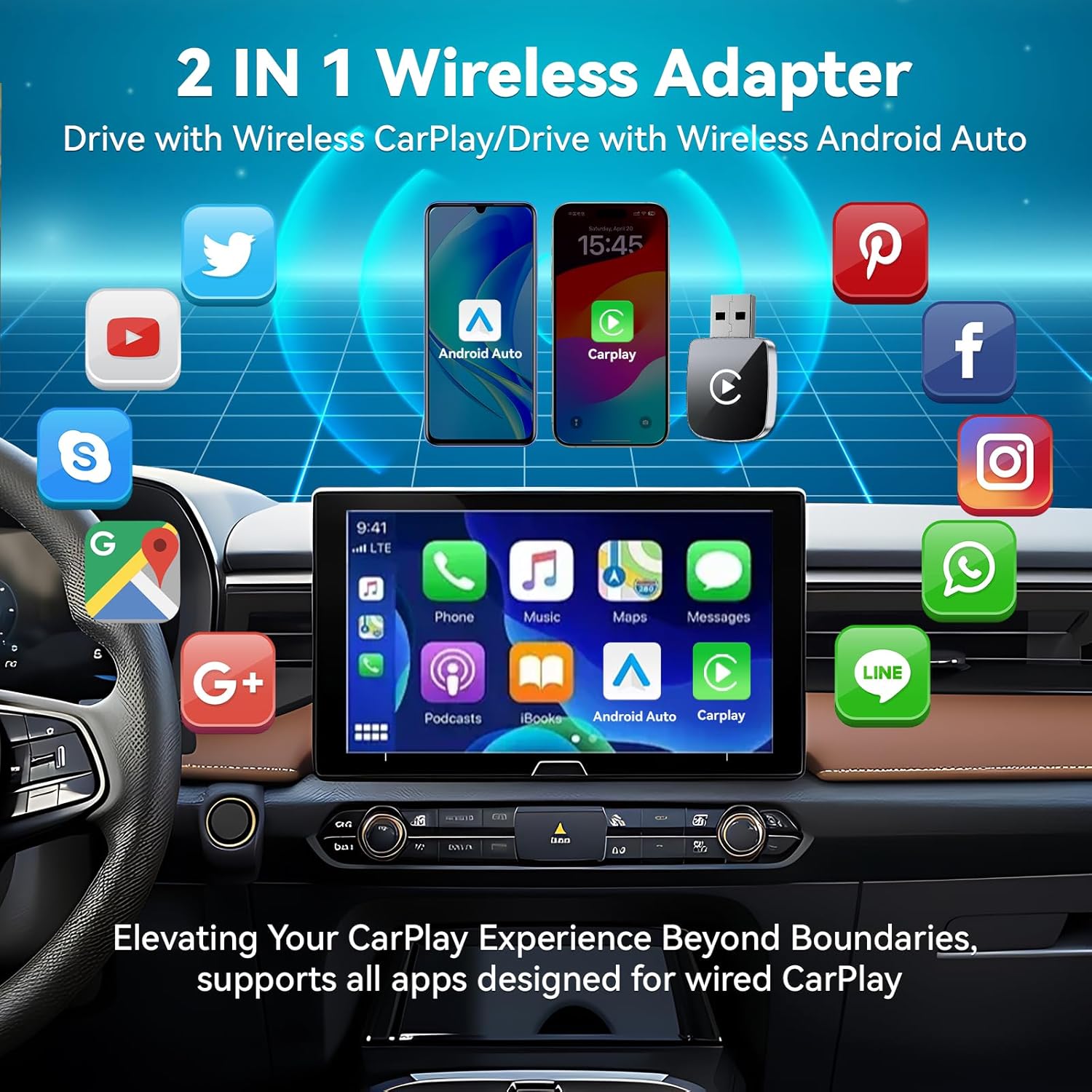
Image: The car's display showcasing the range of applications available through the 2-in-1 wireless adapter for both CarPlay and Android Auto.
5.2 Control Methods
Maintain full control over your car's features through the existing interface:
- Touchscreen: Interact directly with the car's display.
- OEM Control Knob: Use your vehicle's original control knob.
- Steering Wheel Controls: Access functions via your steering wheel buttons.
- Voice Assistants: Activate Siri or Google Assistant for hands-free operation.
Video: Demonstrates the various control methods for the wireless CarPlay adapter, including touchscreen, OEM control knob, steering wheel controls, and voice assistants like Siri.
6. Maintenance
6.1 Heat Dissipation
The adapter features metal edges designed to improve heat dissipation, preventing overheating during prolonged use and protecting your car's USB port. Ensure the adapter is not obstructed to allow for proper airflow.
6.2 Durability and Care
The adapter is built for durability, tested for over 10,000 insertions to ensure a secure fit and prevent wobbling in the USB port. Keep the device clean and free from dust and debris. Use a soft, dry cloth for cleaning.
7. Troubleshooting
7.1 Connection Issues
- No Connection: Verify that your vehicle has original factory wired CarPlay or Android Auto. Ensure your phone's Wi-Fi and Bluetooth are turned on and not connected to other devices.
- Intermittent Connection: Check for any physical obstructions around the adapter. Ensure your phone is within close proximity to the adapter.
- Lag or Delay: The adapter is designed for zero daily usage delay. If you experience lag, ensure your phone's operating system is up to date and restart both your phone and the car's infotainment system.
7.2 Incompatibility
While compatible with 98% of models equipped with original factory CarPlay, some vehicles may have specific requirements. If you encounter incompatibility, please refer to the QR code in the product images or contact customer support for a compatibility check. Returns are accepted in case of incompatibility.
8. Specifications
| Product Dimensions | 0.91 x 0.39 x 1.18 inches |
| Item Weight | 1.44 ounces |
| Model Number | HA006-1 |
| Compatible Devices | Vehicles with factory wired CarPlay & Android Auto, iPhone 6/iOS 10+, Android 11+ |
| Connector Type | USB-A, USB Type-C (with included adapter) |
| Color | Black |
| Wireless Technology | 5.8 GHz WiFi, Bluetooth 5.3 |

Image: Close-up of the adapter's internal components, emphasizing the 5.8GHz WiFi and Bluetooth 5.3 technology for stable connection.
9. Warranty and Support
The Hantan Mini Wireless CarPlay & Android Auto Adapter comes with a 1-year warranty. Our professional service team is available to assist you with any questions or issues. For support, please contact us through the retailer's platform or visit our official website.
