
GMKtec JP Nucbox G10
GMKtec G10 Mini PC User Manual
Model: JP Nucbox G10
1. Introduction
This manual provides detailed instructions for setting up, operating, maintaining, and troubleshooting your GMKtec G10 Mini PC. Please read this manual thoroughly before using your device to ensure optimal performance and longevity.
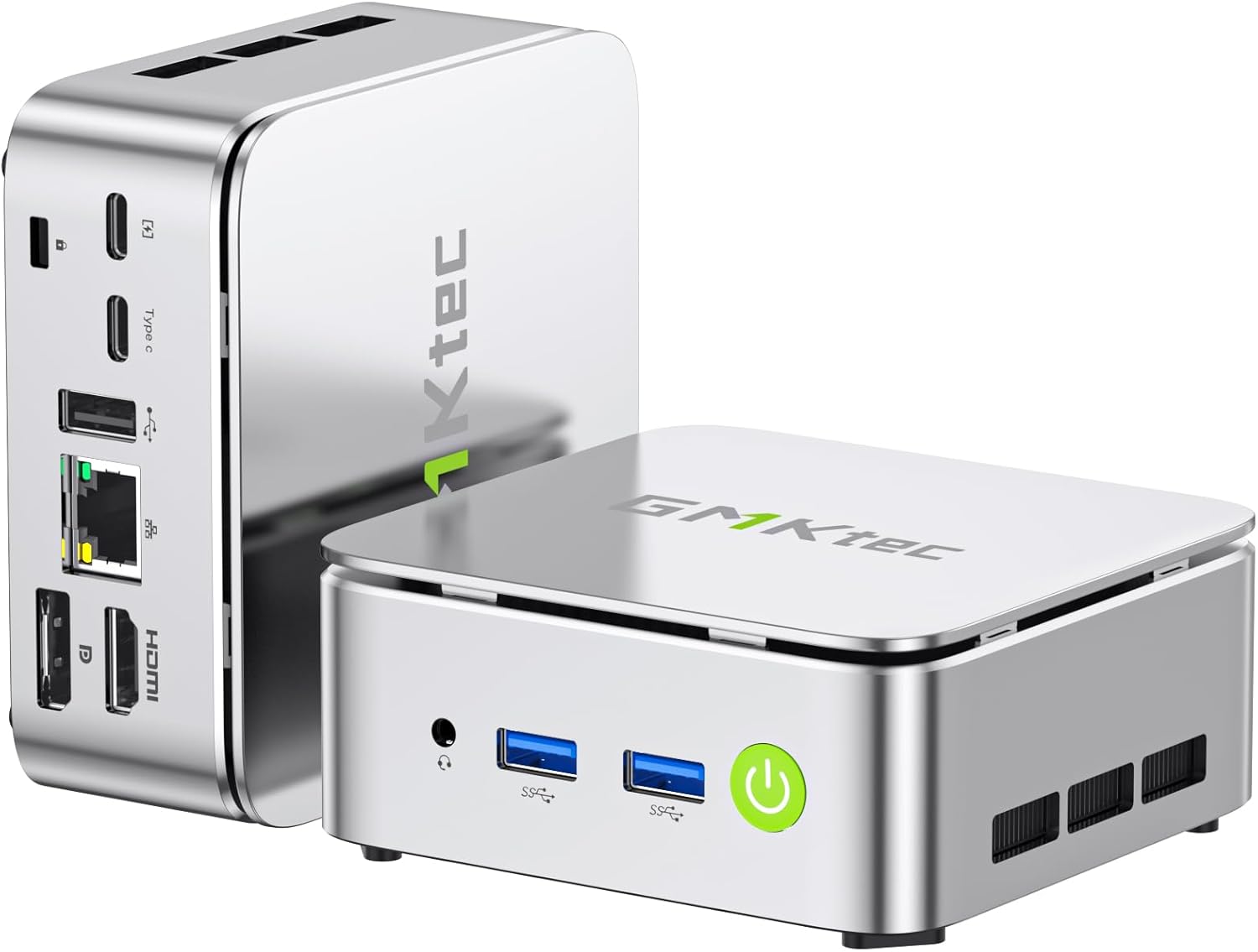
Image: Front and rear view of the GMKtec G10 Mini PC, highlighting its compact design and various ports.
2. Product Overview
The GMKtec G10 Mini PC is a compact and powerful computing solution designed for various tasks, from everyday office work to multimedia entertainment. It features an AMD Ryzen 5 3500U processor, ample memory, and flexible storage options.
2.1 Key Features
- High-Performance AMD Ryzen 5 3500U: Equipped with a 4-core, 8-thread processor with a max boost clock of 3.7GHz, offering robust performance for multitasking and light editing.
- Triple Display Output: Supports up to three simultaneous 4K displays via HDMI 2.1, DisplayPort 1.4, and USB-C (DP Alt Mode).
- Expandable Storage: Includes a 256GB NVMe SSD and supports expansion up to 16TB (8TB x 2) via additional M.2 slots.
- Ample Memory: Comes with 16GB DDR4 RAM (8GB x 2) and is expandable up to 64GB across two SO-DIMM slots.
- High-Speed Connectivity: Features 2.5G wired LAN, Wi-Fi 5, and Bluetooth 5.0 for stable and fast network connections.
- Compact & Quiet Design: Palm-sized form factor with an efficient, silent cooling fan, ideal for space-constrained or quiet environments.
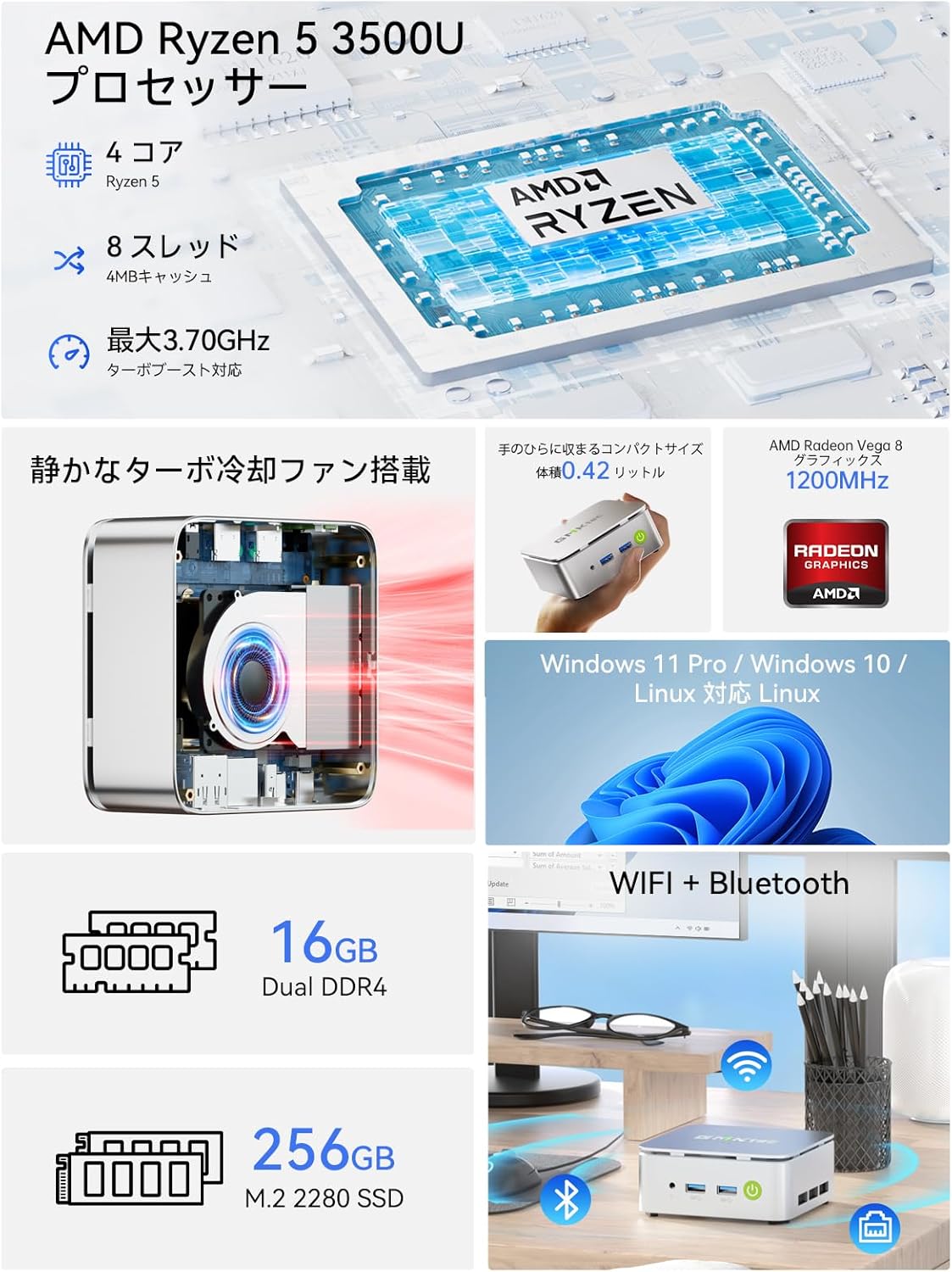
Image: An overview of the GMKtec G10 Mini PC's main features, including its AMD Ryzen 5 3500U processor, 16GB DDR4 RAM, 256GB SSD, compact size, quiet turbo cooling fan, and support for Windows 11 Pro/Windows 10/Linux.
2.2 Processor and Graphics
The GMKtec G10 is powered by an AMD Ryzen 5 3500U processor, featuring 4 cores and 8 threads, with a maximum boost clock of 3.7GHz. It integrates Radeon Vega 8 Graphics, providing capable performance for daily tasks and multimedia.

Image: A close-up of the AMD Ryzen 5 3500U processor, detailing its core count, thread count, cache size, and maximum clock speed.
2.3 Ports and Connectivity
The Mini PC offers a comprehensive set of ports for connecting various peripherals and displays:
- Front Ports: 3.5mm Audio Jack, USB 3.2 Gen1 x 2, Power Button.
- Rear Ports: Kensington Lock, Type-C (PD dedicated), USB 2.0 x 1, Type-C (DP / Data / PD compatible), 2.5G Gigabit LAN (RJ45) x 1, HDMI 2.1 (4K@60Hz), DisplayPort 1.4 (4K@60Hz).
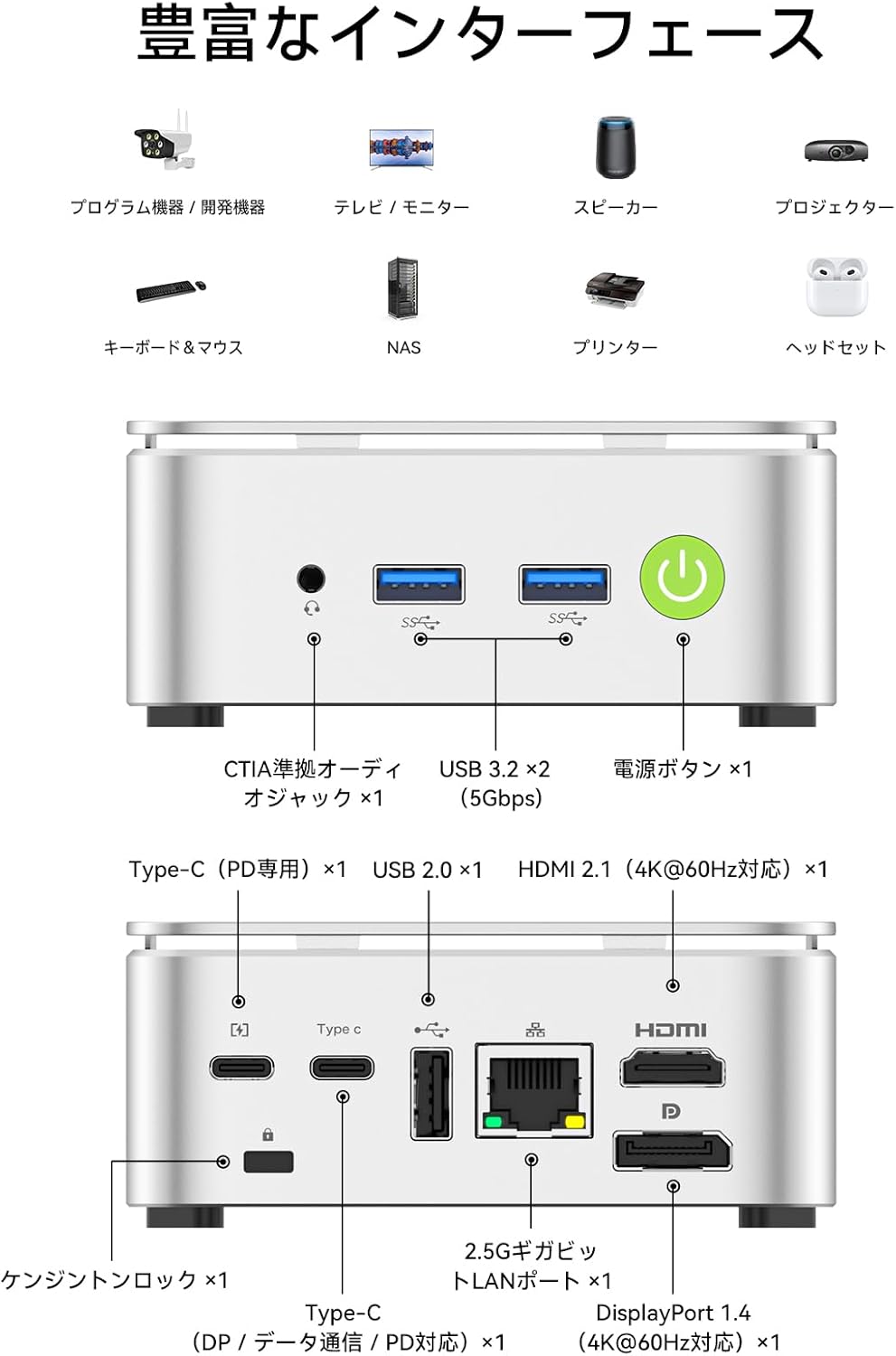
Image: A visual guide to the front and rear ports of the GMKtec G10 Mini PC, including USB, audio, power, HDMI, DisplayPort, Type-C, and LAN connections.
2.4 Memory and Storage
The GMKtec G10 comes with 16GB of DDR4 RAM (8GB x 2) and a 256GB NVMe SSD. Both memory and storage are expandable to meet future needs.
- Memory: Two SO-DIMM slots support up to 64GB DDR4 RAM.
- Storage: Two M.2 2280 slots support up to 16TB (8TB x 2) of storage.

Image: An exploded view illustrating the dual-channel DDR4 memory and M.2 2280 SSD slots, highlighting the upgrade potential for RAM up to 64GB and storage up to 16TB.
3. Setup Guide
3.1 Unboxing and Package Contents
Carefully unbox your GMKtec G10 Mini PC. The package should contain the following items:
- Nucbox G10 Mini PC
- Power Adapter & Cable
- HDMI Cable
- VESA Mount & Screws
- User Manual (this document)

Image: The complete package contents of the GMKtec G10 Mini PC, laid out for easy identification.
3.2 Initial Power-On and Connections
To set up your Mini PC for the first time:
- Connect the power adapter to the DC-in port on the Mini PC and plug it into a power outlet.
- Connect your monitor(s) to the HDMI, DisplayPort, or Type-C video output ports.
- Connect your keyboard and mouse to the available USB ports.
- Press the power button on the front of the Mini PC to turn it on.
Watch this video for a visual guide on initial setup and connections:
Video: An overview of the GMKtec G10 Mini PC, demonstrating its compact size, various ports, and ease of connection to a display for initial use.
3.3 VESA Mount Installation
The GMKtec G10 supports VESA mounting, allowing you to attach it to the back of a compatible monitor for a clutter-free workspace.
- Attach the VESA mount bracket to the back of your monitor using the provided screws.
- Secure the Mini PC to the VESA mount.
For a visual demonstration of VESA mount installation, refer to this video (note: this video features a similar model, but the VESA mounting process is generally the same):
Video: Demonstration of VESA mount installation for a mini PC. The process shown is applicable to the GMKtec G10 for mounting behind a monitor.
4. Operating Instructions
4.1 Power On/Off
- Power On: Press the power button on the front of the device.
- Power Off: Use the operating system's shutdown function. Alternatively, press and hold the power button for 5 seconds to force a shutdown (use only when necessary).
4.2 Multi-Display Setup
The GMKtec G10 supports connecting up to three displays simultaneously, enhancing productivity for work and entertainment.

Image: A workstation setup showcasing the GMKtec G10 Mini PC driving two large monitors and a tablet, illustrating its triple HD output capability for enhanced productivity.
4.3 Network Connectivity
- Wired LAN: Connect an Ethernet cable to the 2.5G Gigabit LAN port for high-speed internet access.
- Wi-Fi: The device supports Wi-Fi 5. Configure your wireless network settings through the operating system.
- Bluetooth: Bluetooth 5.0 is supported for connecting wireless peripherals like keyboards, mice, and headphones.
5. Maintenance
5.1 Cleaning
Regularly clean the exterior of the Mini PC with a soft, dry cloth. Ensure ventilation grilles are free from dust to maintain optimal cooling performance.
5.2 Component Upgrades (RAM & SSD)
The GMKtec G10 allows for upgrades to its RAM and M.2 SSD. Always ensure the device is powered off and unplugged before performing any internal modifications.
For a visual guide on upgrading RAM and SSD, please refer to this video (note: this video features a similar model, but the general procedure for installing RAM and M.2 SSDs is comparable):
Video: A tutorial demonstrating the process of expanding DDR memory and replacing an SSD in a mini PC. This guide can be used as a reference for upgrading the GMKtec G10.
5.3 Cooling System
The Mini PC features a silent cooling fan designed to maintain optimal operating temperatures while minimizing noise.

Image: A graph comparing the noise level of the G10 Mini PC (35dB) to other environments, highlighting its quiet operation, alongside a user working in a quiet room.

Image: An internal diagram of the GMKtec G10's high-efficiency cooling system, showing the airflow and heat sink design.
6. Troubleshooting
6.1 No Display Output
- Ensure all display cables (HDMI, DP, Type-C) are securely connected to both the Mini PC and the monitor.
- Verify the monitor is powered on and set to the correct input source.
- Try connecting to a different display port or using a different cable.
6.2 Wi-Fi Connectivity Issues
- Check if Wi-Fi is enabled in the operating system settings.
- Ensure the Mini PC is within range of your wireless router.
- Restart your wireless router and the Mini PC.
- Update Wi-Fi drivers if available.
6.3 System Unresponsive
- If the system becomes unresponsive, press and hold the power button for 5 seconds to force a shutdown. Wait a few moments, then power it back on.
- Ensure adequate ventilation to prevent overheating.
6.4 External Graphics Card Connection
If you are connecting an external graphics card via Oculink, ensure the Mini PC is powered off before connecting or disconnecting the external GPU. Hot-plugging Oculink is not supported and may damage the motherboard.
For a demonstration of connecting an external graphics card, refer to this video (note: this video features a similar model, but the connection method is relevant):
Video: A guide on how to connect an AD-GP1 external graphics board to a GMKtec M7 Mini PC. This demonstrates the Oculink connection process, which is similar for the G10.
7. Specifications
| Feature | Specification |
|---|---|
| Brand | GMKtec |
| Model Series | JP Nucbox G10 |
| Product Dimensions | 9.8 x 10.3 x 4.2 cm; 284 g |
| Color | White |
| CPU Brand | AMD |
| CPU Type | Ryzen 5 3500U |
| CPU Speed | 3.7 GHz |
| Processor Count | 4 |
| RAM Memory Type | DDR4, SO-DIMM x 2 |
| Max Memory Capacity | 64 GB |
| Memory Clock Speed | 2400 MHz |
| Hard Drive Capacity | 256 GB |
| Hard Drive Type | SSD |
| Hard Drive Interface | PCIe x 4 |
| Graphics Accelerator | Radeon Vega 8 Graphic |
| GPU Brand | AMD |
| Graphics Card Type | Integrated |
| VRAM Type | SODIMM |
| VRAM Capacity | 16 GB |
| Connectivity | Bluetooth, Wi-Fi 5, 2.5G LAN |
| USB 2.0 Ports | 1 |
| USB 3.0 Ports | 2 |
| HDMI Ports | 1 |
| Optical Drive Type | None |
| Operating System | Windows 11 Pro / Linux |
| Included Battery | Yes |
| Lithium Battery Energy Content | 5 Watt Hours |
| Lithium Battery Packaging | Battery contained in equipment |
| Lithium Battery Weight | 0.7 Grams |
| Lithium Ion Battery Count | 1 |
| Product Use | Gaming, Business, Multimedia |
| Personal Computer Design Type | Mini PC |
| Installed RAM Memory Size | 16 GB |
8. Warranty and Support
For warranty information and technical support, please refer to the official GMKtec website or contact their customer service directly. Keep your purchase receipt as proof of purchase for warranty claims.
Related documentsJP Nucbox G10


Ask a question about this manual
Ask about setup, troubleshooting, compatibility, parts, safety, or missing instructions. Manuals+ will review the question and use this page’s manual context to help answer it.