
1. Introduction
The EPOMAKER Click Lite Wireless Gaming Mouse is designed for precision and versatility across multiple platforms. Featuring tri-mode connectivity, a high-precision PAW3311 sensor, and a lightweight ergonomic design, it offers an enhanced user experience for gaming and productivity.
2. Package Contents
- 1 x Click Lite Wireless Gaming Mouse
- 1 x 2.4GHz Dongle (stored inside the mouse)
- 1 x Detachable USB-A to USB-C Cable
- 1 x Multilingual User Manual
- Extra PTFE Stickers

3. Product Overview
Key Features
- Tri-Mode Connectivity: Supports 2.4GHz wireless, Bluetooth (BT1/BT2), and USB-C wired connections.
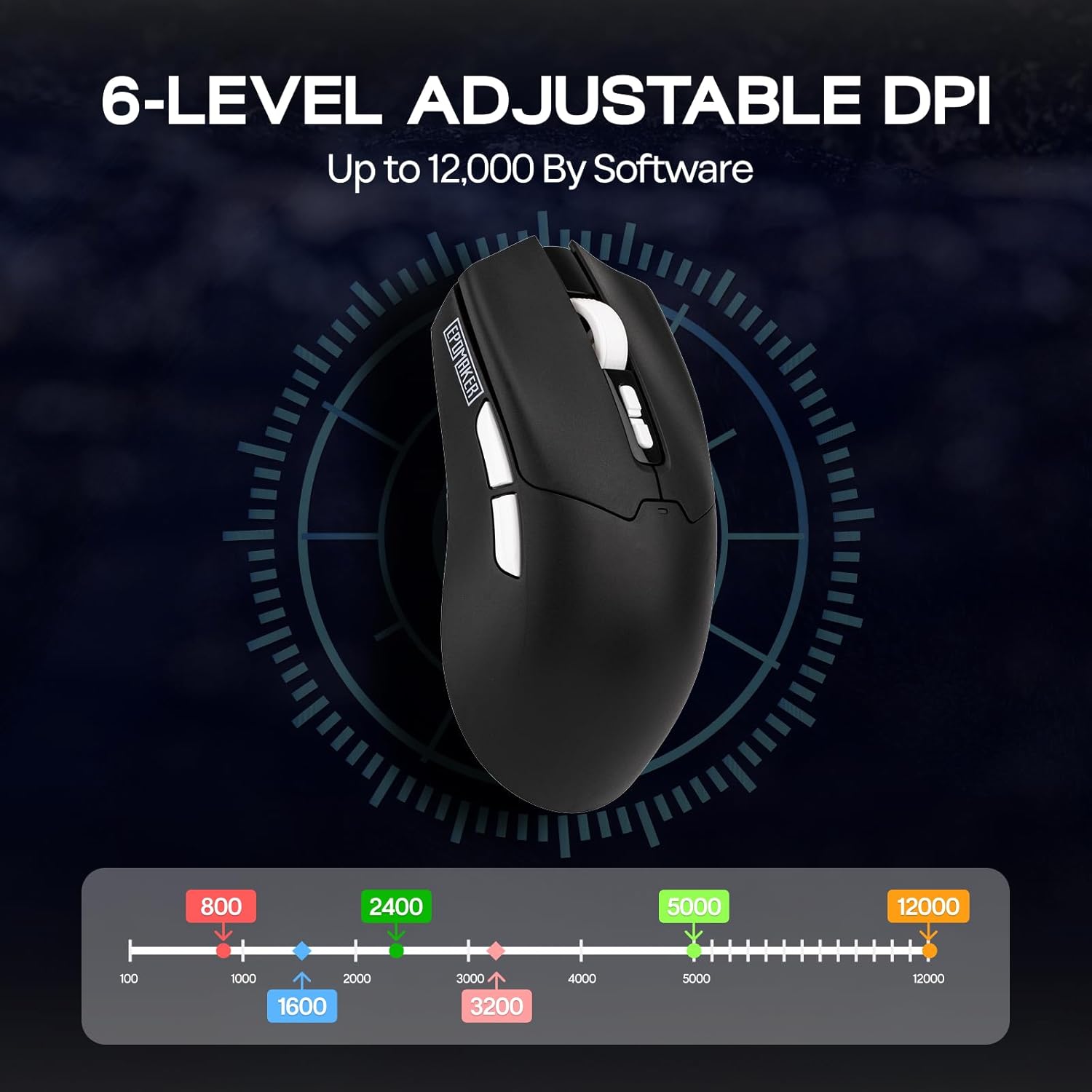
- High-Precision Sensor: Equipped with a PAW3311 sensor, offering adjustable DPI from 800 to 12,000.
- Programmable Buttons: Features 5 customizable buttons for personalized control.
- Long-Lasting Battery: Integrated 500mAh rechargeable battery provides up to 78 hours of continuous use.
- Ultra-Lightweight Design: Weighs only 59 grams for comfortable extended use.
- High Polling Rate: Stable 1000Hz polling rate with 1ms latency.
- Ergonomic Design: Shaped for natural fit and fatigue-free operation.

Buttons and Indicators
- Left/Right Click Buttons: Standard mouse buttons.
- Scroll Wheel: For scrolling and middle-click functionality.
- DPI Up/Down Buttons: Located near the scroll wheel for on-the-fly DPI adjustment.
- Side Buttons: Two programmable buttons on the left side.
- Connectivity Switch: Located on the bottom of the mouse to select 2.4G, BT1, BT2, or USB wired mode.
- Polling Rate Button: Located on the bottom of the mouse to cycle through polling rates.
- LED Indicator: Provides feedback on DPI, polling rate, and connectivity status.

4. Setup
Charging the Mouse
Connect the included USB-A to USB-C cable to the mouse's front USB-C port and to a power source (e.g., computer USB port, USB wall adapter). The LED indicator will show charging status.
Connectivity Modes
The Click Lite mouse supports three connection modes: 2.4GHz wireless, Bluetooth, and USB-C wired. Use the switch on the bottom of the mouse to select your desired mode.
- 2.4GHz Wireless Mode:
- Remove the 2.4GHz USB dongle from its storage slot on the bottom of the mouse.
- Plug the dongle into an available USB-A port on your computer.
- Slide the switch on the bottom of the mouse to the '2.4G' position. The mouse will automatically connect.
- Bluetooth Mode (BT1/BT2):
- Slide the switch on the bottom of the mouse to either 'BT1' or 'BT2' position.
- On your device, search for Bluetooth devices and select 'EPOMAKER Click Lite' to pair. The LED indicator will flash during pairing and become solid once connected.
- You can pair with two different Bluetooth devices using BT1 and BT2.
- USB-C Wired Mode:
- Connect the USB-A to USB-C cable from your computer to the mouse.
- The mouse will function as a wired mouse and charge simultaneously.
5. Operating Instructions
DPI Adjustment
The mouse features adjustable DPI settings from 800 to 12,000. Use the DPI Up/Down buttons located behind the scroll wheel to cycle through the preset DPI levels. The LED indicator will change color to reflect the current DPI setting.
Polling Rate Adjustment
The polling rate can be adjusted using the dedicated button on the bottom of the mouse. Cycle through available polling rates (e.g., 125Hz, 250Hz, 500Hz, 1000Hz) to match your preference and optimize responsiveness.
Battery Status
The mouse is equipped with a 500mAh rechargeable battery, offering up to 78 hours of continuous use on a full charge. The LED indicator will signal low battery status and charging progress.

6. Software Customization
Enhance your mouse functionality by downloading the official EPOMAKER Click Lite driver software from the EPOMAKER website. The software allows for advanced customization of buttons, DPI, and performance settings.
Key Settings
- Change Key Setting: Reassign functions to any of the 5 programmable buttons.
- Rapid-fire Key: Configure a button for rapid, repeated key presses.
- Combo Keys: Assign complex key combinations to a single button.
- Macro Settings: Create and assign custom macros for automated sequences.
- Functions: Access a library of predefined functions to assign to buttons.
- Disable Key: Deactivate specific buttons to prevent accidental presses.
DPI Settings
Fine-tune your mouse sensitivity by adjusting DPI levels. The software allows for precise control over DPI values and associated LED colors.
Performance Settings
- Move Correction: Enable or disable Straight Correction and Ripple Correction for smoother tracking.
- Sleep Settings: Adjust the 2.4G and Bluetooth standby times to conserve battery.
- Mouse Report Rate: Set the polling rate (125Hz, 250Hz, 500Hz, 1000Hz).
- Parameter Settings (Debounce): Adjust the debounce time for click registration.

7. Maintenance
- Cleaning: Use a soft, dry cloth to clean the mouse surface. For optical sensor, use a cotton swab lightly dampened with isopropyl alcohol.
- Storage: Store the mouse in a cool, dry place away from direct sunlight and extreme temperatures.
- Battery Care: Avoid fully discharging the battery frequently. Charge the mouse regularly to maintain battery health.
8. Troubleshooting
| Problem | Possible Solution |
|---|---|
| Mouse not responding in 2.4GHz mode | Ensure the 2.4GHz dongle is securely plugged into a USB port. Check if the mouse switch is set to '2.4G'. Try a different USB port. |
| Bluetooth connection issues | Ensure the mouse switch is set to 'BT1' or 'BT2'. Make sure Bluetooth is enabled on your device and the mouse is in pairing mode. Remove previous pairings and re-pair. |
| DPI not changing | Press the DPI Up/Down buttons firmly. If using custom software settings, ensure they are applied correctly. |
| Mouse cursor erratic or unresponsive | Clean the optical sensor on the bottom of the mouse. Ensure you are using the mouse on a suitable surface (not highly reflective or transparent). |
| Short battery life | Ensure the mouse is fully charged. Adjust sleep settings in the software to conserve power. |
9. Specifications
- Model: Click Lite
- Connectivity: 2.4GHz Wireless, Bluetooth, USB-C Wired
- Sensor: PAW3311 Optical Sensor
- DPI: 800-12,000 (Adjustable)
- Polling Rate: 125Hz, 250Hz, 500Hz, 1000Hz
- Buttons: 5 Programmable Buttons
- Battery: 500mAh Rechargeable
- Battery Life: Up to 78 hours (continuous use)
- Weight: Approximately 59g
- Dimensions: 4.76 x 2.5 x 0.04 inches
- Acceleration: 35G
- Tracking Speed: 300 IPS
- Compatibility: PC, Mac, Linux
10. Warranty and Support
EPOMAKER products come with a standard manufacturer's warranty. For detailed warranty information, technical support, or service inquiries, please visit the official EPOMAKER website or contact their customer support team. Keep your purchase receipt for warranty claims.

