
1. Introduction
The ZOSI C680 is a 2K indoor plug-in WiFi security camera designed for versatile monitoring through glass surfaces. It features full-color night vision, AI-powered human and vehicle detection, dual-band 2.4/5GHz WiFi connectivity, 24/7 recording capabilities, and two-way audio communication. This manual provides detailed instructions for setting up, operating, and maintaining your C680 camera.
This camera is suitable for various indoor glass scenarios, including home windows, apartment windows, pet terrariums, storefront glass displays, office glass walls, and RVs. Its design minimizes glare and reflections, ensuring clear views even through glass.

Image 1.1: ZOSI C680 camera installed on a window, displaying its live feed on a smartphone.
2. What's in the Box
Verify that all components are present in your package:
- 1 x ZOSI C680 WiFi Camera
- 1 x Power Adapter
- 4 x Cable Clips
- 1 x Large Mounting Sticker
- 1 x Small Mounting Sticker
- 1 x Quick Start Guide

Image 2.1: All items included in the ZOSI C680 product package.
3. Setup and Installation
3.1 Camera Components
Familiarize yourself with the camera's physical components:
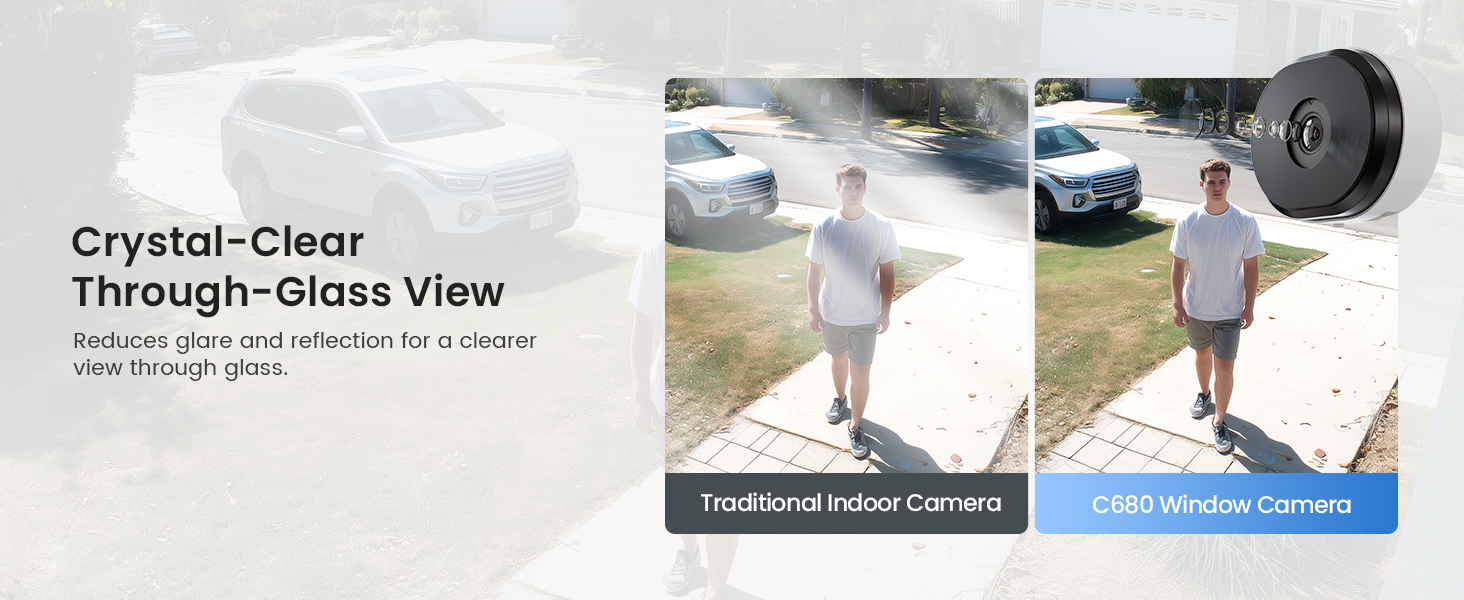
Image 3.1: Labeled diagram of the ZOSI C680 camera components and dimensions.
3.2 Mounting the Camera
The ZOSI C680 features a quick hook-and-loop mounting system for easy installation on glass surfaces without drilling.
- Clean the Surface: Ensure the glass surface where you intend to mount the camera is clean and dry.
- Prepare the Sticker: Peel off the protective film from the chosen mounting sticker (large or small, depending on your preference for glare reduction).
- Apply the Sticker: Firmly press the adhesive side of the sticker onto the clean glass surface.
- Attach the Camera: Align the camera with the sticker and attach it securely.
Tip: Position the camera and check the view through the ZOSI Smart App before permanently applying the sticker to ensure optimal placement.

Image 3.2: Step-by-step guide for mounting the camera using the peel-and-stick method.
3.3 Initial Setup and App Connection
Follow these steps to get your camera operational:
- Power On: Plug the camera into a power outlet using the provided power adapter.
- Download App: Download the ZOSI Smart App from your smartphone's app store (available on App Store and Google Play).
- Connect to WiFi: Open the ZOSI Smart App, register an account if you don't have one, and follow the in-app instructions to add your C680 camera. This will involve connecting the camera to your 2.4GHz or 5GHz WiFi network.
- Start Viewing: Once connected, you can access the live view from your camera anytime, anywhere through the app.
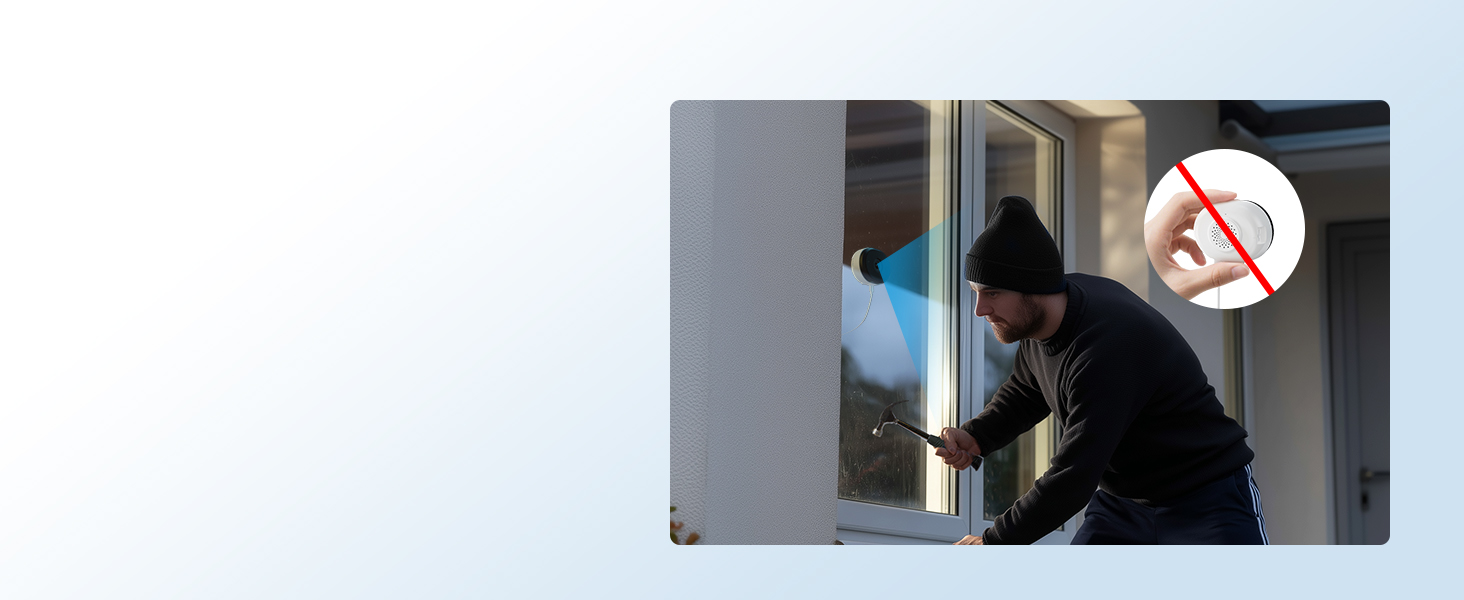
Image 3.3: Quick setup guide for the ZOSI C680 camera and ZOSI Smart App.
4. Operating Instructions
4.1 2K HD Video and Full-Color Night Vision
The C680 camera captures video in 2K resolution, providing clear and detailed images. It features an F1.0 large-aperture lens and advanced low-light technology for full-color night vision, even in dim environments. This offers superior visual evidence compared to traditional infrared black-and-white night vision.

Image 4.1: Comparison of night vision capabilities, highlighting the C680's full-color night vision.
4.2 AI Human and Vehicle Detection
The camera incorporates built-in AI to intelligently detect people and vehicles within customizable zones. When motion is detected, the camera sends instant push notifications to your smartphone. You can also define privacy zones to mask areas you do not wish to monitor.

Image 4.2: Illustration of AI-powered person and vehicle detection with real-time alerts.
4.3 Dual-Band WiFi Connectivity
The C680 supports both 2.4GHz and 5GHz WiFi bands, providing stable and fast connectivity. The 2.4GHz band offers wider coverage, while the 5GHz band provides faster speeds, allowing you to choose the best option for your network environment.

Image 4.3: Explanation of dual-band WiFi support for enhanced network connection.
4.4 Two-Way Talk
Utilize the built-in microphone and speaker for two-way audio communication. This feature allows you to listen in on the camera's surroundings and speak through the camera from your smartphone.
4.5 24/7 Recording
The camera supports continuous 24/7 recording, ensuring constant surveillance of your monitored area.
5. Recording and Storage Options
The ZOSI C680 offers flexible recording and storage solutions:
- Memory Card Storage: Supports local storage via a memory card (up to 256GB, not included).
- Cloud Storage: Secure cloud storage options are available, often with a free trial period.
- ZOSI NVR Systems: Seamless compatibility with ZOSI Network Video Recorder (NVR) systems for centralized and professional recording.
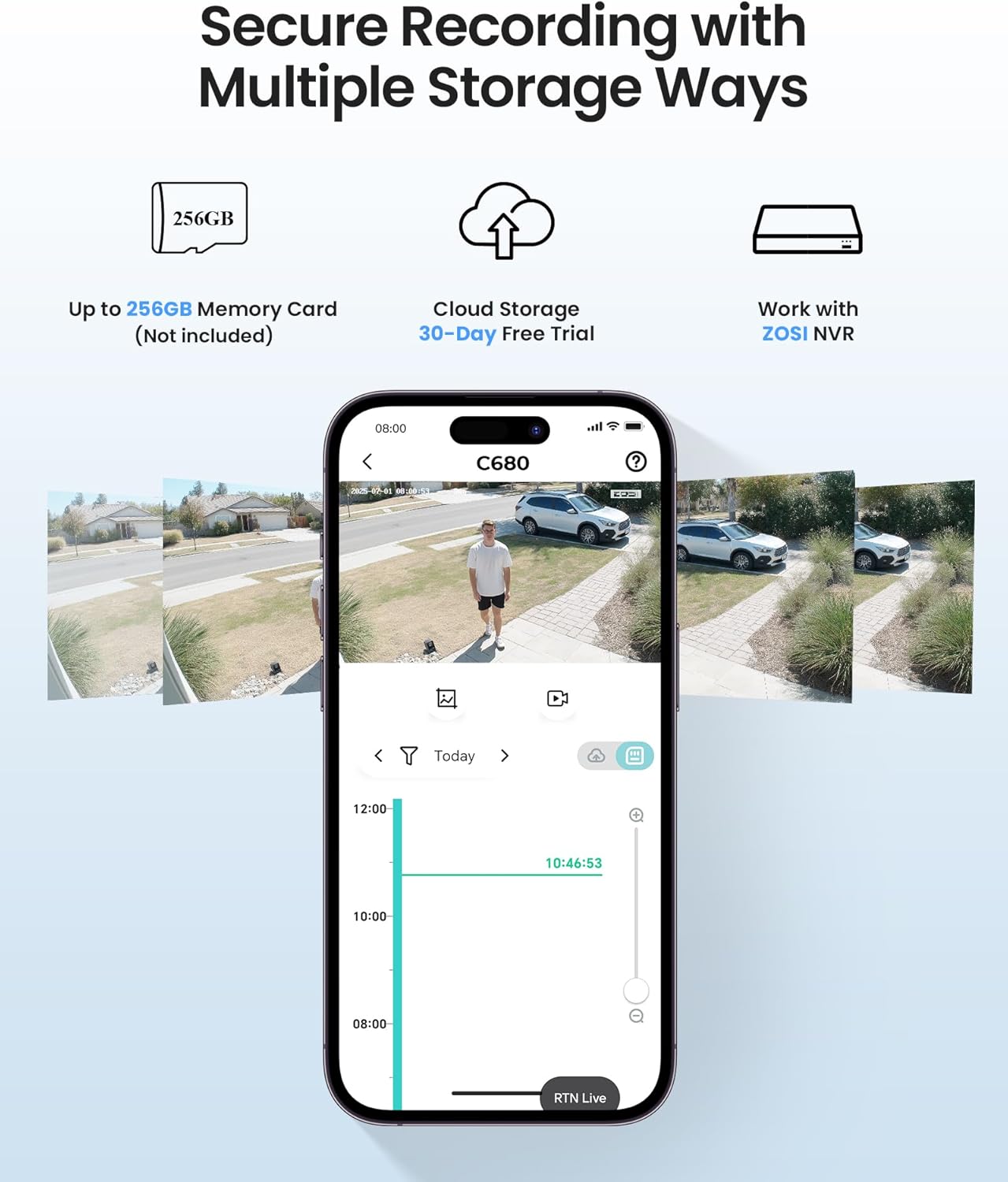
Image 5.1: Overview of secure recording options, including memory card, cloud, and NVR integration.
6. Maintenance
To ensure optimal performance and longevity of your ZOSI C680 camera, consider the following maintenance tips:
- Cleaning: Gently wipe the camera lens and body with a soft, dry cloth to remove dust or smudges. Avoid using harsh chemicals or abrasive materials.
- Firmware Updates: Regularly check the ZOSI Smart App for available firmware updates. Keeping your camera's firmware up-to-date ensures you have the latest features, security patches, and performance improvements.
- Power Supply: Ensure the camera is connected to a stable power source. Avoid frequent power interruptions.
- Environmental Conditions: While designed for indoor use, avoid placing the camera in areas with extreme temperatures, high humidity, or direct exposure to water.
7. Troubleshooting
If you encounter issues with your ZOSI C680 camera, refer to the following common troubleshooting steps:
- No Power: Ensure the power adapter is securely plugged into both the camera and a working electrical outlet. Try a different outlet if necessary.
- WiFi Connection Issues:
- Verify your WiFi network is operational and within range.
- Ensure you are connecting to the correct 2.4GHz or 5GHz network.
- Restart your router and the camera.
- If issues persist, try resetting the camera using the reset button (refer to Image 3.1 for location) and re-pairing it with the app.
- Poor Image Quality:
- Clean the camera lens.
- Ensure the camera is positioned correctly and the glass surface is clean.
- Check your internet connection speed; a slow connection can affect live stream quality.
- No Notifications:
- Check app settings to ensure notifications are enabled.
- Verify your smartphone's notification settings for the ZOSI Smart App.
- Ensure detection zones are properly configured in the app.
- Two-Way Talk Issues:
- Check microphone and speaker settings within the app.
- Ensure your phone's volume is up.
For further assistance, please contact ZOSI customer support.
8. Specifications
| Feature | Detail |
|---|---|
| Model Name | C680 (Item Model Number: 1NK-6803W-US) |
| Indoor/Outdoor Usage | Indoor |
| Video Capture Resolution | 2K |
| Connectivity Technology | Wi-Fi (2.4GHz/5GHz Dual-Band) |
| Power Source | Corded Electric |
| Mounting Type | Window Mount |
| Special Features | HD Resolution, Motion Sensor, Full-Color Night Vision, AI Human/Vehicle Detection, Two-Way Talk |
| Compatible Devices | Smartphone (via ZOSI Smart App) |
| Max Memory Card Support | 256GB (not included) |
| Product Dimensions | 3.4 x 3.1 x 3.2 inches |
| Item Weight | 7 ounces (0.2 Kilograms) |
9. Warranty and Support
9.1 Product Warranty
ZOSI provides a 2-Year Coverage for the C680 camera from the date of purchase. This warranty covers manufacturing defects and ensures the product functions as intended under normal use. Please retain your proof of purchase for warranty claims.
Additionally, ZOSI offers a 30-Day Hassle-Free Return Policy for eligible products.
9.2 Technical Support
ZOSI is committed to providing comprehensive after-sales support. We offer Lifetime Technical Support for our products.
For technical assistance, troubleshooting, or any inquiries regarding your ZOSI C680 camera, please visit the official ZOSI website or contact our customer support team through the ZOSI Smart App. Our support team is available to assist you with setup, operation, and any issues you may encounter.
You can find contact information and frequently asked questions on the ZOSI support page: www.zositech.com/support
